How the coach app is organised
A map of the coach app: what is in each menu section, what each Home dashboard widget counts and where to find everything, on desktop and on mobile.
This article is the map of the coach app. It tells you what sits behind each menu section, what each block on the Home dashboard means and where every setting lives, so you can find anything without going round in circles. If you are looking for something specific, jump to Where is…? at the end.
If it is your first day, start with Getting started as a coach instead and come back here whenever you need to get your bearings. And if you come across a word you don’t know (template, closed day, grace days…), it is in the glossary.
The sidebar menu (desktop)
On wide screens you have a fixed menu on the left. These are its sections, from top to bottom:
| Section | What you find | Learn more |
|---|---|---|
| Home | Your dashboard: today’s schedule, active injuries, unread messages, squad status, your athletes and the map | Further down |
| Athletes | The My athletes list, with search, status tabs, tags and the way into each athlete’s profile | The athletes list and the athlete profile |
| Resources | Your reusable library. When you open it, a submenu unfolds with Exercises, Sessions, Plans and Metrics | Inside Resources |
| Calendar | Your schedule: your own events and, if you connect it, your Google Calendar | Calendar and Google Calendar |
| Messages | The chat with each athlete. A number next to it tells you how many unread messages you have | Messages |
| Invitations | Inviting athletes by email, your coach code, your coaching team and the invitation history | Invite athletes and coaching team |
| Settings | Your account, brand, subscription, training yourself, appearance, grades, data export, security and account deletion | Coach settings |
| Help | Opens this help centre in a new tab | Where to find help |
At the very bottom are your photo, your name and your email. Clicking them takes you to Settings. If you have set up your brand, an Account block with your company name (or “Your brand”) appears above them, and it also leads to Settings.
You can collapse the menu to gain space with the button at the top (Collapse the menu). When it is collapsed you only see the icons, and it opens by itself while your mouse hovers over it. To keep it open again, click Keep the menu open.
Tip: Subscription is not in the sidebar. You will find it in Settings → Subscription, and also in the limit warnings and in the trial or payment banners, which carry a See plans button.
On mobile: the bottom bar and “More”
On a narrow screen (a phone, or a very small window), the sidebar is replaced by a fixed bar at the bottom with five tabs:
| Tab | Same as |
|---|---|
| Home | The dashboard |
| Athletes | The athletes list |
| Schedule | The desktop Calendar (it is the same thing, under another name) |
| Messages | The chat. It has a counter, which shows “9+” from ten upwards |
| More | Everything else |
Inside More you will find, in this order: Resources, Exercises, Sessions, Plans, Metrics, Invitations, Subscription, Settings and Help, and Log out at the end.
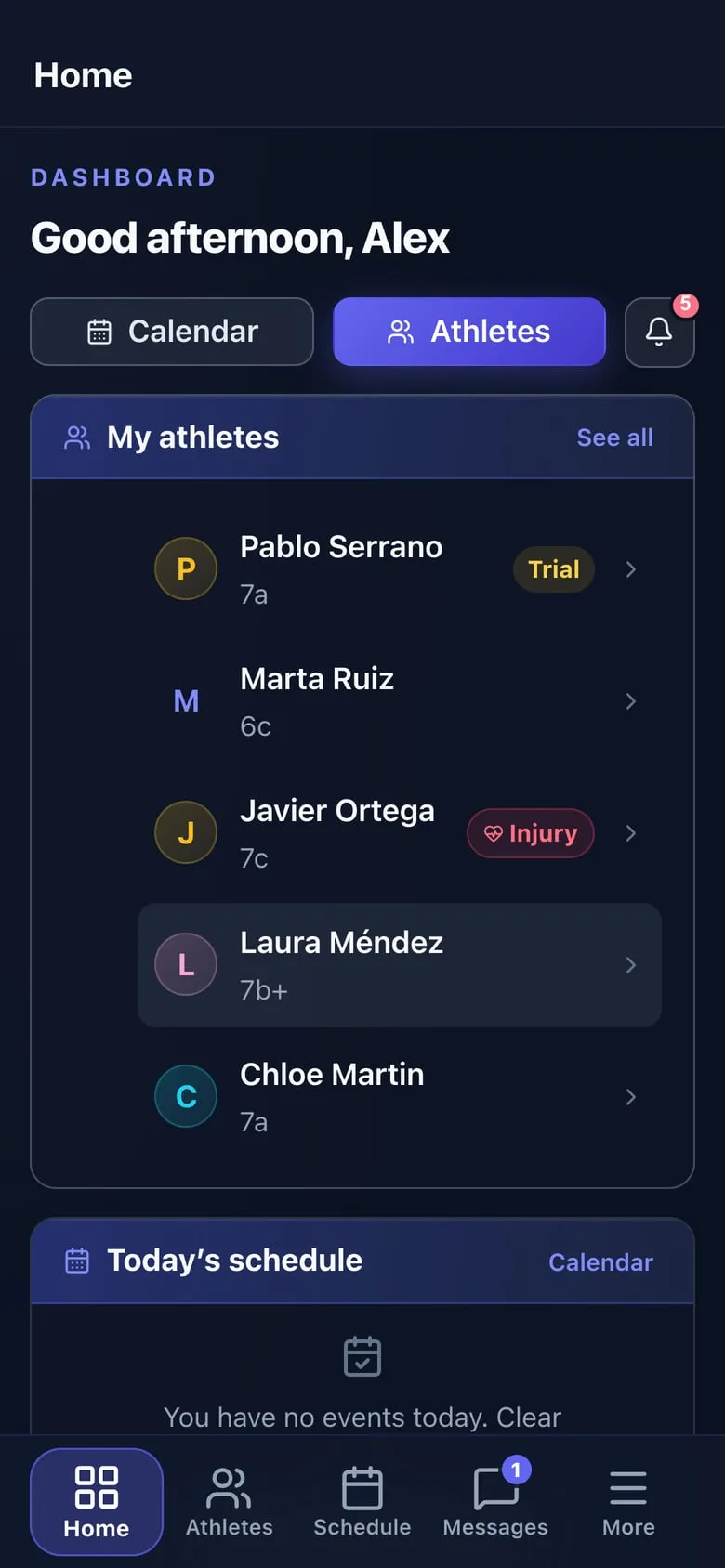
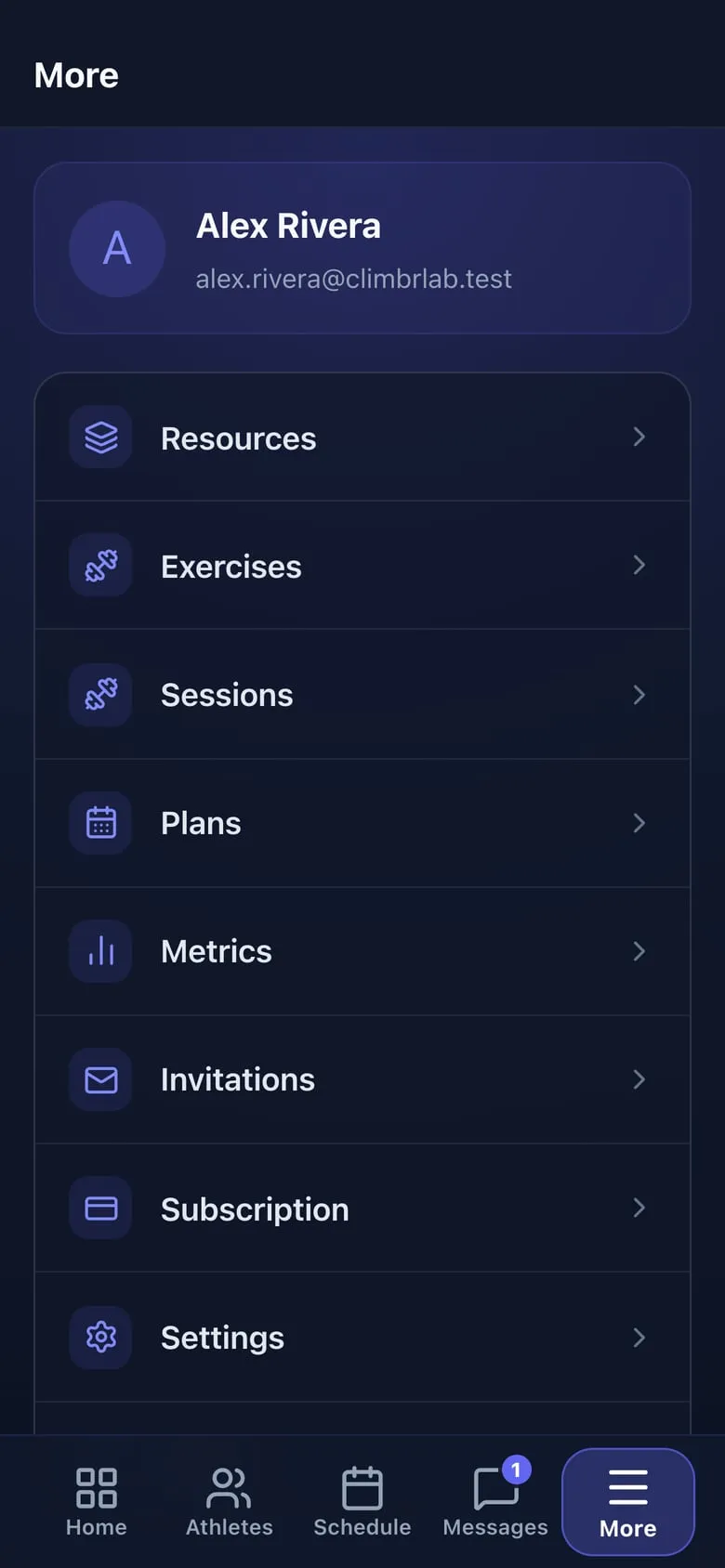
At the top of each screen you will see a bar with the title and an arrow to go back. The calendar’s month view turns into a list grouped by day, and messages become a list of chats that opens each conversation full screen.
In the native app (the one you download from the store) Subscription does not appear: prices are not shown there and you cannot pay. Your coach account is created and managed from the web. We explain it in Subscription and pricing.
Watch out: the planner works on mobile, but with one week per screen and without the side library. For building long plans, a computer is a lot more comfortable. The planner covers it.
The Home dashboard
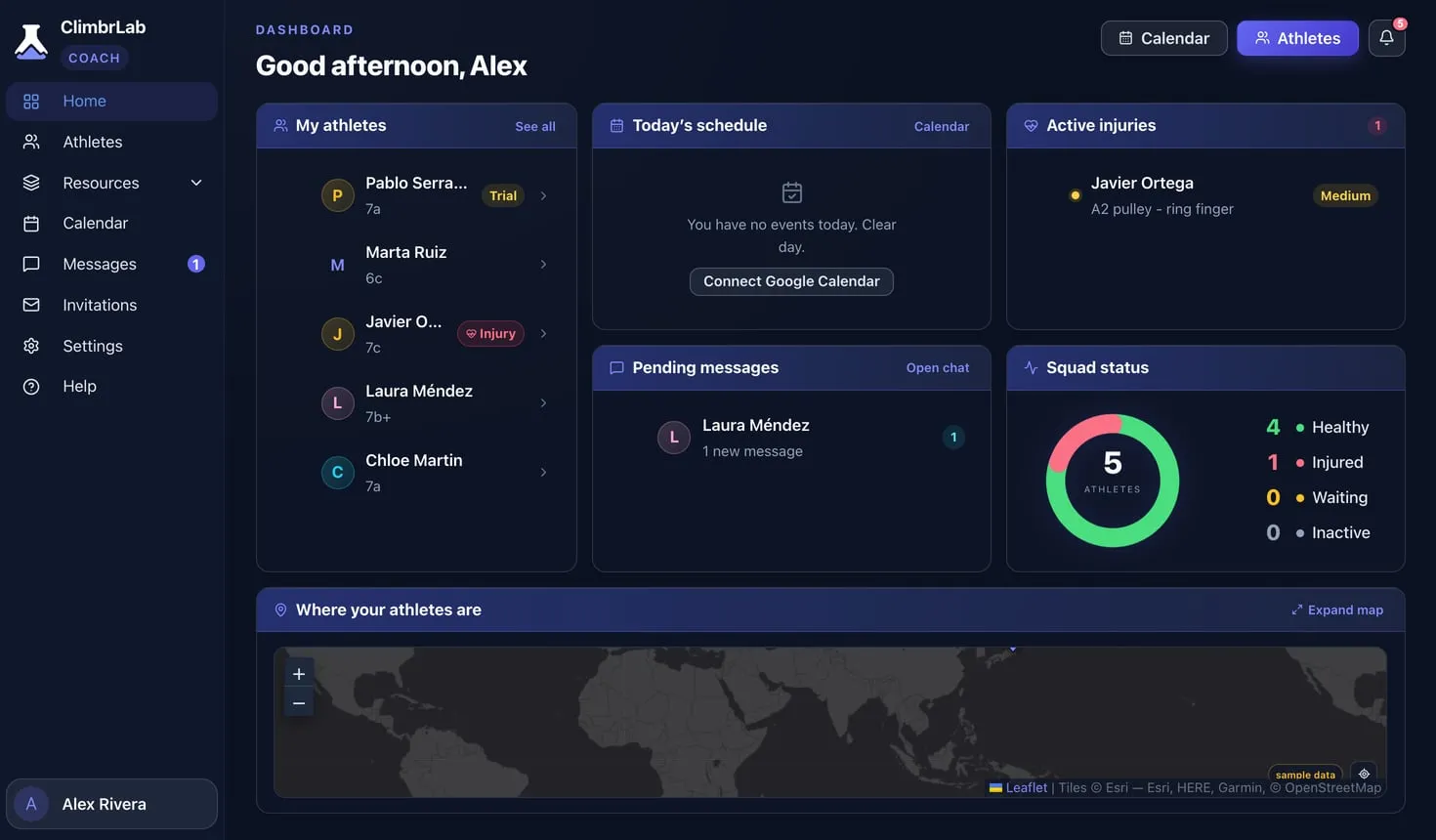
The dashboard answers one question: what needs my attention today? At the top there is a greeting (“Good morning”, “Good afternoon” or “Good evening”, depending on the time) and three buttons: Calendar, Athletes and the recent activity bell.
One rule applies to the whole dashboard: only your active squad counts. Archived athletes don’t appear, and neither does your own profile if you use the option to train yourself. And if you are a member of another account’s team (not the owner), you only see the athletes assigned to you.
Today’s schedule
Today’s events from your calendar, in time order: time, type, athlete and place. If you have Google Calendar connected, that day’s Google events are mixed in too.
If there is nothing you will see “You have no events today. Clear day.”. If you haven’t connected Google yet, the Connect Google Calendar button appears and takes you to the calendar. The Calendar link in the block header opens the full schedule.
Watch out: your athletes’ plan workouts don’t show up here. The schedule is only for your events (meetings, assessments, tasks…). What each athlete trains you see in their plan. More in Calendar and Google Calendar.
Active injuries
One row for each injury that is not Resolved, the most recent at the top: athlete, area and severity (“High”, “Medium” or “Low”). A number in the header tells you how many there are. Clicking a row opens that athlete’s Injuries tab.
If there are none: “No active injuries. Squad at 100%.”. More in Injuries.
Pending messages
The athletes who have written to you and whose messages you haven’t read yet, with “1 new message” or “{n} new messages”. It updates live. Open chat takes you to Messages. If everything is read: “You are up to date. No unread messages.”. More in Messages.
Squad status
A donut with the total number of athletes in the middle and four groups underneath. Each athlete counts in one group only, checked in this order: if they match the first, the rest are not looked at.
| Order | Colour | Group | Who goes in |
|---|---|---|---|
| 1 | Grey | Inactive | Athletes whose account is deactivated, for example because they asked to delete it |
| 2 | Pink | Injured | Athletes with at least one injury that is not Resolved |
| 3 | Amber | Waiting | Athletes who are not training: status Waiting or Paused |
| 4 | Green | Healthy | Everyone else: status Active or Trial, no active injuries and an active account |
Because of that order, a paused athlete who also has an injury counts as Injured, not as Waiting. Athlete statuses are explained in Pause, archive or release an athlete.
With no athletes, the block says “No athletes yet.”.
My athletes
The short list of your squad: photo, name and their top grade (sport; if they have none, boulder; otherwise “No grade”), in the grading system you chose in your settings. Next to it you get flags: Injury, Inactive, or the status if it is not Active (for example Paused).
Click an athlete to open their profile, or See all to go to the full list. If you have no athletes yet: “You have no athletes yet.” with the Invite by email link, which takes you to Invitations.
Where your athletes are
A map with your athletes grouped by city. Expand map (or clicking the title) opens the Team map full size, with:
- a count of athletes, cities and countries;
- the Search athlete or city search box;
- a card per athlete with their location, flags (Injury, Inactive, status), Sport and Boulder grades, age, where they climb, whether they compete, their active injuries, a shortcut to their new messages and the View profile button;
- the Centre on the athletes button.
Clicking a pin highlights its card, and the other way round.
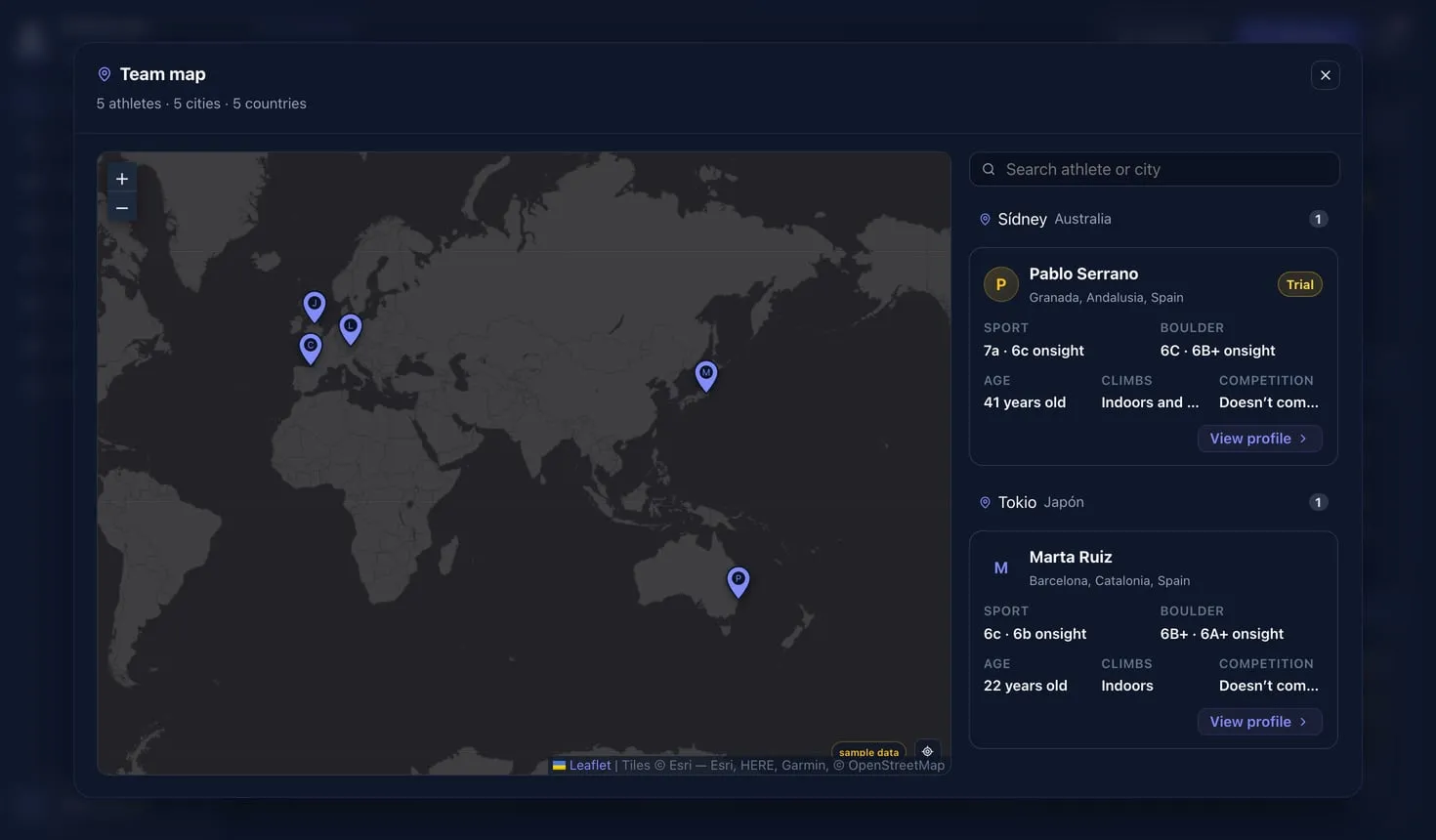
The city comes from what the athlete answered in their initial questionnaire. The app turns it into a point on the map using an external map service.
Watch out: if an athlete has no city on their profile, or the one they entered cannot be found on the map, the app places them in a sample city (Madrid, Sheffield, Tokyo…) and shows the sample data label (“Sample location data”). That location is not real: don’t use it for anything. On the card in the large map you will see “No location on their profile” when the information is missing.
With no athletes: “No athletes yet. Their location will show up here.”.
The bell: recent activity
The bell in the top corner of the dashboard opens Recent activity: the last 6 notifications and a “{n} unread” counter. They arrive, among other things, when an athlete completes a workout, logs or updates an injury, sends a pain report for an injury, beats their top grade or writes to you while you don’t have the app open, and when a physio sends you a report.
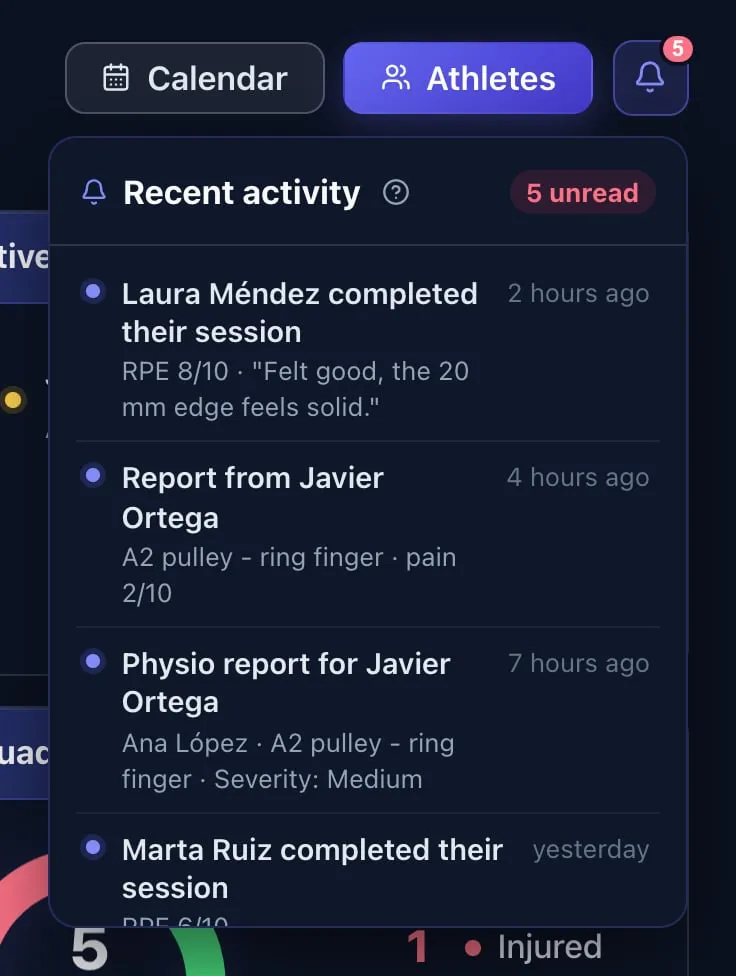
Clicking an injury notification opens that athlete’s Injuries tab. The other notifications don’t lead to any screen: they are for information. If there is nothing: “No recent activity.”.
While the bell is open, you can see which notifications are new. When you close it, they are marked as read and the “unread” counter goes down. It happens on closing rather than on opening precisely so that you have time to see what was new.
What you get notified about and what you don’t (for example, there is no notification when an athlete accepts your invitation) is in Notifications.
Inside an athlete’s profile
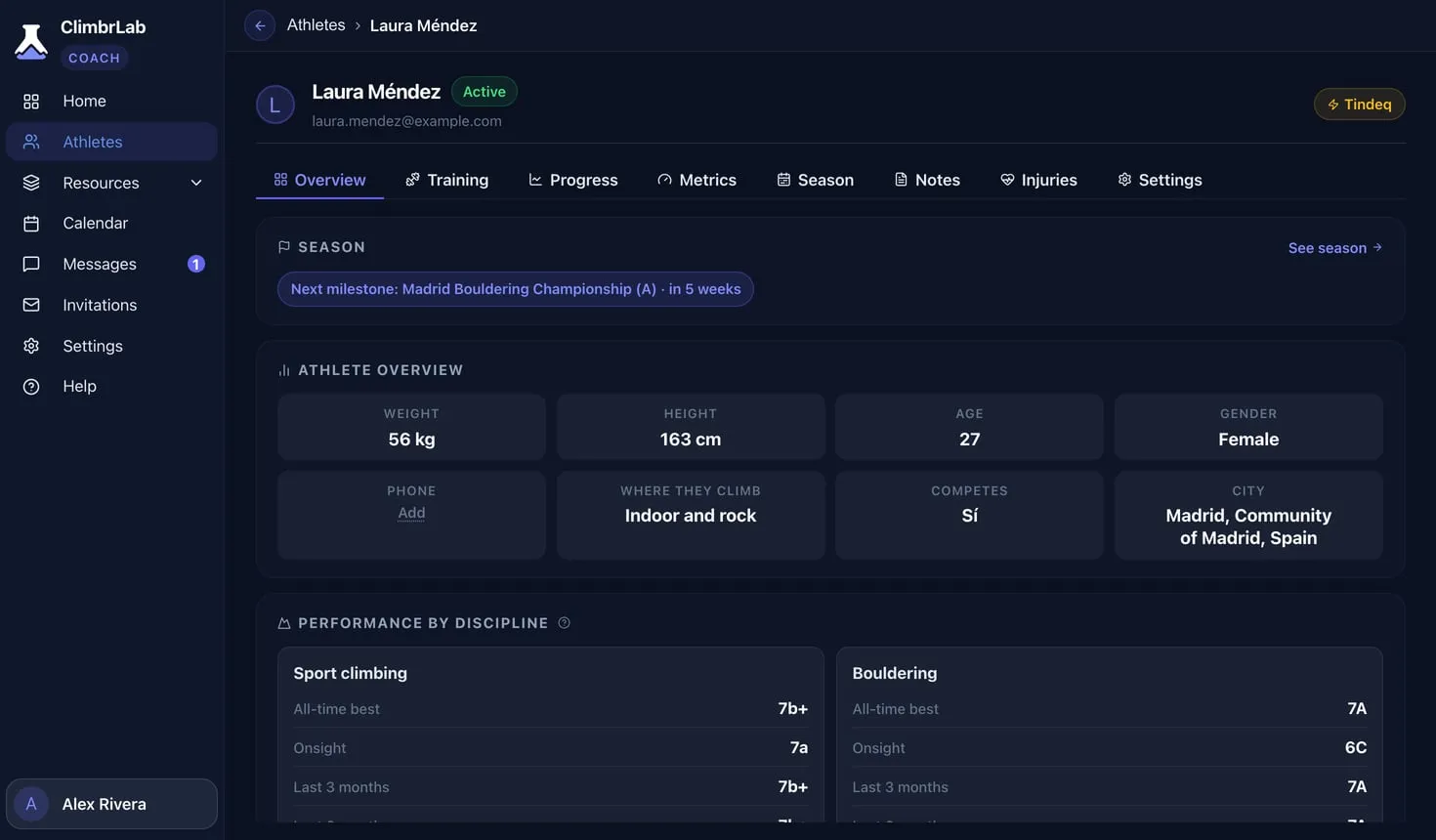
From Athletes, clicking an athlete takes you into their profile. It has eight tabs (on mobile you can swipe from one to the next):
| Tab | What is there | Article |
|---|---|---|
| Overview | Details, performance by discipline, active injuries and their current plan | The athlete profile |
| Training | Their plan, with three views: Overview, Planner and Logged | Assign a plan, The planner and Tracking a plan |
| Progress | Grade and volume charts, and the Route history | Progress and routes |
| Metrics | Assigned tests, pending ones and how they evolve | An athlete’s metrics |
| Season | The map of the year: events, plans, metrics and injuries | Season map |
| Notes | Your private notes about the athlete | Private notes |
| Injuries | Their injuries and the access for their physio | Injuries and physio link |
| Settings | Link status, grades, physical details, Tindeq and contact | The athlete profile |
Inside Resources
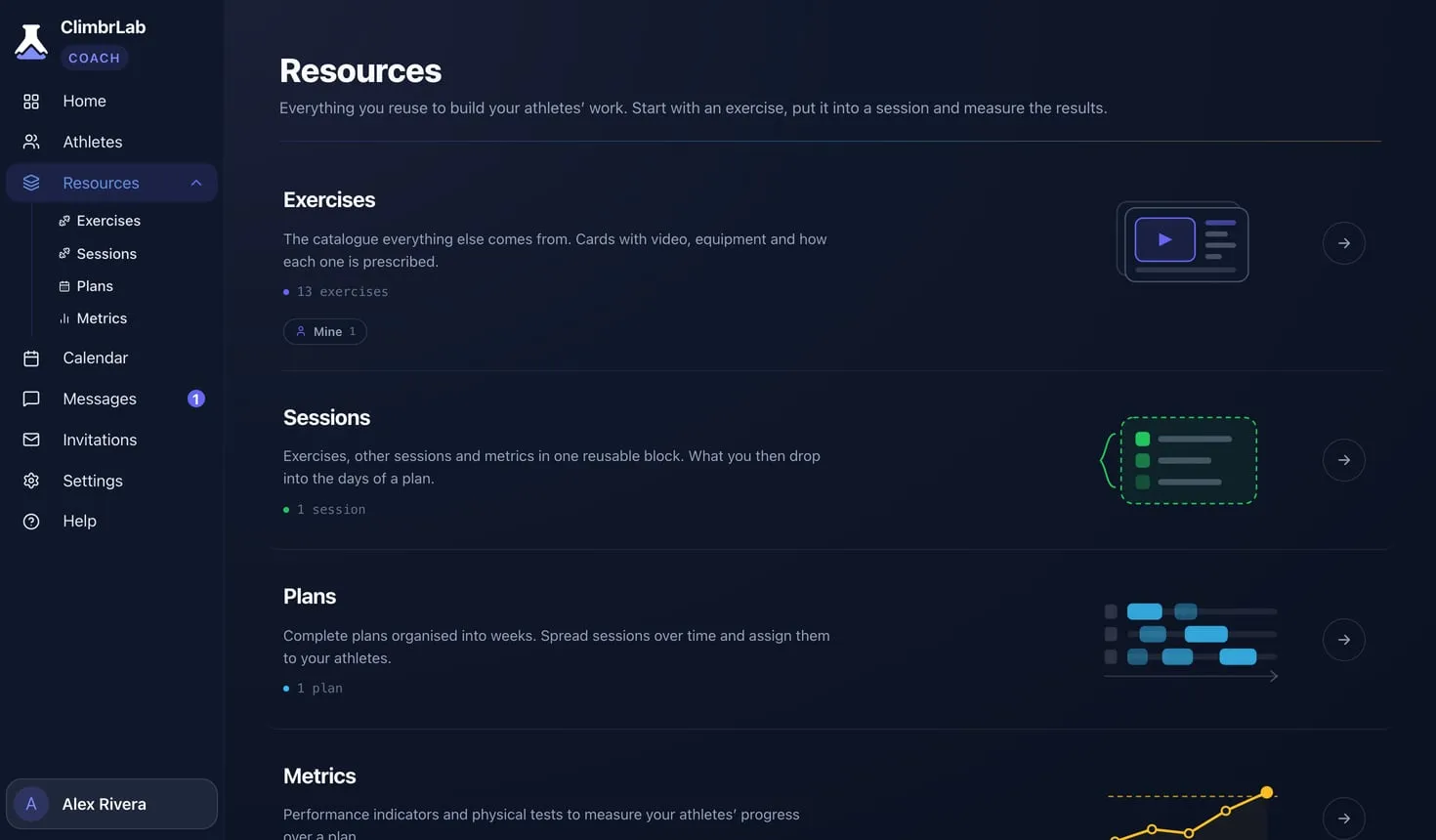
Resources is your library of reusable building blocks. Its front page shows the four kinds with how many of each you have, and under Exercises you have shortcuts to Favourites, Mine and your first lists.
| Section | What it is | Article |
|---|---|---|
| Exercises | The system library plus your own, with favourites, lists and tags | Exercise library and create an exercise |
| Sessions | Reusable workouts made of exercises, titles, notes, rests, other sessions and metrics | Sessions |
| Plans | Your plan templates, by weeks and days | Create and assign plans |
| Metrics | Your metric templates (tests and measurements) | Metrics and templates |
The underlying idea is that whatever you create in Resources you reuse with all your athletes, and that when you assign a plan each athlete gets their own copy. We explain it calmly in Create and assign plans and in Prescribe exercises.
Where to find help
You have three general ways into this help centre, and all of them open it in a new tab:
- Help in the sidebar (desktop).
- More → Help (mobile).
- The Help card in Settings, with three shortcuts: Getting started guide, Help centre and Frequently asked questions.
On top of that, on the screens where questions come up most often there is a small ? button next to the title. When you hover over it you will see “Help: …” with the topic (for example, “Help: Assigning a plan”) and, when you click it, the article that explains that screen opens directly, in a new tab and in the app’s language. You will find it, among other places, in Athletes, Invitations, Resources → Plans, Sessions and Exercises, in the planner, in the assign plan panel, in an athlete’s Season, when prescribing an exercise, when customising a session and when creating an exercise.
The planner also has a guided tour, How it works, which shows you its parts step by step (the library, the weeks, the week and day menus, copying, selecting several cards, the colour legend…). It never starts on its own: you launch it with the How it works button in the header of a plan template (Resources → Plans → (plan)) or in an athlete’s Training tab. Close it with the ✕ or with Esc. It is the only guided tour in the app.
If you can’t find the answer, have a look at the coach FAQ or at what each error message means. There is no support chat inside the app: email us at soporte@climbrlab.com.
Where is…?
| I’m looking for… | It is in | Article |
|---|---|---|
| My coach code | Invitations → Your code | Invite athletes |
| Inviting an athlete | Athletes → Invite athlete or Invitations → Send an email invitation | Invite athletes |
| Seeing whether they accepted the invitation | Invitations → Invitations sent | Invite athletes |
| Adding another coach | Invitations → Your team | Coaching team |
| Changing an athlete’s status | Athletes → ⋮ → Change status, or Athletes → (athlete) → Settings → Link | Pause, archive or release |
| Releasing an athlete | Athletes → ⋮ → Release athlete (account owner only) | Pause, archive or release |
| Creating or deleting athlete tags | Athletes → Tags button | The athletes list |
| Assigning a plan | Athletes → (athlete) → Training | Assign a plan |
| What an athlete has trained | Athletes → (athlete) → Training → Logged | Tracking a plan |
| Saving an athlete’s plan as a template | Training → ⋮ → Save to resources | Save a plan as a template |
| Scheduling a test | Athletes → (athlete) → Metrics, or the METRICS row in Season | An athlete’s metrics |
| The physio link | Athletes → (athlete) → Injuries → Physio access | Physio link |
| Marking that an athlete has a Tindeq | Athletes → (athlete) → Settings → Has a Tindeq | Tindeq for coaches |
| Connecting Google Calendar | Calendar → Connect Google Calendar | Calendar and Google Calendar |
| My logo and company name | Settings → Brand identity | Your brand |
| My plan, invoice or card | Settings → Subscription | Subscription and pricing |
| Training myself | Settings → Train myself | Train yourself |
| Language or light mode | Settings → Appearance | Coach settings |
| Grades and units | Settings → Climbing preferences | Coach settings |
| Exporting to Excel | Settings → Data | Export athlete data |
| Changing my password | Settings → Security → Change password | Coach settings |
| Deleting my account | Settings → Delete account | Delete or recover your account |
| Size limits for photos and videos | - | Image and video limits |
Common questions
Why can’t I see “Subscription” anywhere?
On desktop it is inside Settings, not in the sidebar. On the mobile web it is in More. In the app downloaded from the store it does not appear, because prices and payments are not shown there: go in from the web. If you are a member of another account’s team, the subscription is handled by its owner.
Why doesn’t the dashboard count all my athletes?
The dashboard only counts athletes who are not archived, and it leaves out your own profile if you train yourself. If you are a team member, you only see the ones assigned to you. Archived athletes are still in Athletes, in the Archived tab.
An athlete shows up in a city they don’t live in. Why?
Because they have no city on their profile, or the one they wrote cannot be found on the map. In that case the app puts them in a sample city and marks the map with sample data. It is not their real location.
Are “Calendar” and “Schedule” the same thing?
Yes. On desktop it is called Calendar and in the mobile bar, Schedule.
Does the “How it works” tour cover the whole app?
No, only the planner. For the rest of the app you have this help centre. Start with Getting started as a coach.