Export your athletes’ data to Excel
Download your athletes’ profiles, injuries, notes, training, metrics, plans and routes in one Excel file: what it includes, whose data and what to do if it fails.
With one click you download an Excel file with your athletes’ whole history: their profiles, injuries, your notes, their sessions, metrics, plans and routes. It works as a backup, for your own analysis, or to keep the data before releasing an athlete or closing your account.
Heads-up: the file contains personal and health data (injuries, weight, your private notes). Keep it somewhere safe and don’t share it lightly.
How to download it
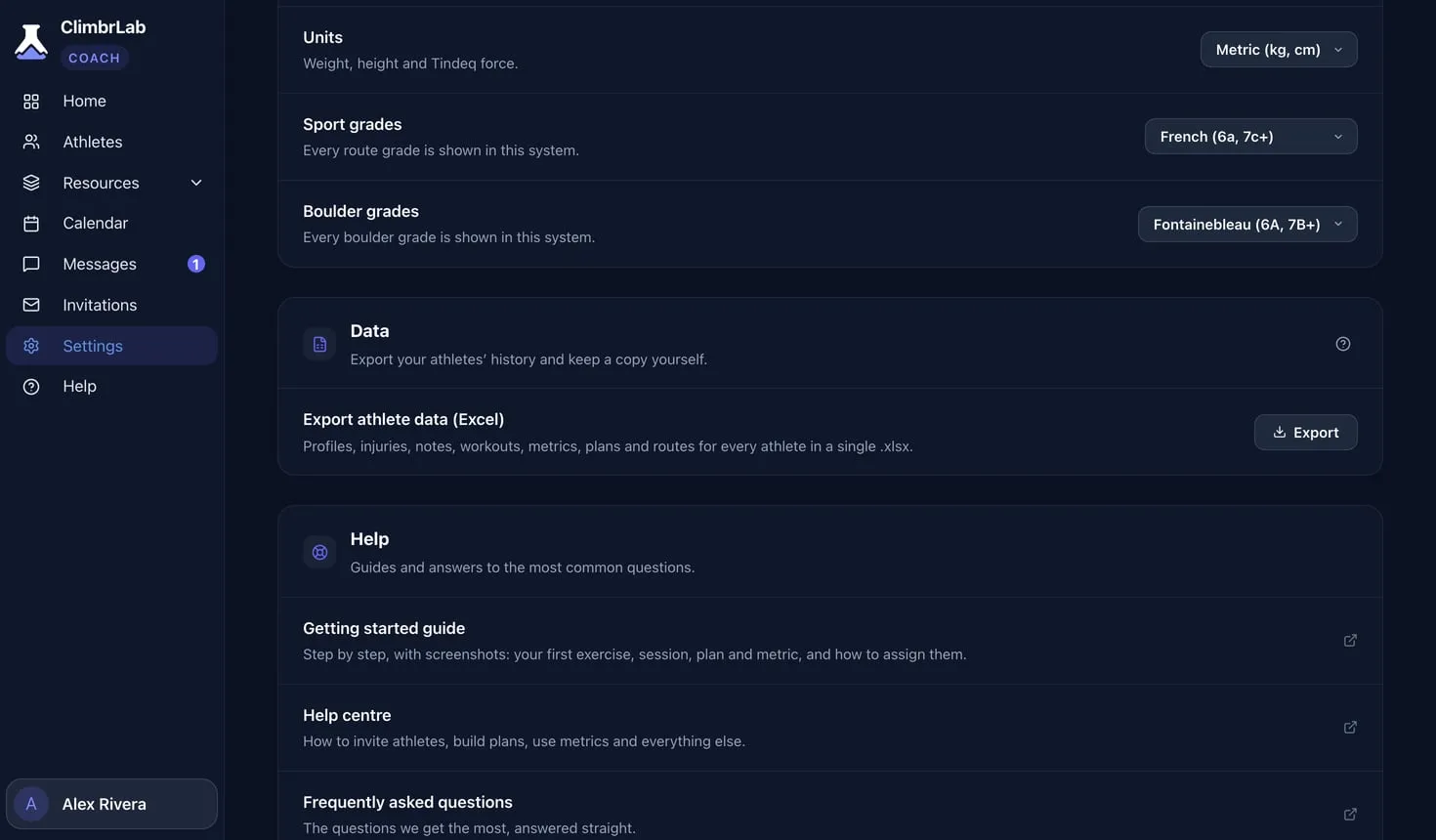
- Go to Settings (on a phone, More → Settings).
- Scroll down to the Data section: “Export your athletes’ history and keep a copy yourself.”
- In Export athlete data (Excel), press Export.
- The button changes to Generating… while it gets ready. If you have lots of athletes it may take a little while: don’t close the page.
- A file called
climbinglab-datos-alumnos-followed by today’s date downloads, in.xlsxformat.
It opens with Excel, LibreOffice, Numbers or Google Sheets (upload it to Drive and open it with Sheets). The text in the file comes out in the language you use in the app.
Which athletes
The group you coach:
- If you are the account owner, all the athletes on the account, archived ones included. If you train yourself, your own profile appears as one more athlete.
- If you are a team member, only the athletes the owner has assigned to you.
- Athletes you released are no longer there: their data left with them.
What it includes
The Excel file has twelve sheets. Each one has a frozen header row and filters turned on so you can sort and search.
| Sheet | What it contains |
|---|---|
| Index | Your name and email, the export date, how many records there are of each type and a small legend (severities, metric categories, plan types) |
| Athletes | One row per athlete: name, email, age, gender, weight, height, unit system, best and onsight grades in sport and boulder, their grading systems, whether they have a Tindeq and their location |
| Injuries | Area, type, severity, status, start date, next review, description and notes |
| Trainer notes | Your private notes with their tag, text and date |
| Training sessions | Each logged session: date, duration, number of exercises and completed ones, and the feedback the athlete wrote |
| Session exercise detail | Exercise by exercise for each session: order, load, whether they completed it, their note and the Tindeq stats |
| Metrics | The metrics each athlete tracks, with category, type and unit |
| Metric entries | Each recorded value, with date, notes, per-hand stats (Tindeq) and who recorded it |
| Metric assignments | The tests you asked them to do, with their status (Pending, Completed or Cancelled), who assigned them and when they were completed |
| Training plans | Each athlete’s plans: name, type, weeks, sessions per week, description and dates |
| Plan detail | What’s inside each plan, by week and session: exercises, sets, target, rest and notes |
| Routes and gym | Their logged routes: date, country, crag, sector, name, grade, discipline, attempts and whether they sent it |
What it doesn’t include
- Messages between you and your athletes.
- Raw Tindeq force curves: they are summarised as stats (peak, mean…), not point by point.
- Your Resources library as such (exercises, sessions, plan and metric templates): only what is assigned to your athletes is included.
- Contact details that aren’t in the Athletes sheet: phone, address and emergency contact.
- Link status (Active, Archived…) or the tags in your list.
- Calendar and season events, and physio links.
What it’s for
- Your own backup, whenever you like.
- Before releasing an athlete: releasing them deletes your private notes about them. The Excel file is the only way to keep them. More in pause, archive or release an athlete.
- Before deleting your account: take your history with you. We explain it in delete or recover your account.
- Reports and analysis: pivot tables of volume per athlete, how a metric evolves, a review of the season’s injuries.
- Moving data to another tool or to another professional (with the athlete’s permission).
Tip: exporting also works if your account is read-only (for example, because the free trial ended and you haven’t taken out a plan). Your data is always yours. More in subscription and pricing.
If something goes wrong
| What you see | What it means | What to do |
|---|---|---|
| “The Excel file could not be generated. Try again.” | The download didn’t complete (connection, busy server…) | Wait a moment and press Export again. If it keeps happening, try another network or write to us |
| The button stays on Generating… for a long time | There is a lot of data to gather | Wait without closing the page |
| You can’t see the file | The browser has saved it to its downloads folder | Look for climbinglab-datos-alumnos in your downloads |
| A sheet is empty | None of your athletes has data of that type yet | That’s normal: only what exists is included |
| An athlete is missing | You are a team member and they aren’t assigned to you, or you released them | Ask the owner to assign them to you, or to do the export themselves |
Common questions
Can I export just one athlete?
No, the export covers your whole group. In Excel you can filter by the Athlete column in each sheet.
Can I export to CSV?
No, only to Excel (.xlsx). From Excel or Google Sheets you can save any sheet as CSV.
Does the athlete find out that I’ve exported their data?
No notification is sent to them. Even so, it’s their personal data: treat it with the same care as in the app.
How often can I export?
Whenever you like. Each export is a snapshot of that moment, with the date in the file name.