Private notes about your athletes
How to use the Notes tab in an athlete profile: who can read them, note tags, creating, editing and deleting, and what happens to them when you release the athlete.
The Notes tab in each athlete’s profile is your notebook about them: what you notice at the wall, what they tell you, what you want to remember next time you plan for them. They are private: the athlete never sees them.
Who can read them
| Who | Do they see them? |
|---|---|
| You | Yes |
| Coaches on your team who have access to that athlete | Yes, and they can also write, edit and delete |
| The account owner | Yes, for all athletes (they see everyone) |
| The athlete | No, nowhere |
If you share the account with a team, bear two things in mind: notes belong to the account, not to each coach, and a note doesn’t record who wrote it. If that matters to you, sign at the end (‘Laura: …’). How athletes are shared out in a team is covered in coaching team.
Notes do appear in the Excel export (in the “Trainer notes” sheet), so anyone who has that file can read them. More in export athlete data.
Where they are
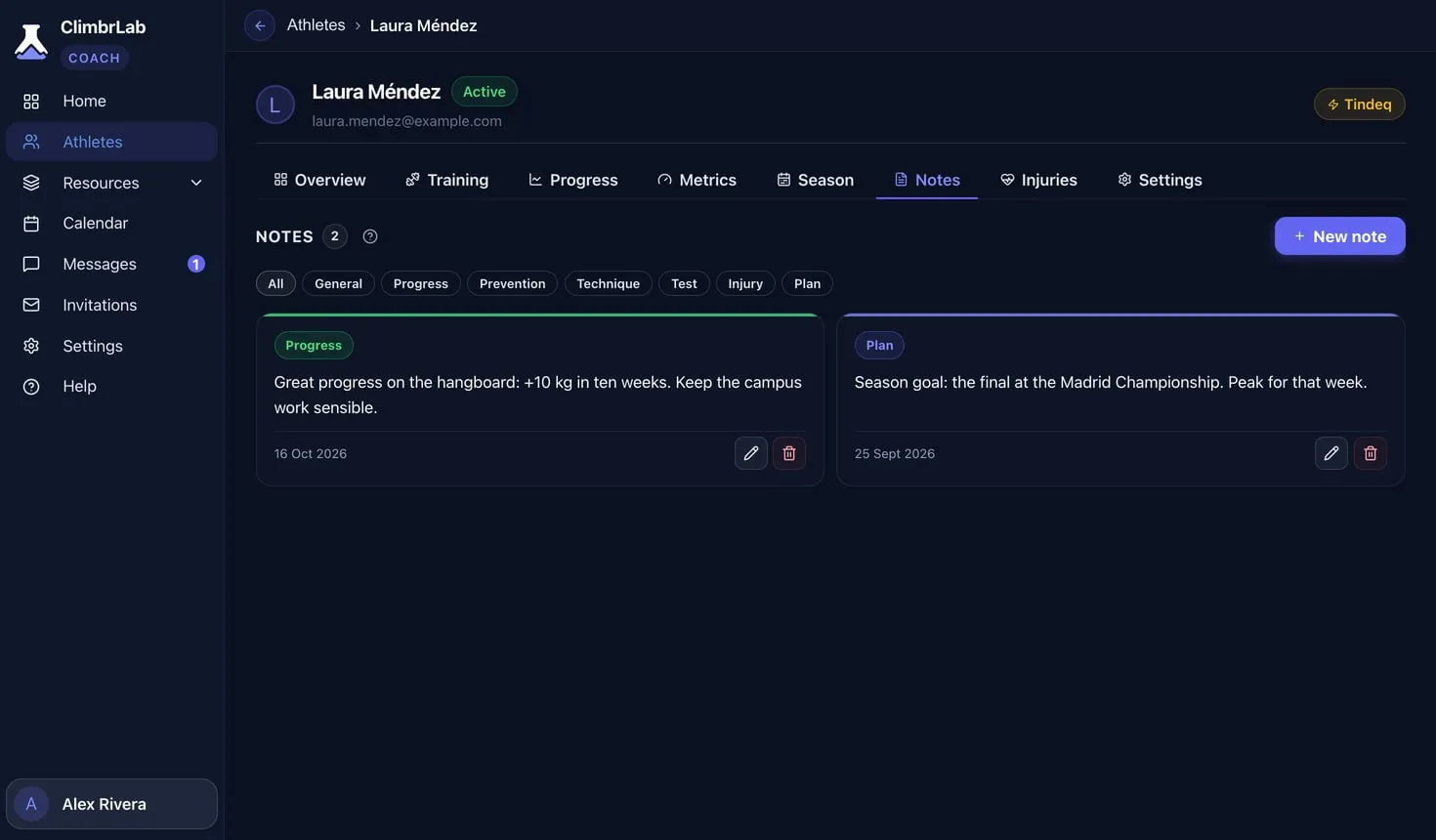
Athletes → (athlete) → Notes. At the top you see the title with the number of notes and the New note button. Below are the tag filters and the notes as cards, newest first.
Note tags
Each note has a tag, which you can filter by later:
- General (the one selected by default)
- Progress
- Prevention
- Technique
- Test
- Injury
- Plan
Above the list you have All and a pill for each tag. Press one to see only those notes; press it again (or press All) to clear the filter. If no note has that tag, you will see “No results”. These tags are fixed: you can’t create others or rename them, and they are different from the athlete tags you use in your list.
Create a note
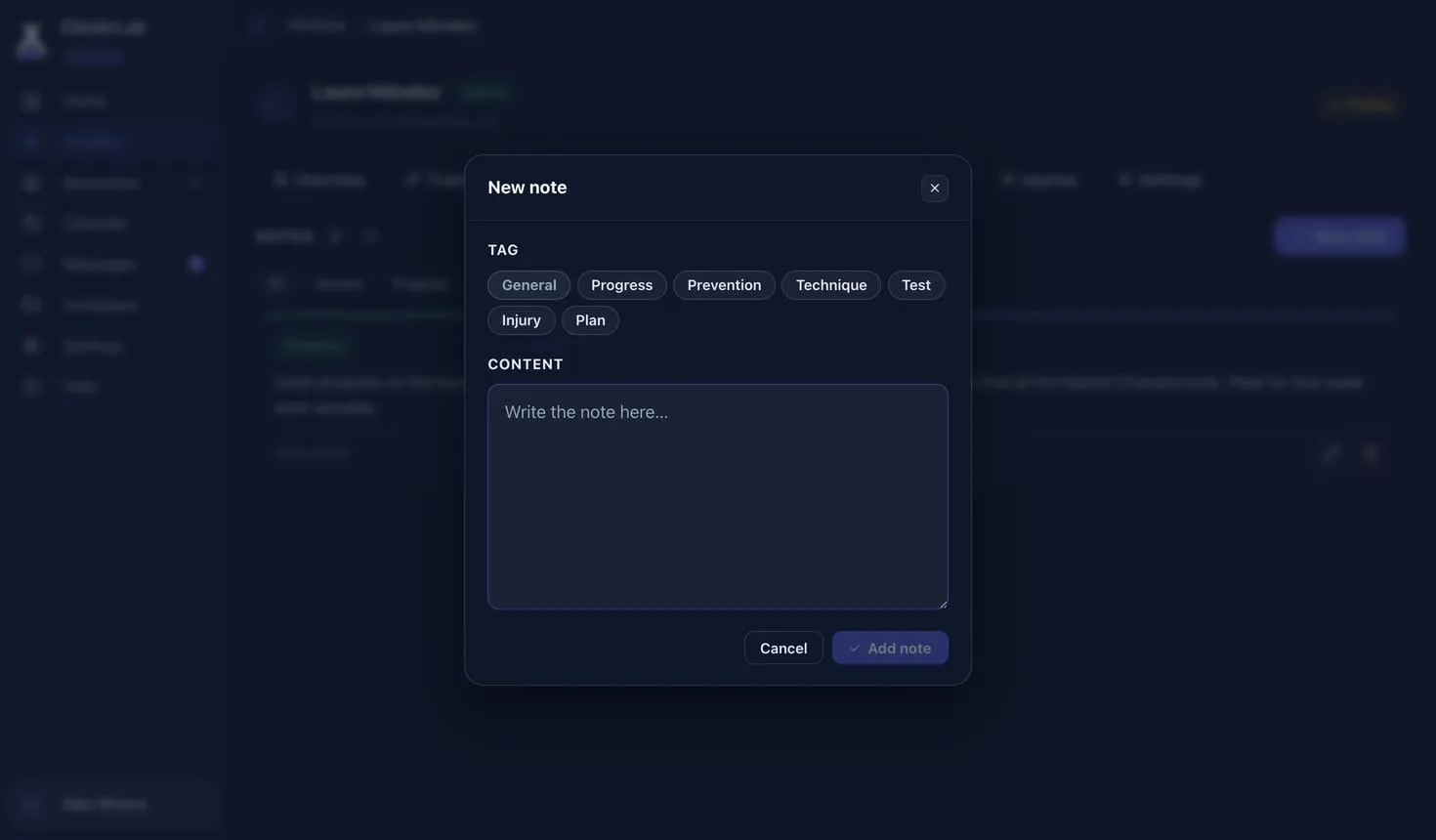
- Press New note.
- Choose the Tag.
- Write in Content (“Write the note here…”).
- Press Add note.
The button stays disabled while the text is empty. The card shows the date you created the note.
Edit a note
Press Edit (the pencil) on the card, change the tag or the text and press Save changes. The date on the card stays as the creation date, not the date of the last edit.
Delete a note
Press Delete (the bin). The card turns into a confirmation: “Delete this note?” with Cancel and Delete.
Heads-up: deleting a note is permanent. There’s no bin and no way to recover it.
What happens to notes when you archive or release
- Archive: notes are kept and you can carry on writing new notes even though the athlete is archived.
- Release: all that athlete’s notes are deleted, irreversibly. This is on purpose: they are your words, not the athlete’s, and their next coach shouldn’t inherit them. If you want to keep them, export your data first. We explain it in pause, archive or release an athlete.
Ideas to make the most of them
- After each in-person session: what you saw, in two lines. Tag Technique or Progress.
- Niggles they mention in passing that don’t amount to a logged injury: tag Prevention. If it gets worse, log it in injuries.
- Results of tests done outside the app, or the context of a test that went oddly (‘I slept 4 hours’): tag Test. To track real numbers, a metric is better.
- Planning decisions: why you changed block, what you want to try in the next plan. Tag Plan.
- Admin you don’t want to forget (days they can’t make, how they prefer you to message them): General.
Tip: notes are for you. If you want the athlete to read something, send it via messages or add it as a note inside their session in the planner.
Common questions
Does the athlete get a notification when I write a note?
No. Notes don’t generate notifications or appear in their app.
Can I search within notes?
There’s no text search: they are filtered by tag. If you have a lot, be consistent with your tags.
Is there a limit on notes?
There’s no limit on the number of notes per athlete.
Can I see all the notes for all my athletes together?
Not in the app: each athlete has their own in their profile. The Excel export does bring them all together in a single sheet.