The athlete profile: its 8 tabs, Overview and Settings
What is in each tab of an athlete profile, how to read their Overview, how to edit their details, status and contact in Settings, and what the athlete is told.
The profile is everything you know about an athlete in one place: their plan, what they have trained, their grades, their metrics, their season, your notes, their injuries and their details. You get there by clicking their name in Athletes. This article gives you the map of the eight tabs and explains in depth the two that don’t have their own article: Overview and Settings.
The header
At the top you see the path Athletes › (name), their photo (click it to see it full size), their name, their status, their email and the Tindeq badge if they have the dynamometer. The status in the header is for information only: you change it in Settings. On a phone, the Back to My athletes arrow takes you back to the list.
If the athlete is archived, you will see an Archived link. notice above the tabs: “You keep all their history, but you cannot assign them plans or metrics and the chat is read-only. Reactivate it with “Reactivate” in their Settings tab to coach them again.”. We explain the Reactivate button in Settings further down; you can also reactivate them from the ⋮ menu in the list.
The 8 tabs
| Tab | What it’s for | More information |
|---|---|---|
| Overview | Their snapshot at a glance: details, grades, active injuries and plan | Below |
| Training | Assign a plan, edit it in the Planner and see what was Logged | Assign a plan, the planner, tracking a plan |
| Progress | Grade and volume charts and route history (read-only) | Progress and routes |
| Metrics | Tests you send them and how their results evolve | An athlete’s metrics |
| Season | Map of the year with events, plans, metrics and injuries | Season map |
| Notes | Your private notes about the athlete | Private notes |
| Injuries | Injury log with body map and physio link | Injuries, physio link |
| Settings | Link status, grades, physical details, gear and contact | Below |
On a phone you can move from one tab to another by swiping sideways.
Overview
Identity and season
On short screens, where the profile hides its header to save space, the first card repeats their status, the Tindeq badge and their email (clicking it opens your email program). With the header visible, the Overview starts straight away with the Season strip.
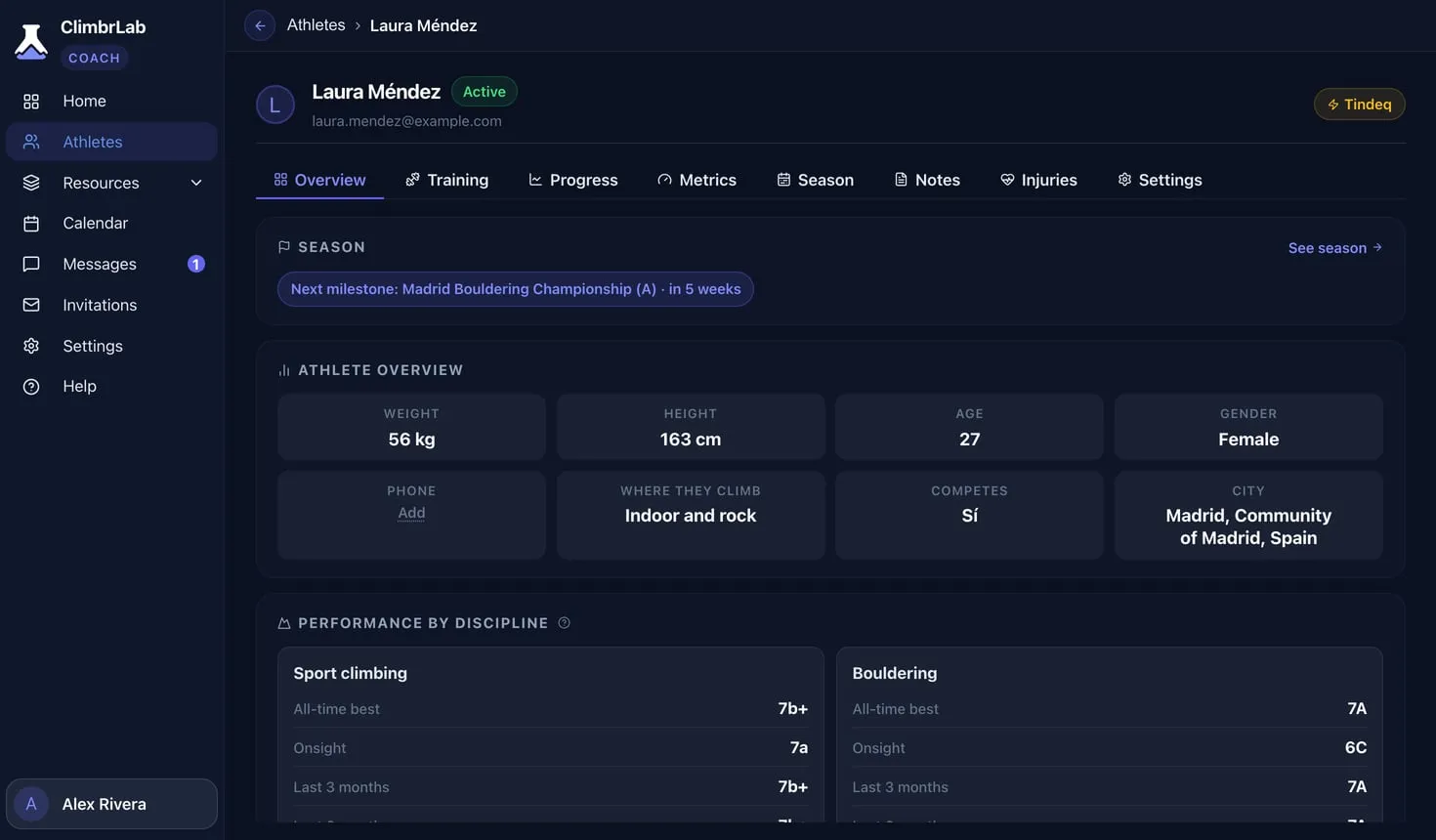
Below there is a Season strip with the most urgent items, shown as labels:
- “Next milestone: (title) · (when)”. If they have an upcoming competition, it’s shown before any other event, with its priority in brackets.
- “Active injury: (area)” if they have an unresolved injury.
- “No plan assigned” if they have no plan in progress.
The See season link takes you to the Season tab.
Athlete overview
Their basic details: Weight, Height, Age, Gender, Phone (tap to call), Where they climb (Indoor only, Rock only or Indoor and rock), Competes and City. Almost everything comes from what they answered in their onboarding questionnaire. If something is missing, you will see Add or Not answered, which take you to Settings to fill it in.
Performance by discipline
Two blocks, Sport climbing and Bouldering, with four grades each. The What each grade measures button sums it up, and here it is in more detail:
| Grade | What it is |
|---|---|
| All-time best | The hardest thing they have ever sent. It comes from what they typed when signing up and only goes up when they log a harder route. It never goes down. |
| Onsight | The hardest thing they have sent on the first attempt |
| Last 3 months | The hardest thing sent in that period, worked out only from the routes they have logged |
| Last 6 months | The same, over six months (it includes the first three) |
A dash in the last 3 or 6 months doesn’t mean they aren’t climbing: it means they haven’t logged any sent route in that period. If it looks odd, ask them whether they are logging their routes. More in progress and routes.
Active injuries
Injuries that aren’t Resolved, with their area and severity. If there are none, “No active injuries”. See all opens the Injuries tab.
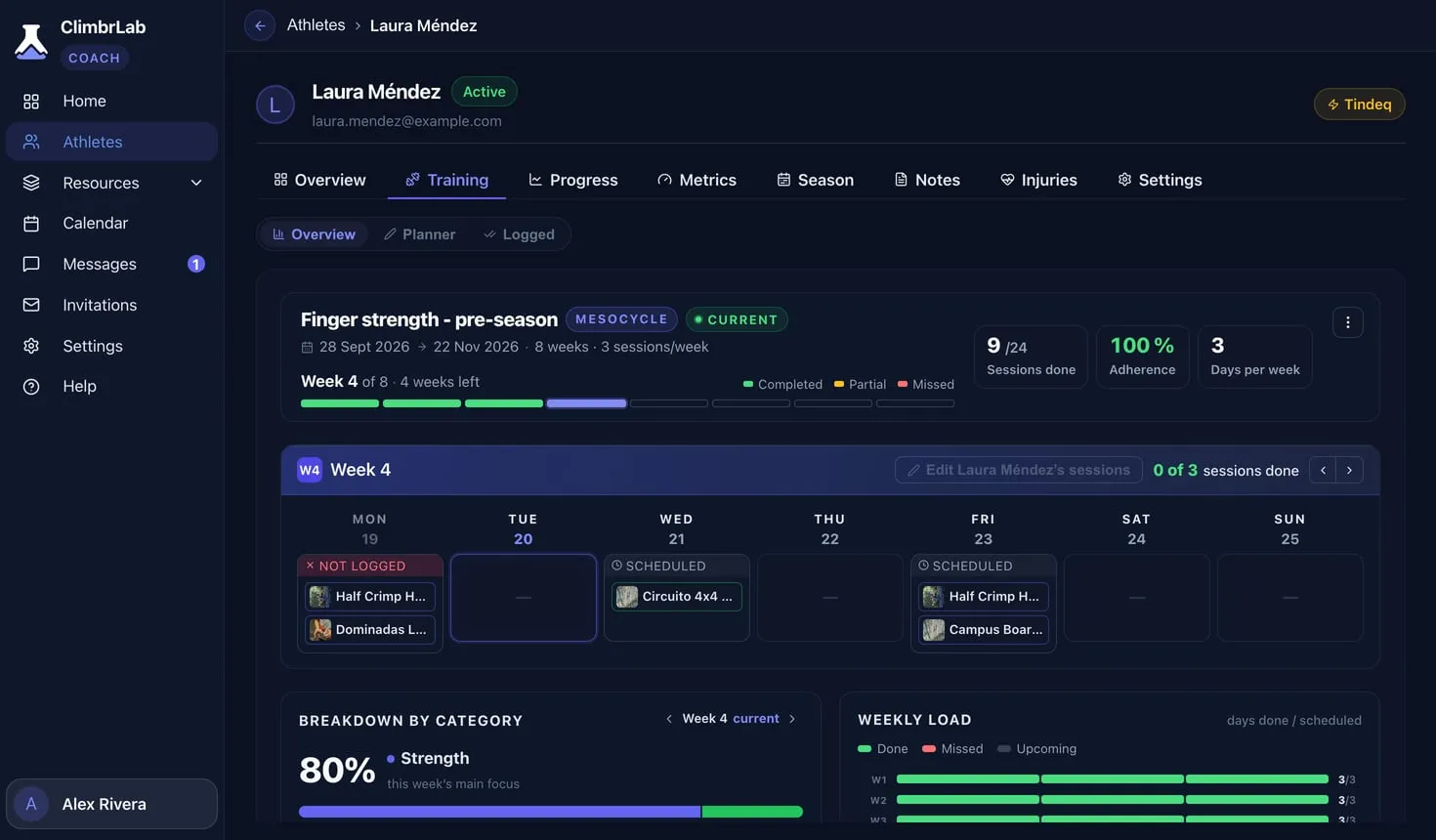
Plan and progress
If they have a plan in progress: the type (Macrocycle, Mesocycle or Microcycle), the name, “Week n of N”, the percentage complete, sessions per week and total weeks. See plan takes you to Training. If they don’t have one, “No plan assigned” (on a phone, “No plan assigned · assign one”).
On a phone the Overview is ordered differently: first Current plan, then Heads-up and finally Profile (their details).
Settings
This is where you correct their details. Changes aren’t saved automatically: when you touch something, a bar appears at the bottom with what you have changed (for example “2 unsaved changes · weight, height”) and three buttons:
- Discard: undoes everything you haven’t saved.
- Save: saves and keeps you on the profile. You will see “Profile updated”.
- Save and close: saves and goes back to your athlete list.
If it fails, you will see “It could not be saved. Try again.” and your changes stay in the form so you don’t lose them.
Link
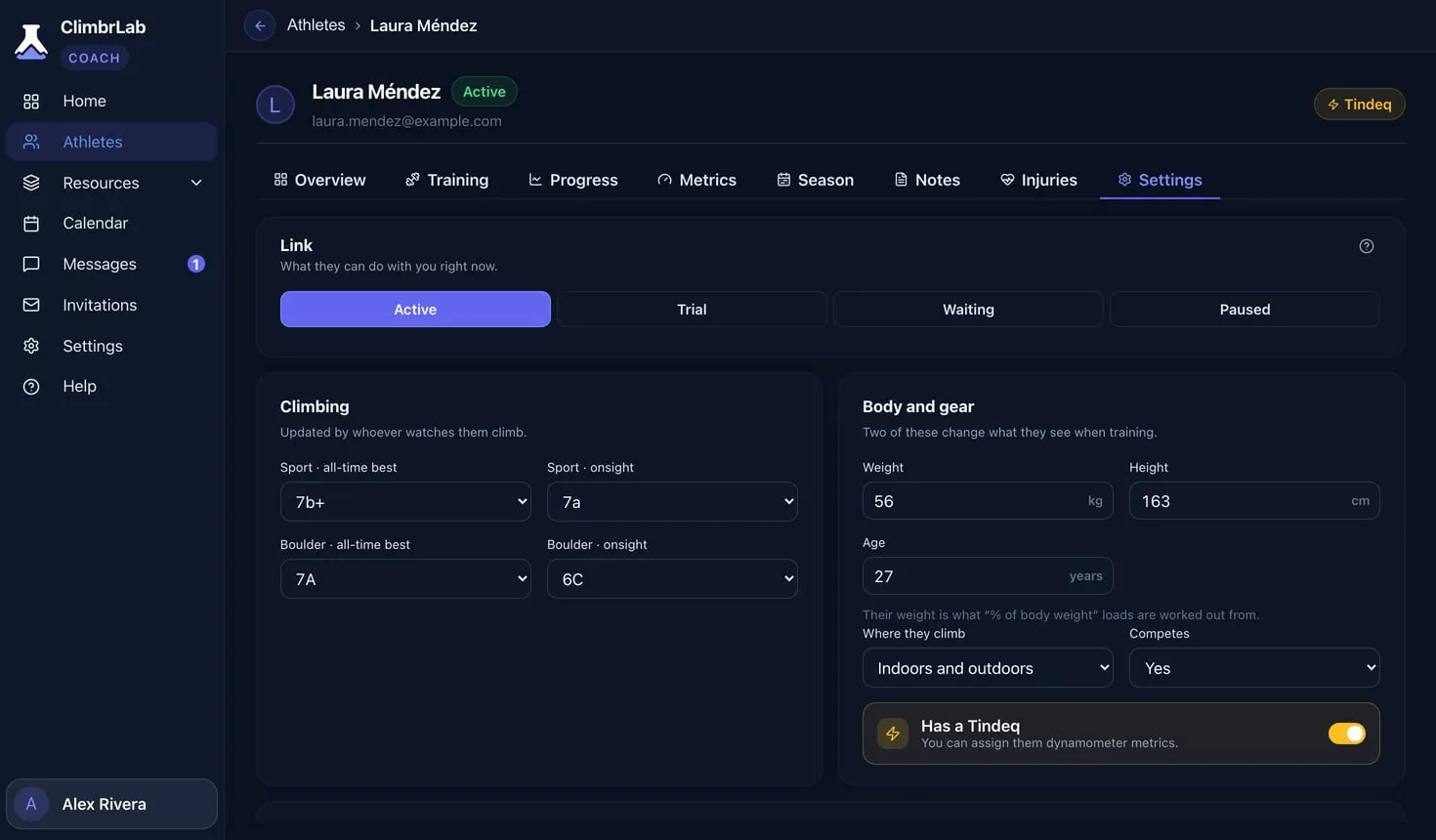
“What they can do with you right now.” Four buttons: Active, Trial, Waiting and Paused. If you choose anything other than Active, the Reason (only you see it) field appears (up to 200 characters), for example “Hasn’t paid for March” or “Travelling until June”. The athlete doesn’t see it. In tabs other than Overview, you see it by hovering over the status next to their name in the path at the top. It’s cleared automatically when you set them back to Active.
If they are archived, instead of the buttons you will see “Archived link. They cannot get plans or metrics, and the chat is read-only.” and a Reactivate button. Watch out: Reactivate doesn’t apply anything on its own. It gets it ready, and the athlete goes back to Active when you press Save in the bar. At that point the app checks that you have a seat left on your subscription, because they count again.
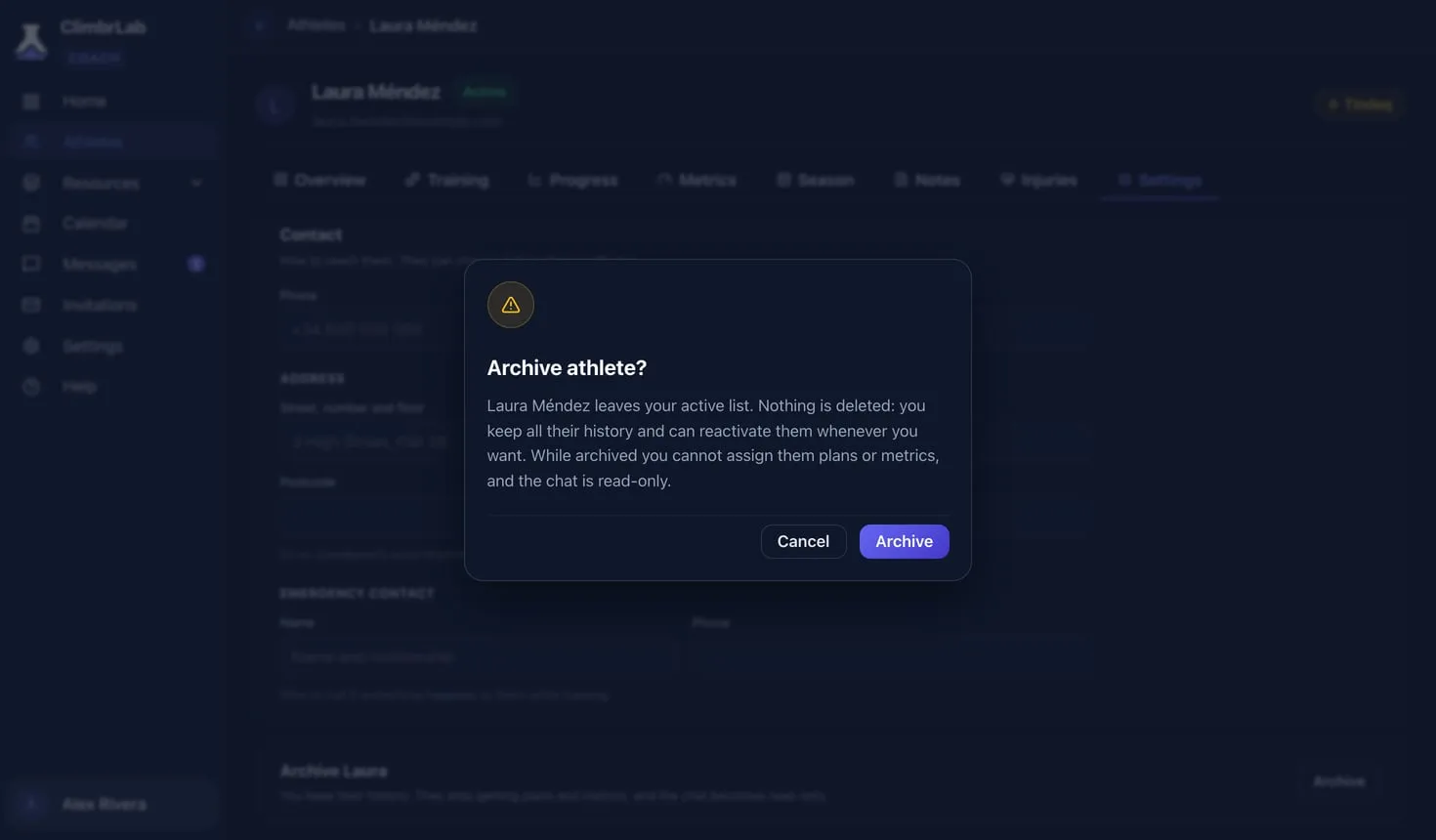
At the end of the tab is the Archive (name) area. That button doesn’t go through the save bar: it asks for confirmation and applies immediately. What each status involves is in pause, archive or release an athlete.
Climbing
“Updated by whoever watches them climb.” Four drop-downs: Sport · all-time best, Sport · onsight, Boulder · all-time best and Boulder · onsight, in the grading system you have chosen in your settings. Use them if the grade they gave when signing up doesn’t match what you see them do.
Body and gear
“Two of these change what they see when training.”
- Weight, Height and Age. Weight matters: it’s what the “% of body weight” loads in their prescriptions are worked out from. If an exercise asks them to hang with 10% of their weight and the weight is wrong, the load they see will be wrong. More in prescribe exercises.
- Where they climb and Competes.
- The Has a Tindeq switch. On: “You can assign them dynamometer metrics.” Off: “Without this you cannot assign them dynamometer metrics.” Also, when you assign them a plan, Tindeq metrics are removed if they don’t have one. More in Tindeq for coaches.
Contact
“How to reach them. They can change it from their profile too.”
- Phone.
- Address: Street, number and floor, Postcode and City. If they gave a city in their questionnaire, the app reminds you of it below the field, but doesn’t copy it on its own: the city where they climb and the city of their address don’t have to be the same.
- Emergency contact: Name (and relationship) and Phone. “Who to call if something happens to them while training.”
What the athlete is told when you change their profile
- Changes to their details (grades, weight, height, age, Tindeq, where they climb, whether they compete, phone, address, emergency contact): they get a notification in their app, “Your trainer updated your profile”, with the list of what has changed. If you save the same value they already had, nothing is sent.
- Status changes (Active, Trial, Waiting, Paused, Archived) and the reason: they don’t get any notification. They only notice archiving, because their chat is cut off and they stop receiving new plans.
- Your own profile (if you train yourself): it doesn’t generate notifications.
Common questions
Can the athlete change their own details?
Yes. From their profile they can correct the details they gave when signing up and their contact, and their all-time best goes up on its own when they log a harder route. When they are the one changing their details, you don’t get a notification.
I changed the status in Settings and it wasn’t applied
The status, like the rest of the fields in Settings, needs Save. Only Archive applies immediately (because it asks for its own confirmation).
I turned off their Tindeq and now I can’t assign them a metric
Metrics that need a Tindeq can only be assigned to athletes with Has a Tindeq turned on. Turn it on, save and assign it again.
Where are the routes they have logged?
In Progress, in the Route history. There isn’t a separate tab.
Can I release the athlete from here?
No. Release athlete is only in the ⋮ menu of the athletes list, and only for the account owner.