The athlete’s season: events, plan blocks and metrics
Use the athlete’s season map to add competitions and trips, draw and move plan blocks, schedule recurring metrics and see their injuries.
The athlete’s Season tab is their year on a single screen: competitions and trips, the plan blocks one after another, the scheduled metrics and the injuries. It’s the best place to build the whole season, because here plans are drawn, moved and stretched by dragging.
Watch out: deleting a plan block from here deletes the athlete’s plan with everything in it, and it can’t be undone.
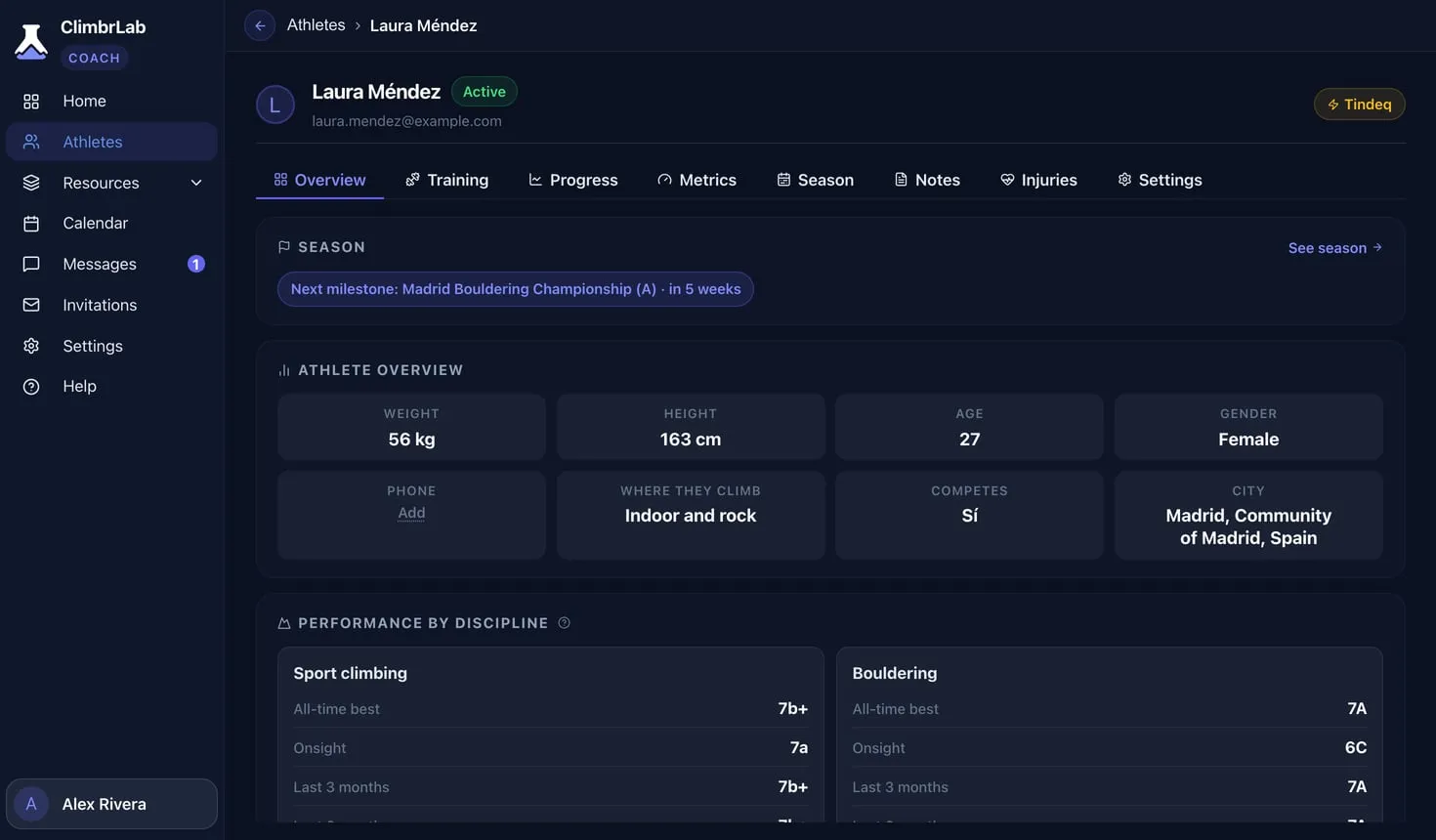
You get there from Athletes → (athlete) → Season, or from the See season link in their Overview, where you’ll also see their next milestone (“Next milestone: (title) · (when)”).
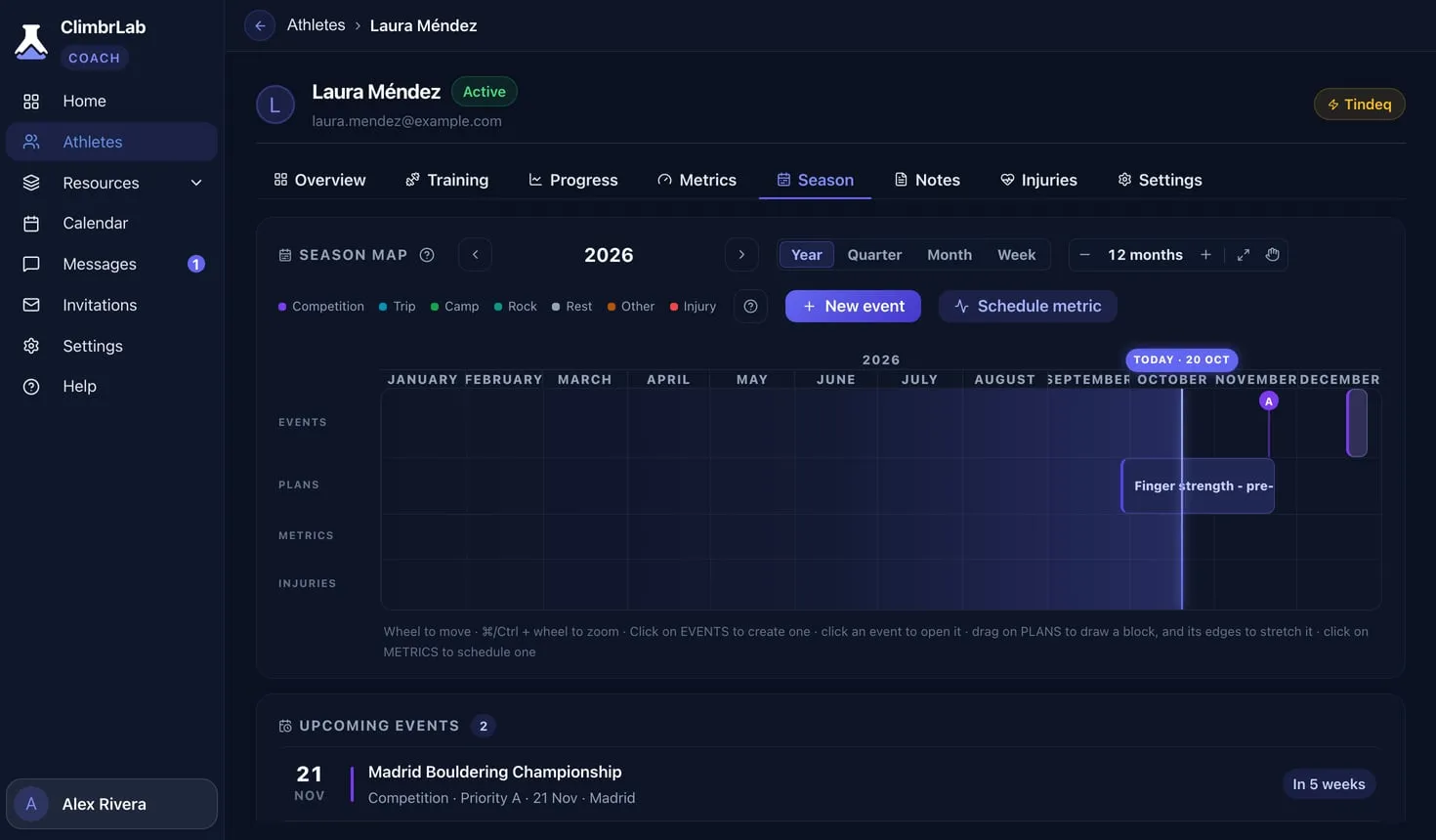
The season map
The Season map is a timeline with four lanes:
| Lane | What it shows | What a click or drag does |
|---|---|---|
| EVENTS | Competitions, trips, camps, rock days, rest and others | Click an empty space: “Click to add an event”. Click an event: you see it |
| PLANS | The athlete’s plans as blocks, past, current and future | Drag in an empty space: “Drag to draw a block”. Drag a block or its edges to move or stretch it |
| METRICS | A mark for each day with a metric scheduled | Click an empty space: “Click to schedule a metric”. Click a mark: it takes you to their Metrics tab |
| INJURIES | Their injuries, active and resolved | Click an empty space: “Click to log an injury”. Click an injury: it opens it in Injuries |
Between two plans that are two weeks or more apart, a NO PLAN strip appears, so you can spot the gaps in the season at a glance. A vertical line marks TODAY.
The athlete sees the same in their app, in My season: the events, their plans and their injuries.
Moving around and zooming
- Scale: the Week, Month, Quarter and Year buttons jump to that framing. The Previous and Next arrows move the window according to the scale (in Month, month by month). Today brings you back to today.
- Zoom: the − and + buttons, the indicator of how much you are seeing, and Fit all, which brings the whole season into view.
- Hand tool: turn it on to drag the map without creating anything by mistake.
Shortcuts (also in the ? button, “What you can do here”):
| Gesture | What it does |
|---|---|
| Wheel | Scroll through the calendar |
| ⌘/Ctrl + wheel, or pinch | Zoom in and out |
| Space + drag, or middle button | Move the map |
| ← → (with Shift, faster) | Scroll |
| + and − | Zoom |
On your phone
On a phone the map becomes a compact strip of the year: you can see at a glance when there is a plan, competitions, metrics and injuries, and the details are in the list below. You can change year, tap an event to see it, create an event with Event and schedule a metric with the metrics button. Drawing, moving or resizing plan blocks can only be done on a computer.
Events
Create them with a click on the EVENTS lane (it takes the date from where you click), with the New event button or with Add event in the list below.
| Field | Details |
|---|---|
| Type | Competition (default), Trip, Camp, Rock, Rest or Other |
| Title | Required. For example, “National Boulder Cup” |
| Start date | Required |
| End date | Optional. Without it, the event lasts one day |
| Priority | Competitions only: A (Goal), B (Important, default) or C (Secondary) |
| Place and Notes | Optional |
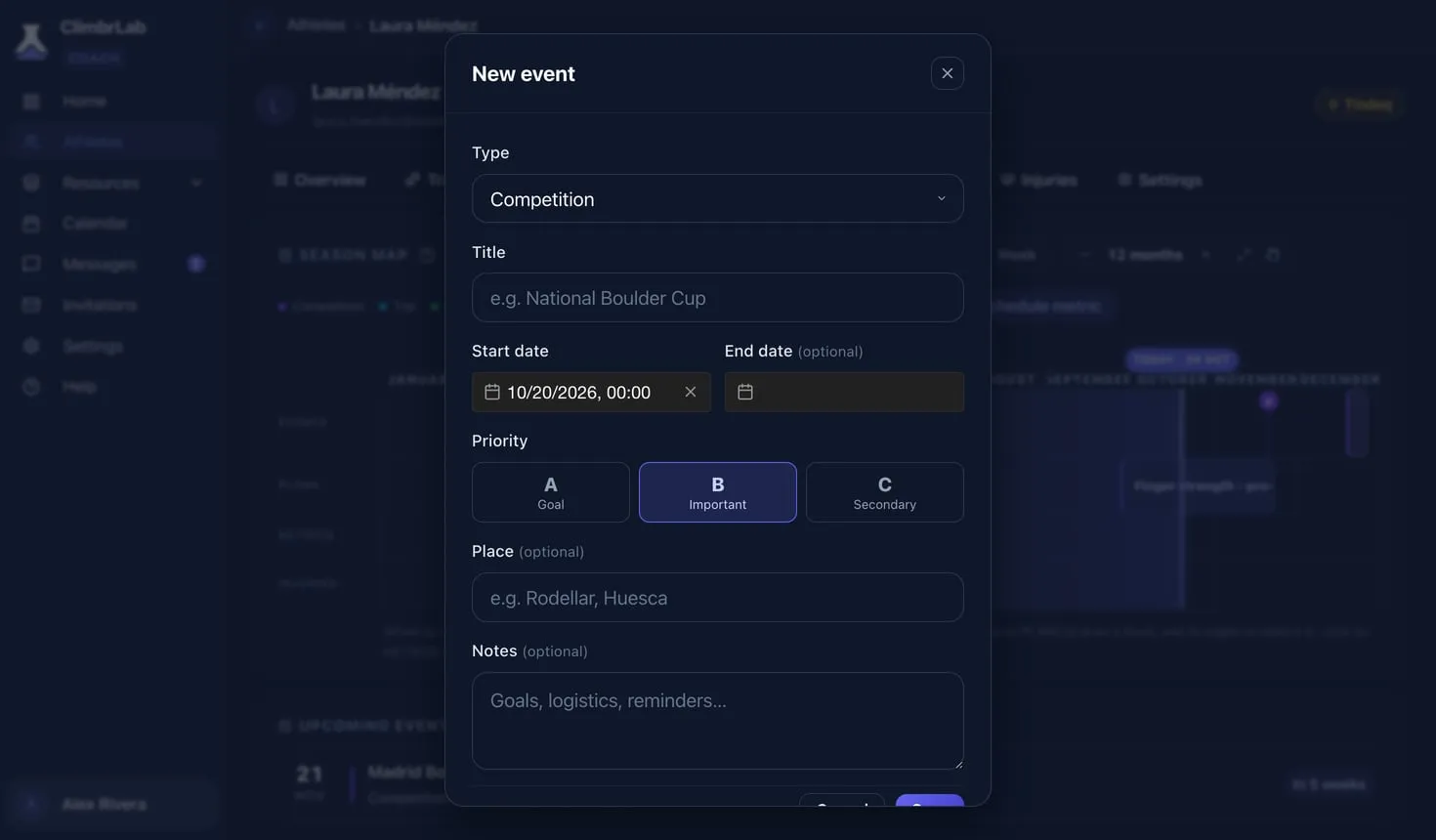
If something is missing you’ll see “The title is required.” or “The start date is required.” Priority only exists for competitions: if you change the type to another one, it is removed.
Priority helps you plan backwards: your A competitions are the ones that should coincide with the end of a peaking block. In the athlete’s Overview, the next milestone favours the next competition over other events.
Who can change what
The season belongs to both of you, but not with the same weight:
- You can edit and delete any event, including the ones the athlete created. Those are marked “Created by the athlete”.
- The athlete can’t change or delete the events you added. If they try, the app tells them: “Your coach added this event: only they can change or delete it.” They can manage their own.
Clicking an event opens its details, with Edit and Delete. Deleting an event doesn’t ask for confirmation, so check before you click.
Plan blocks
Each block in the PLANS lane is one of the athlete’s plans. Everything snaps to full weeks from Monday to Sunday, because that’s how a plan is stored: week 1 always starts on a Monday.
Drawing a new block
- In the PLANS lane, press in a free space and drag to the week you want it to end. While you drag you’ll see the dates and the length. If you just click, a one-week block is suggested and you choose the length afterwards.
- New plan · (n) weeks opens. Choose Where the plan comes from:
- From Resources: “Reuse one of your (n) plans”. It arrives with its weeks and sessions already built. It’s a copy, so tweaking it here doesn’t touch the original.
- From scratch: “An empty plan you build yourself”. You give it a name, a cycle type and sessions per week, and it takes up the weeks you have just marked. The days get filled in later in the planner.
- From Resources: search with Search your plans…, pick one and click Place this plan. From scratch: fill in the form and click Create plan.
Placing a plan from Resources is exactly the same as assigning it from Training: everything is copied the same way (see assign a plan).
The available gap and “doesn’t fit”
Two plans of the same athlete can never share days. That’s why, when you draw, the block stops by itself against the next plan, and the app tells you how much room there is:
- From scratch, under Weeks: “(n) weeks fit before the next plan”. If you type more, it warns you: “Only (n) fit before the next plan: it will be saved with (n)”.
- From Resources, a saved plan goes in with its own weeks, not with the ones you drew. If it’s longer than the gap, it appears greyed out with “· doesn’t fit: the gap is (n)”. If it’s a different length but fits, you’ll see: “You marked (n) and this plan lasts (n): it will be placed with its own, starting on the day you picked.”
- If none fits: “None of your plans fits this gap, which is (n) long. Build it from scratch, or move the next plan first to make room.”
If you don’t have any templates yet, the From Resources option tells you so and suggests building the block from scratch and saving it as a template later. If the server rejects the plan, you’ll see the exact reason, for example “It would overlap with “(plan)” (dates). Two plans can’t share days…” or the archived athlete notice. Only if it doesn’t respond at all (a connection failure) will you see “The plan could not be placed. Try again.”
Moving and resizing
- Move: drag the block. It jumps week by week and always starts on a Monday.
- Change the start or end: drag its left edge (“Drag to change the start”) or right edge (“Drag to change the end”).
- Edit its details: click the block. Edit “(name)” opens with name, description, cycle type, weeks and sessions per week.
When you drag, the block stops when it touches its neighbour. If the change would still overlap another plan, the server rejects it and you’ll see the reason: “It would overlap with “(plan)” (dates). Two plans can’t share days: move one of them or shorten this one.” If it fails for another reason: “The block could not be moved. Try again.”
How it affects the content:
- Content goes by plan weeks, not by dates. If you move the block or change its start, week 1 starts on the new Monday and everything shifts with it. Metrics scheduled on days of the plan move too.
- Metrics you scheduled by date (from the METRICS lane or the Metrics tab) stay on their date.
- Shortening doesn’t delete. If you remove weeks from the end, their content is no longer shown but stays saved and can reappear if you stretch it again. To really delete a week use Delete week in the planner (see copy, move and select).
Tip: to cut the current plan short and start another one straight away, drag the current plan’s end edge to where you want and draw the new one in the gap. That way you don’t lose the previous plan.
Deleting a block
Click the block’s × (“Delete this block”). The app asks for confirmation:
Delete this block? You are about to delete “(name)” from the season calendar. Whatever it has scheduled inside is lost too.
This deletes the athlete’s plan, just like Delete plan in Training, and it can’t be undone. Its weeks, its content and the metrics scheduled on its days are deleted. What the athlete has already logged is kept. If it fails you’ll see “The block could not be deleted.”
Tip: if the plan has tweaks you want to keep, save it as a template first from Training with Save to Resources (see save a plan as a template).
Metrics from the METRICS lane
A click on the METRICS lane (or the Schedule metric button, which uses today’s date) opens Schedule metric for that day. It’s the way to ask for regular tests that don’t depend on a plan, such as a finger test every month.
- Metric: pick one of your metrics or + Create a new metric… (the wizard opens when you click Next). If the athlete doesn’t have a Tindeq, the ones that need it are disabled.
- Does it repeat?: Doesn’t repeat, Every day, Every week, Every 2 weeks, Every month or Customise… (every how many days, weeks or months, which days of the week, or which day of the month).
- Ends (only appears if it repeats): never, on a date (last day) or after a number of times (1 to 500).
- Note for the athlete (optional): for example, “fasted, before training”.
- Click Schedule (or Schedule (n) dates if it repeats).
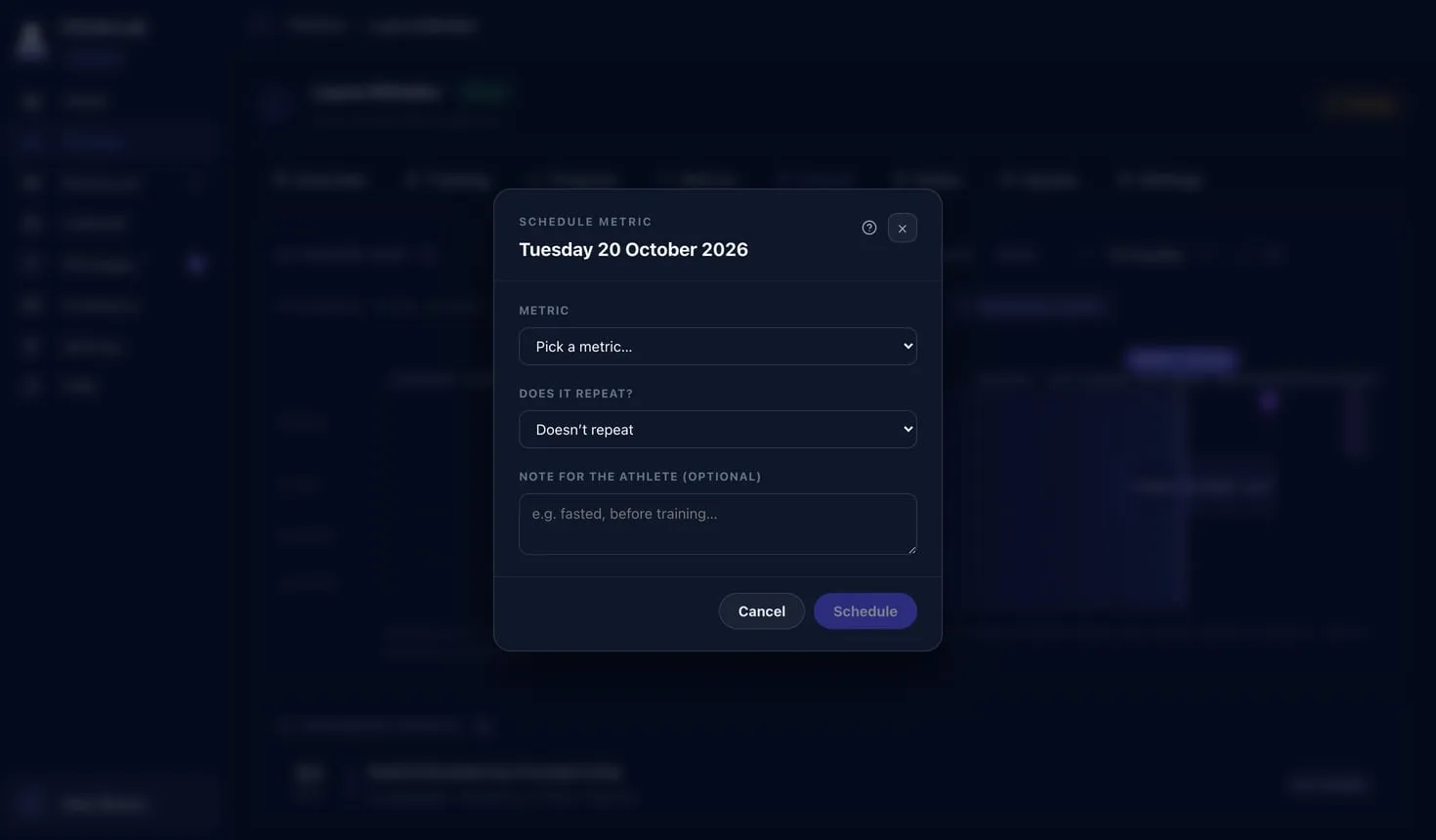
Here there is no grace days field: the default grace period applies, which is 2 days for the athlete to log it. If you need a different grace period, put the metric inside a session, where you can choose it (see metrics and templates).
Errors you might see:
- “You can’t schedule a metric on a past date.”
- “That metric is already scheduled for that day.”
- “The end date is before the start date.”
- “That combination wouldn’t ask for any day. Check the days picked and the end date.”
Metrics scheduled by date don’t move if you move a plan. How to follow their results is in an athlete’s metrics.
Injuries from the INJURIES lane
Injuries are managed in their own tab, but from here you get there quickly:
- Click an injury: it opens in the Injuries tab.
- Click an empty space: the form for a new injury opens in Injuries, with that day as the start date.
Seeing them next to the plans helps you understand why a block wasn’t completed. More in injuries.
Upcoming events
Below the map, Upcoming events lists the events that haven’t finished yet, sorted by date, with their type and a label for when they are: Ongoing, This week or In (n) weeks. Click one to see it, or Add event to create another.
If the athlete is archived
With the link archived you keep their season to look at, but you can’t plan: the app won’t let you create events (“…to create season events”), place saved plans or schedule metrics. Reactivate them with Reactivate in their Settings tab or in the ⋮ menu on their card (see pause, archive or release an athlete).
The athlete, on the other hand, can keep managing their own events.
Common questions
I can’t draw a block where I want
That space is most likely already taken by another plan, even partly. Zoom in to see it, and shorten or move the neighbouring plan. Remember too that blocks can’t be drawn on a phone.
I moved a plan and the sessions changed date
That’s expected: content goes by plan weeks, so it travels with the plan. What stays on its date are the metrics scheduled by date and the events.
Does the athlete see the future plans I place here?
In My season they see the block, with its name and dates, marked as “Upcoming”. Its content doesn’t show up for them until the Monday it starts. They don’t get any notification when you place it either.
Can I delete an event the athlete added?
Yes. You can edit or delete any event in their season. They, on the other hand, can’t touch the ones you added.
Why can’t I choose the grace days for a metric here?
This form doesn’t have that option: it always uses 2 days. If you need a different grace period, add the metric inside a session.