Assign a plan to an athlete
How to give an athlete a plan from Training: repeat, template or individual plan, start week, what gets copied, overlaps, and changing or deleting the plan.
Assigning a plan is what gives your athlete something to train: until then their app shows them nothing. Here you will see the three ways to do it, how to choose the start week, exactly what gets copied and what to do when you want to change or delete a plan.
Watch out: the athlete does not get any notification when you assign them a plan. Tell them yourself, for example from messages. And remember that an athlete cannot have two plans that share days.
Where to assign it
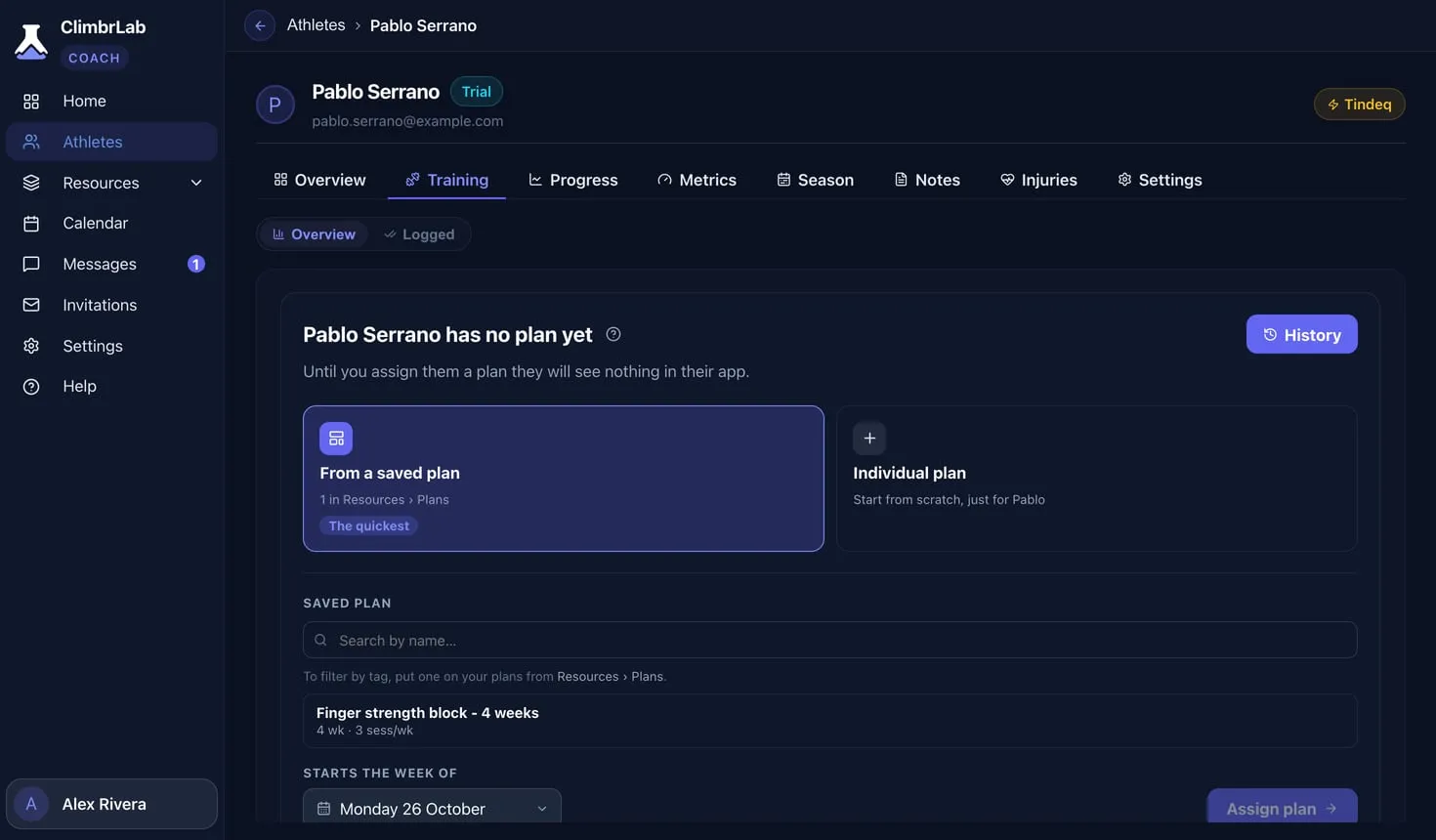
Go to Athletes → (athlete) → Training. If the athlete has no current or upcoming plan, you will see the assign panel:
- If it is their first plan: “(name) has no plan yet” and below it “Until you assign them a plan they will see nothing in their app.”.
- If their last plan has already finished: Assign the next plan, with a strip at the top that says “(plan) · finished on (date)” and the See plan button to look at it in read-only mode.
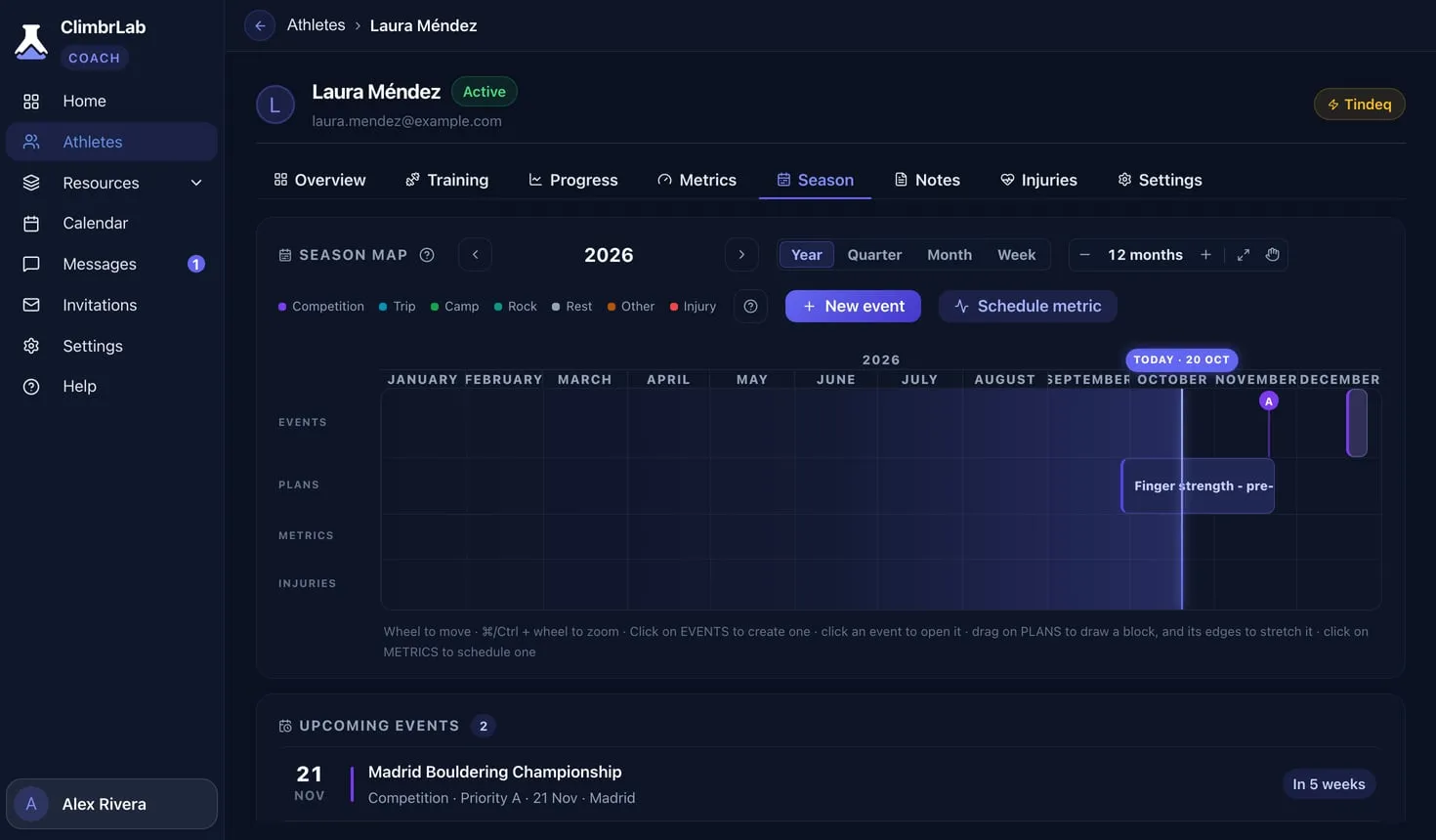
You can also place plans by drawing them on the athlete’s Season tab, which is the most convenient way to set up several blocks in a row. We explain it in the season map.
The three options
| Option | When it appears | What it does |
|---|---|---|
| Repeat “(plan)” | Only if their last plan has already finished. It carries the “The usual” badge | Copies that finished plan, with all the tweaks you made to it, and starts it again |
| From a saved plan | Whenever you have templates: “(n) in Resources › Plans”. It carries “The quickest” on the athlete’s first plan | Copies one of your templates |
| Individual plan | Always: “Start from scratch, just for (name)” | Creates an empty plan just for this athlete |
If you do not have any templates yet, the second card becomes Create a plan in Resources and takes you to Resources → Plans. How to create them is in create and manage plans.
From a saved plan
- Click From a saved plan. The Saved plan list appears, with each plan, its weeks and sessions (“4 wk · 3 sess/wk”) and its tags.
- Search by name with Search by name… or filter by tags.
- Choose the plan (it is marked with ✓).
- Choose the week in Starts the week of (see below).
- Click Assign plan.
About the tag filter:
- Only tags that at least one of your plans carries are shown.
- If you tick several, they are combined with AND: you will only see plans that have all the ticked tags. It is the opposite of the athlete list, where several tags add up results. If nothing shows up, untick some or click Clear filters.
- If none of your plans has tags, you will see the hint “To filter by tag, put one on your plans from Resources › Plans.”.
If you click Assign plan without having chosen one, the app reminds you: “Pick one of your saved plans from the list above first.”.
Repeat a finished plan
Useful when the athlete is going to do another round of the same block. You choose the week and click Assign plan. The finished plan does not change: a new one is created from it, just as with a template.
Individual plan
- Click Individual plan and then Create individual plan.
- New individual plan opens with Name, Description, Cycle type, Weeks, Sessions / week (from 1 to 7) and The plan starts the week of.
- Click Create plan.
The plan starts out empty. Fill it in from Training → Planner (see the planner). If you like how it turns out and want to reuse it with others, save it as a template.
The start week
Starts the week of is a week picker: click any day and the whole week is selected. The plan always starts on a Monday. The plan’s weeks run from Monday to Sunday, and anchoring week 1 to a Monday is what makes “week 3, Wednesday” always a specific calendar day.
By default next Monday is selected (if today is Monday, today itself), so that the plan does not start on days that have already gone.
Starting in a past week
It is allowed. It is useful, for example, to bring into the app a plan the athlete was already following on paper. The app warns you:
That week has already gone: (name) will come in on whichever week of the plan is due today, not the first one.
Bear in mind that those past weeks are still part of the plan and count in its tracking, so they can lower its adherence if the athlete did not train them.
What gets copied when you assign
The athlete receives a full copy:
- All the weeks and days.
- Loose exercises with their full prescription.
- Titles, notes and rests.
- Sessions. The ones from your library stay linked to the original (if you edit it in Resources → Sessions, it changes here too). The ones you had customised in the template are copied separately for this athlete.
- Metrics, both those placed on a day and those inside a session. They become scheduled tests for that athlete on the right day, and they follow the plan if you later move its dates. If the same metric falls twice on the same day, only one is kept.
Exceptions:
- Metrics that require a Tindeq are left out if the athlete does not have Has a Tindeq ticked in their profile (Settings). There is no warning: they are simply not scheduled. More in Tindeq for coaches.
- Exercises that require a Tindeq are copied even if the athlete does not have one. Check this if that is their case.
The template does not change. You can assign it to as many athletes as you like, and tweaking one athlete’s plan does not affect the others or the template.
Two plans cannot overlap
An athlete can have many plans over the year, but never two that share a single day. The reason: what the athlete trains each day is decided by the date, and with two plans at once one of them would be hidden without anyone being able to see why.
When the new plan would overlap another one, the server rejects it with this message:
It would overlap with “(plan)” (dates). Two plans can’t share days: move one of them or shorten this one.
You will see it exactly like that in the assign panel in Training, in the Individual plan form and on the Season tab: the app shows you the reason the server gives, with the name of the plan in the way and its dates. Only if the server does not manage to respond (for example, because the connection dropped) will you see the generic warning “The template could not be assigned to the athlete” or “The plan could not be repeated”. In that case check your connection and try again.
To fix it:
- Choose a start week after the end of the other plan.
- Or shorten or move the other plan by dragging it in Season.
- Or, if the other plan is not needed, delete it (see below).
“Upcoming” plans
If the plan starts in the future, it appears in Training with the Upcoming label instead of Current. In the meantime you can tweak it in the Planner as much as you like.
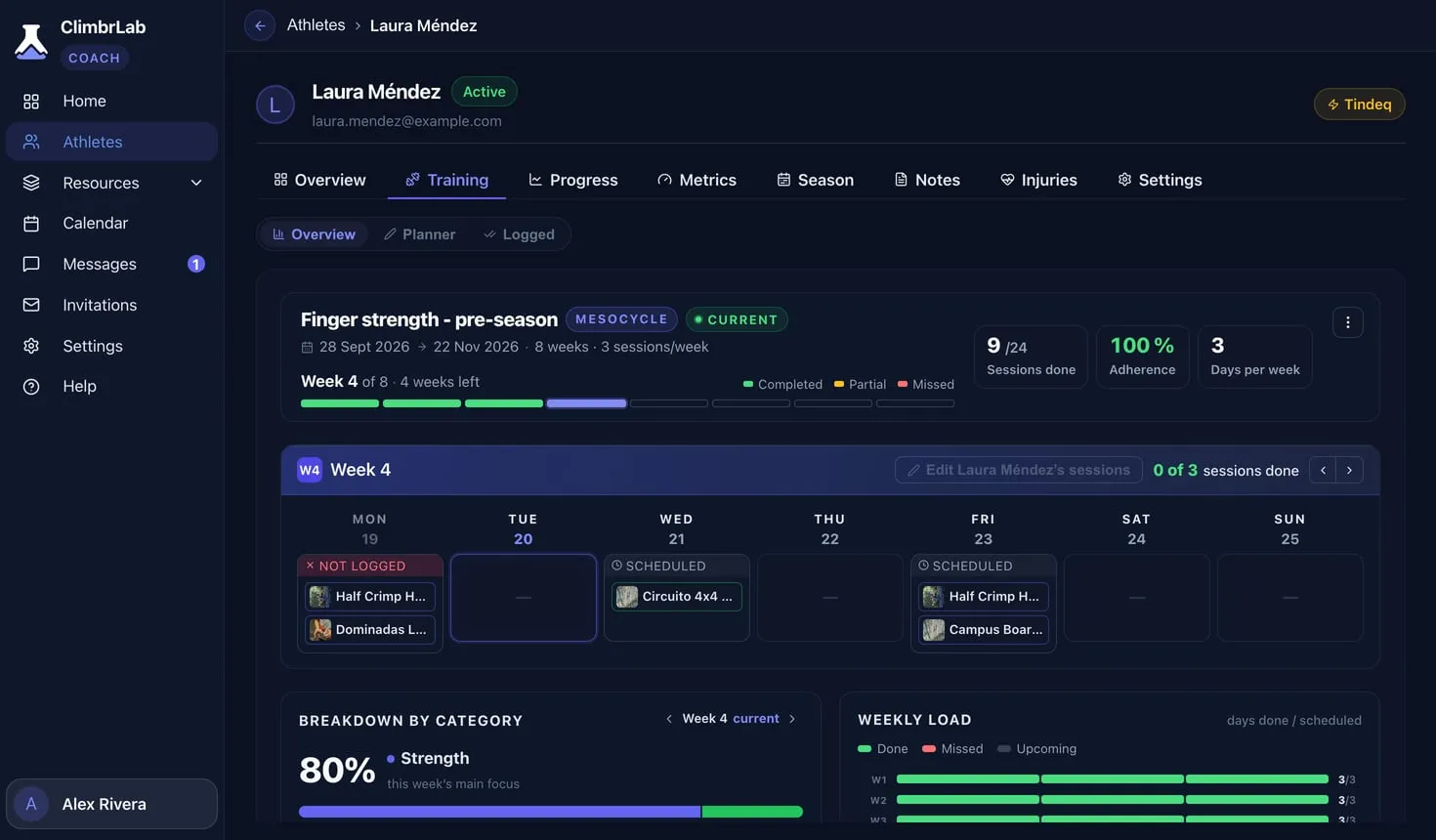
The athlete does not see its content until the Monday it starts: until then their app does not show those sessions. In My season they will see the block marked as “Upcoming”, with its name and dates, but they will not be able to open it.
If the athlete has a current plan and you assign another one for afterwards (for example from Season), Training keeps showing the current one. You can see the next one in Season.
The athlete does not get any notification
Assigning a plan does not send the athlete a notification or an email. They will see it the next time they open the app, if the plan has already started. If you want them to know, message them yourself. To find out which notifications exist, see notifications.
Change plan
In Training, the plan’s ⋮ menu (Plan actions) has Change plan. It is worth knowing what it really does:
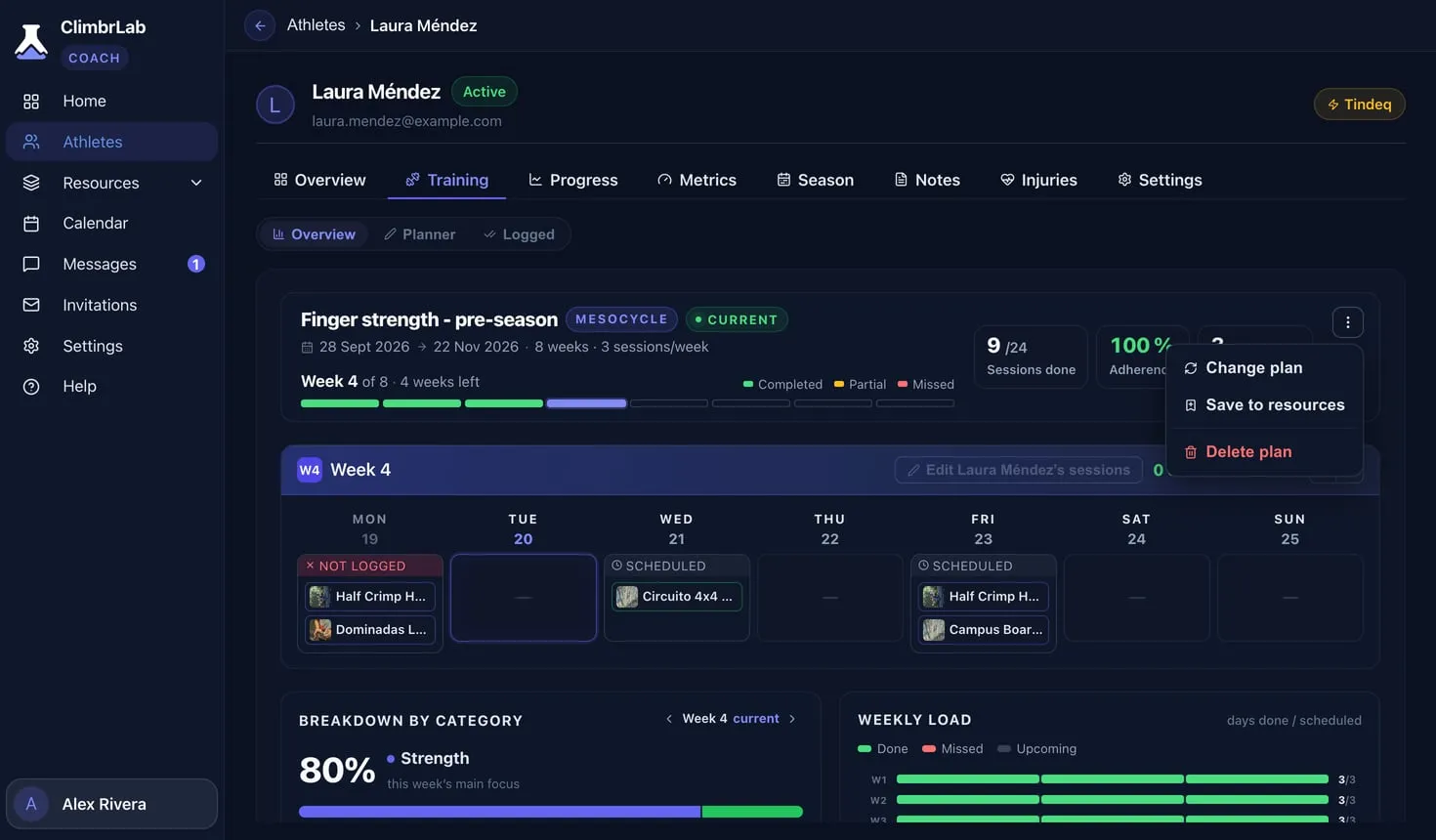
Watch out: Change plan only shows you the assign panel. It does not delete or end the current plan. If the new plan starts while the current one is still running, they will overlap and the assignment will fail with the message “It would overlap with “(plan)” (dates)…”. On top of that, the panel may say the athlete “has no plan yet” even though they do.
How to do it properly, depending on what you want:
- For the new plan to start after the current one: you do not need Change plan. Go to Season and draw or place the new block right after the current one. You can also use Change plan and choose a start week after the end of the current plan.
- To cut the current plan short and start another one now: in Season, drag the end edge of the current plan so that it finishes earlier, then assign the new one in the gap that is left. That way you keep the previous plan in the history.
- To discard the current plan completely: use Delete plan and then assign the new one. Bear in mind that deleting cannot be undone.
Delete plan
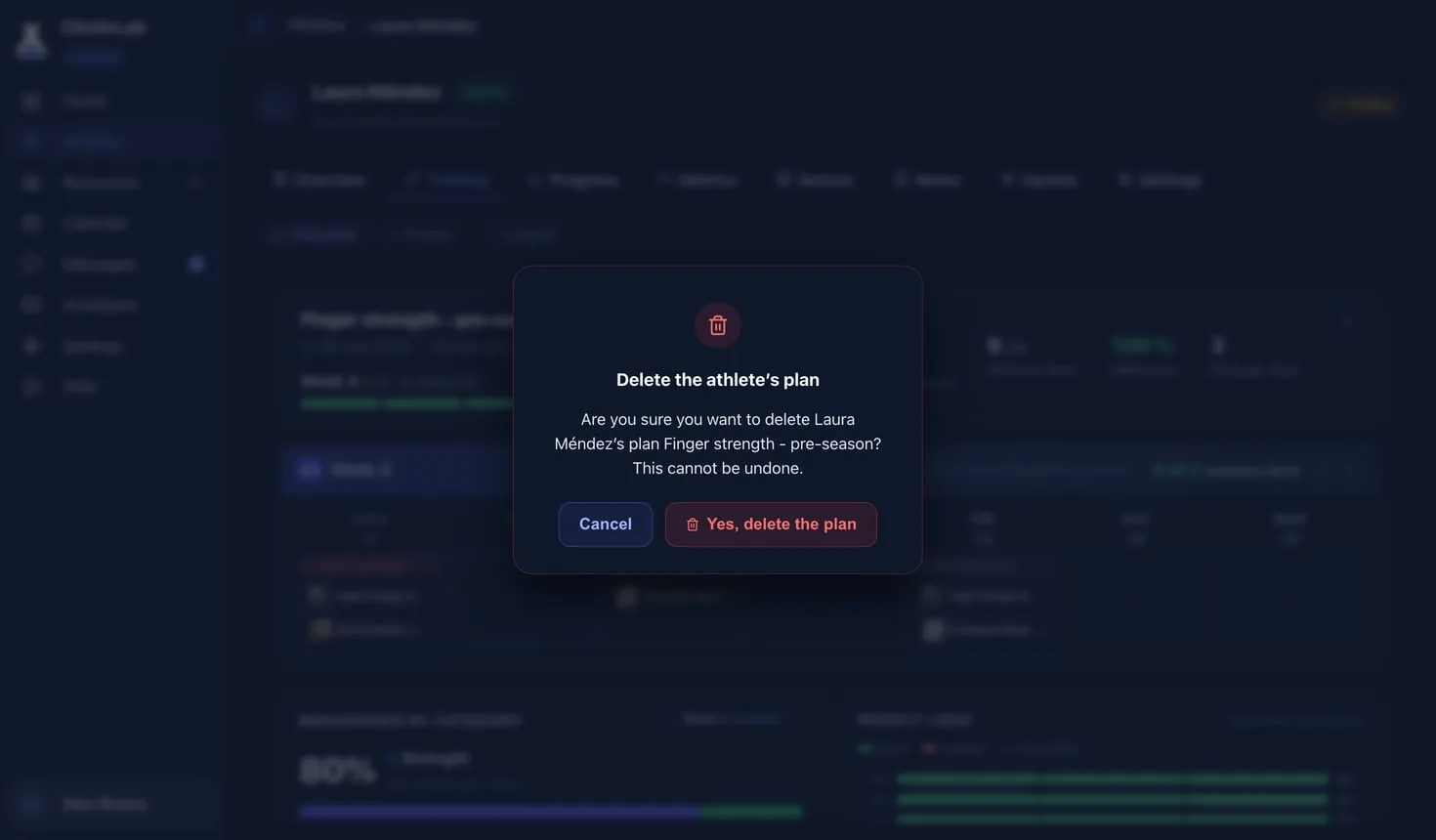
In the plan’s ⋮ menu, Delete plan (in red) opens Delete the athlete’s plan:
Are you sure you want to delete (name)’s plan (plan)? This cannot be undone.
Confirm with Yes, delete the plan. If it fails you will see “The plan could not be deleted. Try again.”.
| Kept | Deleted |
|---|---|
| The sessions the athlete has already logged, with their sets and feedback | The whole plan: weeks, days and all their content |
| The metric results they have already recorded | Metrics scheduled on days of that plan that had not been requested yet |
| Metrics scheduled by date (from Season or their Metrics tab) | |
| The template it came from |
Tip: if the plan had tweaks you would like to reuse, first click Save to resources in that same menu. You keep a template and can then delete it.
Plan history
The History button, at the top right of the assign panel, opens Plan history: all the athlete’s plans, from newest to oldest, with:
- Current or Finished, their dates and their length.
- Adherence, “(done) of (total) sessions · (%)”, or “No sessions planned”.
- Gaps between plans, “(n) days with no plan”.
- Open plan, to view it in read-only mode.
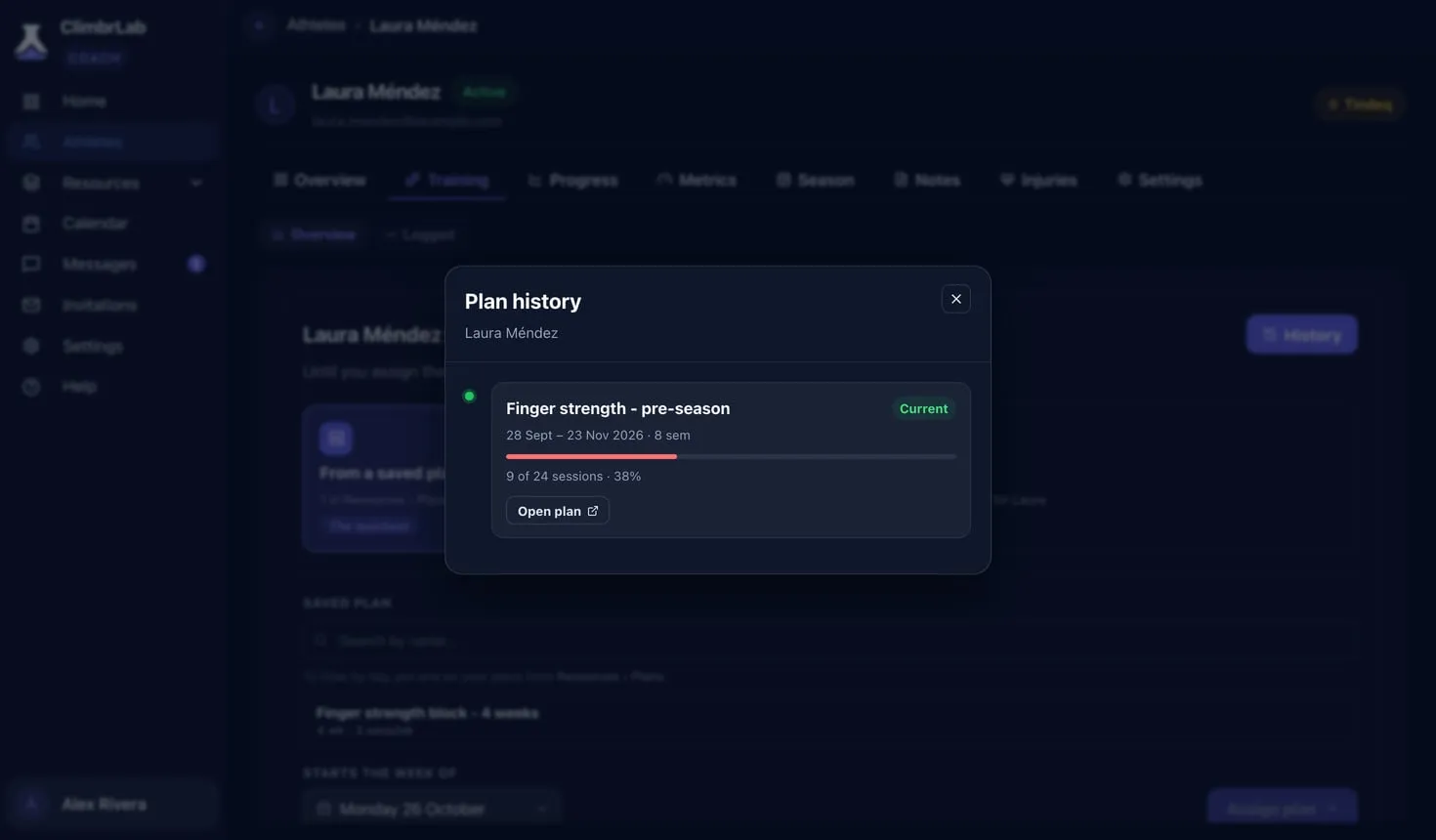
You can only see it from the assign panel, that is, when the athlete has no current plan. If they do have one, check their previous plans on the Season tab.
If the athlete is archived
At the top of their profile you will see “Archived link.”. With the link archived you cannot assign them plans. If you try, the panel tells you why: “This athlete is archived. Reactivate them from your athlete list to assign a plan.”.
The profile’s own notice tells you how to bring them back: “You keep all their history, but you cannot assign them plans or metrics and the chat is read-only. Reactivate it with “Reactivate” in their Settings tab to coach them again.”. You can also do it from the ⋮ menu on their card in the list. We explain it in pause, archive or release an athlete.
Leaving the planner with unprescribed exercises
An exercise without sets or a target cannot be performed, so the app does not let it reach the athlete like that. If you leave the athlete’s Planner with any unprescribed (you will see them marked in red), (n) exercises will be deleted appears, explaining that if you leave now they are deleted from the plan instead of staying half done.
- Keep editing: you go back and prescribe them.
- Leave and delete: they are deleted from the plan. It cannot be undone.
If you close the browser tab, you will only see the browser’s own warning and nothing is deleted: those exercises stay there until the next time you leave the planner from the app. The template editor does not have this protection. How to prescribe is in prescribe exercises.
Common questions
I have assigned the plan and my athlete says they cannot see anything
Check three things: whether the plan is Upcoming (they will not see it until its first Monday), whether the start week is the one you wanted and whether the athlete has opened the app again. Remember they do not get any notification.
I get “The template could not be assigned to the athlete”
That generic warning only appears when the server has not managed to respond, almost always because of a connection problem. Check you are online and try again. If the problem is an overlap or the athlete being archived, the panel tells you the exact reason (“It would overlap with…” or “This athlete is archived…”).
If I change the template afterwards, does the athlete get the changes?
No. The athlete has their own copy. They only get the changes you make to the original sessions in Resources → Sessions, because those are linked.
Can I assign the same plan to several athletes at once?
There is no bulk assignment: it is done athlete by athlete. The same template works for all of them and each one gets their own copy.
Can I change the start date of a plan that is already assigned?
Yes, by dragging its block on the Season tab. All the content moves with it. We explain it in the season map.
I deleted a plan by mistake. Can it be recovered?
No. If you saved it beforehand with Save to resources or it came from a template, you can assign it again. Whatever the athlete has already logged is still stored.