The planner: the complete guide
How the ClimbrLab planner works: the library, weeks and days, adding content, days already trained, auto-saving, mobile and shortcuts.
The planner is the screen where you build the days of a plan: on the left you have the library with everything you can place and on the right the weeks, one row per week and one column per day. It is the same planner in a template and in an athlete’s plan, with a few differences we explain here.
Before you start, the most important warning: several week actions (Duplicate and Empty week) do not ask for confirmation and cannot be undone. Read the section on weeks before using them on a plan that already has work in it.
Where it is
There are two routes, depending on what you are building:
- A template: Resources → Plans, then click See plan on the plan card. The planner takes up the plan page, below its name and details.
- An athlete’s plan: Athletes → (athlete) → Training → Planner. The Planner tab only appears once the athlete has a plan assigned. If they do not have one yet, see assign a plan.
If you are not sure about the difference between a template and an individual plan, start with create and assign plans.
What changes between a template and an athlete’s plan
| Template | Athlete’s plan | |
|---|---|---|
| Dates | No start date: the day numbers (and the Today label) are only a guide | Real dates, with the Today label on today’s date |
| Week open when you go in | Week 1 | The current week |
| Adherence traffic light | No | Yes, with its legend at the top |
| Days already trained | Do not exist | They are locked (see below) |
| Metrics | Stored in the template and turned into requests when you assign it | Scheduled for that athlete on that day |
| Injury warning | No | A ⚠ on exercises that clash with their active injuries |
| Customising a session | Customize in this template only | Customize for this athlete only |
| Leaving with unprescribed exercises | No warning | Warns you and, if you confirm, deletes them |
A plan that has already finished opens in read-only mode: you can look through it, but the library and the add buttons disappear.
The library
It is the panel on the left, labelled LIBRARY. It stays in view while you programme, so you do not have to go in and out every time you add something.
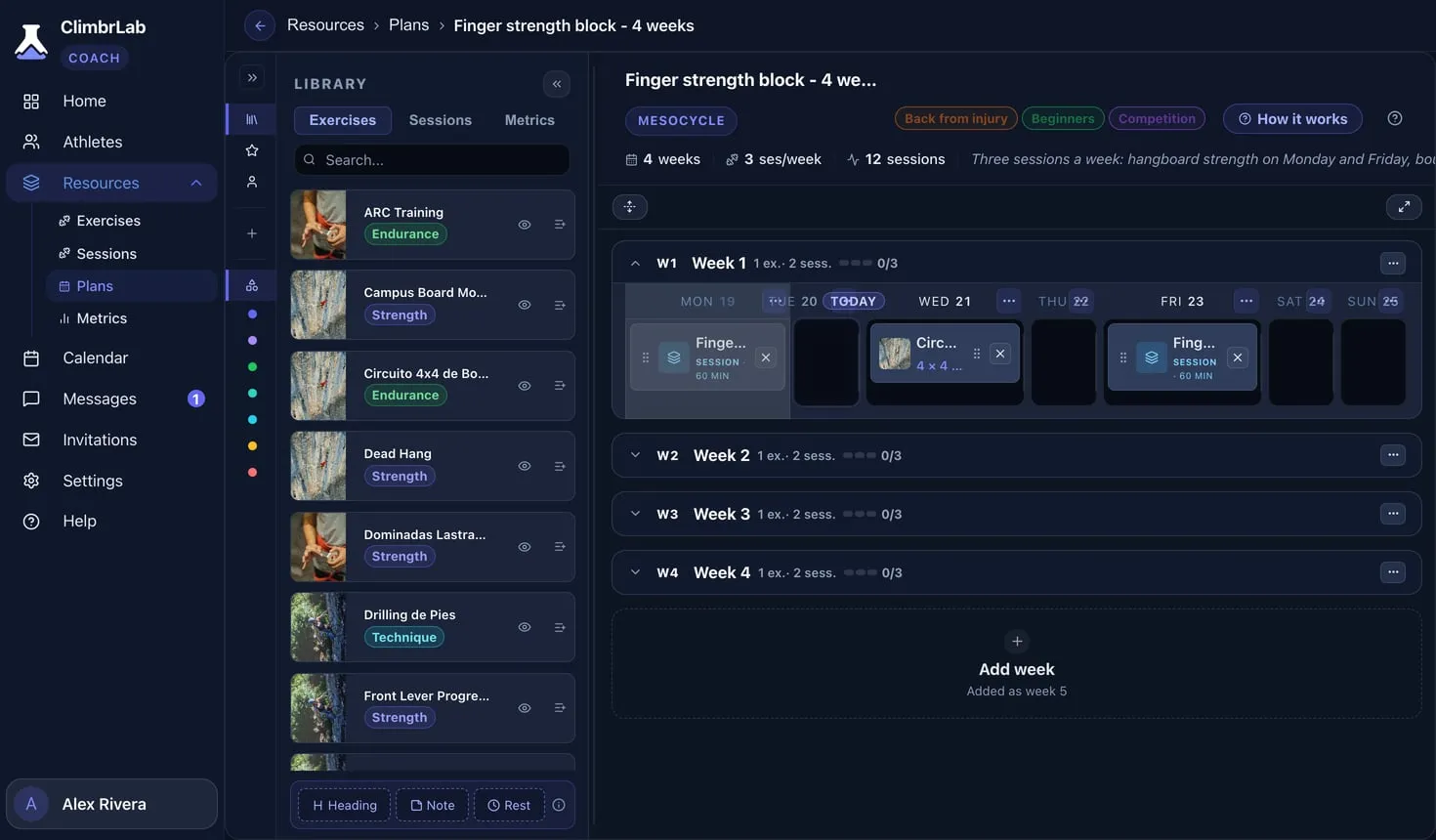
The three tabs
- Exercises: individual pieces from your catalogue. See exercise library.
- Sessions: workouts you have already built in full and place in one go. See sessions.
- Metrics: tests and measurements you ask the athlete for. See metrics and templates.
The search box (Search…) filters by name within the tab you are on.
All, Favourites, Mine, your lists and the categories
On the Exercises tab, on the far left, there is a narrow column with All, Favourites, Mine, My lists and, below them, Category. It starts collapsed to leave room for the calendar. When you expand it, the library collapses, and when you choose something in it the library opens again, already filtered. That way the two never take up the screen at the same time.
If you filter by a category, the filter appears as a tag below the search box: click it to remove it. If a list or a filter leaves the library empty, See the whole library appears so you can see everything again.
Collapse and widen the library
- Close the library (the double-arrow button in the header) tucks it to one side so you can see more days. Open the library opens it again.
- To make it wider or narrower, drag its right edge (Resize the library). It goes from 256 to 480 pixels.
See the card before placing it
- Exercises: the eye icon (See …’s card) or a double click opens the card. If the exercise is yours, from there you have Edit this exercise without leaving the planner.
- Sessions: a click with no day selected expands the exercises inside it. The eye or a double click opens its full card.
- Metrics: the eye or a double click opens its card. Tindeq ones carry a ⚡, and in the plan of an athlete without a Tindeq they appear locked with the warning “Needs a Tindeq and this athlete doesn’t have one”.
In an athlete’s plan, a ⚠ next to an exercise warns you that it clashes with one of their active injuries. It is a warning, not a block: you can still add it.
The structure strip: Heading, Note and Rest
Below the library, always visible, there are three pieces that are not exercises:
| Piece | What it is | Limit |
|---|---|---|
| Heading | A label that splits the day into blocks (Warm-up, Strength, Technique…). Everything below it belongs to that block until the next heading | 80 characters; if you type more, it is cut off |
| Note | A written cue for the athlete at that exact point of the day | 500 characters |
| Rest | A pause with a duration | Up to 60 minutes |
They are worth using: without headings, the athlete opens their session on their phone and sees one long list of exercises, with no idea where the warm-up ends. With them, their day turns into named blocks.
Headings and notes are typed straight into the card and saved when you leave the field. If you leave one empty, it is deleted.
Adding content to a day
There are two ways, and you can combine them.
By dragging
Drag an exercise, a session or a structure piece onto the day you want. While you drag, the days where you can drop light up, the ones that do not accept changes are greyed out and empty days show Drop here.
If the day you are looking for is in a collapsed week, hold what you are dragging over that week’s header for a moment (0.8 seconds) and it opens by itself.
By selecting a day and clicking
It is the quickest way to fill a whole day without letting go of the mouse:
- Click the day header (the name and the number).
- The library shows Adding to (day) and the hint “Click an exercise to add it · or drag it to any day”.
- Each click on an exercise, a session or a structure piece adds it to the end of that day. A message confirms what has been added and to which day.
- To finish, click the ✕ next to Adding to … or click the day header again.
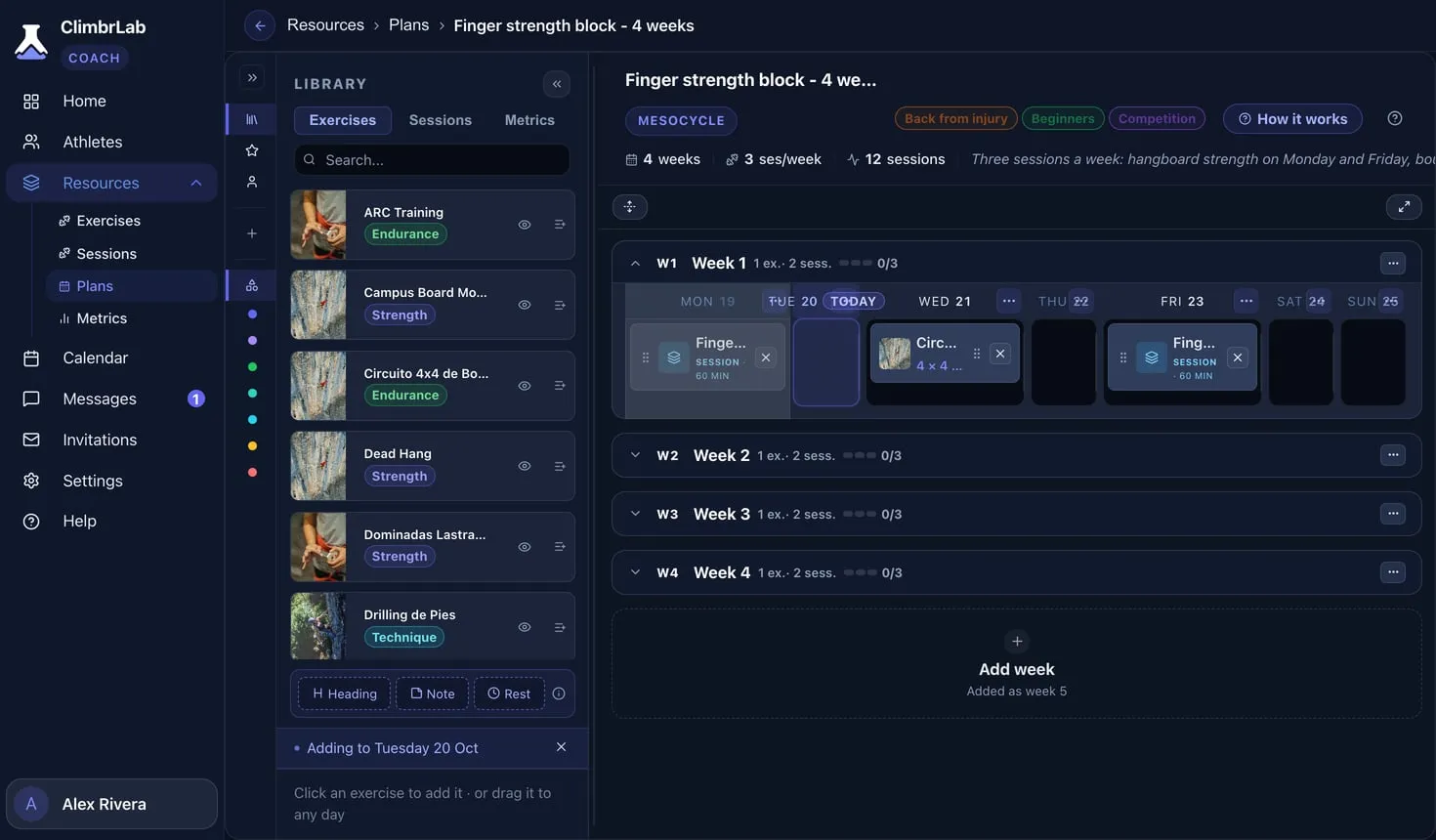
The click takes a moment to add. That is on purpose: it lets the app tell a click from a double click (which opens the card) so it does not add the same thing twice.
If you click Heading, Note or Rest with no day selected, you will see “Pick a day first”.
Metrics, by click only
Metrics are not dragged: select the day and click the metric. The row’s hint tells you: “Schedule on (day)” or “Pick a day first”.
- In a template, the metric is stored in the plan and, when you assign the template, it becomes scheduled for that athlete on the corresponding day.
- In an athlete’s plan, it is scheduled for them on that day of the plan.
- You cannot put the same metric twice on the same day: “That metric is already scheduled that day”.
- To remove it, click the × on its tag in the day (Remove metric).
Metrics never travel when you copy days or duplicate weeks: you will have to schedule them on each day where you want them.
Create an exercise without leaving the plan
In the day menu, Create exercise here opens the exercise wizard and, when you finish, places it on that day. You can save it to your library or keep it only in this plan. We explain it in create an exercise.
The weeks
Each row is a week. In its header you see the W1, W2… label, the Week (n) title and a summary such as “4 ex. · 2 sess.”. There is also a bar showing how many of the scheduled days the athlete has completed (in a template it always stays at 0).
If a week has more days with content than you set in Sessions / week, you will see a +1 days warning (or however many) with the detail “5 active days, the plan says 4”. It is only a reminder: it does not block anything.
Collapse and expand
- Click a week’s header to collapse or expand it.
- When you go in only one week is open: the current one in an athlete’s plan, the first one in a template.
- Above the calendar, Expand all opens every week at once, which is handy for comparing or copying from one to another. The same button then becomes Collapse all.
The week menu
The ⋯ button in the header opens This week with four options:
| Option | What it does | Does it ask first? |
|---|---|---|
| Duplicate into next week | Copies this week, day by day, into the next one. Not available on the last week | No |
| Duplicate into every week | Copies this week into all the other weeks of the plan, including earlier ones | No |
| Empty week | Removes exercises, sessions, headings, notes and rests. The week still exists, blank | No |
| Delete week | Deletes the whole week and the following ones move up one place | Yes |
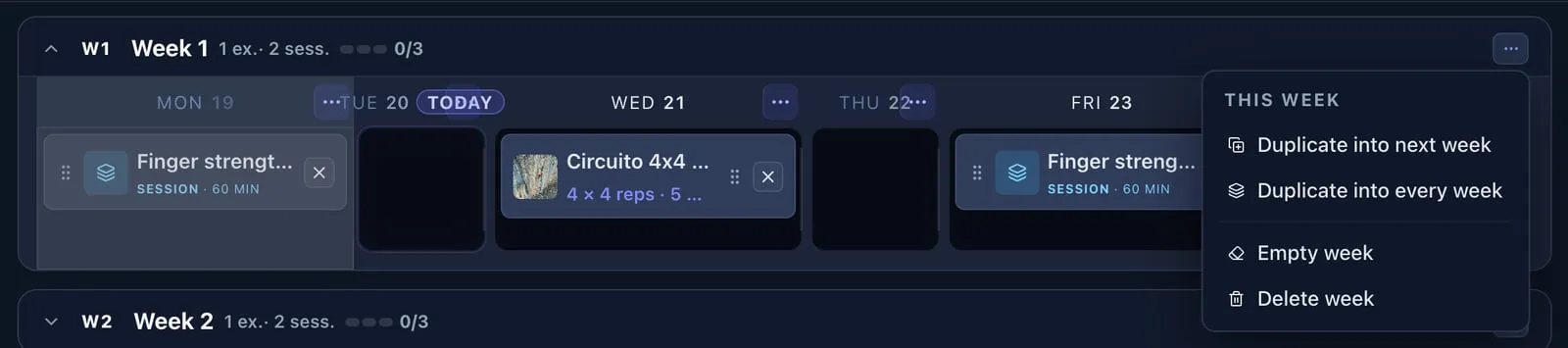
Duplicating is the normal way to build a block: you build one good week and repeat it. But you need to be clear on how it works:
Watch out: Duplicate overwrites. Before copying, it empties the target week (or all of them, if you choose Duplicate into every week). Whatever you had scheduled there is lost without warning and there is no way to recover it.
Watch out: Metrics are not copied when duplicating, and Empty week does not remove them either: they stay on their days. If you want to remove them, do it by hand with the × on each one.
Watch out: at the moment, Empty week and Duplicate do not check whether any of the target days have already been trained. Do not use them on weeks where the athlete has already trained a day: you could remove what was scheduled on those days and the operation could stop halfway with an error.
Delete week does ask for confirmation. The Delete week (n) dialog sums up what will be lost and how long the plan will be afterwards, and adds: “What the athlete has already trained keeps its real date.”. Click Yes, delete to confirm. A plan needs at least one week, so with only one the option is disabled (“A plan can’t be left without weeks”).
Add week
At the end of the last week there is the Add week card, with the hint “Added as week (n)”. It is always added at the end, empty.
The days
The day header
It shows the short name of the day, the day of the month and, in an athlete’s plan, the traffic light and the Today label. A click on it selects the day for adding by click (see above).
The day menu
Each day’s ⋯ button (Copy or paste this day) groups:
- Content → Create exercise here.
- Structure → Add title, Add note, Add rest, in case you would rather not drag.
- This day → Copy day and Paste here (when you have something copied it changes to Paste (n) items). We go into it in depth in copy, move and select.
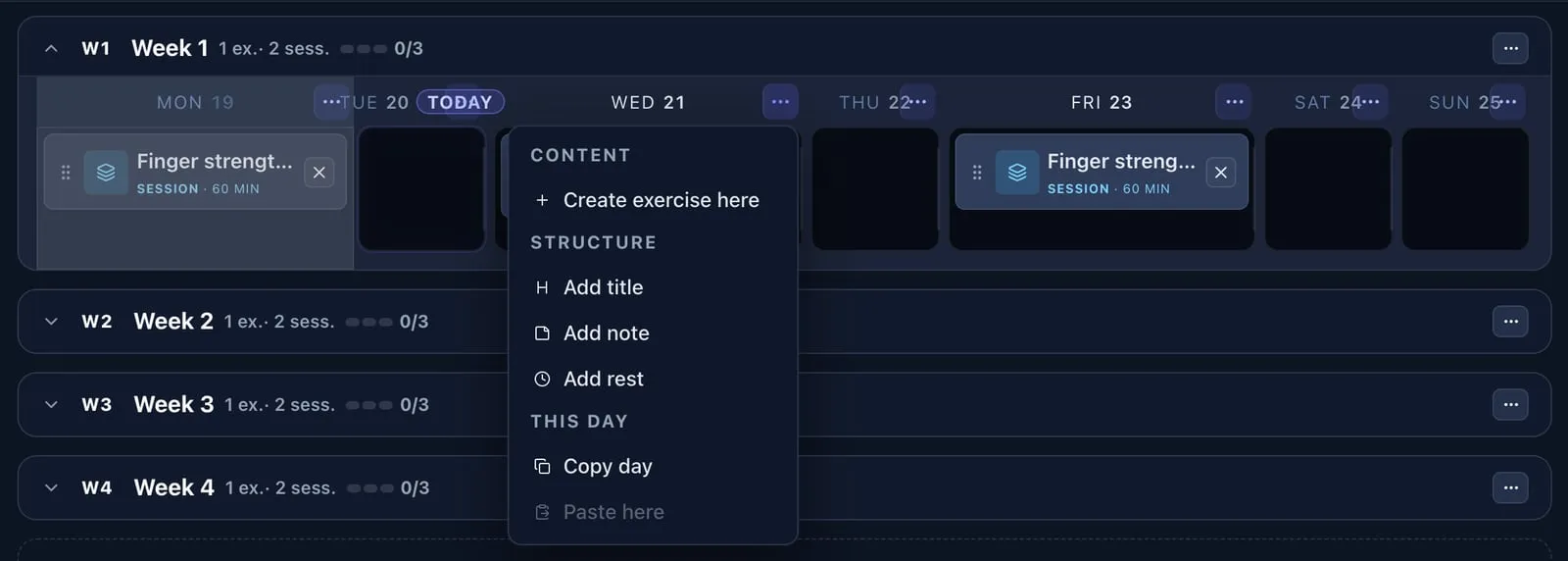
What is inside a day
From top to bottom you may find:
- Anything the athlete has noted down on their own for that day, such as a Rock day (“The athlete is going to the rock this day”). It is for information and cannot be edited from here.
- Scheduled metrics, as tags.
- Your cards, in the order they will do them: exercises, sessions, headings, notes and rests.
An empty day is a rest day. There is no need to mark it in any way.
An exercise card
- One click expands it: description, tags, muscles, the prescription (or the Prescribe… button) and the notes.
- A double click opens the prescription window directly.
- If the prescription is missing, the card says Not prescribed in red (“Prescription missing: sets and target”). The athlete cannot perform an exercise like that.
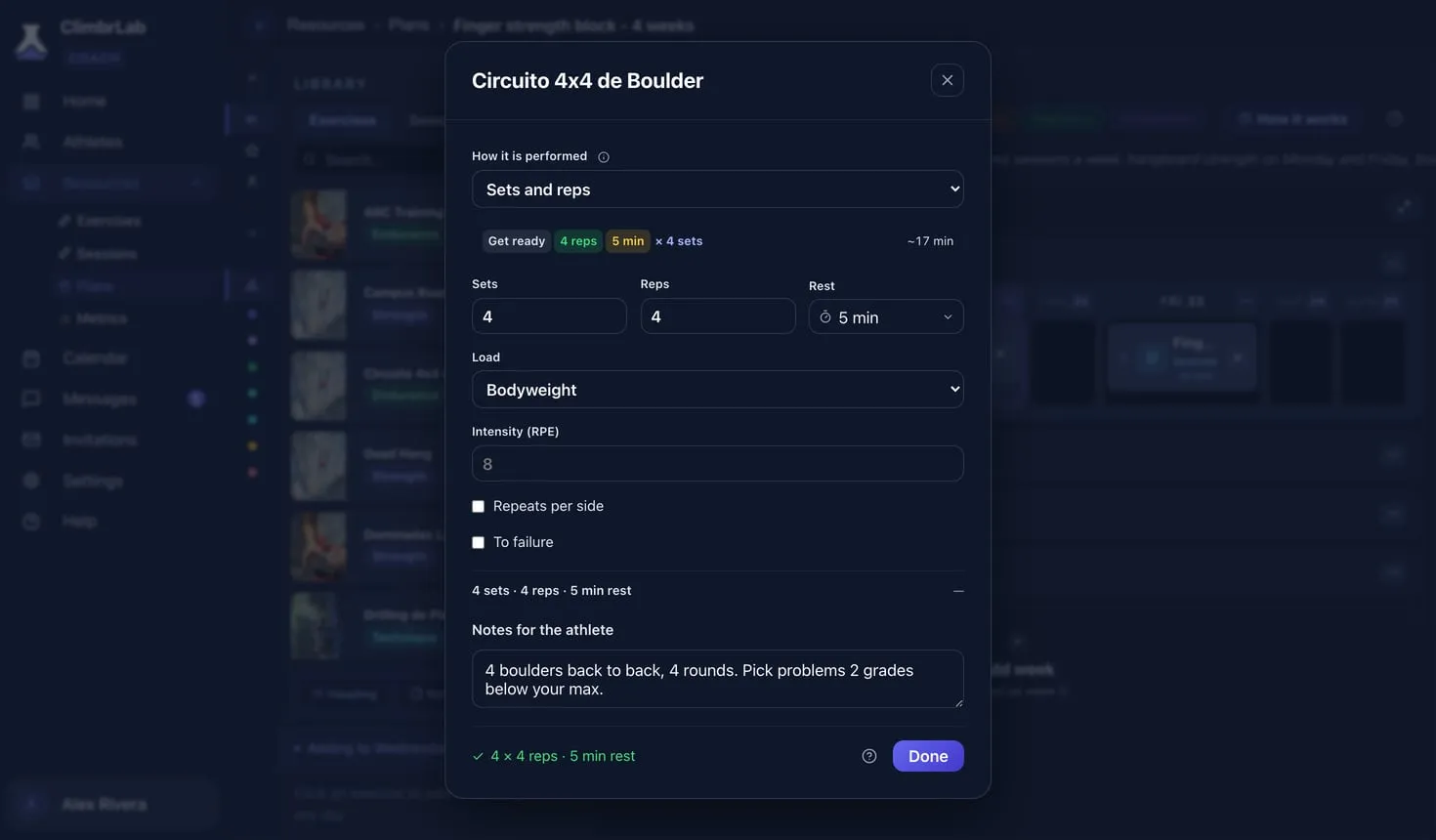
How to fill in the prescription, field by field, is in prescribe exercises. Changes are saved as you type, so closing the window loses nothing.
A session card
It shows the session name and its duration. One click opens its card, with the exercises it contains and the editing options. A session’s exercises are prescribed in the session itself, not from the plan.
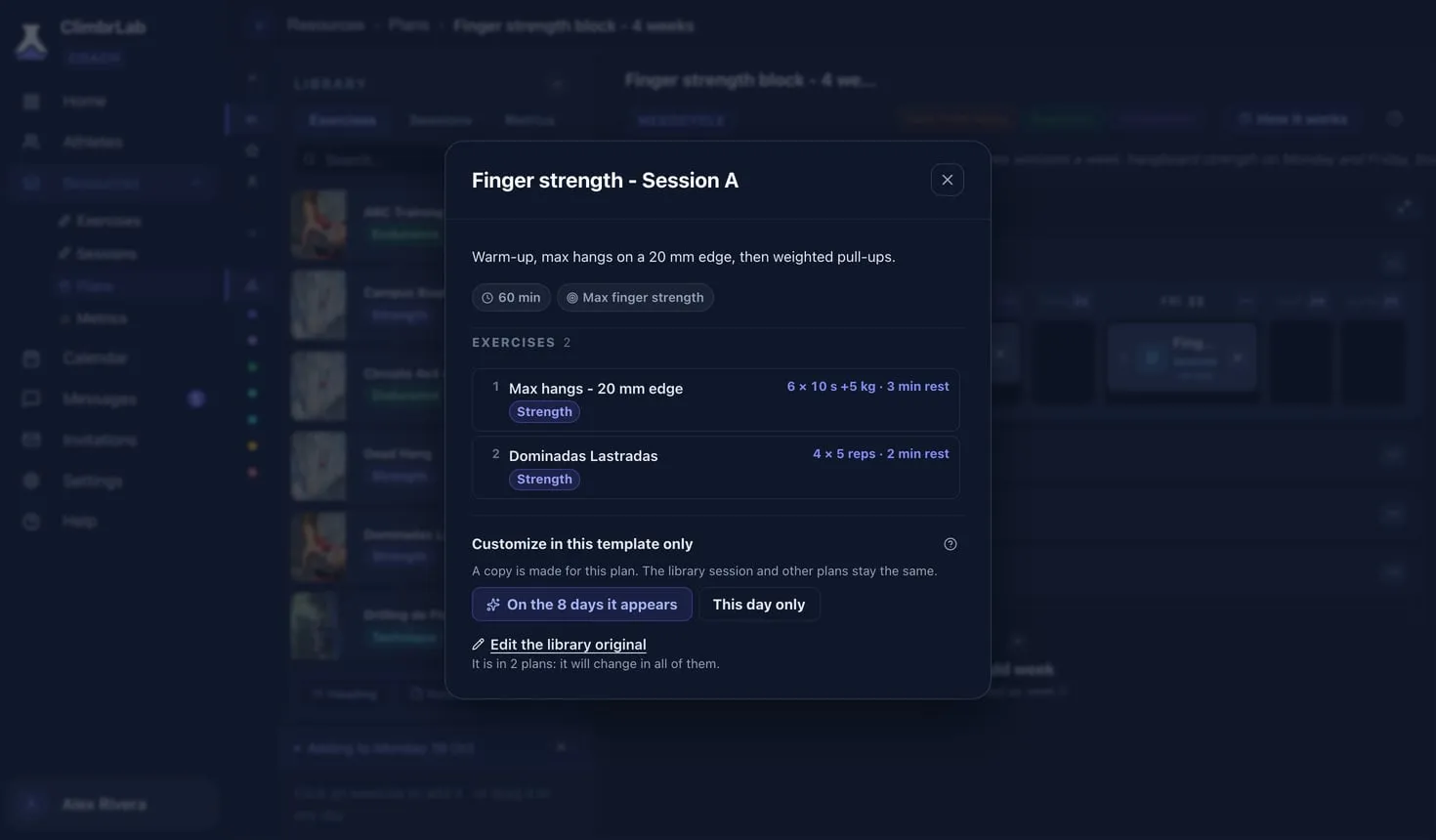
Important: a session in a plan is linked to the one in your library, not copied. If you edit it, it changes in every plan that uses it, unless you customise it. We explain this in customise a session. Customised ones carry a ✨ icon (“Customized in this plan”).
Removing a card
A card’s × removes it instantly, with no confirmation and no undo. If you remove several at once, it does ask. Removing a session from a day does not delete it from your library.
Day width
Drag a day’s right edge to widen or narrow its column. Days with content widen by themselves when there are empty days in the week. The width you choose is not saved: when you reload it goes back to the usual one.
The traffic light: has the athlete trained?
Only in an athlete’s plan. Above the weeks you have the legend with their name:
| Mark | What it means |
|---|---|
| Green | trained what you set for that day |
| Amber | trained, with changes or unfinished |
| Amber, with a different icon | trained another day (for example, they skipped Monday and did it on Thursday) |
| Red | did not train: the day went by without it being done |
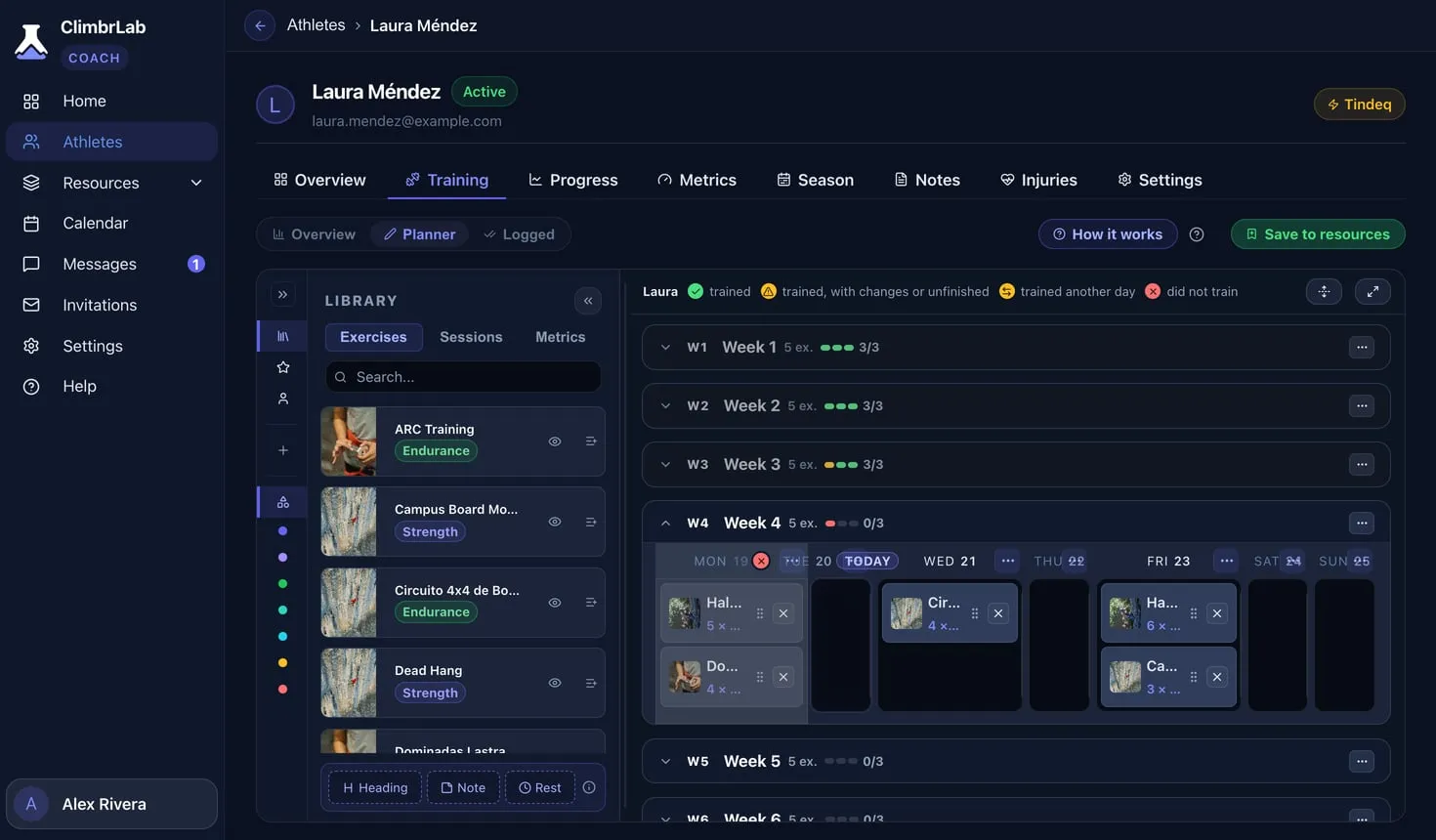
A day with no mark has not arrived yet. Hover over a mark to see when they actually trained or how many sets they skipped or changed. Full tracking is covered in tracking a plan.
Days already trained
As soon as the athlete logs a session for a day of the plan, that day is locked. What decides it is that they trained it, not the date: a past day the athlete did not train can still be edited.
On a locked day you cannot drop, paste, add, remove, reorder or edit anything. The prescription opens in read-only mode and the message says “That day is already trained: it can’t be changed” or “Trained on (date)”. The reason is simple: what the athlete did is a record, and changing it afterwards would falsify their history.
What you can do is copy from a locked day: if a Monday went well, you can repeat it on another day.
Saving is automatic
There is no save button. Every change is saved straight away. When you reorder cards, the bottom bar shows Saving the order… while it is being sent. If something fails, you will see the error in a fixed bar, for example “The new order could not be saved. Reload the page.”. Reload before carrying on so you see the plan’s real state.
Leaving with unprescribed exercises
In an athlete’s plan, if you try to leave the planner (to another of the athlete’s tabs or to another screen) with Not prescribed exercises, the (n) exercises will be deleted warning appears. It explains that, without a prescription, the athlete cannot perform them and that, if you leave, they are deleted from the plan instead of staying half done. You have two options:
- Keep editing: you go back to the planner to prescribe them.
- Leave and delete: those exercises are removed from the plan and you leave.
Watch out: Leave and delete really does delete those exercises from the athlete’s plan. If you wanted to keep them, click Keep editing and prescribe them.
If you close the browser tab or reload, the browser shows its own warning, but nothing is deleted: the unprescribed exercises stay until the next time you leave the planner from the app.
In a template there is no such warning: unprescribed exercises stay as they are. If you assign the template like that, the athlete will receive them unprescribed, so it is best to complete them first.
Full screen
The Full screen button, above the weeks, hides the side menu, the athlete’s profile and the tabs, and puts the browser into full screen. It is very useful with long plans. To go back, click Leave or press Esc.
On mobile
On a small screen the planner changes shape:
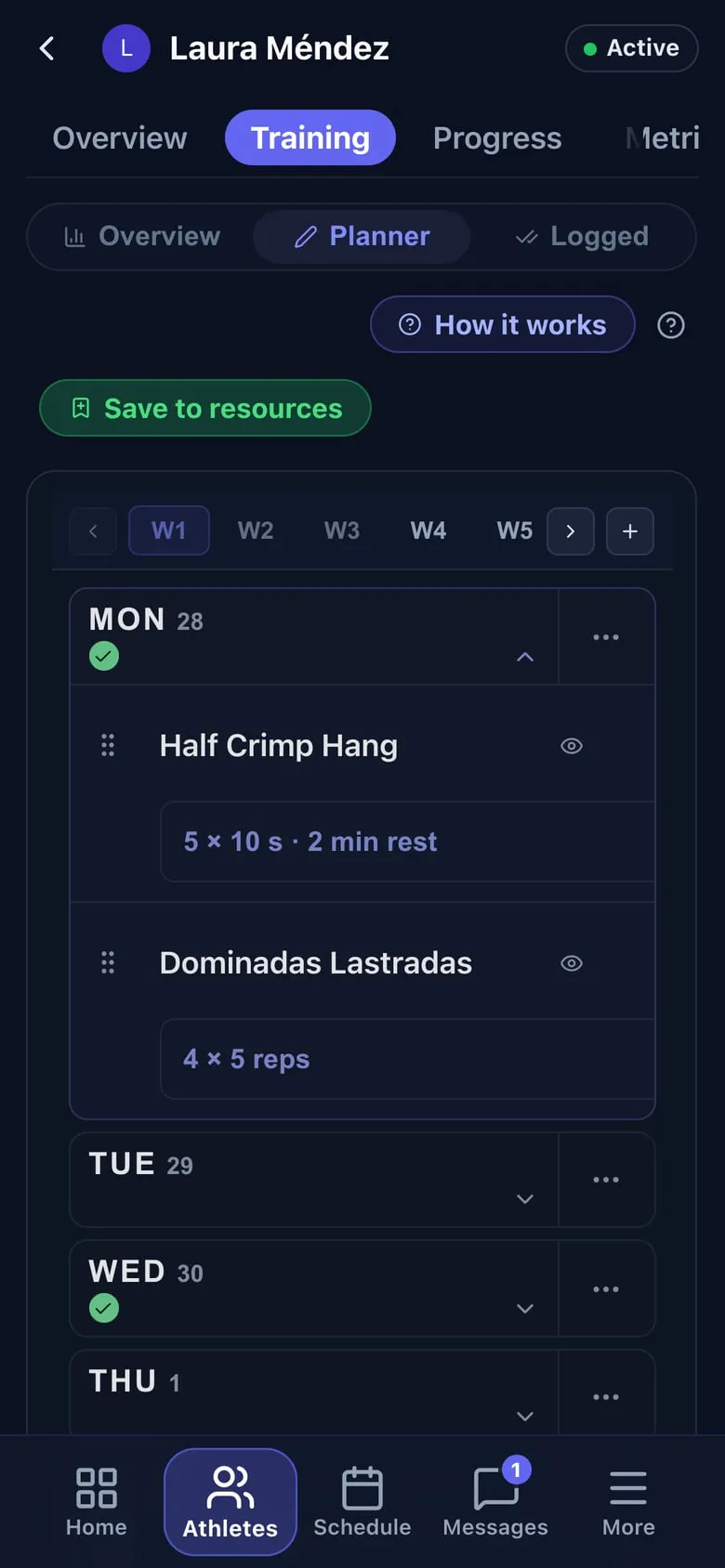
- You see one week at a time, with W1, W2… tabs and arrows to move around. You can swipe between days.
- There is no library panel. To add, tap Add at the end of a day or the floating Add to (day) button. A full-screen sheet opens with the Exercises, Sessions, Metrics and Structure tabs.
- In that sheet you can select several things at once, even from different tabs, and add them all together with Add (n) to (day).
- Structure offers you Blank title, Blank note, the titles you have used before and a few presets: Warm-up, Mobility, Strength, Technique and Cool-down.
- The day menu is still available (Create exercise here, Copy day, Paste). The week menu (duplicate, empty, delete) is only in the desktop view.
- To add a week, use the + on the week strip (“Add a week at the end of the plan”).
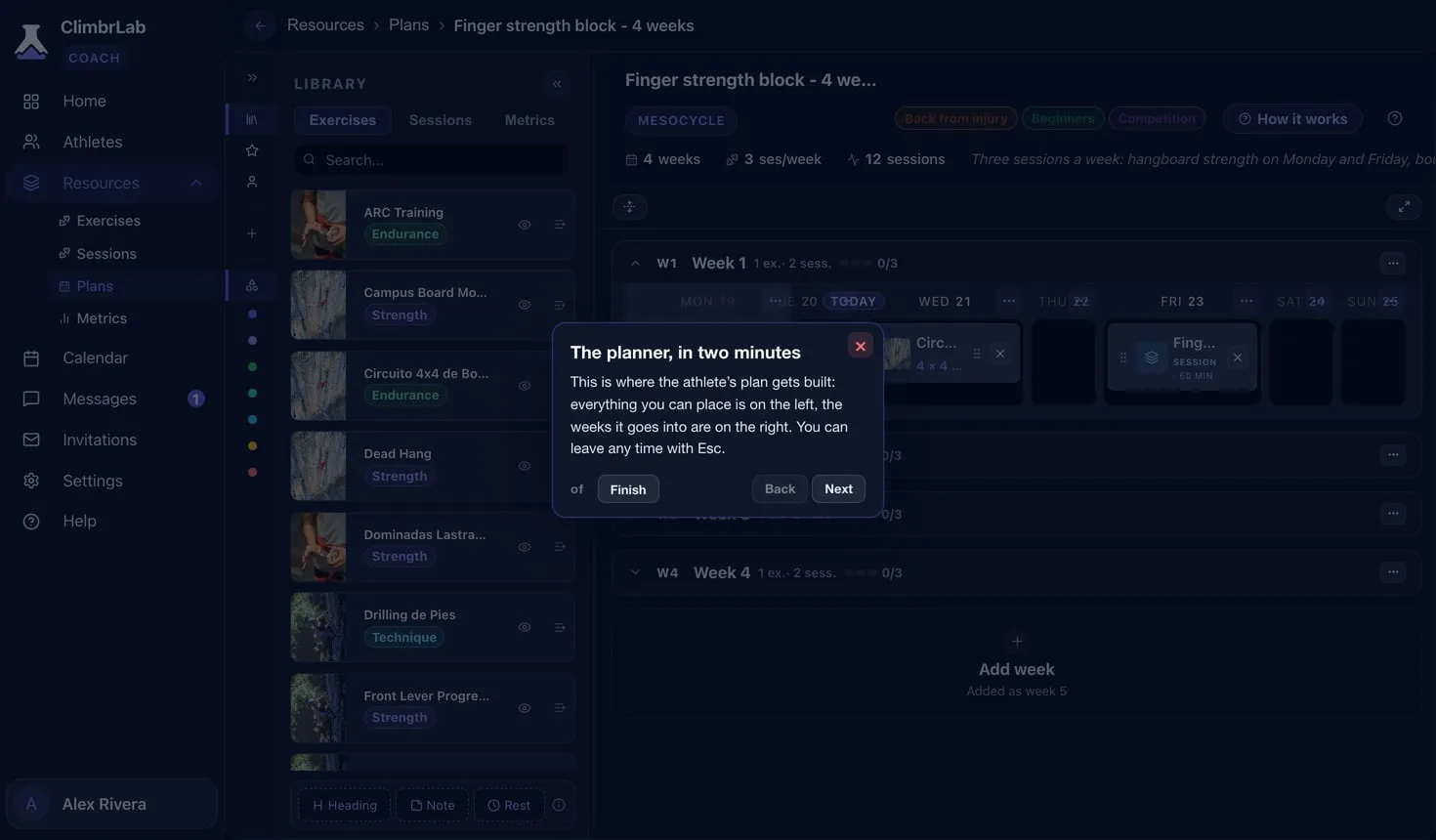
The “How it works” tour
The How it works button (“A guided tour of the planner”) launches a walkthrough of up to 16 steps around the screen: the library, the weeks, the menus, copying and selecting, the traffic light and full screen. It is in the template header and in Training when you are on an athlete’s Planner. It never opens by itself, so you can repeat it whenever you like. Close it with the × or with Esc.
Shortcuts and tricks
- Programme a day in one go: select the day and keep clicking in the library.
- Build one week and repeat it with Duplicate into next week, but do it before filling in the following weeks, because it overwrites them.
- Copy a whole day with Copy day and paste it into other days: it is added below whatever is there.
- Right-click a card to copy it, paste below it or delete it.
- Drag with ⇧ Shift to copy instead of moving.
- Select several with ⌘/Ctrl+click, Shift+click or a selection box, and move, copy or delete them together.
- ⌘/Ctrl+C, ⌘/Ctrl+V and Delete work on the selection.
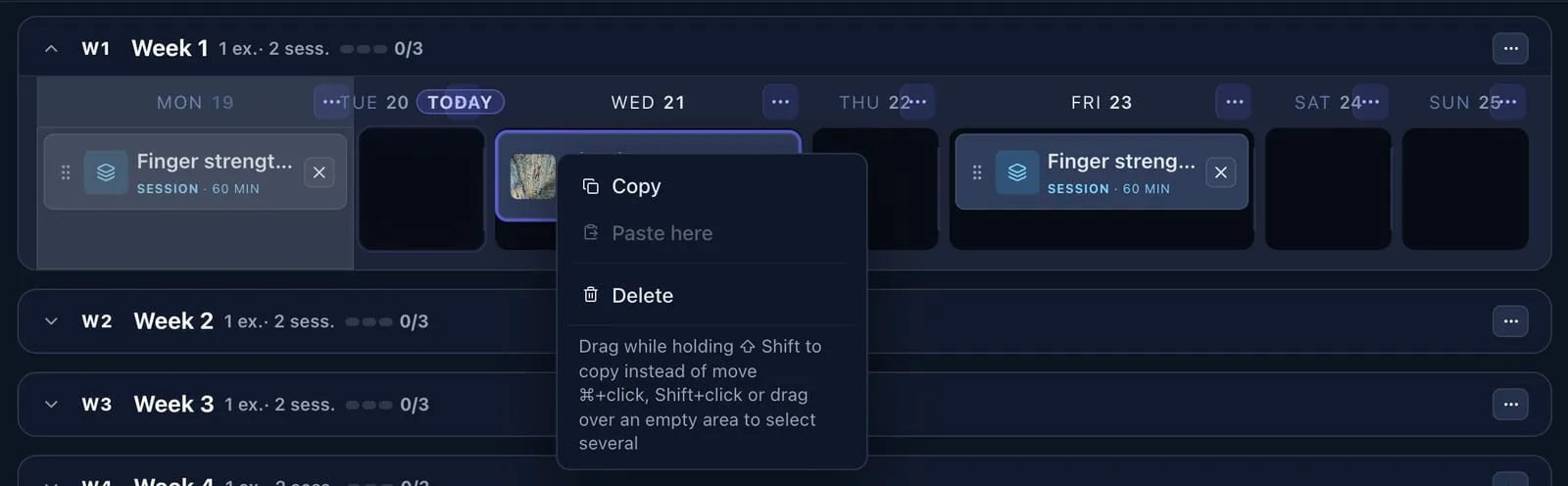
All of this, with its rules and a table of shortcuts for Mac and Windows, is in copy, move and select.
Common questions
Why can’t I change anything on a day?
Because the athlete has already trained it. Trained days are locked so that what they did does not change. If you need them to repeat that work, copy it to another day.
I duplicated a week on top of another that already had things in it. Can I get them back?
No. Duplicate empties the target week before copying and there is no bin or undo. You will have to build it again.
I emptied a week and metrics still show up
That is the current behaviour: Empty week does not remove metrics. Remove them one by one with the × on each tag.
Why doesn’t the Planner tab appear for my athlete?
Because they do not have a plan assigned yet. Assign them one from Training and the tab will appear. See assign a plan.
I edited a session and it has changed in other athletes’ plans
Sessions are linked, not copied. If you want to change it in only one plan, customise it: customise a session.
Can I undo a deletion?
No. Neither cards removed with the ×, nor Empty week, nor Delete week can be undone.
Is what I do saved if I just close the page?
Yes, everything is saved straight away. The only exception is unprescribed exercises in an athlete’s plan, which are deleted if you leave from the app and choose Leave and delete.