Save an athlete’s plan as a template
Turn the plan you have fine-tuned for an athlete into a template in Resources → Plans with “Save to Resources”: what is copied, what isn’t and why.
Often the best plan isn’t the one you designed at the start, but the one you ended up fine-tuning week by week with an athlete. Save to Resources turns that plan into a new template in Resources → Plans, ready to assign to other athletes. The athlete’s plan doesn’t change.
Where to find it
Go to Athletes → (athlete) → Training. It’s in two places:
- In the plan’s ⋮ menu (Plan actions), under Overview: Save to Resources.
- In the top bar of the Planner, the Save to Resources button. When you hover over it, it says: “A copy is saved as a template in Resources › Plans, without the athlete or the dates. This plan stays as it is.”
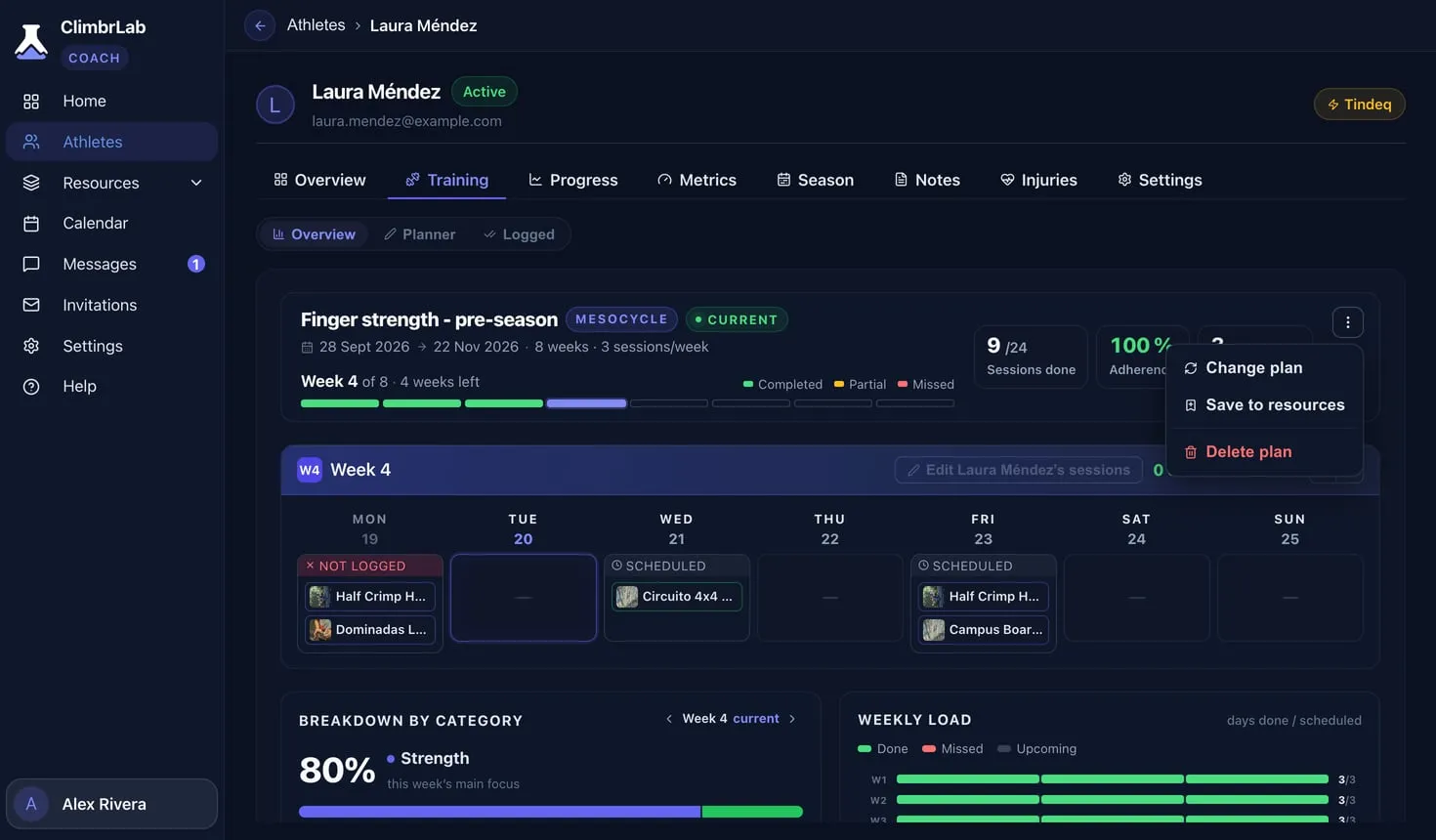
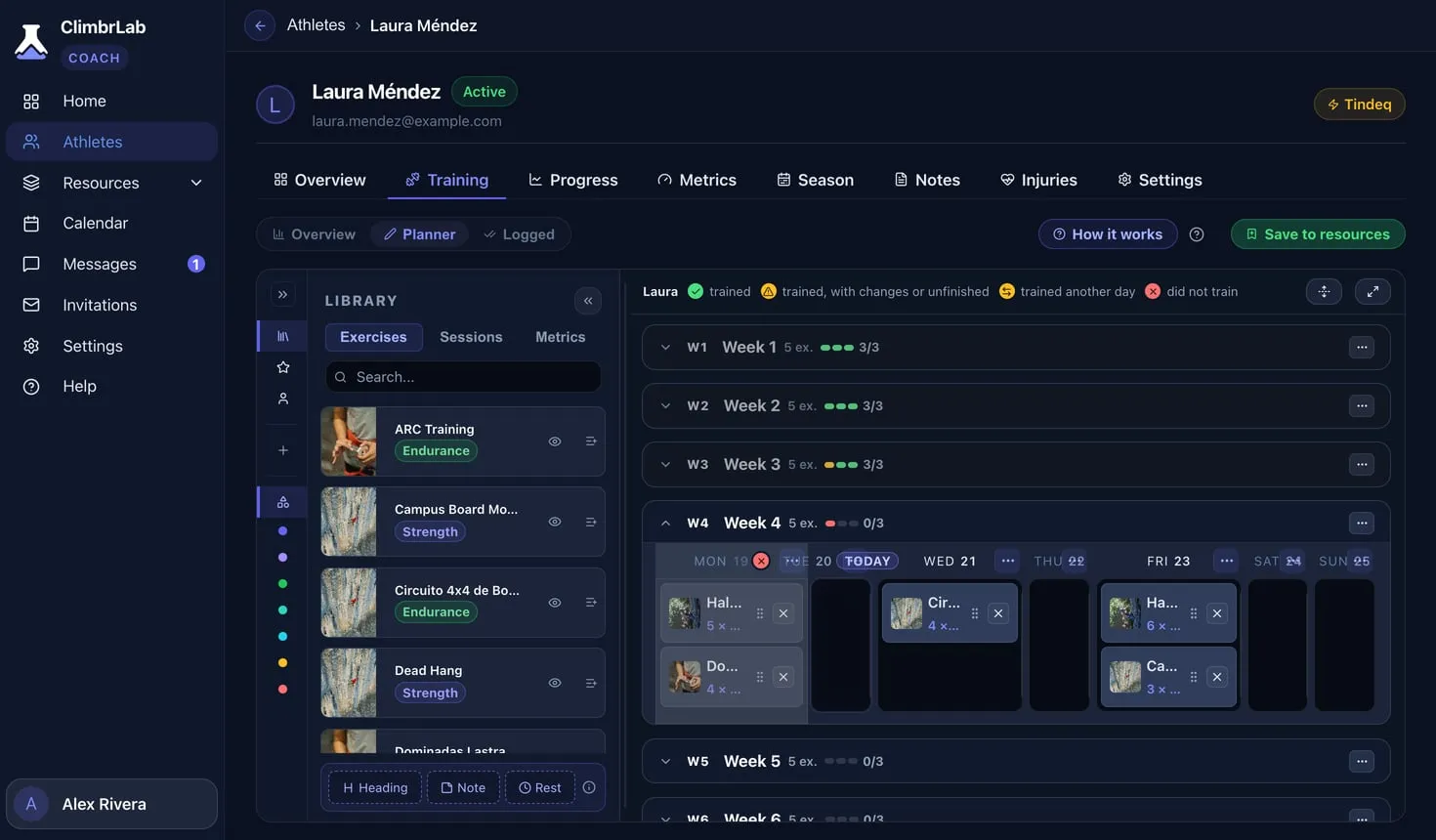
It works with the plan the athlete has current or upcoming. Finished plans that you open in read-only mode (from See plan or History) don’t have this button. If you want to reuse a finished one with the same athlete, use Repeat when you assign them their next plan (see assign a plan).
Step by step
- Click Save to Resources.
- Read the summary: “A new template is created in Resources › Plans, under the (type) tab, ready to assign to other athletes.”
- Template name is pre-filled with the plan’s name. Change it if you like (1 to 120 characters). We recommend one without the athlete’s name, because the template will be for others.
- Click Save.
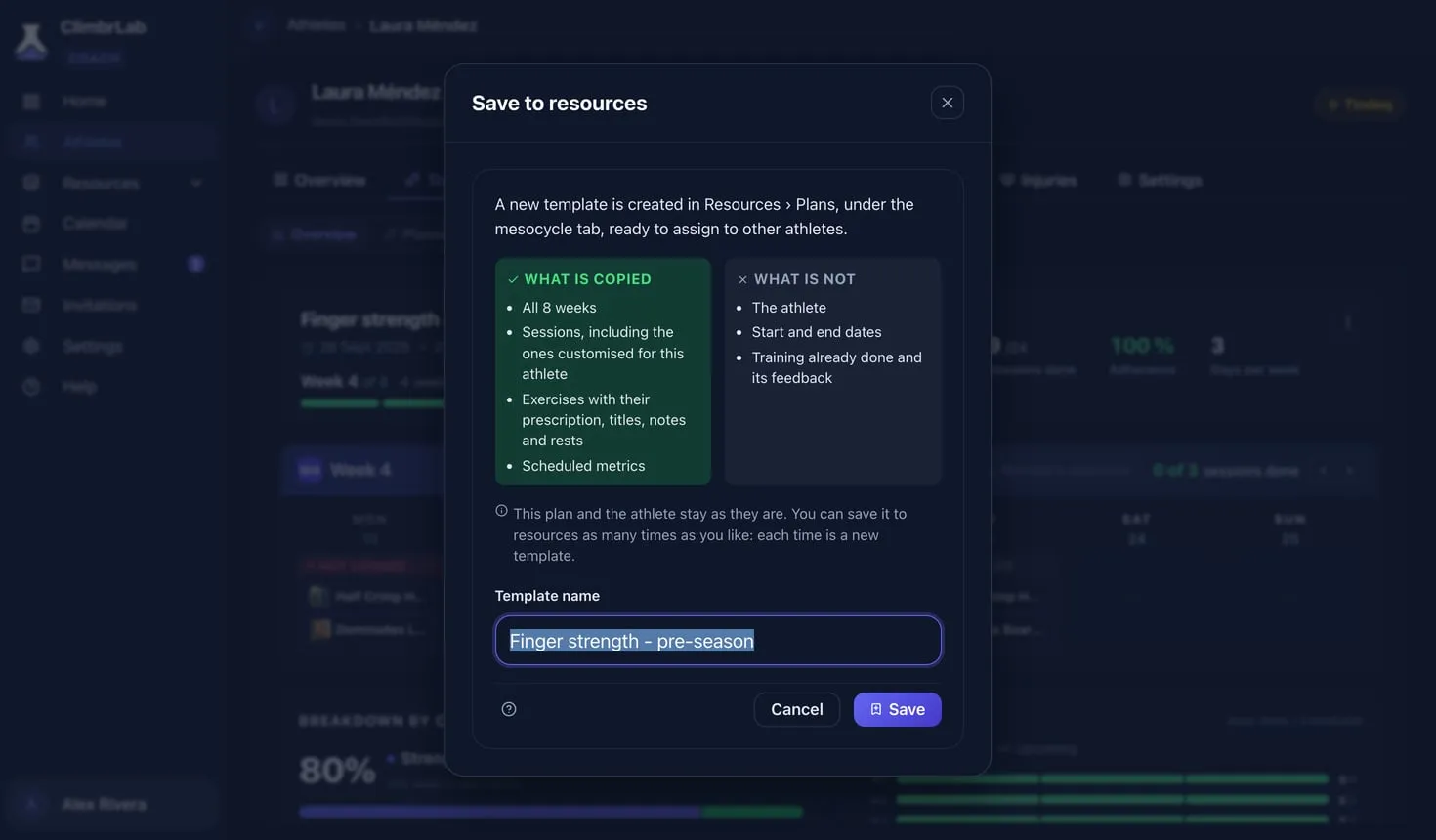
You’ll see the notice “Plan saved to resources” with the template’s name. If you click it, the new template opens. If something goes wrong you’ll see “Could not save the plan to resources” and the form stays open so you can try again.
What is copied and what isn’t
| What is copied | What is not |
|---|---|
| All its weeks | The athlete |
| The sessions, including the ones you customised for this athlete | The start and end dates |
| The exercises with their prescription, the titles, the notes and the rests | Training already done and its feedback (logs, comments, traffic light) |
| The metrics scheduled on days of the plan | The metrics you scheduled by date, from Season or from their Metrics tab |
| Any tags the plan had |
Details worth knowing:
- Library sessions stay linked. The template uses the same session from Resources → Sessions, not a copy. If you edit the original, it changes everywhere.
- Customised sessions are duplicated for the template. That way, if you keep tweaking the athlete’s version afterwards, the template doesn’t change, and vice versa. More on this in customise a session.
- Metrics become part of the plan again. For the athlete they were tests with a date. In the template they go back to being “in week 3, Wednesday”, and they will turn into dated tests again for the next athlete you assign it to. The ones the athlete has already done are copied too, because they were part of the plan.
- With a team, the new template is visible to the whole team. If you want it just for yourself, use Make private on its card (see create and manage plans).
You can do it as many times as you like
“This plan and the athlete stay as they are. You can save it to resources as many times as you like: each time is a new template.”
In other words, saving the same plan twice creates two different templates, it doesn’t update the first one. If you save versions as you go, give them names that tell them apart (for example “Max strength v2”) and delete the ones you no longer use from Resources → Plans.
Where the template appears
In Resources → Plans, in the tab for its cycle type (Macrocycle, Mesocycle or Microcycle) and in All. From there you can:
- Open it with See plan and adjust it without touching the athlete’s plan.
- Change its name, type or tags with Edit.
- Assign it to any athlete from their Training tab, with From a saved plan, or place it in their Season with From Resources.
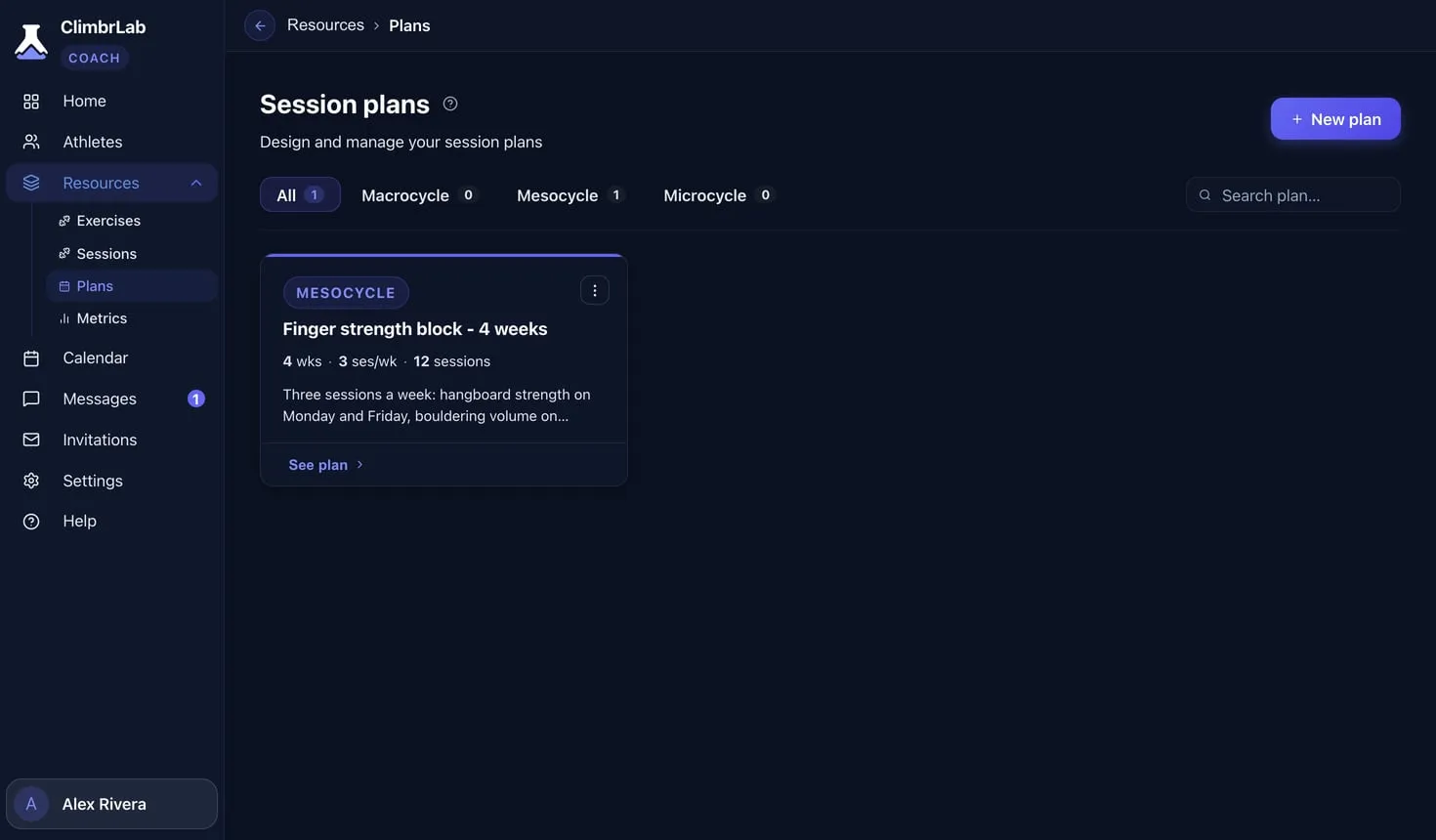
As it’s a template, its days no longer have real dates: the numbers you see are only a guide until you assign it.
Use cases
- You’ve fine-tuned a block with one athlete and want to give it to others in the group: save it and assign it.
- You want a full copy of a template to modify it. Duplicate in Resources → Plans creates an empty plan, without content. The way to get a full copy is to assign the template to an athlete (it can be your own profile, from Settings → Train myself; see train yourself) and click Save to Resources on that plan.
- You built an individual plan from scratch and it worked: turn it into a template so you don’t have to build it again.
- Before deleting a plan that has tweaks you care about: save it first, because deleting can’t be undone.
Common questions
Does the athlete notice anything when I save their plan to Resources?
No. Their plan stays the same, with its dates and everything they have logged. They don’t get any notification.
I saved it and then kept changing the athlete’s plan. Does the template update?
No. The template is a snapshot of the plan at the moment you saved it. If you want the new version, click Save to Resources again: another template will be created.
Are Tindeq metrics copied?
Yes, if they were scheduled on days of the plan. But when you assign the template to an athlete who doesn’t have Has a Tindeq ticked, those metrics are left out.
I can’t see the Save to Resources button
It only appears when the athlete has a current or upcoming plan: in the plan’s ⋮ menu under Overview or in the Planner bar. It isn’t there on finished plans opened in read-only mode.