Tindeq for coaches: exercises, metrics and curves
How to work with the Tindeq Progressor as a coach: marking who has one, dynamometer exercises and metrics, guided protocols and how to read the curves.
The Tindeq Progressor is a dynamometer that measures pulling force and connects over Bluetooth. In ClimbrLab it’s used by the athlete: they connect the device and do the capture. You decide what is measured and how, and then read the results with their full curve.
This article is the coach’s side. For what the athlete does (connecting, taring, measuring), see Use the Tindeq Progressor.
First: mark which athletes have a Tindeq
Everything Tindeq-related depends on one piece of athlete data: whether or not they have the device. Without it, the app won’t let you ask them for dynamometer tests.
To mark it:
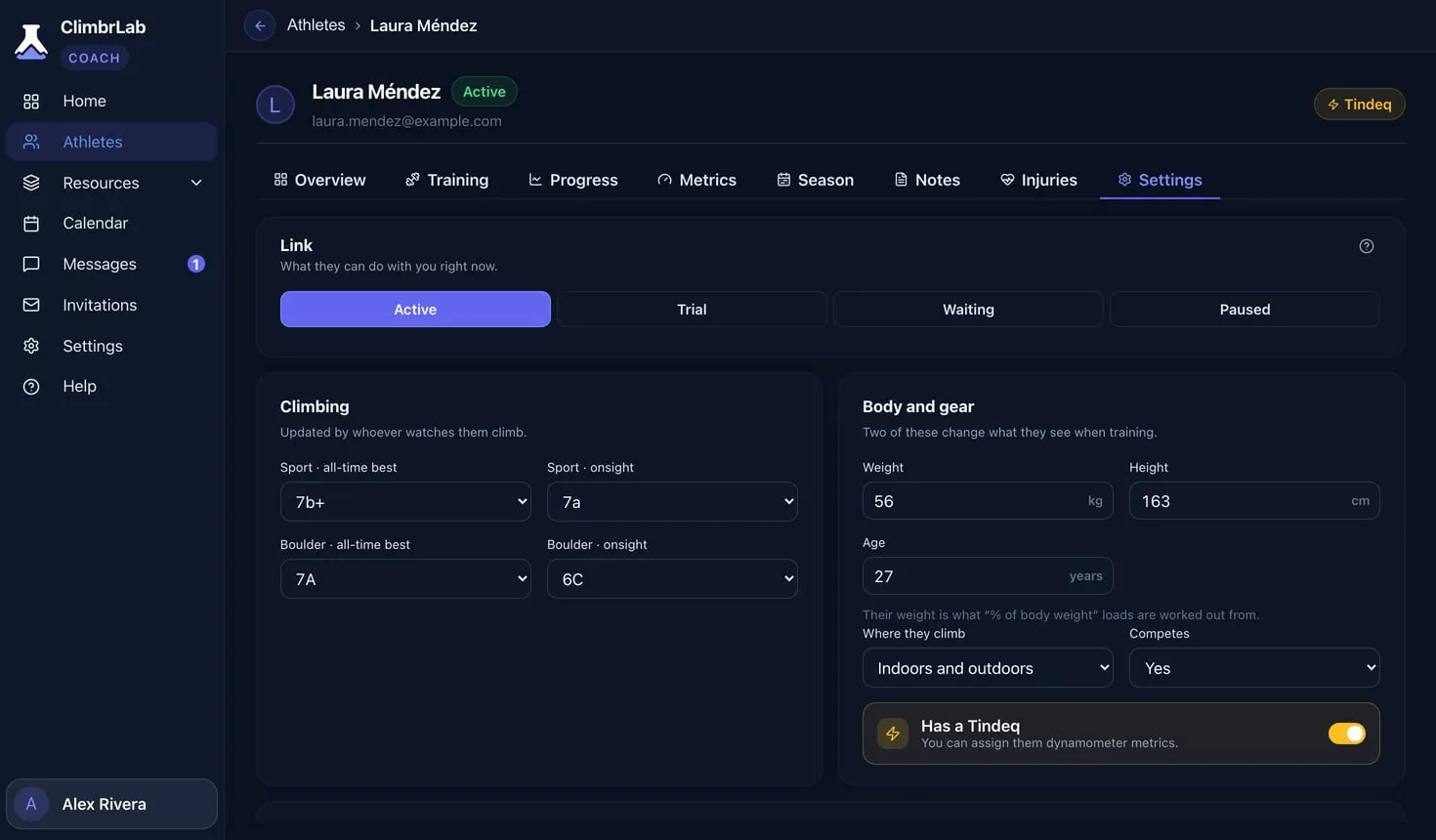
- Go to Athletes → (athlete) → Settings.
- Under Body and gear, turn on Has a Tindeq (“You can assign them dynamometer metrics.”).
- Press Save on the bar that appears at the bottom.
The athlete gets a notice that you’ve updated their profile (“Changed: Tindeq.”). They can also turn it on themselves from their profile, with the I have a Tindeq option. When it’s on, you’ll see the Tindeq label next to their name in the header of their profile.
Watch out: if you turn off Has a Tindeq for an athlete who already had Tindeq tests scheduled, those schedules stop reaching them without any warning: on the day they’re due they aren’t created, and they end up expiring.
Exercises that require a Tindeq
When you create an exercise you can turn on Requires Tindeq Progressor (“It can only be assigned to athletes with a Tindeq.”). From then on:
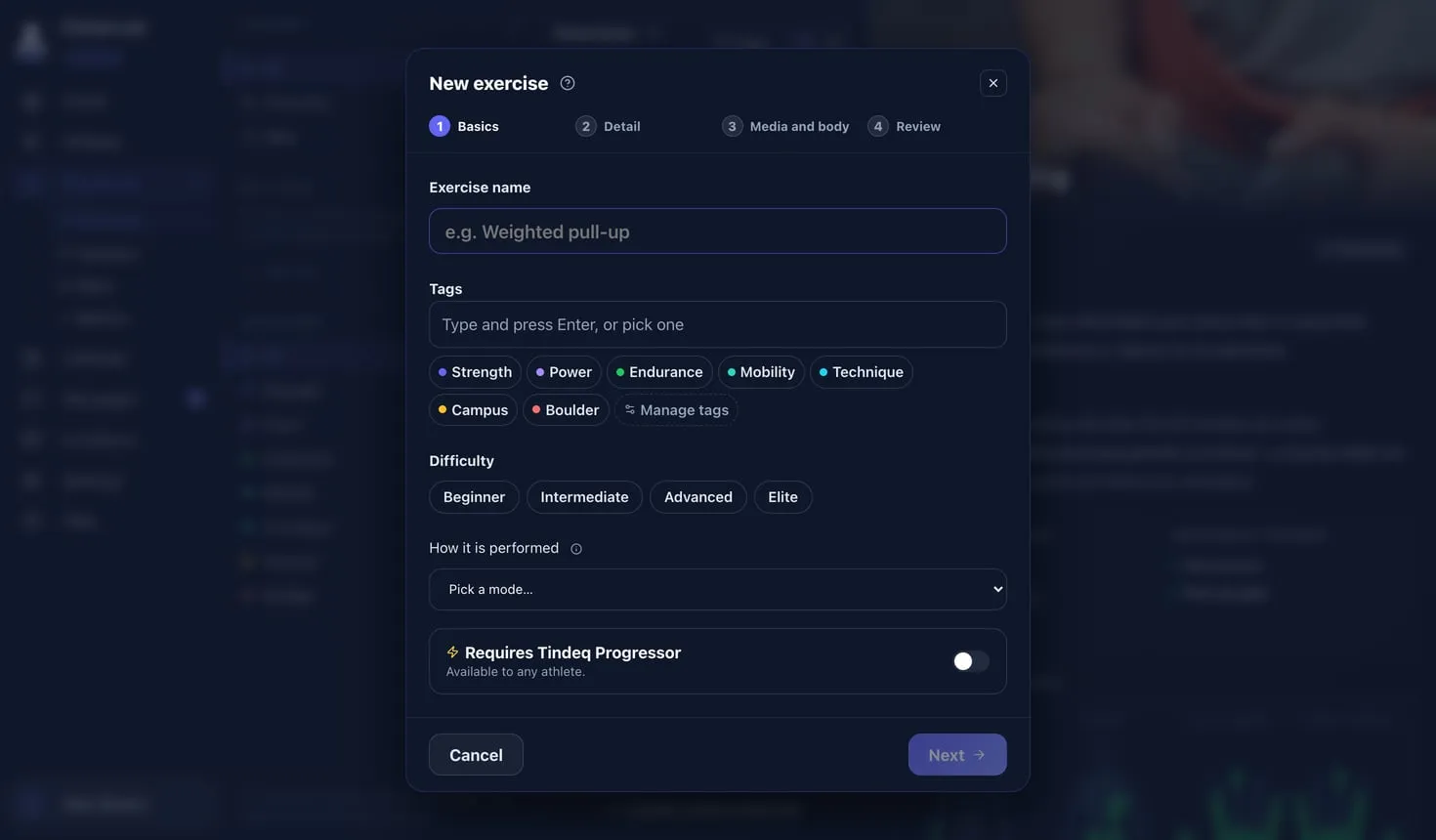
- The exercise carries a Tindeq badge in the library.
- When you prescribe it the Load field doesn’t appear: the device sets the load. During the session, the measured peak is recorded as the load for each set.
- If you add it to the planner of an athlete who has no Tindeq, the app rejects it with this message:
“{exercise}” needs a Tindeq Progressor and this athlete doesn’t have one
That check has gaps worth knowing about. It only kicks in when you add the exercise on its own in an athlete’s planner. If the Tindeq exercise sits inside a session, arrives when you assign a saved plan or you copy it from one day to another, the app doesn’t check it and the exercise goes into the athlete’s plan anyway. If you work with athletes with and without the device, check their plans or keep versions of your sessions without Tindeq exercises.
Tindeq metrics and their protocols
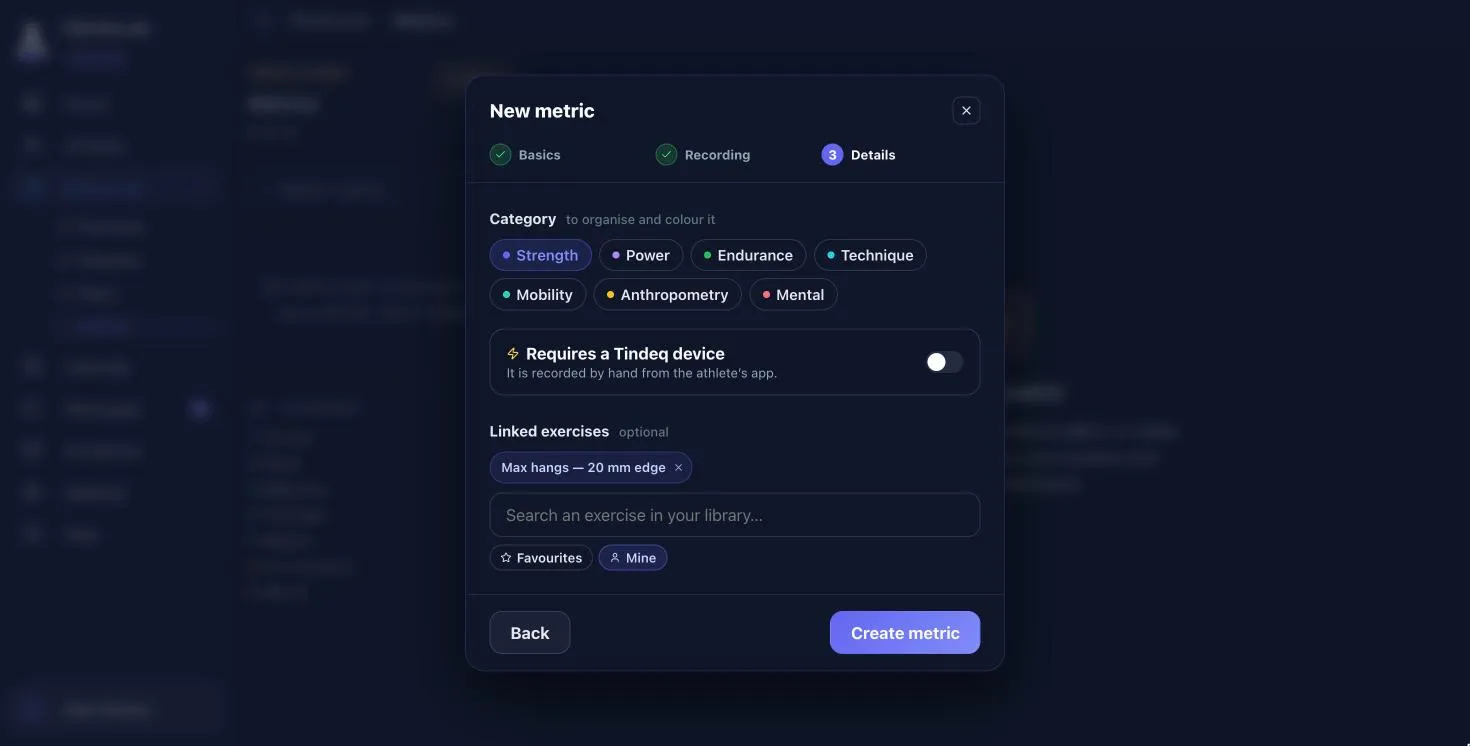
In the metrics wizard, when you turn on Requires a Tindeq device you choose the capture protocol. The app guides the athlete with a countdown and on-screen prompts (“PULL!”, “Rest”…) and works out the result on its own.
| Protocol | What the athlete does | What is saved as the result |
|---|---|---|
| Max strength | 3 s countdown and a 6 s maximal pull | Peak force, in kg |
| RFD (explosive) | 3 s countdown and a short, explosive 4 s pull | Rate of force development, in kg/s |
| Endurance / time | Sustained hang to failure | The seconds they hold |
| Critical Force | 4 minutes (240 s) of sets of 7 s pulling and 3 s resting | Critical force, in kg: the average of the last 3 reps |
| Reps to failure | 7 s / 3 s sets until they can’t go on | The number of reps |
| Freeform | Starts and stops by hand | Peak force, in kg, and the full curve |
If you don’t choose a protocol, the metric stays as Freeform.
The cut-off in Endurance / time
With Endurance / time, Test cut-off appears (60% by default, from 1 to 100). This is how it works, in the app’s own words:
The athlete enters their max strength and the clock runs while they stay above that percentage. After 2 s below it, the test ends and the seconds are the result.
In other words: before starting, the athlete types in their max strength and the app draws a red line at that percentage. If they don’t enter their max, they can’t start the test. Tell them in the instructions where to get that number (for example, their latest Max strength test), or the times won’t be comparable.
Reps to failure
Every pull above 30% of the peak of that same capture counts as a rep. The Test cut-off doesn’t apply here: it only exists for Endurance / time.
Bilateral measurement
With Bilateral measurement, the athlete measures their right hand and left hand separately, and can redo one without losing the other. Both curves and their data are saved. The number that goes into the metric’s series (the one you see in Tracking and on the Trend chart) is the average of both hands. To see each hand, open the entry’s detail.
Which unit to give it
The unit you choose for the metric is the one shown next to the number. Choose the one that matches the protocol’s result: kg for Max strength, Critical Force and Freeform; s for Endurance / time; reps for Reps to failure; and a custom kg/s unit for RFD.
Asking your athletes for Tindeq metrics
You can only ask athletes who have Has a Tindeq turned on. The app stops you on every route:
- In Assign template (the athlete’s Metrics tab), Tindeq metrics appear locked for an athlete with no device, with a note that they can’t be assigned.
- On the METRICS lane of the Season, they’re marked as requiring a Tindeq and can’t be picked.
- In an athlete’s planner the metric doesn’t appear locked, but when you try to schedule it the app rejects it and you’ll see an error like this:
This metric needs a Tindeq Progressor and the athlete doesn’t have one
If you ask several athletes at once and some don’t have the device, the message tells you who: “This metric needs a Tindeq Progressor and these athletes don’t have one: {names}”.
When assigning a saved plan
Here the app does not warn you. If you assign a plan that includes Tindeq metrics (on its days or inside its sessions) to an athlete without a Tindeq, the whole plan is assigned except those metrics, which are silently skipped. The rest of the plan arrives as normal.
In the sessions editor a note next to each Tindeq metric reminds you: “Needs a Tindeq: when the plan is assigned, athletes without one won’t get this measurement.”. If you later turn on Has a Tindeq for that athlete, the skipped metrics don’t appear on their own: you’ll have to schedule them yourself.
Seeing results and curves
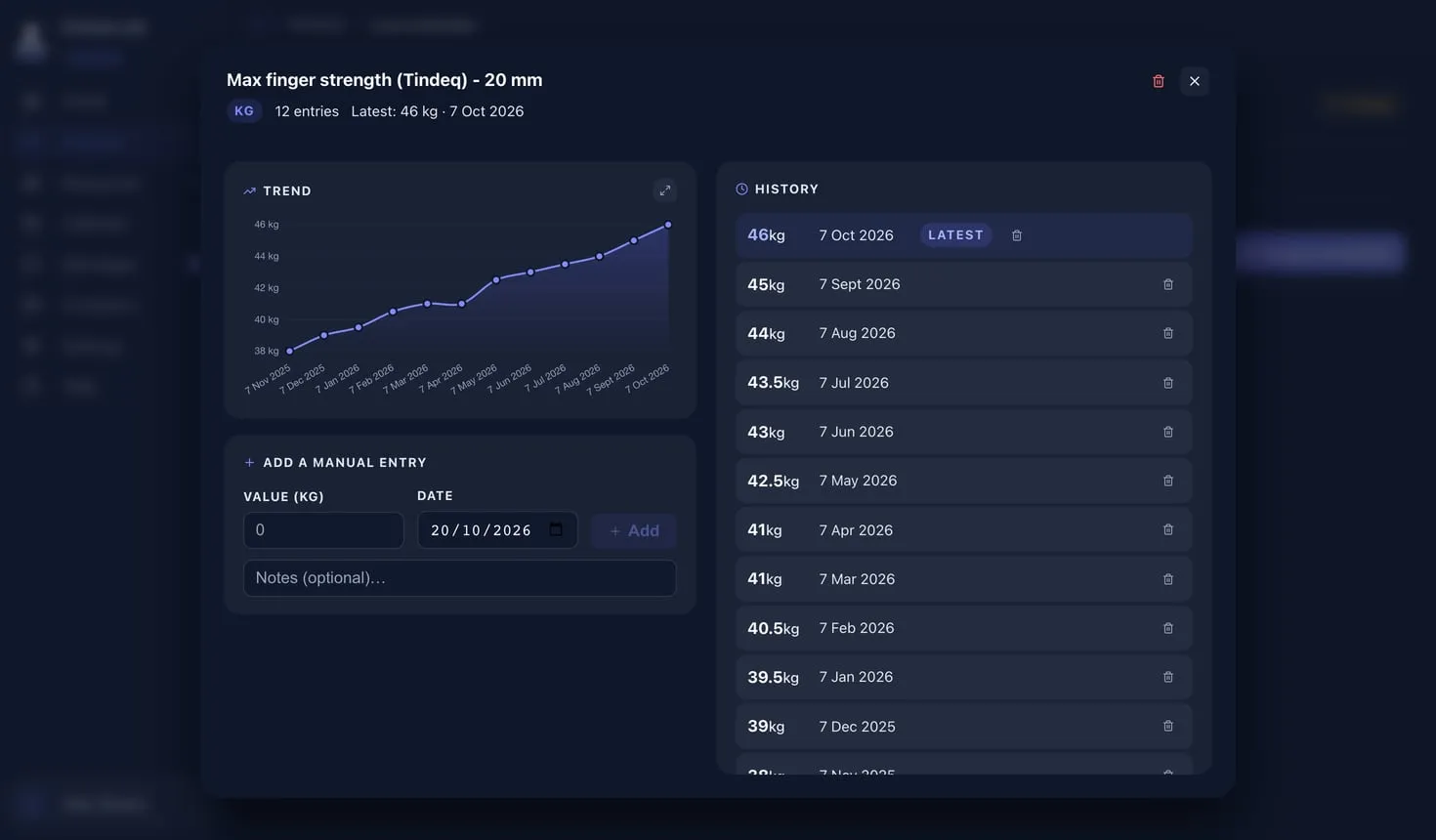
Results are under Athletes → (athlete) → Metrics. In Tracking, open the metric’s card (the ⋮ → See metric menu). In the detail you have:
- The Trend chart, with the result of each entry.
- Latest capture, with the force-over-time curve of the most recent entry. It only appears if that entry has a curve: if the latest one was added by hand, you won’t see it (as in the image below). If you pick another one in the History with See curve, it becomes Selected capture.
- For bilateral metrics, one curve for Right and another for Left.
- On the curve, the Peak marker (the maximum), CF (critical force, in Critical Force) and Threshold (the cut-off, in Endurance / time).
- Below, the data each protocol works out, for example: kg peak, ms to peak, kg/s RFD, s duration, kg average, kg critical force, sets completed, reps, kg threshold, % of max or kg max strength.
Tip: the curve says more than the number. Two identical peaks, one with a curve that rises fast and another that takes half a second to get there, are two different athletes. To follow explosiveness, look at “ms to peak” or use an RFD metric directly.
Who does the capture
Always the athlete. From your coach account there’s no screen to connect a Tindeq or to measure. What the athlete needs:
- The mobile app (Android or iOS), or Chrome or Edge on a computer. Safari on iPhone or iPad won’t work.
- To tare the device in their grip position before measuring (the app makes them).
- A Tindeq with some battery: below 20% the app warns them.
If you need to measure an athlete yourself at the gym, do it with their account, on their phone or on a computer with Chrome or Edge. Everything else for the athlete is in Use the Tindeq Progressor and in The metrics your coach asks for.
Common questions
It won’t let me assign a Tindeq metric to an athlete who does have the device
Check in Athletes → (athlete) → Settings that Has a Tindeq is on and that you saved the change. If the athlete turned it on from their profile, reload the page so your view updates.
Can an athlete without a Tindeq record a Tindeq metric by hand?
No. A metric with Requires a Tindeq device can only be recorded with the device connected. If you want an athlete without a Tindeq to do a similar test, create a manual version of the metric.
Can I change the protocol of a metric that already has entries?
Yes, from Advanced options in the library. But the old entries were made with the previous protocol and aren’t comparable with the new ones. If the test changes, it’s better to create a new metric.
What’s the Free test my athletes have?
A quick measurement of each hand for the athlete, with no protocol and nothing saved: it isn’t stored and you don’t see it. For something to stay in their history it has to be a metric.