Messages: chatting with your athletes
How ClimbrLab's chat works: conversations, attaching photos, videos and exercises, replying, deleting messages, alerts and what happens with archived athletes.
Messages is the direct chat between you and each of your athletes, in real time and inside the app. It’s for day-to-day things: correcting technique with a video, sending them an exercise from your library or asking how the session went, without mixing it up with your personal WhatsApp.
Watch out: deleting a message or a whole conversation can’t be undone.
Where it is
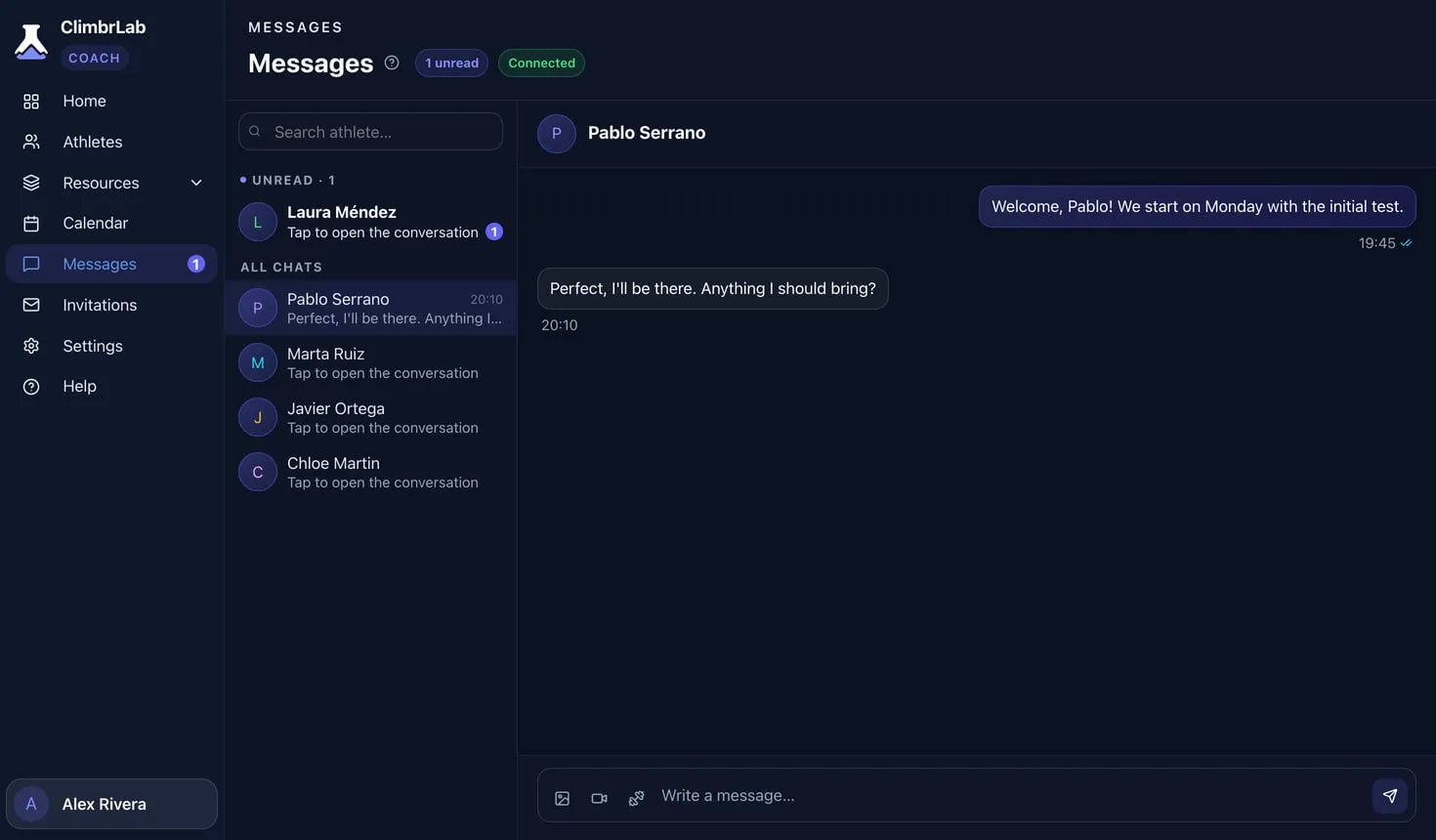
In the side menu, Messages. On small screens it’s in the bottom bar, also as Messages. Both carry a counter with your unread messages (on mobile, above 9 you will see “9+”).
At the top of the screen you will see the total (“3 unread”) and the connection status: Connected or Disconnected. If it says Disconnected, messages won’t go out: wait a few seconds or reload the page.
The chat list
On the left you have all your conversations:
- Unread · (n): at the very top, chats with messages you haven’t opened yet, each with its own counter.
- All chats: everything else.
- Search athlete…: filters the list by name. If nothing matches: “No results”.
When you open a conversation, its messages are marked as read and the counter goes down. On mobile, the list and the conversation are shown one after the other: open a chat and go back with Back.
One conversation per coach and athlete
Each coach-athlete pair has its own thread. If you work alone, it’s simple: one chat per athlete.
If you work in a team, each coach has their own thread with each athlete and writes under their own name. It isn’t a group chat: what you discuss with an athlete isn’t read by your colleague, and vice versa. The athlete sees one conversation for each coach who writes to them.
- Team members can write to the athletes assigned to them.
- The account owner can open a conversation with any athlete on the account.
Writing
- Type in “Write a message…” and press Enter to send.
- For a line break without sending, Shift + Enter.
- While the athlete is typing, you will see “typing…”.
- Your messages carry a mark: one for sent and two once the athlete has read it.
The maximum is 4000 characters per message.
Watch out: for now, if a message is over 4000 characters, it doesn’t get sent and the app doesn’t warn you: the text disappears from the box as if it had gone. If you are going to write something long (a plan, a report), split it into several messages or copy the text before sending.
If, when sending, you see “No connection to the chat. Wait a few seconds and send it again.”, the message hasn’t gone out and what you wrote is still in the box: try again in a moment.
Attaching photos, videos and exercises
To the left of the text box you have three buttons:
| Button | What it sends | Limits |
|---|---|---|
| Image | A photo | Up to 10 MB. JPG, PNG, GIF or WEBP formats. |
| Video | A video | Up to 100 MB. MP4, WEBM, OGG or MOV formats. |
| Exercise | A card from your library | No limit |
Chat videos have a lower limit than library exercise videos. If you pick one over 100 MB, the app tells you how big it is and doesn’t upload it. Trim or compress it first. For all the file limits, see file limits.
If the upload fails you will see:
- “The video could not be uploaded. Check its size and format (mp4, webm, ogg, mov).”
- “The image could not be uploaded. Try again.” If it keeps happening with the same photo, it’s usually the format: save it as JPG or PNG and try again.
Chat photos and videos are kept in private storage and shown through temporary links: nobody outside the conversation can open them, even if they get hold of the address.
Sharing an exercise
- Click Exercise.
- Search for and choose the exercise in your library.
- It is sent straight away as a Shared exercise card.
The athlete can open the card and see the full exercise (video, instructions…). It’s useful for suggesting a one-off exercise without touching their plan. If you want them to do it as part of their programme, add it in the planner.
Replying with a quote
Hover over a message and click Reply. The quoted message appears above the box (you can remove it with the ×). What you send will appear with the quote above it, so it’s clear what you are answering.
Deleting your messages
Hover over one of your messages and click Delete. The browser asks you to confirm (“Delete this message?”). Once you accept, the content is deleted for both of you and “Message deleted” is left in its place.
- You can only delete your own messages, not the athlete’s.
- It can’t be undone.
Achievement cards
When an athlete logs a send that beats their all-time best (in sport or boulder), an achievement card appears in the chat, along the lines of “New best in sport: 7c on (route)”. You also get an alert.
A few details:
- It only counts if the route is from the last 30 days and the athlete already had a previous grade logged (the first one is the starting point, not an achievement).
- If they move up a grade again in the same discipline during the following 7 days, the card is updated and shows the full jump for the week, but the alert doesn’t sound again.
- Cards can’t be replied to or deleted.
- In a team, the card and its alert go to the account owner’s thread.
More on how grades are worked out in progress and routes.
How you hear about new messages
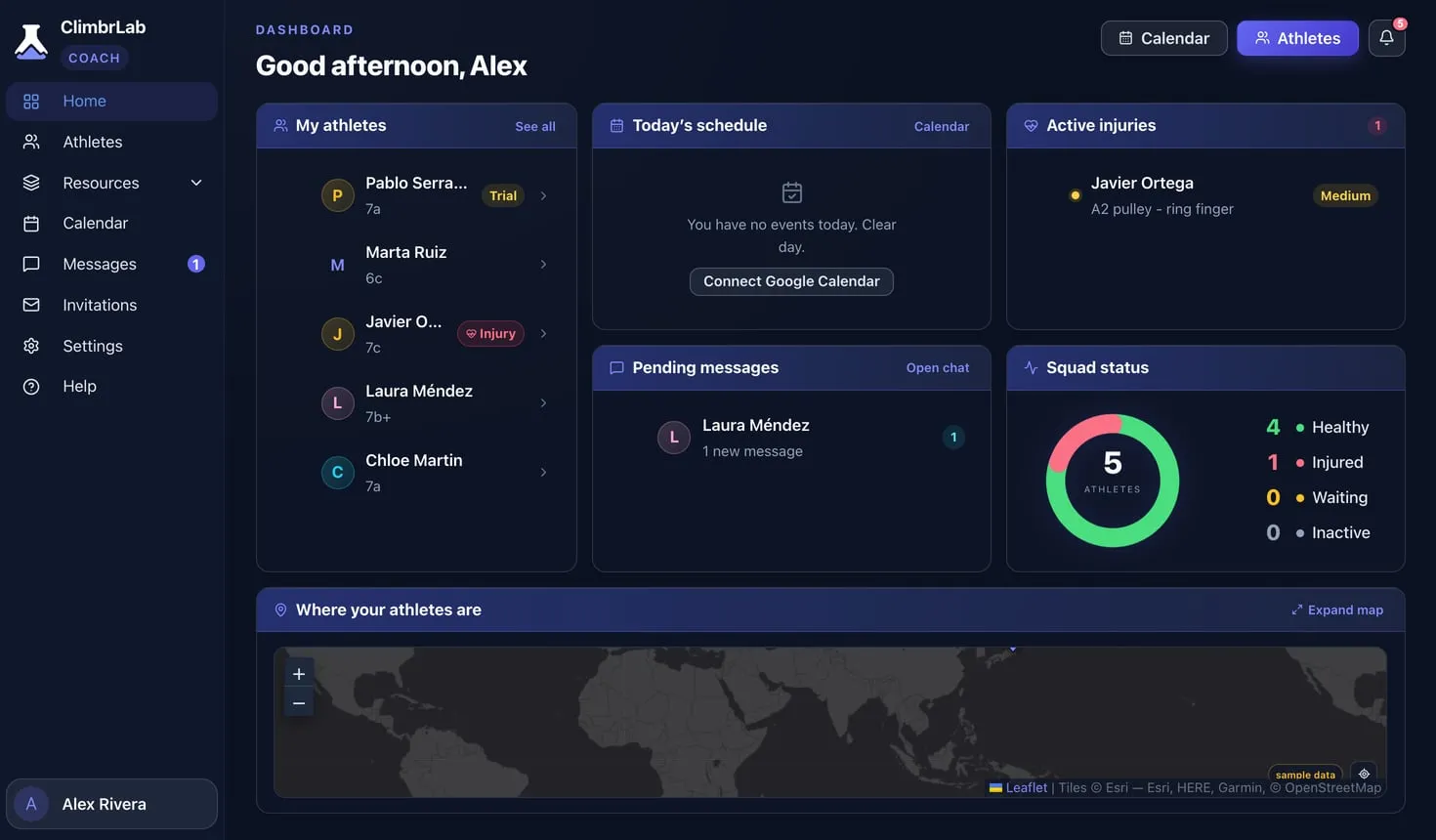
- Counter on Messages in the menu and in the Pending messages block on Home.
- On-screen alert “New messages” (“You have 3 unread messages”) while you use the app, at most once every 30 seconds even if lots arrive in a row. It doesn’t appear for the conversation you have open.
- Push notification on your phone, only if you use the ClimbrLab app for iOS or Android and gave it permission, and only when you don’t have the app open. The title is the athlete’s name and the text, “Sent you a message” (or an image, a video, an exercise).
- Never by email. The chat doesn’t send emails.
All the alerts, in notifications.
Read-only chats
Archived athlete
If you archive an athlete, their chat becomes read-only:
Archived athlete: you can read the conversation, but not send messages. Reactivate them from your athlete list to write again.
The full history is kept. As soon as you reactivate them, you can carry on talking in the same thread.
An athlete you no longer coach
If the athlete is taken off you in your team, the conversation stays as your history:
You no longer coach (name). You can read what you said to each other, but not write any more.
Here, and only here, the Delete conversation button appears. It asks you to confirm (“Delete the conversation with (name)?”) and deletes the whole thread for good. It isn’t archiving: if you ever coach that athlete again, the conversation will start blank.
Watch out: the thread is the same for both of you, so deleting it also removes it from the athlete’s app. The confirmation message reminds you: “It also disappears on their side: it is the same thread for both of you.”.
Released athlete
If you release an athlete, the chat is deleted automatically as part of the release. It doesn’t stay read-only.
Common questions
My athlete says my messages aren’t reaching them
Check whether it says Connected at the top. If it says Disconnected, reload the page. If the athlete is archived, you can’t write to them until you reactivate them. Remember too that on mobile they only get push notifications if they have the app installed and gave it permission: otherwise they will see them when they open ClimbrLab.
Can I message several athletes at once?
No, there are no group messages or broadcasts. Each conversation is one to one.
Does my teammate read my conversations?
No. Each coach has their own threads with their athletes.
Can I recover a message I deleted?
No. “Message deleted” is left and the content disappears for both of you.
Do messages arrive by email?
No, never. Only inside the app and, if you use the mobile app, as a push notification.