Delete or recover your coach account
How to delete your coach account, what is deleted and what your athletes keep, the 30-day window to change your mind and how to recover the account if you do.
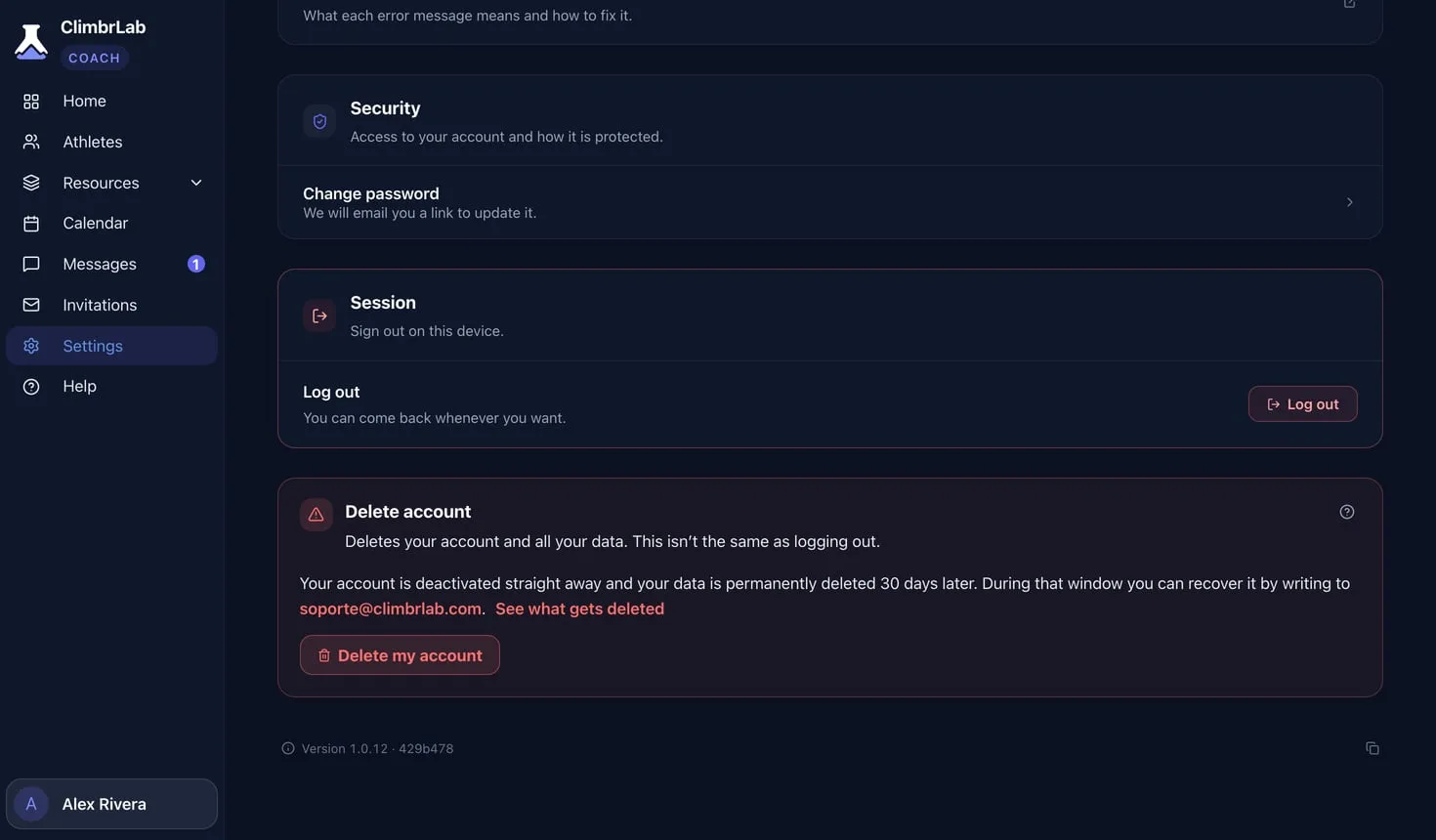
You can delete your coach account from Settings → Delete account. The account is deactivated straight away and your data is permanently deleted 30 days later. During that window you can recover it exactly as it was.
Heads-up: once the 30 days are up there is no going back. And deleting your account is not the same as logging out: if you only want to sign out on this device, use Settings → Session → Log out.
Before deleting: is this what you want?
| If what you want is… | Do this instead of deleting |
|---|---|
| To leave the app on this device | Settings → Session → Log out |
| To stop paying | Cancel the subscription in Settings → Subscription → Payment method and invoices. Your data stays in read-only mode. See Subscription and pricing |
| For a colleague to lose access to your account | Remove them from the team in Invitations → Your team. See Coaching team |
| To leave a team you are a member of | Leave the team, on the same card |
| To stop coaching an athlete | Archive or release them. See Pause, archive or release an athlete |
| To keep your athletes’ data | First, Settings → Data → Export. See Export athlete data |
Tip: if you are going to delete your account, export the Excel file of your athletes first. Afterwards you will no longer have access.
What is deleted and what is not
Deleted:
- your profile (name, picture, professional profile);
- your logged sessions and loads, your ascents, your metrics and your injuries (if you used Train myself);
- your messages, including the chats with your athletes;
- pending invitations and physio links;
- your coach code, which stops working.
Not deleted:
- Your athletes. They keep their account and their whole history (plans, sessions, metrics, injuries), but they are left without an assigned coach. They can link up with another coach whenever they like.
- The plans, sessions and exercises you created. They are part of your athletes’ training history, so they stay, but anonymised: without your name or your details.
If you have colleagues on your team, they lose access to your athletes, your plans, your exercises and the chat. Their user is not deleted: anyone who had their own coach account before joining gets it back, and anyone who signed up through your invitation will have to complete their coach questionnaire to create their own.
Deleting your account step by step
- Go to Settings and scroll down to Delete account. If you want to read it calmly first, click See what gets deleted.
- Click Delete my account.
- If you have a team, you will first see You’re not alone on this account, with the list of your colleagues and this reminder: “If you only want someone to lose access, you can remove them from the team in Invitations without deleting anything.”. Click I understand, continue if you want to go ahead.
- Delete your account? sums up what happens:
This deletes your profile, your logged sessions and loads, your ascents, your metrics, your injuries and your messages. Your athletes keep their account and their history, but they will be left without a coach.
- Type Your password. If you always log in with Google and have no password, this field does not appear.
- Type DELETE, in capitals, in the confirmation field. The word follows the language of the screen: if you have the app in Spanish it is ELIMINAR, and in French, SUPPRIMER.
- Click Delete permanently.
You will see “We have received your request” and you will get an email: “Your account will be deleted on {date}”.
Errors you may see
| Message | What to do |
|---|---|
| “Enter your password to confirm the deletion.” | Type your password |
| “The password is not correct.” | Check it. If you do not remember it, change it first from Settings → Security |
| “This account is already pending deletion.” | You had already deleted it; it is within the 30-day window |
| “We couldn’t delete the account.” | Connection or server error. Try again in a moment |
What happens during the 30 days
- The account is locked straight away. All your sessions are closed and you cannot log in or use the app.
- Your data is still stored until the date in the email. Until then everything can be recovered.
- Your email is reserved. No other account can be created with it: anyone who tries will see “This address belongs to an account pending deletion. Write to soporte@climbrlab.com if you want it back.”.
- Your subscription stops renewing. If you had a paid plan, its cancellation is scheduled for the end of the period already paid; and when your data is deleted, it is cancelled completely.
Once the 30 days are up your data is deleted, your athletes are left without a coach and your email becomes free again.
Recovering your account
As long as the 30 days have not passed, there are three ways:
From the sign-in screen (the quickest):
- Log in with your email and password, or with Google, as usual.
- Instead of getting in, you will see “This account is pending deletion.” and “While there’s still time you can recover it with everything you had inside.”.
- Click Recover my account. You will see “We’ve sent a link to {email}. Open it and your account is back.”.
- Open the email “Recover your account · ClimbrLab” and click Recover my account. The link expires after one hour.
- You will see Account recovered: “Your account is active again, with your plans and history intact. You can log in.”.
By replying to the email “Your account is going to be deleted · ClimbrLab” before the date it gives.
By writing to soporte@climbrlab.com.
If you had a subscription, check Settings → Subscription after recovering the account: if the cancellation is still scheduled, click Keep my subscription so that it keeps renewing.
If you cannot recover it
| Message | What it means |
|---|---|
| “The link is invalid or has expired.” | More than an hour has passed or you have already used it. Request another one from the sign-in screen |
| “The window to recover this account has closed and its data has already been deleted.” | The 30 days have passed. It can no longer be recovered; you can create a new account with the same email |
Common questions
Will my athletes find out?
They are left without an assigned coach when your data is deleted, once the 30 days are up. If you are going to stop coaching them, it is best to tell them yourself beforehand.
Do my athletes lose their training?
No. They keep their account and their whole history, including the plans you assigned them. What they lose is the chat with you.
I want to change my coach account to an athlete account, do I have to delete it?
If your coach account already has athletes, plans or sessions, yes: it cannot be converted. When you delete it, your email is reserved for 30 days; after that you can sign up with it as an athlete. If your account is empty, there is no need. See Choose your role.
I am a team member, not the owner. What happens if I delete my account?
Your user is deleted, but what you created inside the team account stays there. If you only want to leave the team, use Leave the team.
Can I delete the account if it is in read-only mode?
Yes. Read-only mode does not stop you from deleting the account.
Can I delete the account from the phone app?
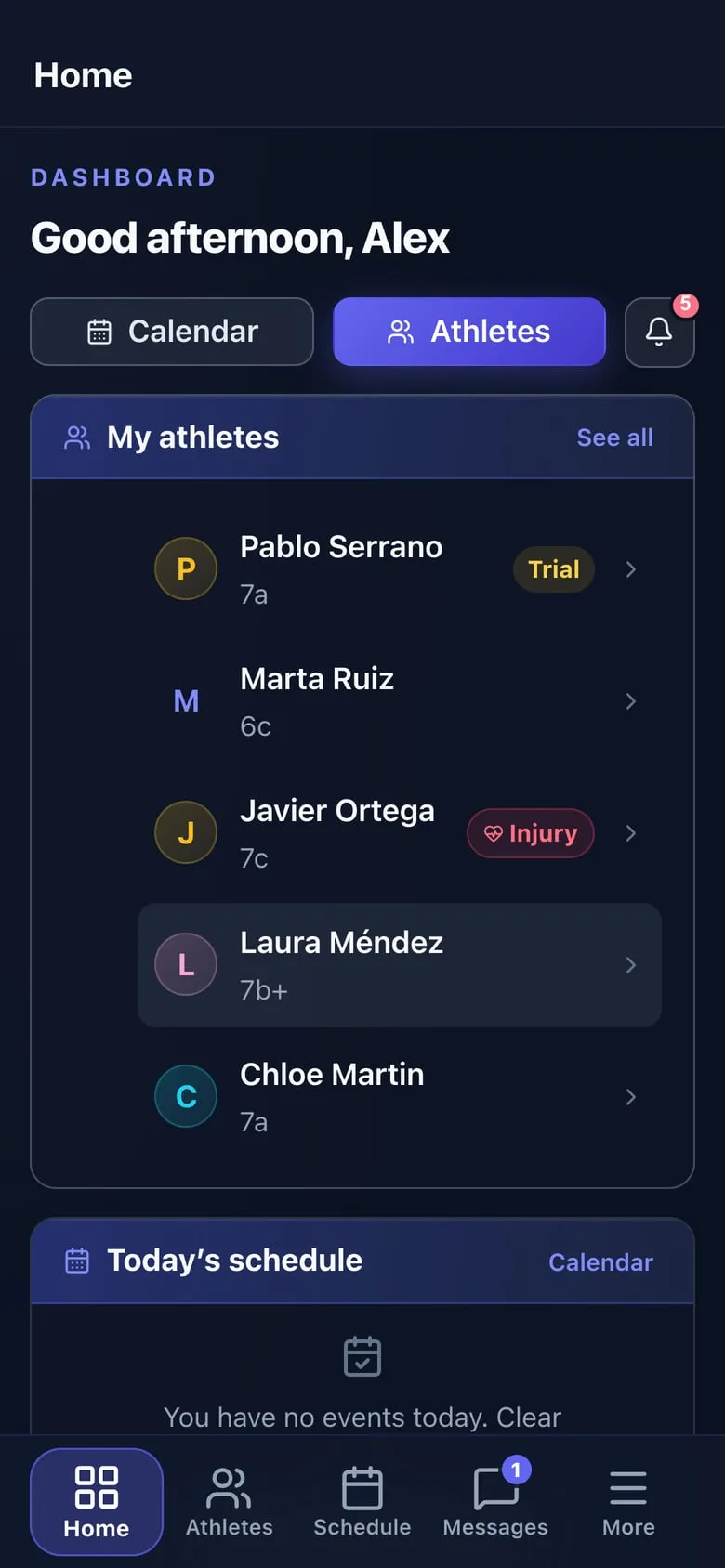
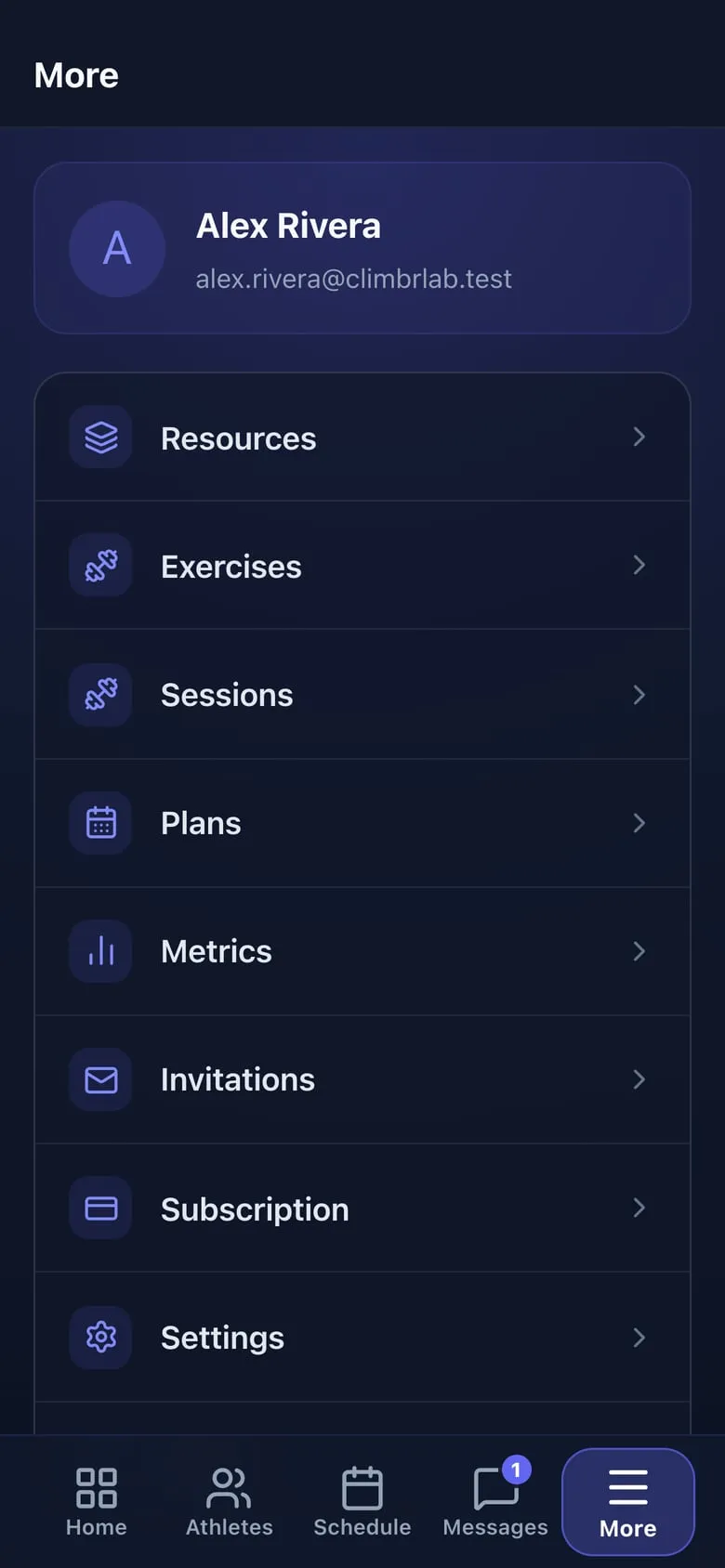
Yes, from More → Settings → Delete account, just like on the web.