Coaching team: several coaches on the same account
How to add other coaches to your account with Teams, share athletes out between them, what each person can do and what happens when someone is removed or leaves.
If you work with other coaches (a club, a school, a gym with several coaches), you can share a single account: the same library of exercises, sessions and plans, with the athletes shared out between you. Here you will see how to add a colleague, what each person can do and what happens when someone leaves.
Heads-up: to have more than one coach on the account you need the Teams add-on. Without it you will see “You need Teams to add more coaches to your account.”. Prices and how to buy it in Subscription and pricing.
How a team works
An account has one owner and as many member coaches as you like (with Teams there is no limit on coaches).
- What is shared: the whole library. The account’s plans, sessions and exercises can be seen and used by the whole team.
- What is shared out: the athletes. The owner sees all of them; each member sees only the ones the owner assigns to them.
- What belongs to each person: the chat. Each coach has their own conversation with each athlete and writes under their own name.
The team card sums it up like this: “Share your plans and exercises. Of your athletes, only the ones you assign”.
Owner and coach: what each can do
| Owner | Coach (member) | |
|---|---|---|
| See athletes | Everyone on the account | Only the ones assigned to them |
| Work with their athletes (plans, metrics, notes, injuries…) | Yes | Yes, with the assigned ones |
| See, use and edit the team’s plans, sessions and exercises | Yes | Yes (except someone else’s private items) |
| Invite athletes | Yes | Yes: whoever invites keeps the athlete |
| Create and rename tags | Yes | Yes |
| Delete tags | Yes | No |
| Release an athlete | Yes | No |
| Change the brand (logo and name) | Yes | No, they only see it |
| Manage the subscription | Yes | No |
| Invite or remove coaches | Yes | No |
| Share out athletes | Yes | No |
| Leave the team | No | Yes |
When a member tries something reserved for the owner, they see messages such as “Only the account owner can manage the subscription.”, “Only the account owner can delete tags. Renaming and creating them is open to the whole team.” or “Only {name} can invite or remove anyone from this account.”.
Each member’s Home dashboard, their counters, their map and their Excel export only include their assigned athletes.
Adding a colleague
- Buy Teams in Settings → Subscription (if you do not have it).
- Go to Invitations and find the Your team card.
- Type your colleague’s email and click Add to the team.
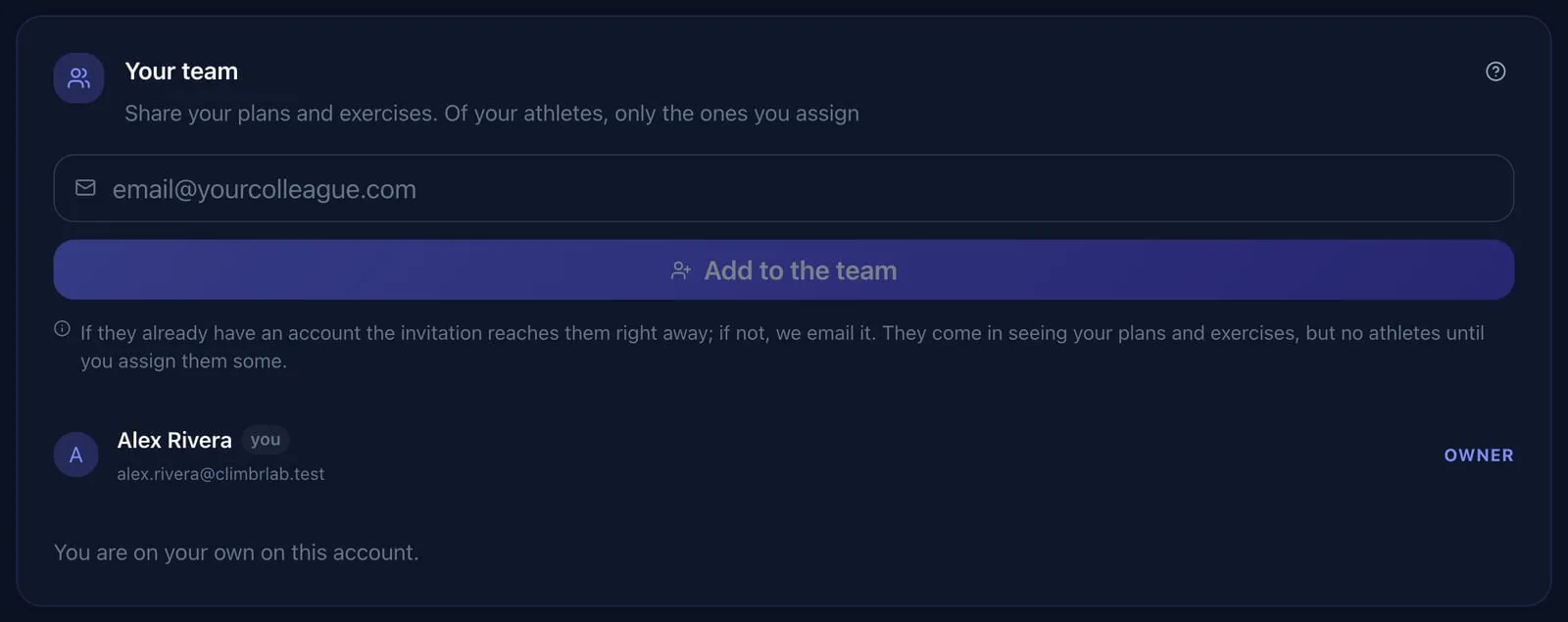
You will see “Invitation sent to {email}. They will show up on the team once they accept.”. What happens next depends on whether they already use ClimbrLab:
- If they already have an account, the invitation appears inside the app straight away (and in their notification bell), plus an email with the See the invitation button.
- If they do not have an account, they get an email “{your name} invites you to their team · ClimbrLab” with the Create my account and join button. They sign up, complete the coach questionnaire (their answers go into their own professional profile) and join.
Tip: your colleague comes in seeing your plans and exercises, but no athletes until you assign them some. Share theirs out as soon as they join.
Expiry, resending and withdrawing
- The invitation expires after 7 days.
- Under Unanswered invitations you can see the pending ones with the date they were last sent. Expired ones are marked Expired.
- Resend generates a new link and another 7 days. The previous link stops working.
- Withdraw cancels it: “The link sent to {email} will stop working. You can invite them again whenever you want.”.
Errors you may see when inviting:
| Message | What is going on |
|---|---|
| “That person is already in your team” | They are already a member |
| “That account already belongs to another team. They have to leave it first.” | They are a member of another account |
| “That account already has its own team. It would have to be left alone before joining another.” | They own an account with colleagues |
| “That person already trains with another trainer. They can’t join a team as a trainer.” | They are an athlete on another account |
| “That account already has its own athletes or plans. Joining this team would mix two histories.” | They have their own coach account with data |
| “You need the Teams add-on to have more than one coach on the account.” | Teams is missing |
Accepting an invitation (if you are the one invited)
You will see “{name} has invited you to join their team” and what accepting means:
If you accept:
- You will see and be able to edit all of their athletes, plans and exercises.
- They will see and be able to edit whatever you do.
- You will be able to message their athletes in the chat, under your own name.
- Whatever you create stays in that account, including if you ever leave the team.
One nuance about the first sentence: in practice you will only see the athletes the owner assigns to you. Until then your list will be empty.
You have three buttons:
- Accept and join: you start working inside that account.
- Decline: “You’re not part of that team. If you change your mind, they’ll have to invite you again.”.
- Decide later: “It’ll be waiting the next time you log in, until it expires.”. You can also get back to it from the bell.
You do not need to be a coach to receive the invitation: if your account is athlete-only and has no coach, accepting adds the coach role to it.
When you cannot accept
The invitation is shown, but it will not let you in if:
- your coach account already has its own athletes or plans (joining would mix two histories);
- you are another coach’s athlete;
- you already belong to another team, or you have your own team with colleagues;
- the account inviting you no longer has Teams: “The account inviting you doesn’t have Teams active. Ask its owner to turn it on so you can join.”.
Having Train myself turned on does not stop you from joining. And if the invitation was for another email address, you will see “You are signed in as {email}. If the invitation was for another account, sign out and sign in with that one.”.
Sharing out athletes across the team
Only the owner shares athletes out:
- In Invitations → Your team, find the colleague.
- Click Assign athletes.
- Tick their athletes (there is a search box and the All and None buttons) and click Save.
“They will only see and work with the ones you tick. The rest of the account will not show up for them anywhere.” On each member’s row you will see “Coaches {n} of the {total} athletes on the account.” or “No athletes assigned.”.
Your colleague’s screen reloads with the notice “Your athletes have changed”.
A few useful rules:
- Whoever invites an athlete keeps them. If a member invites someone by email, that athlete is automatically assigned to them.
- An athlete who links up with the account’s coach code is not assigned to anyone: only the owner sees them until they share them out.
- You can assign the same athlete to more than one colleague.
- Nothing is assigned to the owner: they already see everything.
Chats under your own name
Each coach has their own conversation with each athlete they coach, and writes with their own name and picture. Conversations are one-to-one: the owner does not read their colleagues’ chats, nor the other way round. More in Messages.
Private or shared plans and sessions
Everything anyone on the team creates appears in everyone’s library by default. If you would rather keep a plan or session to yourself (because it is half-finished or only makes sense for your athletes), you can make it private:
- When you create it, under Visibility: Whole team or Only me.
- Later, from its card’s menu: Make private or Share with the team.
Private items are only visible to you: your colleagues cannot see, use or edit them. Only the person who created it can change its visibility. If someone else tries, they will see “Only whoever created this plan can change whether it is private.”.
These options only appear when the account has a team. A plan that is already assigned to an athlete is not private: whoever coaches that athlete can see it.
Removing someone from the team
In Invitations → Your team, click Remove from the team on their row:
Remove {name}? They lose access to this account and to everything in it. Nothing of theirs is deleted and you can add them back whenever you want.
- They lose access immediately, even if they have the app open (“You are no longer part of that team”).
- What they created on the account (plans, sessions, exercises) stays on the account.
- If they had their own coach account before joining, they get it back. If they signed up through the invitation, the next time they log in they will be asked to complete their coach questionnaire to create their own.
- The owner cannot be removed.
If you only want them to stop coaching certain athletes, there is no need to remove them: change their share with Assign athletes.
Leaving the team (if you are a member)
In Invitations → Your team, click Leave the team:
Whatever you created there stays there. You can come back if they invite you again.
The owner gets the notice “{name} left your team”. The owner cannot leave their own account: “You’re the owner of this account: you can’t leave it.”. There is currently no way to transfer ownership.
If the account no longer has Teams
If the owner removes Teams or stops paying for it, members become read-only: they can view the data, but not make changes. They will see:
This account no longer has Teams: you can view the data but not make changes. Talk to its owner.
The owner keeps working as normal. Nobody loses access and nothing is deleted; as soon as Teams is back, everything is editable again. If what is missing is the whole plan, the entire account (owner included) switches to read-only mode: we explain it in Subscription and pricing.
Who gets the notifications for each athlete
Notifications about an athlete (session completed, injury, new personal best…) go to whoever coaches them:
- If the athlete is assigned to one or more members, they go to them.
- If they are not assigned to anyone, they go to the owner.
When a colleague joins the team, the owner gets “{name} joined your team”, with the reminder “They don’t coach anyone yet. Assign them their athletes from Invitations.”. More in Notifications.
The brand and the name the athlete sees
- The brand belongs to the account: the logo and company name are set by the owner in Settings → Brand identity, and every athlete on the account sees that same brand, whoever coaches them. Members can see it but cannot change it. See Your brand.
- Your name is your own: in the chat, the athlete sees you with your own name and picture.
Common questions
Can a member see every athlete if I ask them to?
Yes: assign them all with Assign athletes → All. But athletes who join later are not assigned to them automatically (except the ones they invite themselves).
Can a colleague delete one of my plans?
If it is shared, yes: the team can edit everyone’s items. If you do not want them to touch it, make it private.
Can I have a coach on the team during the free trial?
No. The trial does not include Teams. You would need to buy a plan with Teams; you can do that during the trial without losing the days you have left.
How much does each extra coach cost?
Nothing per person: Teams is a single add-on with unlimited coaches. The price is in Subscription and pricing.
I want to train with my teammate as their athlete, can I invite them?
Not as an athlete on the same account: you will see “That person is in your team. If you want to coach them, they can turn on self-training in their settings.”. Explained in Train yourself.
If I delete my owner account, what happens to my team?
Your colleagues lose access to everything on the account. Their user is not deleted. If you only want someone to lose access, remove them from the team. See Delete or recover your account.