An athlete's metrics: request, schedule and track their tests
The four ways to ask an athlete for a metric, when it reaches them, how long they have and how to track results, ask again or delete entries.
Everything to do with a particular athlete’s tests is under Athletes → (athlete) → Metrics: what you’ve asked them for that they haven’t done yet, and how each result is evolving. Here you’ll see how to ask them for a metric, when it reaches them, how long they have and how to read what they record.
Watch out: you get no notice when the athlete records a metric. No notification, no email. To know whether they’ve done it, you have to go into their Metrics tab and look. Further down we explain how to organise yourself.
Before asking for anything you need the metric created in your library; if you don’t have it yet, see metrics and templates.
Scheduled metric or individual metric
If the athlete has no metrics yet, the tab explains it with two cards:
| Scheduled metric | Individual metric | |
|---|---|---|
| What it is | A test from your library | A figure you keep track of by hand |
| Who records it | The athlete, from their app | You, from their profile |
| They get a request | Yes | No |
| Button | Assign template | Create |
| Example | Max hang on 20 mm | Bodyweight, pull-ups you measure yourself |
The scheduled one is “The usual”. The individual one is for tracking something you measure in person.
The four ways to ask for a metric
| Route | Where | When it reaches them | Repeats | Days of leeway |
|---|---|---|---|---|
| Assign template | Their Metrics tab | Straight away | No | No deadline: it never expires |
| Inside a session | Session editor, Metrics tab | The day that session falls in their plan | Every time the session is in the plan | From 0 to 30 (2 by default) |
| In a plan cell | The planner | The day of that cell | No | 2 |
| On the Season | METRICS lane of their Season | The date you choose | Yes, if you want | 2 |
1. Assign template (straight away)
- In Athletes → (athlete) → Metrics, press Assign template.
- Search with Search template by name… and pick one.
- You’ll see “Metric assigned · The athlete has been asked to log “{name}”.”.
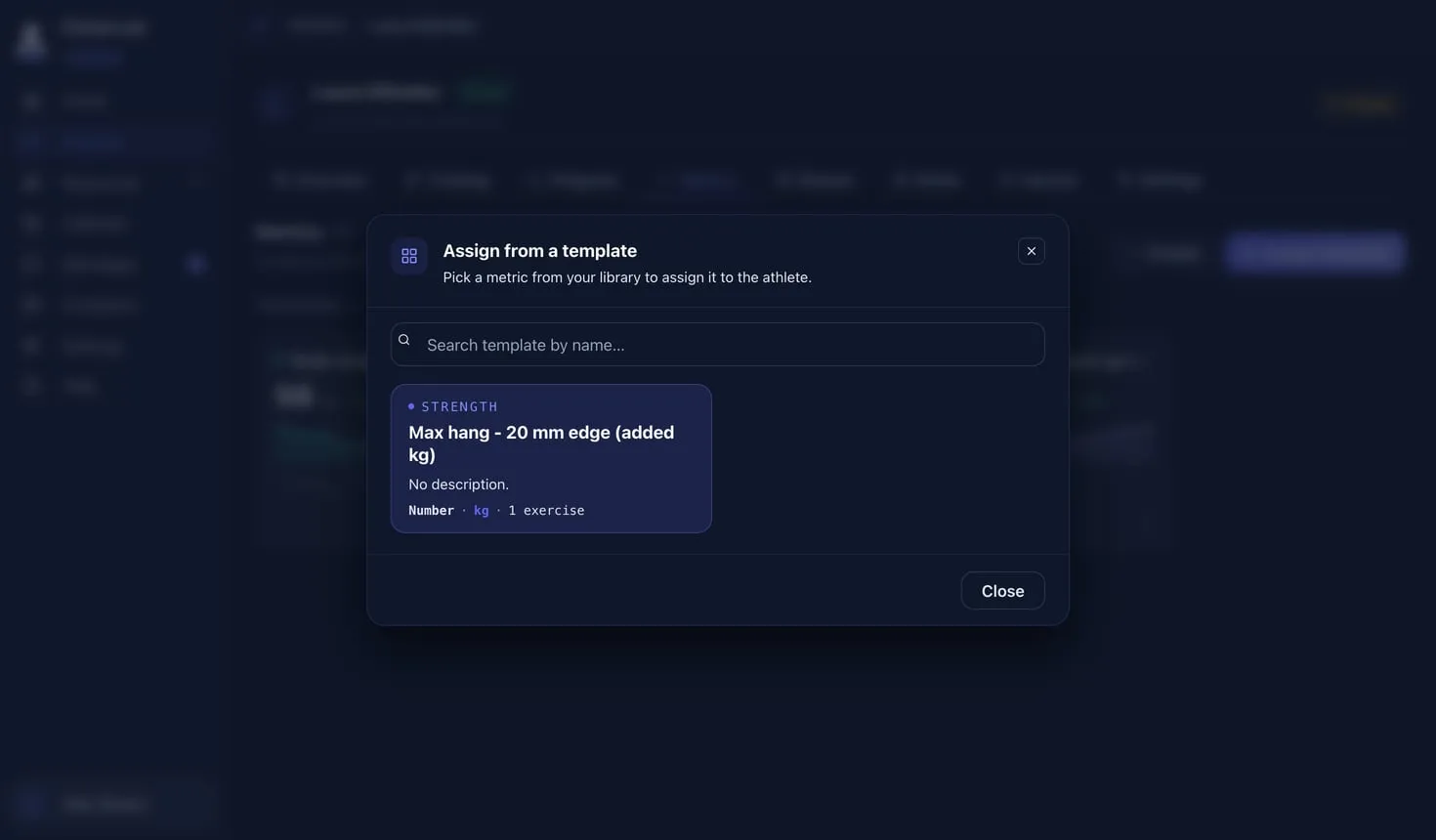
It reaches them instantly and has no deadline: it stays pending until they do it or you cancel it.
If you have no metrics in your library, the picker tells you so and sends you to Resources → Metrics.
2. Inside a session
In a session editor, add the metric from the Metrics tab. Each metric has:
- Days of leeway, from 0 to 30, 2 by default: “How many days the athlete has to take it before it counts as missed”.
- Note: “Conditions of the measurement, which grip, rested…”.
It’s the handiest option for tests that always go with a particular workout (“Strength test” at the start of each block). The metric turns into a request when you assign the plan that contains that session, one for each day it appears on.
Watch out: the conversion happens when you assign the plan. If you later add that session by hand to the planner of an athlete who already has the plan running, the metric inside isn’t scheduled for them. In that case, add the metric directly to the day’s cell.
3. In a plan cell
In the athlete’s planner, select the day (click its header), open the library’s Metrics tab and click the metric. You’ll see “Metric “{name}” scheduled on {day}” and a Scheduled metric · {date} label appears in the cell. To remove it, press the × on that label.
This schedule is tied to the plan day, not to a date: if you move the plan’s start date, the metric moves with it. In the athlete’s planner, metrics are added by clicking, not by dragging. On a phone, use the day’s Add button and the Metrics tab of the sheet that opens.
Two details: metrics don’t travel when you copy a day or duplicate a week, and Empty week doesn’t remove them.
In a saved plan (template) you can also put metrics in the cells: they become schedules for the athlete when you assign them that plan.
4. On the Season, with repetition
This is the way to set up periodic tests: “the first Monday of every month”, “every 2 weeks until June”.
- In Athletes → (athlete) → Season, click the METRICS lane at the start date.
- In Schedule metric, choose the Metric (or + Create a new metric…).
- Under Does it repeat?, choose Doesn’t repeat, Every day, Every week, Every 2 weeks, Every month or Customise… (every 1 to 365 days, weeks or months, which days of the week, or day [n] of every month).
- Ends only appears with Customise…: there you choose never, on a date or after a number of times (up to 500). With Every day, Every week, Every 2 weeks or Every month the series has no end date; if you want it to end, use Customise….
- If you like, write a Note for the athlete (optional).
- Press Schedule or Schedule {n} dates.
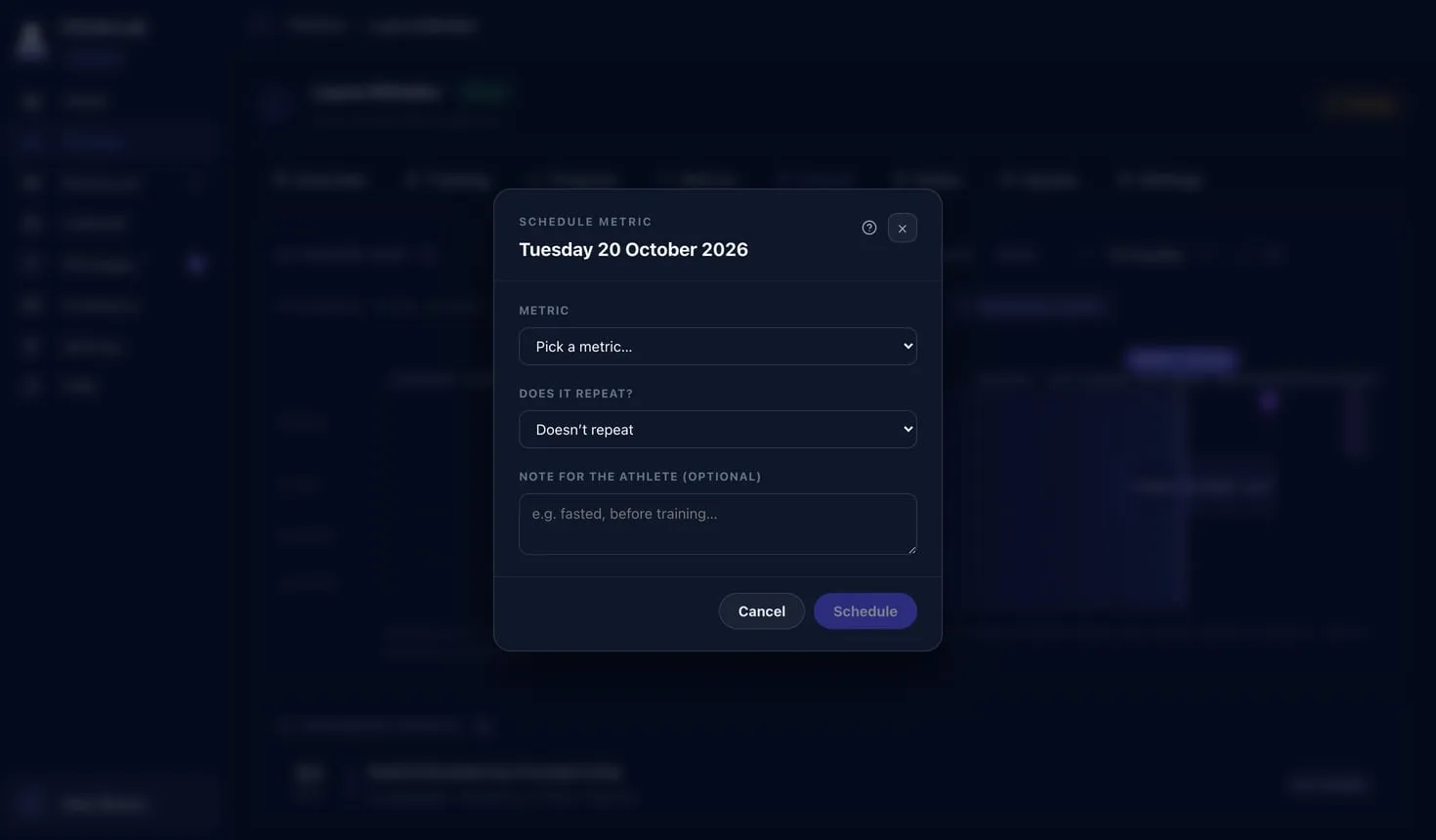
You can’t schedule past dates: “You can’t schedule a metric on a past date.”. If the combination gives no days, you’ll see “That combination wouldn’t ask for any day. Check the days picked and the end date.”.
Watch out: right now there’s no way to cancel a schedule made on the Season from the app. When you click its marker on the lane, the app takes you to the Metrics tab, where future schedules don’t appear. What you can do is cancel each request when it arrives, with the × in Pending. Check the repetition and the end carefully before pressing Schedule, especially with Ends: never. If you get a long series wrong, write to us.
When it reaches the athlete and how long they have
- Assign template: straight away, with no deadline.
- Everything scheduled (session, cell, Season): every day at 05:00 (mainland Spain time) the app checks what’s due that day and sends it to the athlete. If you schedule something for today, it reaches them right then, without waiting for the next day.
The deadline for a scheduled metric is its date plus the days of leeway. With 2 days of leeway, a Monday test is valid until Wednesday inclusive. If they haven’t done it by then, it expires: it’s no longer pending in their app and it disappears from your Pending list. The app doesn’t tell you it has expired.
Every time a request reaches them, the athlete gets a notification: “New metric to complete” if you assigned it straight away, or “A metric is due today” if it was scheduled, with the text “Your trainer asked you to record “{name}”.”.
How they record it is covered in the metrics your coach asks for.
Pending: what’s waiting
The Pending section lists the requests the athlete still has to do, with a counter.
- On a computer, each card says Waiting for the athlete · {date}, with the date it reached them.
- On a phone it says {category} · waiting {n} days, and from 7 days on the card turns amber so you notice it.
- Future schedules don’t show up here until their day arrives. You’ll see them on the Season and in the planner cells.
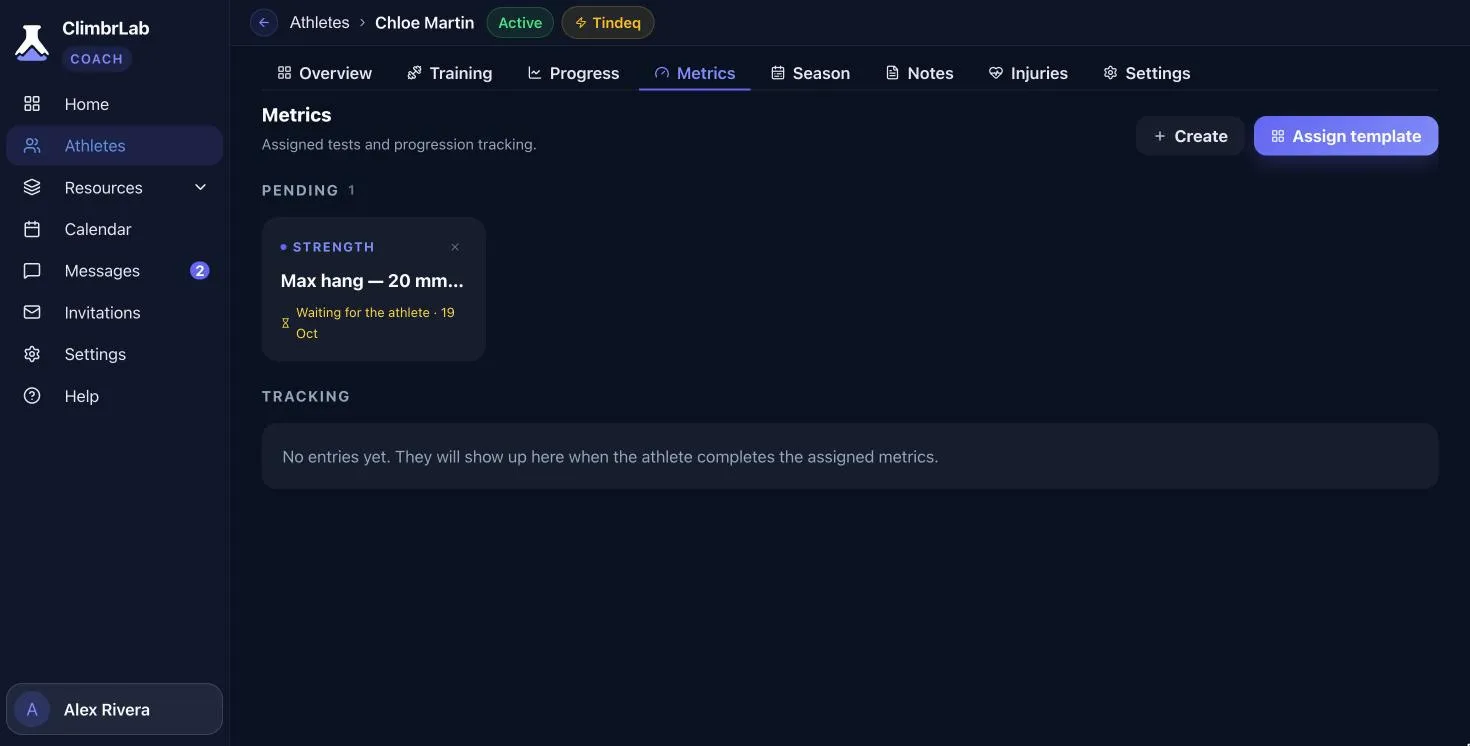
To withdraw a request, press the × (Cancel assignment). It’s cancelled instantly and with no confirmation. It only cancels that request: if it came from a Season series, the following dates keep arriving.
Tracking: how each metric evolves
Every metric with entries has its card in Tracking: the latest value, the change from the previous one, a trend line and “{n} entries · {date}”.
If there are none yet, you’ll see “No entries yet. They will show up here when the athlete completes the assigned metrics.”.
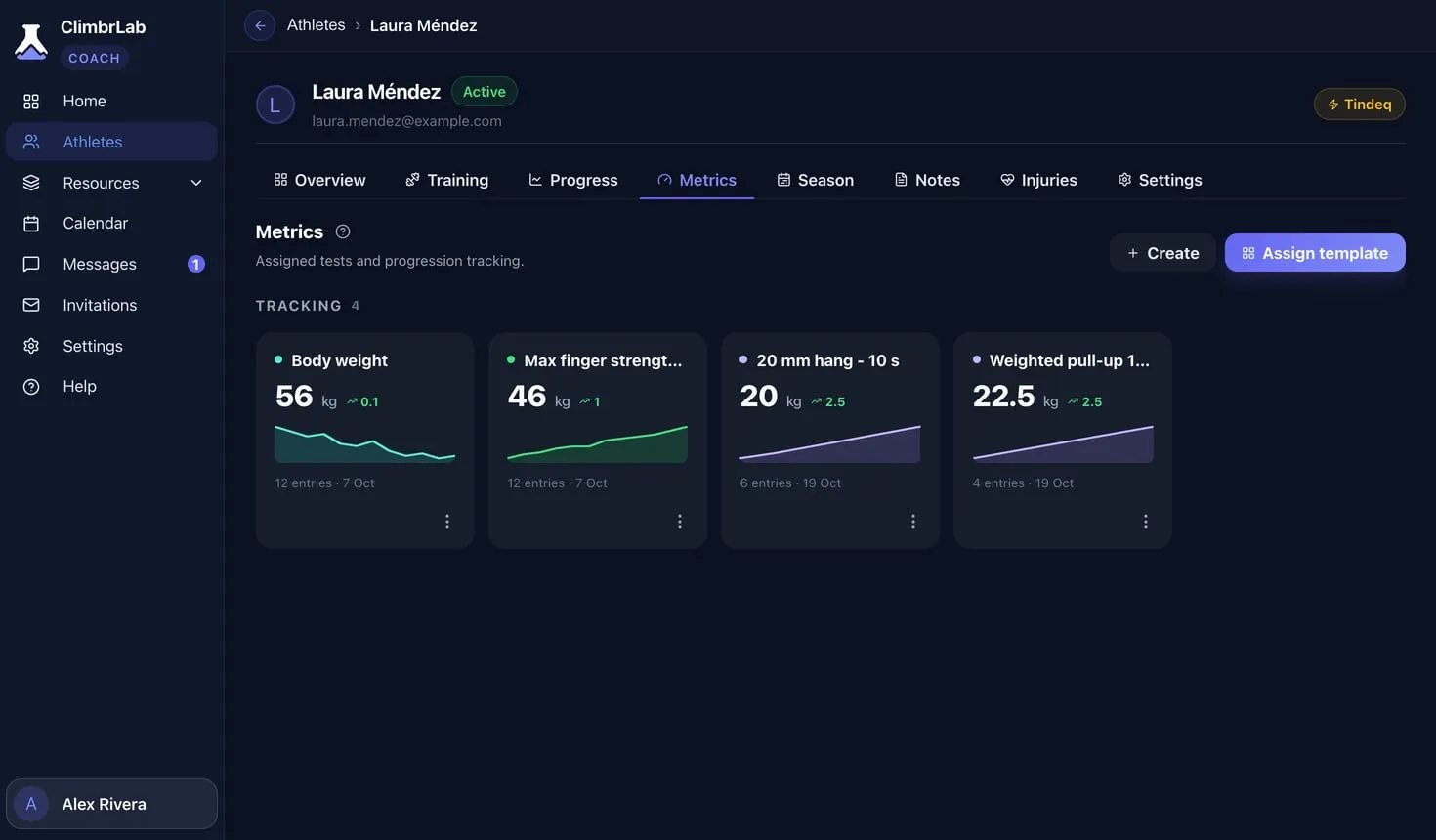
Each card’s ⋮ menu has:
- See metric: opens the detail.
- Ask again (only on metrics from your library): sends them a new request straight away. You’ll see “Metric requested again”. The result is added to the same series, which is exactly what you want for comparing. Don’t create another metric to repeat a test.
- Delete: deletes the metric from the athlete with all its entries (see below).
A metric’s detail
When you open See metric you have:
- Trend: the chart of all its entries. It needs at least two to draw a line (“Add at least one more entry to see the trend”).
- Add a manual entry: value, date and notes. Use it to put in a result you measured yourself, or an old one you had on paper.
- History: each entry with its date. On Tindeq metrics, each entry has its curve (See curve); we explain it in Tindeq for coaches.
- Delete metric: asks for confirmation (“Delete the metric {name} and all its entries?” → Yes, delete).
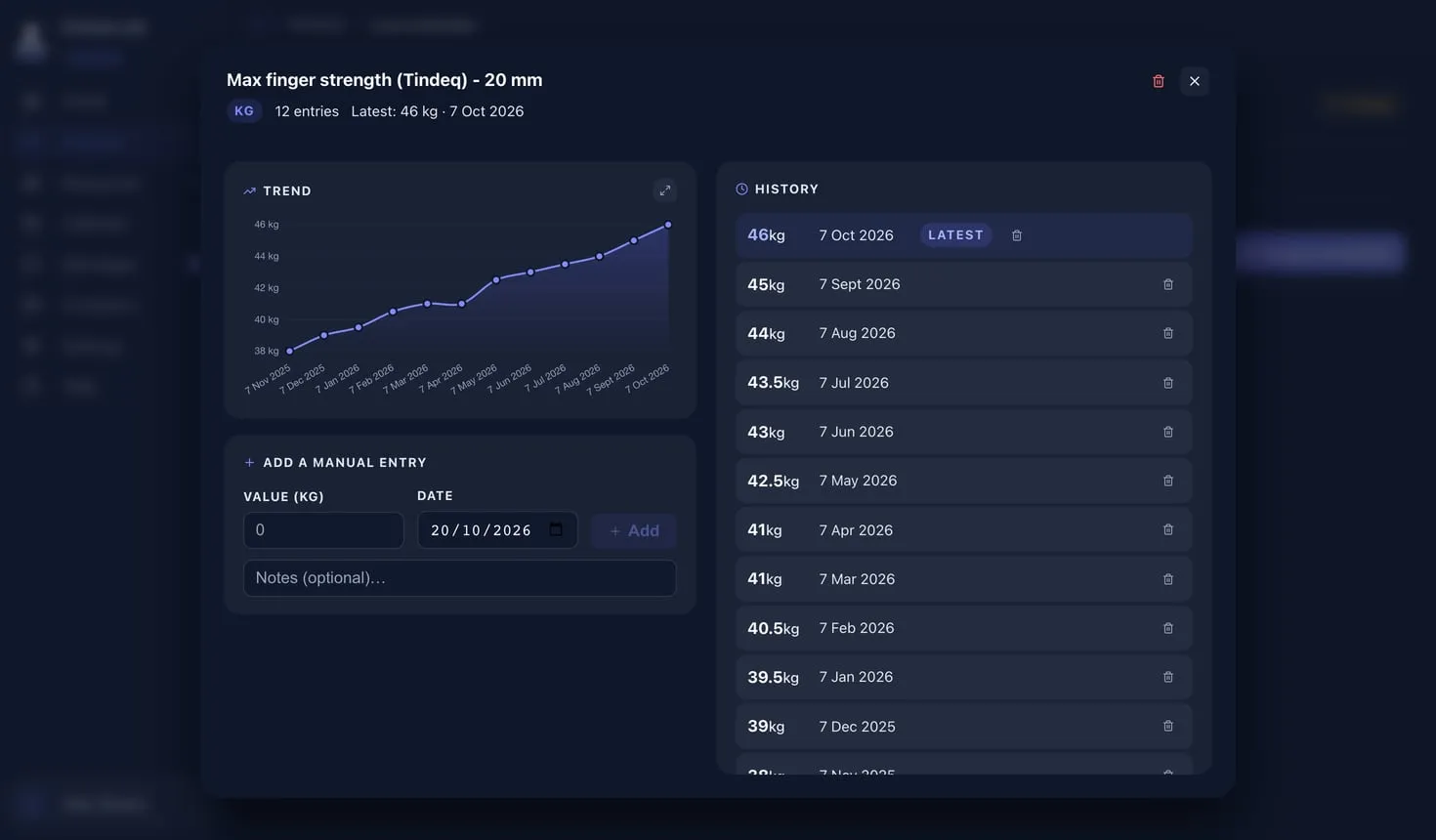
Watch out: deleting a single entry from the history is immediate and doesn’t ask for confirmation. And Delete metric permanently deletes the athlete’s whole series: “You are about to delete “{name}” and all its entries for good.”. Neither can be undone.
Deleting an athlete’s metric doesn’t touch the template in your library or your other athletes.
Individual metrics
For something you measure yourself, press Create. In New metric fill in:
- Name (required) and Unit (from the list or typed by hand).
- Description (optional): protocol, conditions, notes about the test.
- First entry (optional): Starting value, Date and Notes on the first entry.
The athlete gets no request: you add the following entries yourself with Add a manual entry. Since it doesn’t come from your library, it has no Ask again.
Knowing whether they’ve done what you asked
Since you get no notice when they record a metric, what works is a routine:
- Check Pending once a week, or the day after each test. If a request is no longer there, either they did it (it appears in Tracking with a new entry) or it expired (no new entry).
- Use your phone: the card turning amber at 7 days points out the ones that have been waiting a while.
- Set realistic days of leeway in sessions. With 0, if the athlete moves the workout by a day, the test expires.
Athletes with a Tindeq and archived athletes
- Tindeq: dynamometer metrics can only be requested from athletes with Has a Tindeq turned on. All the details are in Tindeq for coaches.
- Archived: an archived athlete can’t be assigned or scheduled metrics (“These athletes are archived and can’t get metrics: {names}. Reactivate them from your athlete list.”). Whatever they had scheduled doesn’t reach them while they’re archived and ends up expiring. Their metrics history is kept. See pause, archive or release an athlete.
Common questions
I assigned a metric and they can’t see it
Check that it appears in your Pending. If it’s there, ask them to refresh their app and look under Metrics → To complete. If it was a metric scheduled for another day, it won’t appear for them until 05:00 that day.
Why has a metric vanished from Pending with no new entry?
Most likely it expired: its date and days of leeway went by. The ones you assign with Assign template never expire; scheduled ones do.
Can I ask several athletes for the same metric at once?
From the Metrics tab it’s done athlete by athlete. If it’s in a session or a saved plan, every athlete you assign that plan to gets it.
What happens to their entries if I delete the metric from my library?
They’re kept in their Metrics tab, but their pending requests and schedules are deleted. We explain it in metrics and templates.
Can I edit an entry the athlete made?
There’s no edit option. You can delete the entry and add a manual one with the correct value, bearing in mind that deleting doesn’t ask for confirmation.