Your brand: your logo and name in your athletes’ app
How to put your company name and logo in your athletes’ app: formats, where it shows, what appears if you upload no logo and tips to keep it readable.
You can have your athletes see your brand instead of ClimbrLab’s: your company name and logo appear in their app every time they open it. It takes two minutes to set up in Settings → Brand identity and it saves by itself.
It is optional. If you do not add anything, your athletes will see your profile picture or, if you do not have one either, the ClimbrLab logo.
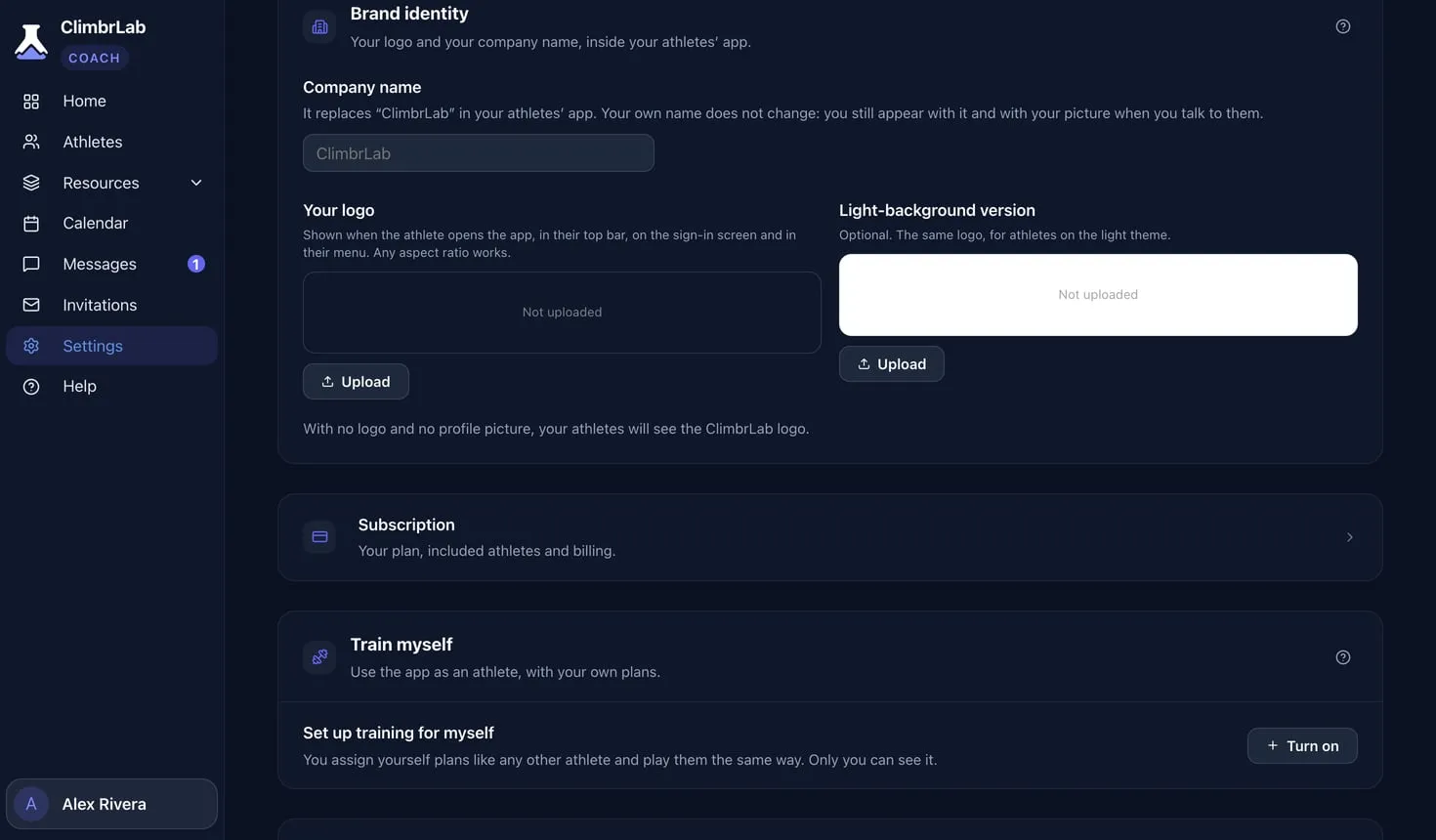
What you can set
| Field | What it does | Limit |
|---|---|---|
| Company name | “It replaces ‘ClimbrLab’ in your athletes’ app.” | Up to 80 characters |
| Your logo | The main logo. It appears in your athletes’ top bar, sign-in screen and menu | svg, png, webp or jpg, up to 2 MB |
| Light-background version | “Optional. The same logo, for athletes on the light theme.” | Same as the logo |
Your personal name does not change: “you still appear with it and with your picture when you talk to them”. The brand is your company’s; the chat is still with you.
Setting it up step by step
- Go to Settings → Brand identity.
- Type the Company name.
- Under Your logo, click Upload and choose the file.
- Optional: under Light-background version, upload the variant for athletes who use the light theme. Before that, read the tips further down.
There is no save button. Changes save by themselves a moment after you stop typing, and also when you leave the page. You will see “Saving…” and then:
Saved. Your athletes will see it next time they open the app.
To change a logo click Replace; to take it off, Remove. If a slot is empty you will see Not uploaded.
Where your athletes see it
- In the top bar of their app.
- On the sign-in screen, when they come in from your invitation link (even before they log in).
- In their menu.
- On their home dashboard: a strip with your brand, and your company name heading the screen.
Every athlete on your account sees it. On a team, all athletes see the account’s brand, whoever coaches them.
If you do not upload a logo: the fallback order
The app uses the first thing it finds:
- Your logo, if you have uploaded one.
- If not, the account owner’s profile picture, cropped into a circle. You will see: “With no logo, your athletes will see your profile picture as your brand image.”.
- If there is no picture either, the ClimbrLab logo: “With no logo and no profile picture, your athletes will see the ClimbrLab logo.”.
The company name is shown even if you have no logo.
Tip: always upload the main logo. The light-background version is an extra: on its own it does not replace the logo, and without the main one the app goes straight to your picture or the ClimbrLab logo.
What you see in your coach app
Your own app still says ClimbrLab: the header of your dashboard does not change. The brand is for your athletes.
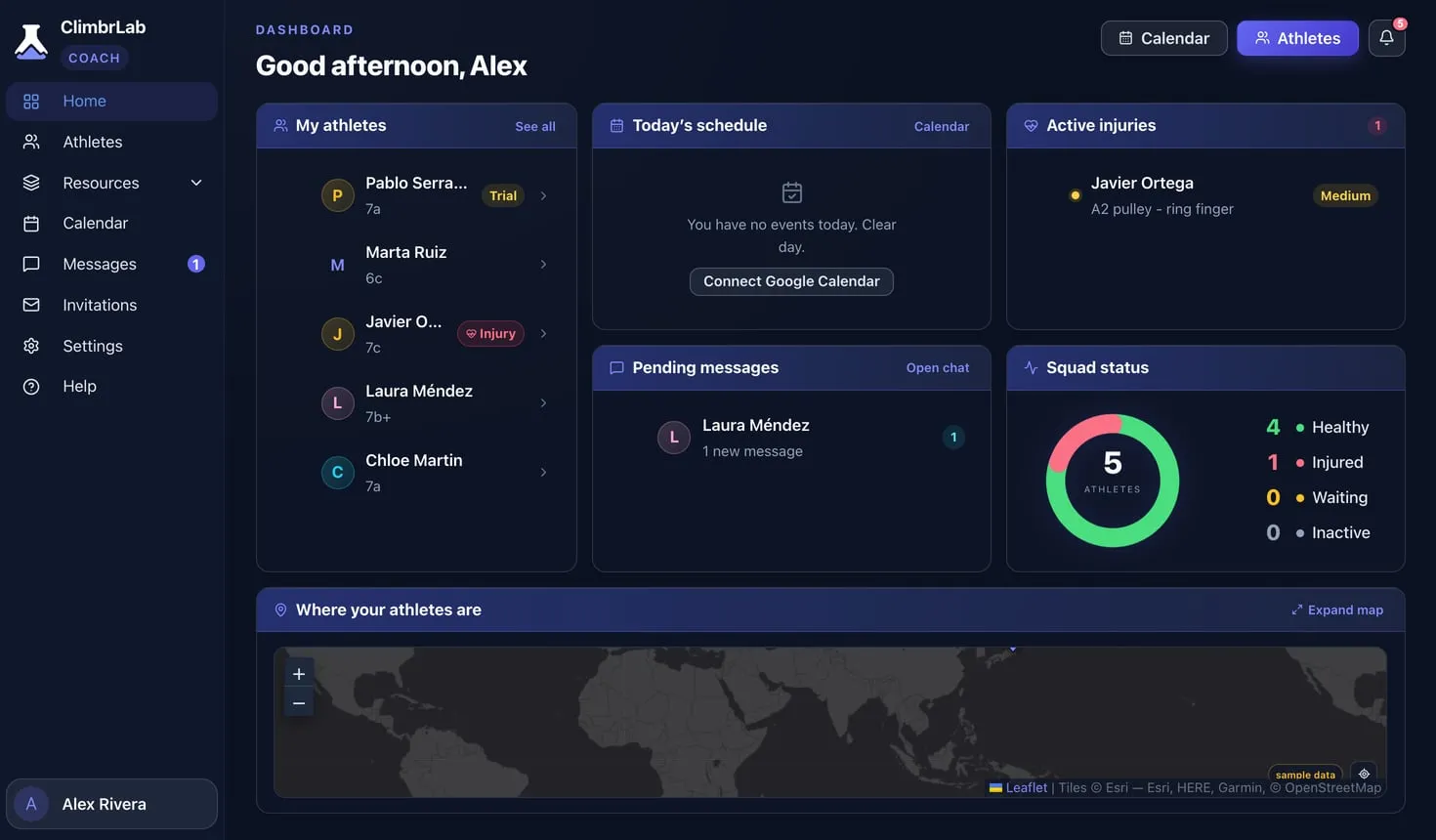
The only hint on your side is a discreet Account block with your logo and company name, above your name at the bottom of the side menu (only on a computer, and only if you have added a logo or a name). Clicking it takes you to Settings.
Who can change it
Only the account owner. If you are a coach who is a member of a team, you will see the brand that is set but no controls:
The account owner manages the brand. This is the one currently set.
More in Coaching team.
Tips for making your logo look good
- Any aspect ratio works. The app fits the logo by limiting its height, so a landscape logo works just as well as a square one. That said, a very elongated logo will look small in the bar.
- Better with a transparent background. An SVG or a transparent PNG blends in; a JPG always carries its background box.
- The top bar and the menu are always dark blue, even for athletes who use the light theme. Your logo has to read on that background: if it is black or very dark, it will barely show. Use a white or light-coloured version as your main logo.
- How the light-background version is used. If you upload it, athletes on the light theme see it instead of the main logo everywhere, including the top bar and the menu, which are still dark blue. If you do not upload it, everyone sees the main logo. So if your logo only works light on dark, or if you have a version that contrasts on both backgrounds, the safest option for now is to leave the light-background version empty.
- The preview in Settings shows the main logo on a dark background and the light version on white. If you cannot read it in the preview, your athletes will not be able to either.
- Light and not too big. It loads on every screen of your athletes’ phones, often over mobile data. A few hundred pixels wide is plenty.
Watch out for transparency: if the file is over 2 MB or more than 1600 pixels on its longest side, the app shrinks it before uploading and converts it to JPG with a white background, so it loses its transparency. To avoid this, upload an SVG or a PNG under 1600 px and under 2 MB.
If something goes wrong
| Message | What is going on and what to do |
|---|---|
| “Invalid file. It must be an svg, png, webp or jpg under 2 MB.” | The format is not accepted (for example, PDF or AI) or the file is too big. Export it to SVG or PNG |
| “Upload failed: no connection to the server.” | Connection problem while uploading the logo. Try again |
| “Could not save: no connection to the server.” | The change has not been saved. Check your connection and touch the field again |
| “Only the account owner can change the brand.” | You are a member of a team: ask the owner |
Common questions
Do my athletes see the change straight away?
They will see it the next time they open the app.
Can I remove the ClimbrLab name from the athlete app completely?
In the brand spots (top bar, sign-in screen, menu and dashboard), yes: your logo and name appear there. The app is still ClimbrLab: it is the one they download from the store and the one that appears on their phone.
I uploaded the logo in the onboarding questionnaire and it does not show
If the upload failed during the questionnaire, there is no warning. Upload it again from Settings → Brand identity.
I have several gyms, can I set a different logo for each group?
No. There is one brand per account, and all its athletes see it.
Does changing my profile picture change the brand?
Only if you have no logo: in that case the owner’s picture is the brand image. If you are a member of a team, your picture does not change anyone’s brand.