Progress and routes: your athlete's grades, attempts and volume
The Progress tab: grade progression, attempts per grade, monthly volume, route history, how their grades are worked out and the new best grade alert.
Each athlete’s Progress tab answers one question: are they climbing better? It brings together every route and boulder they have logged, with grades, attempts and when they did them. Here you will see what each chart shows, how the grades on their profile are worked out and when the app tells you they have moved up a grade.
Everything you see here is logged by the athlete from their app. You can view it, but you can’t add, edit or delete routes.
Where it is
In Athletes → (athlete) → Progress. At the top you choose Sport or Boulder: the charts only show that discipline. If the athlete has only logged boulders, the tab opens straight on Boulder.
On mobile, above the charts you have three quick numbers: Best (the hardest grade sent among their logged routes), Sent and This month (routes logged this month).
The charts
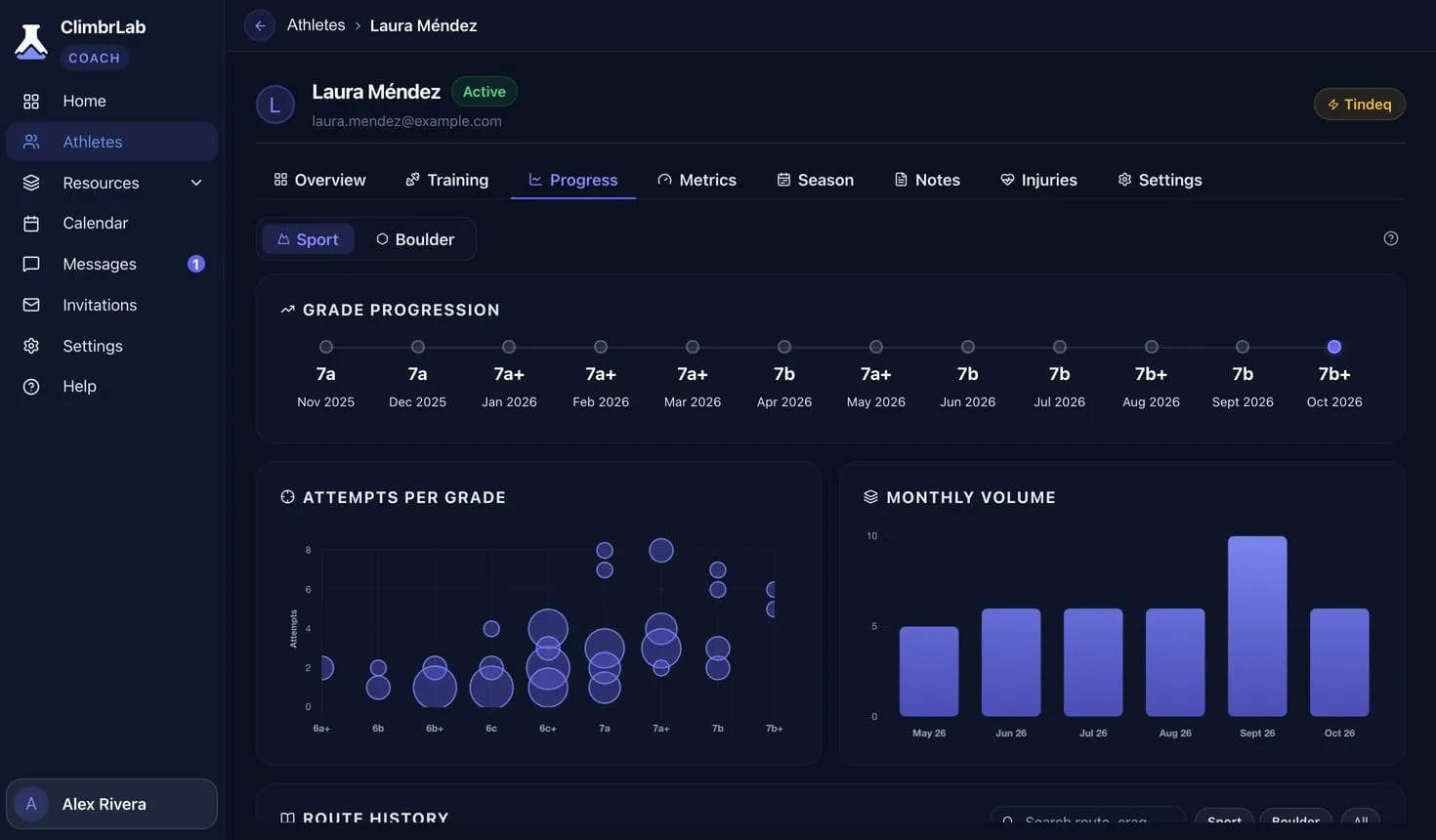
Grade progression
A timeline with one point per month: the hardest grade they sent that month. It shows up to the last 12 months with data.
It has one rule worth knowing: it only counts routes sent with more than one attempt. Anything sent onsight or flashed (first go) doesn’t appear here. If the athlete has only logged first-go ascents, you will see “No sent routes with more than one attempt logged.”, even if they have plenty of sends.
Attempts per grade
A bubble chart of sent routes: grade along the horizontal axis, the attempts it took on the vertical axis, and the size of each bubble is how many routes sit at that point. Hover over a bubble to see the grade, the attempts and how many routes there are.
It shows you the grade where things start to get hard: while the big bubbles stay low, they have that grade dialled; when they rise, they are at their limit.
On mobile it is replaced by Average attempts per grade: one bar per grade with the average number of attempts and the number of routes, so you know how much weight each average carries.
Monthly volume
Bars with the number of routes logged in each of the last 6 months, sent or not. Months with no entries show as zero, so breaks are easy to spot.
Route history
Below the charts is the Route history, with the summary “{vias} routes · {encadenadas} sent”.
- Search route, crag, sector…: searches the route name, crag, sector, country and notes.
- Discipline filter: sport or boulder. This filter is independent of the selector at the top.
- Send filter: each click switches between All, ✓ Sent and ✗ Not sent.
- Columns: Date, Country, Crag, Sector, Route name, Grade, Discipline, Attempts, Sent and Notes.
- Sorting: click Date, Route name, Grade or Attempts to sort, and again to reverse. By default, newest first.
- Pages of 8 routes, with arrows to move through them.
If the filters leave nothing: “No results for the filters applied”. On mobile, the table turns into two-line cards.
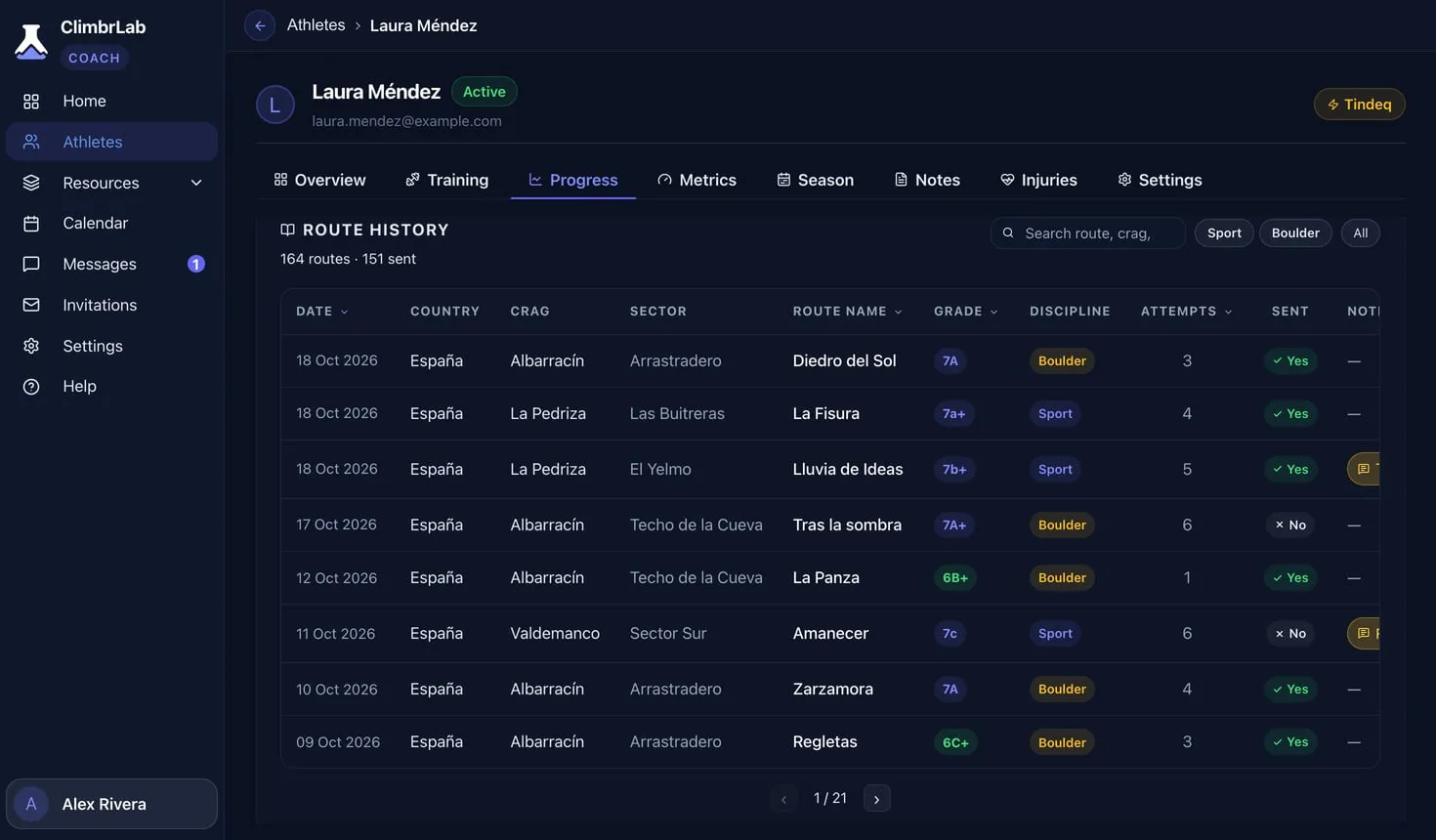
Tip: sorting by Grade sorts the grade text, not its real difficulty. With French grades it usually works out, but with other systems (for example, 5.9 and 5.10a) the order may not be what you expect.
The grades in the history and in the charts are shown exactly as the athlete wrote them, without converting them to your grading system.
The athlete logs it
Routes are entered by the athlete in their app: date, place, name, grade, discipline, attempts, whether they sent it and notes. You can see how they do it in Log routes and injuries.
You can’t correct a wrongly logged route from your account. If you spot a mistake (an 8a that was really a 6a, a wrong date), ask them to fix it.
If you need their routes outside the app, they are included in the data export; see Export athlete data.
How the grades in their Overview are worked out
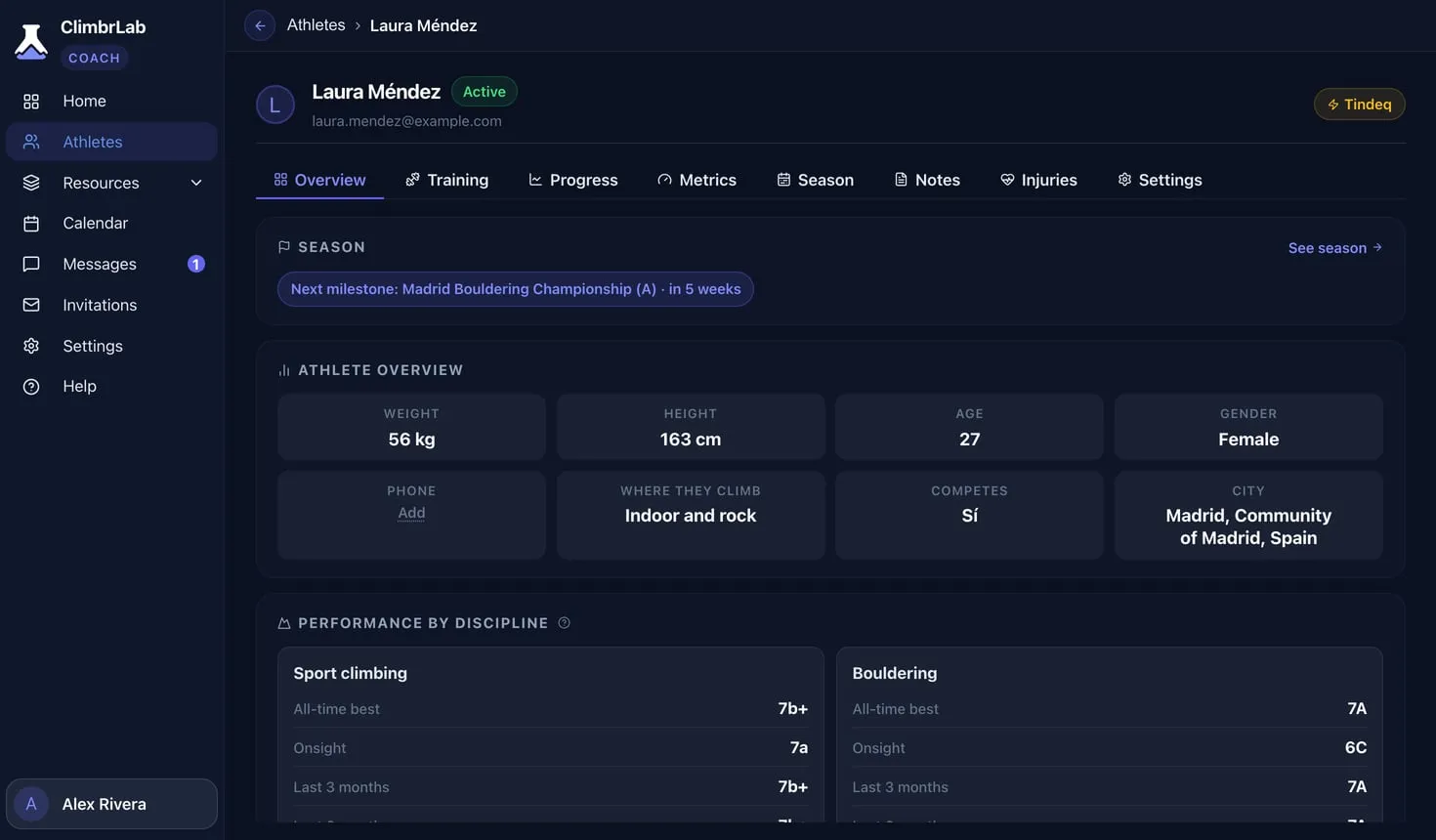
In Athletes → (athlete) → Overview, the Performance by discipline block shows four grades for sport and four for boulder. The What each grade measures button sums it up in the app. This is how they are worked out:
| Grade | What it is | How it is worked out |
|---|---|---|
| All-time best | The hardest they have ever sent | They entered it when they signed up and it goes up on its own when they log a harder send. It never goes down |
| Onsight | The hardest sent on the first attempt | Same: it only goes up when they send something harder on the first attempt |
| Last 3 months | The hardest sent in that period | Only from the routes they have logged, in calendar months |
| Last 6 months | The same, over six months | Includes the first three |
Details that explain almost every question:
- Only sent routes count. An attempt isn’t a grade.
- “Onsight” includes flashes. The log doesn’t record whether they had beta: anything sent on the first go counts as onsight.
- The best grade doesn’t go down even if they delete the route that gave it. The grade on the profile can also be entered by hand, and lowering it just because the log is missing would wipe out what the athlete says about themselves.
- A dash doesn’t mean they aren’t climbing: it means they haven’t logged any sent route in that period.
- A grade that isn’t on any scale (free text, a typo) doesn’t count at all.
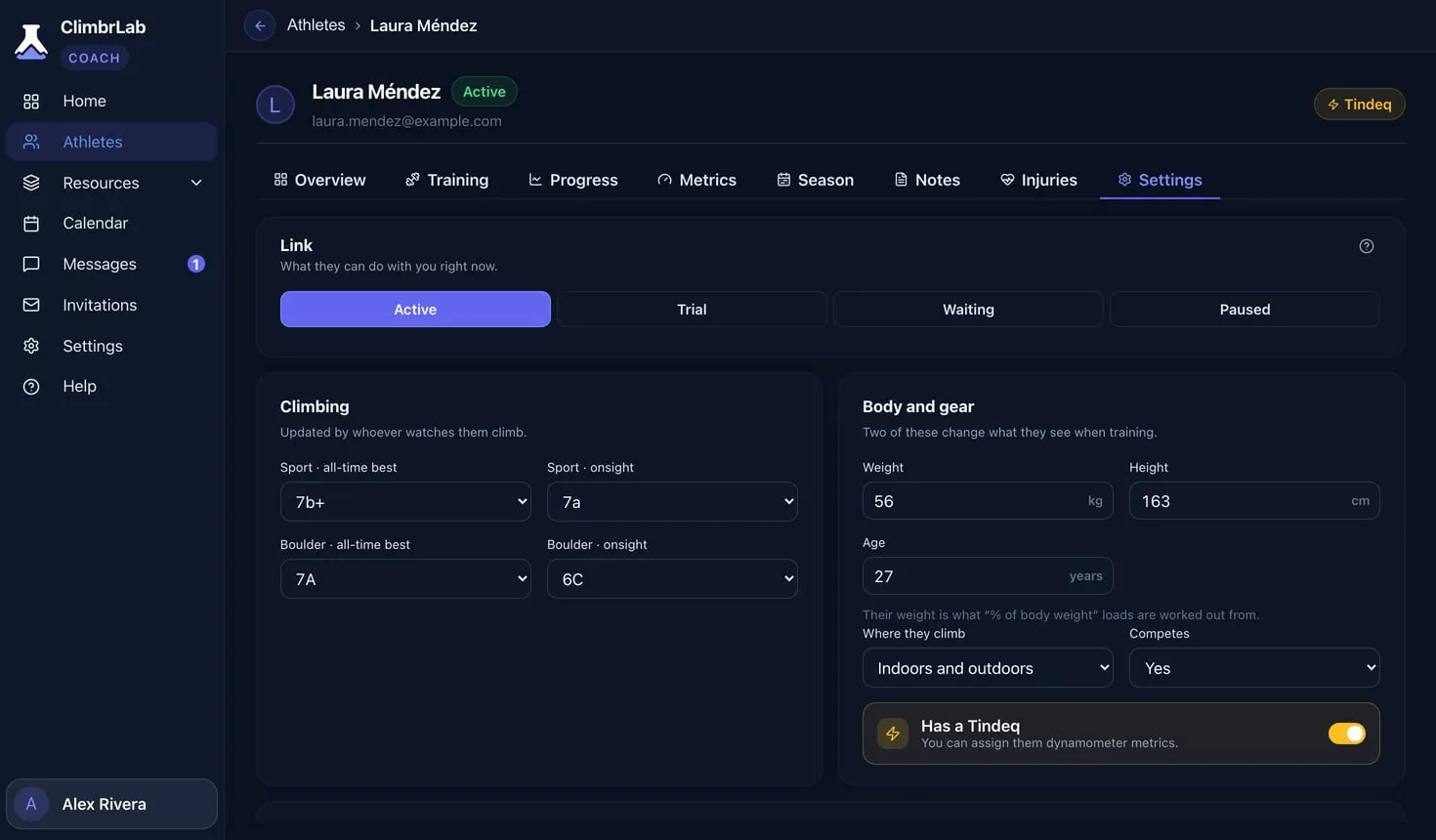
You can also correct the all-time best and onsight grades by hand in Athletes → (athlete) → Settings → Climbing. When you save, the athlete gets an alert that you have changed their profile.
Tip: the all-time best tells you what they were once capable of; the 3 and 6 months tell you what they can do today. When prescribing, look mostly at the latter.
The new best grade alert
When the athlete logs a route that raises their all-time best, you get a notification with their name and a text like:
New best in sport: 7c on La Rubia
And an achievement card appears in your chat, “{nombre} moved up a grade in sport”, with the previous grade and the new one. That card can’t be replied to or deleted. See Messages.
Not every harder ascent triggers an alert. For it to fire:
- The best grade has to go up (if only the onsight goes up, there is no alert).
- There had to be a previous grade on the profile. Someone’s first grade on an empty profile is their starting point, not an achievement.
- The route has to be recent: from the last 30 days and not dated in the future. That way, if an athlete enters years of history in one go, you aren’t flooded with old congratulations.
- At most one card every 7 days per discipline. If they go up again within that week, the existing card is updated with the new grade (keeping the starting one) and doesn’t sound again.
Grading systems
In Settings → Climbing preferences you choose which systems you want to see all your athletes’ grades in:
- Sport grades: French (6a, 7c+) or Yosemite (5.10a, 5.12d).
- Boulder grades: Fontainebleau (6A, 7B+) or Hueco (V4, V10).
The app converts the profile grades to your system: the Performance by discipline block in the Overview, the grades in Settings → Climbing and the ones on your home dashboard. So you can coach an athlete who logs in Yosemite and read them in French.
What isn’t converted: the route history, the Progress charts and the new best card, which show the grade exactly as the athlete wrote it. More in Coach settings.
Common questions
My athlete has sent a harder grade and their best hasn’t changed
Check that they marked it as sent, that the discipline is right (a boulder logged as sport raises the sport best) and that the grade is spelt correctly. A grade that no scale recognises doesn’t raise anything.
The Grade progression chart is empty, but they have sent routes
That chart only uses routes sent with more than one attempt. If everything they have logged was sent first go, it doesn’t appear there. Look at the Route history or the Attempts per grade chart.
I didn’t get the alert for their new best
Go over the rules above: the route has to be from the last 30 days, there had to be a previous best and there is only one new card per week and discipline. If there was already another one that week, the existing card was updated without sounding.
Can I log a route for them that we did together?
Not from your account. They log it in their app. If what you want is to reflect their level, you can adjust the all-time best and onsight in Settings → Climbing.