Pause, archive or release an athlete
The five link statuses with an athlete, which count towards your limit, what archiving blocks, how to reactivate and what is deleted for good when you release.
Not all your athletes train the same way all year round: some get injured, some go travelling, some stop paying and some leave for another coach. ClimbrLab gives you five statuses to reflect this, and a separate action, Release, to let an athlete go completely.
Heads-up: archiving can be undone whenever you like and deletes nothing. Releasing can’t be undone: it deletes your private notes and the chat with that athlete, and you stop seeing them. If in doubt, archive.
The five statuses
| Status | When to use it | Does it count towards your limit? | Does anything change for the athlete? |
|---|---|---|---|
| Active | Training as usual | Yes | No |
| Trial | They are on a trial period with you | Yes | No |
| Waiting | Signed up but not started (for example, payment pending) | Yes | No |
| Paused | Temporary break, will be back | Yes | No |
| Archived | Stopped training with you. All their data is kept | No | Yes: they don’t get new plans or metrics and the chat becomes read-only |
Trial, Waiting and Paused are labels for you: they don’t block anything, they don’t notify the athlete and the athlete can’t see which status they are in. They help you stay organised and read your numbers correctly:
- The list summary (“12 athletes · 9 training”) only counts Active and Trial as training.
- The Waiting tab in the list brings together Waiting and Paused.
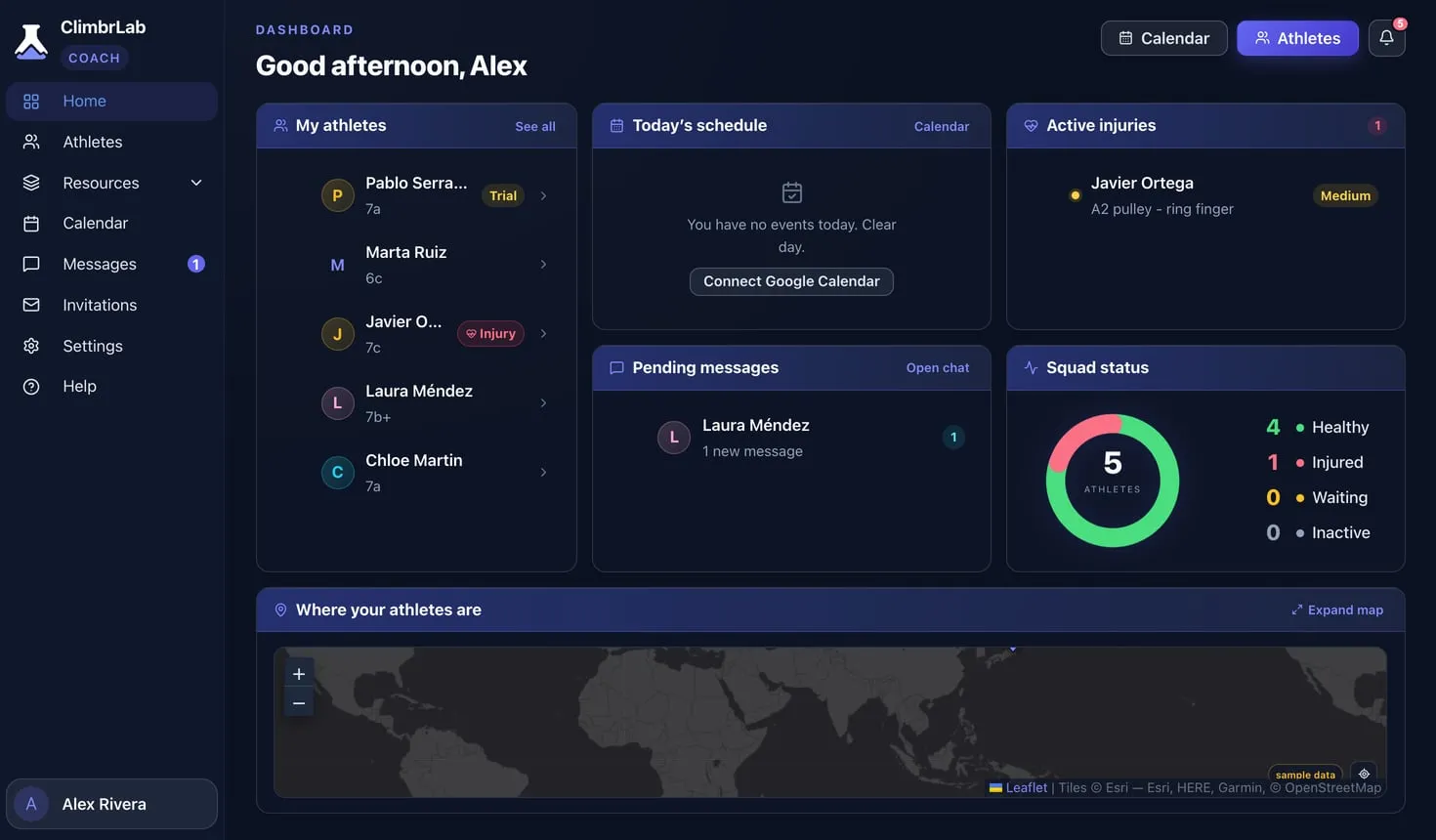
- On the Home dashboard, the Squad status chart counts everyone who isn’t Active or Trial as Waiting.
All new athletes start as Active.
How to change the status
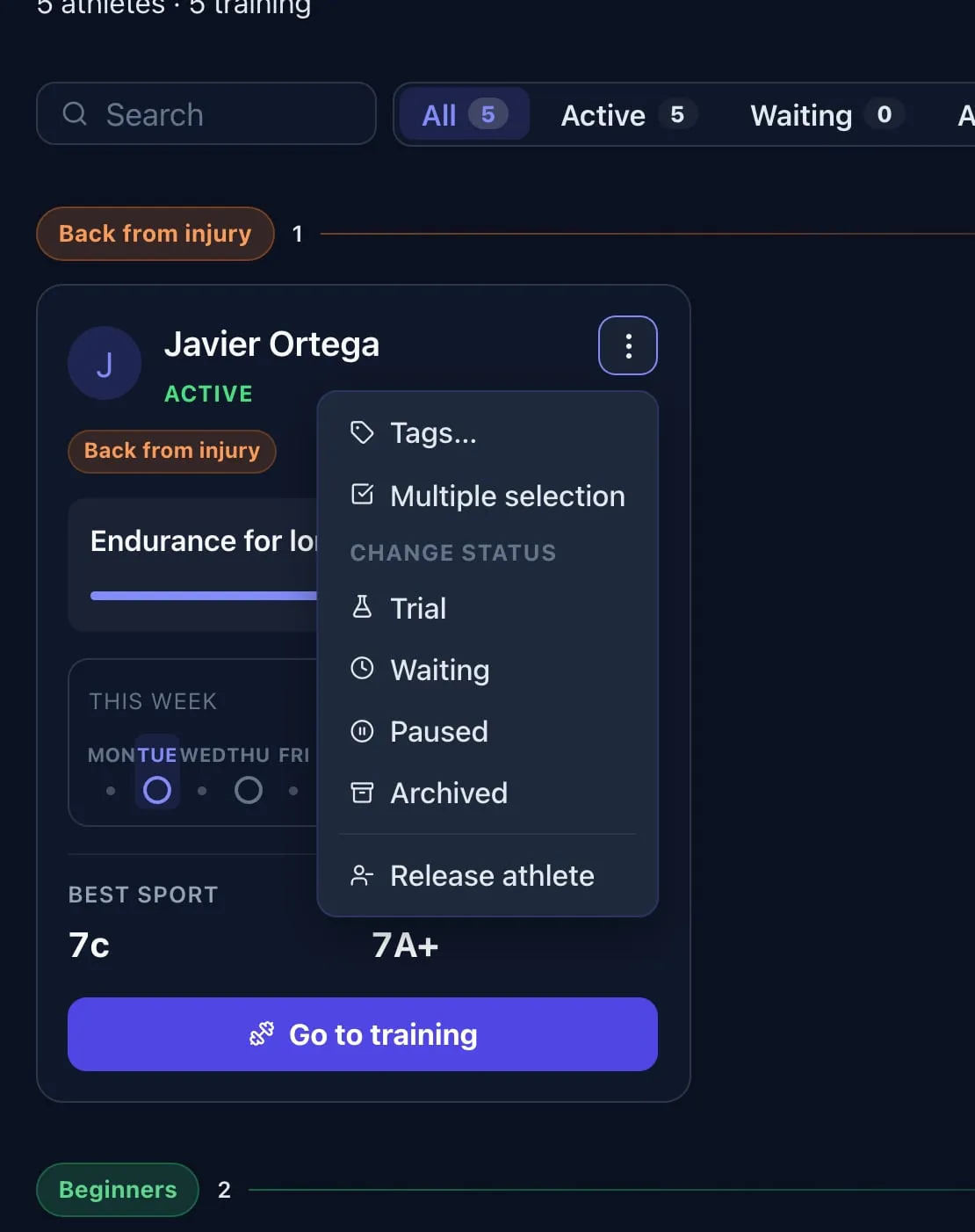
From the list: in the ⋮ menu on their card, Change status shows every status except the current one. It applies immediately, with no confirmation, except Archive, which asks you to confirm.
From their profile: in Settings → Link you choose Active, Trial, Waiting or Paused. For anything other than Active you can write a Reason (only you see it) of up to 200 characters. Here the change needs Save in the bar at the bottom. Archiving has its own button at the end of Settings, which applies immediately once confirmed.
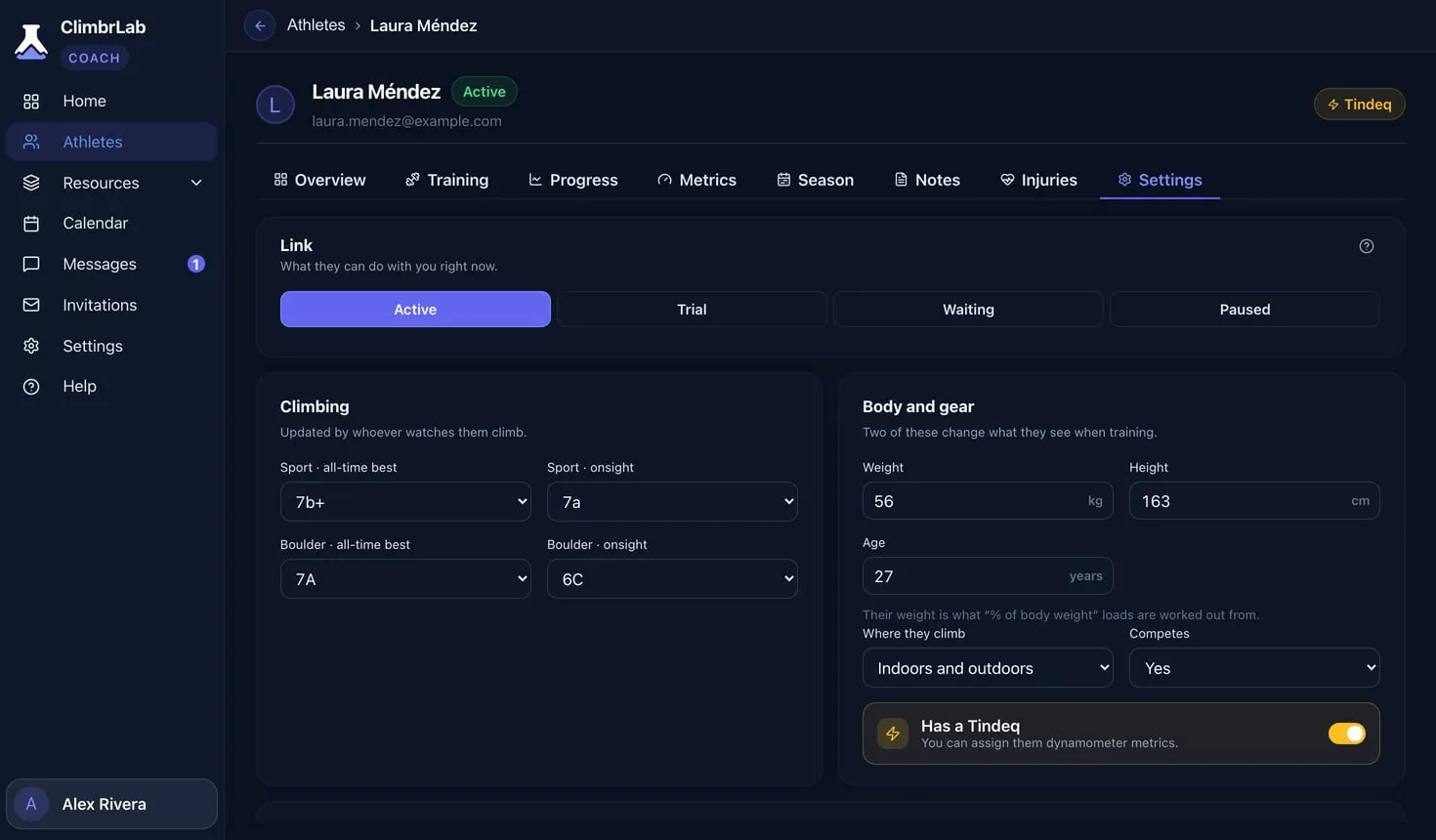
When you set someone back to Active, the reason is cleared automatically. The athlete doesn’t get any notification for a status change.
What counts towards your athlete limit
Your subscription has a maximum number of athletes depending on the tier (see subscription and pricing). All athletes who aren’t archived count: Active, Trial, Waiting and Paused take up a seat all the same. Your own profile, if you train yourself, never counts.
That’s why, if you want to free up a seat without losing anything, the tool is archiving, not pausing. If you try to drop to a tier with fewer seats than you are using, you will see “You have {atletas} athletes and that plan includes {max}. Archive {sobran} before switching.”
Archive
How to do it
- From the list: ⋮ → Change status → Archived.
- From the profile: Settings → Archive (name) → Archive.
In both cases the app asks for confirmation:
Archive athlete? (name) leaves your active list. Nothing is deleted: you keep all their history and can reactivate them whenever you want. While archived you cannot assign them plans or metrics, and the chat is read-only.
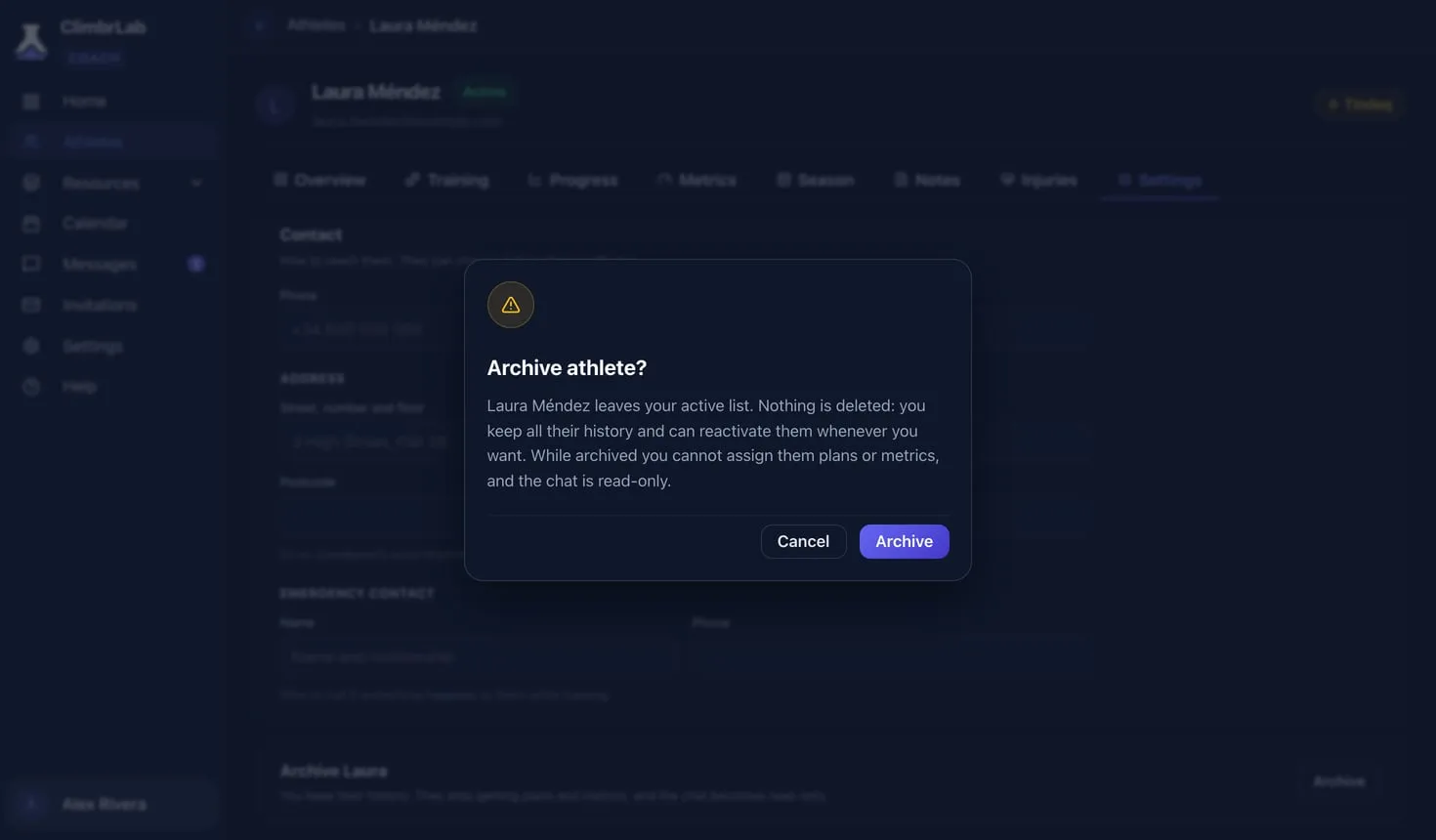
Press Archive to confirm. The notice in the list reminds you: “They stay in “Archived”, with all their history.”
What is blocked
While they are archived you can’t:
- Assign them a plan.
- Assign or schedule metrics for them.
- Create events for them in the calendar or in their season.
- Write to them in the chat. You can read the conversation; the app tells you with “Archived athlete: you can read the conversation, but not send messages. Reactivate them from your athlete list to write again.”
If you try, you will see a message such as “This athlete is archived. Reactivate them from your athlete list to assign a plan.”
What doesn’t change
- Nothing is deleted: plans, sessions, metrics, injuries, notes and chat stay as they were. You can still look at their profile.
- You can keep writing private notes and logging injuries.
- The athlete keeps their account and their history.
- They stop appearing on the Home dashboard, and their card in the list always shows “No plan assigned”.
What the athlete sees
On their home screen they will see:
Your coach has archived the follow-up. You keep your whole history and can carry on logging ascents and sessions, but you will not get new plans and the chat is read-only.
And in their chat, that they can read the history but not send messages.
Reactivate
There are two ways:
- From the profile: Settings → Link → Reactivate and then Save in the bar at the bottom. Reactivate only gets the change ready: if you leave without saving, they stay archived.
- From the list: in the Archived tab, ⋮ → Change status and choose the status they return to (usually Active). It applies immediately.
When you reactivate, the athlete takes up a seat again, so the app checks your limit. If you are full, you will see “You’ve reached your plan’s limit of {max} athletes.” and the You need more seats window with See plans.
Tip: you don’t need to remember the way. The notice at the top of an archived athlete’s profile reminds you: “You keep all their history, but you cannot assign them plans or metrics and the chat is read-only. Reactivate it with “Reactivate” in their Settings tab to coach them again.”. Remember that, in the profile, after Reactivate you have to press Save.
Release
Releasing means letting the athlete go so they can join another coach. There’s no going back.
Who can do it and where
- Only the account owner. Team members don’t see the option.
- Only from the athletes list: ⋮ → Release athlete (at the end of the menu, separate from the rest; it turns red when you hover over it). It isn’t in the profile.
- It doesn’t work for your own profile: “Your own profile can’t be released: turn off self-training in your settings.”
The confirmation
Release (name)? (name) will leave with their whole history (plans, sessions, metrics and injuries) and will be able to link with another trainer using their code or an invitation. You and your team will stop seeing them, and your private notes about them and your chat will be deleted. This can’t be undone.
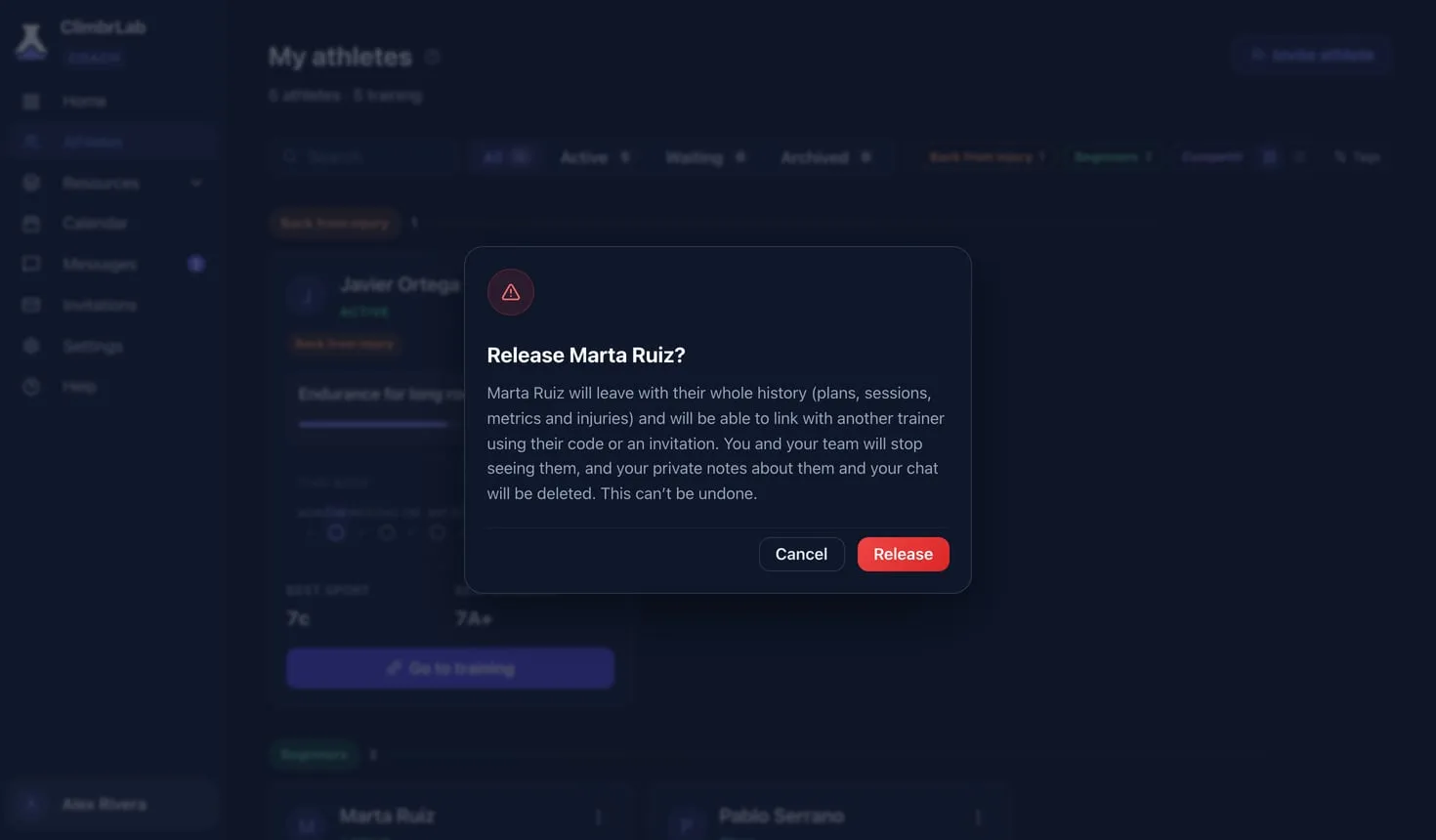
When you press Release you will see “(name) is no longer on your list”.
What exactly happens
Deleted for good:
- All your private notes about them.
- The chat between you.
- That athlete’s physio links (the physio will no longer be able to send reports).
- Your account’s tags they had and how they were shared out within your team.
- The invitations your account had sent them.
Cancelled: scheduled metrics that were still active and tests still to be done. What they had already measured stays in their history.
The athlete takes with them: their plans, sessions, metrics, injuries and events. You can no longer open their plans.
Stays in your calendar: the events you had created with them, but no longer linked to the athlete.
On top of that, their status is reset and they stop taking up a seat on your subscription.
What the athlete sees
They don’t get any notification that you have released them. Their account and their history are still there, and their app will show the Link with your trainer option to type in a new coach’s code. The right thing to do is to tell them yourself beforehand.
If later on you want to coach them again, you can invite them again: they come back with their history, but your notes and the old chat won’t return.
Tip: before releasing someone, if you want to keep your notes, download them with export athlete data. Afterwards they will be gone.
Pause, archive or release: comparison
| Pause | Archive | Release | |
|---|---|---|---|
| Takes up a seat? | Yes | No | No |
| Can you assign plans and metrics? | Yes | No | No: they are no longer yours |
| Chat | Normal | Read-only | Deleted |
| Your private notes | Kept | Kept | Deleted |
| Their history | You see it | You see it | They take it; you stop seeing it |
| Does the athlete find out? | No | Yes, they see it in their app | No notification |
| Can they join another coach? | No | No | Yes |
| Can it be undone? | Yes, immediately | Yes, by reactivating | No |
| Who can do it? | You and your team | You and your team | Only the owner |
Common questions
An athlete has left for another coach, what do I do?
Release them. While they are your athlete, the other coach can’t invite them: they will see “That person already trains with another trainer. To invite them, their trainer has to release them first from their profile.” (although the button is in the list, not in the profile).
They are injured and will be out for two months
Set them to Paused with a reason (“Pulley injury, back in June”). If you need the seat, archive them: you lose nothing and you reactivate them when they come back.
Does archiving take away the plan they had?
Nothing they already had is deleted. What you can’t do is assign them a new one until you reactivate them.
Can I archive several athletes at once?
No. Multiple selection in the list only works for tags. Status is changed one at a time.
Is there any way to recover the notes of a released athlete?
No. That’s why it’s worth exporting the data before releasing.