Injuries: log, track and resolve your athletes' injuries
How to log an injury on the body diagram, change its status, resolve or delete it, who gets alerted and where you see active injuries.
Each athlete has an Injuries tab that holds their full injury history: which area, when it started, what status it is in and what treatment they are following. What you log here doesn’t get lost in a forgotten file: it shows up on your dashboard and in the athletes list, and it warns you in the planner if you schedule an exercise that loads that area.
Watch out: deleting an injury can’t be undone. If it has healed, resolve it instead of deleting it: that way you keep the history.
Where it is
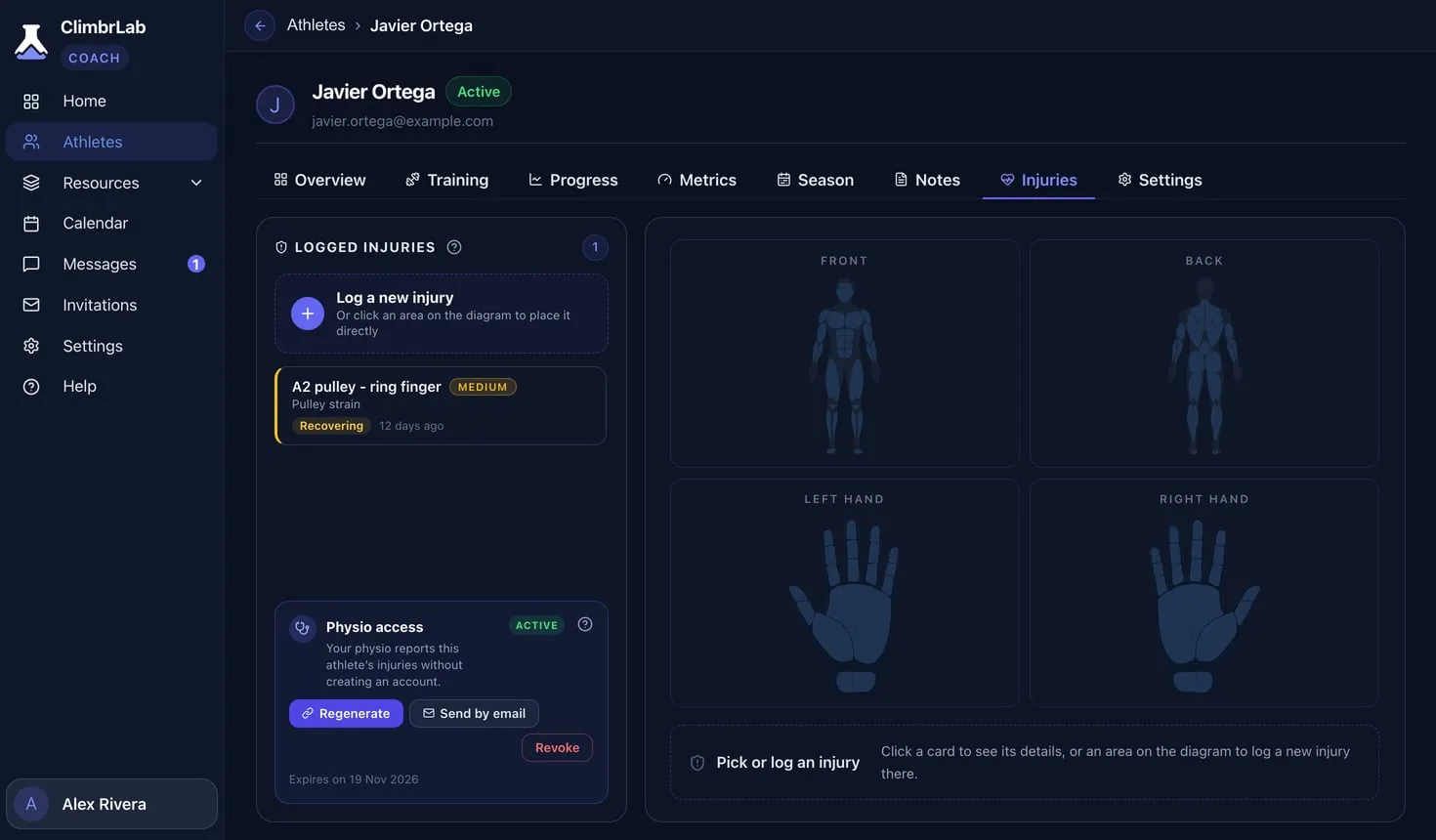
Athletes → (athlete) → Injuries. On the left you have the Logged injuries list (with the total number) and the Physio access card. On the right, the body diagrams or the details of the injury you have opened.
Each card in the list shows the area, the type, the severity, the status and how long ago it was logged (“12 days ago”). If the athlete has none, you will see “No injuries logged yet.”.
Ways to create an injury
An injury can reach the profile in four ways, and they all end up in the same list:
| Who | How | How it appears |
|---|---|---|
| You (or a colleague on your team) | From the Injuries tab | “Logged by the coach: (name)” |
| You, from the season | Click an empty slot in the INJURIES lane in Season | Same as above, with that start date already filled in |
| The athlete | From their own app (see log routes and injuries) | No author label |
| Their physio | With a link you send them, without creating an account | “Reported by physio: (name)” |
The third and fourth ways save you work: you don’t have to write up what they tell you. The physio one is explained in full in physio link.
Logging an injury
- Go to Athletes → (athlete) → Injuries.
- You have two options:
- Click Log a new injury, or
- click straight on the affected area of one of the diagrams: Front, Back, Left hand or Right hand (the silhouette changes according to the athlete’s gender).
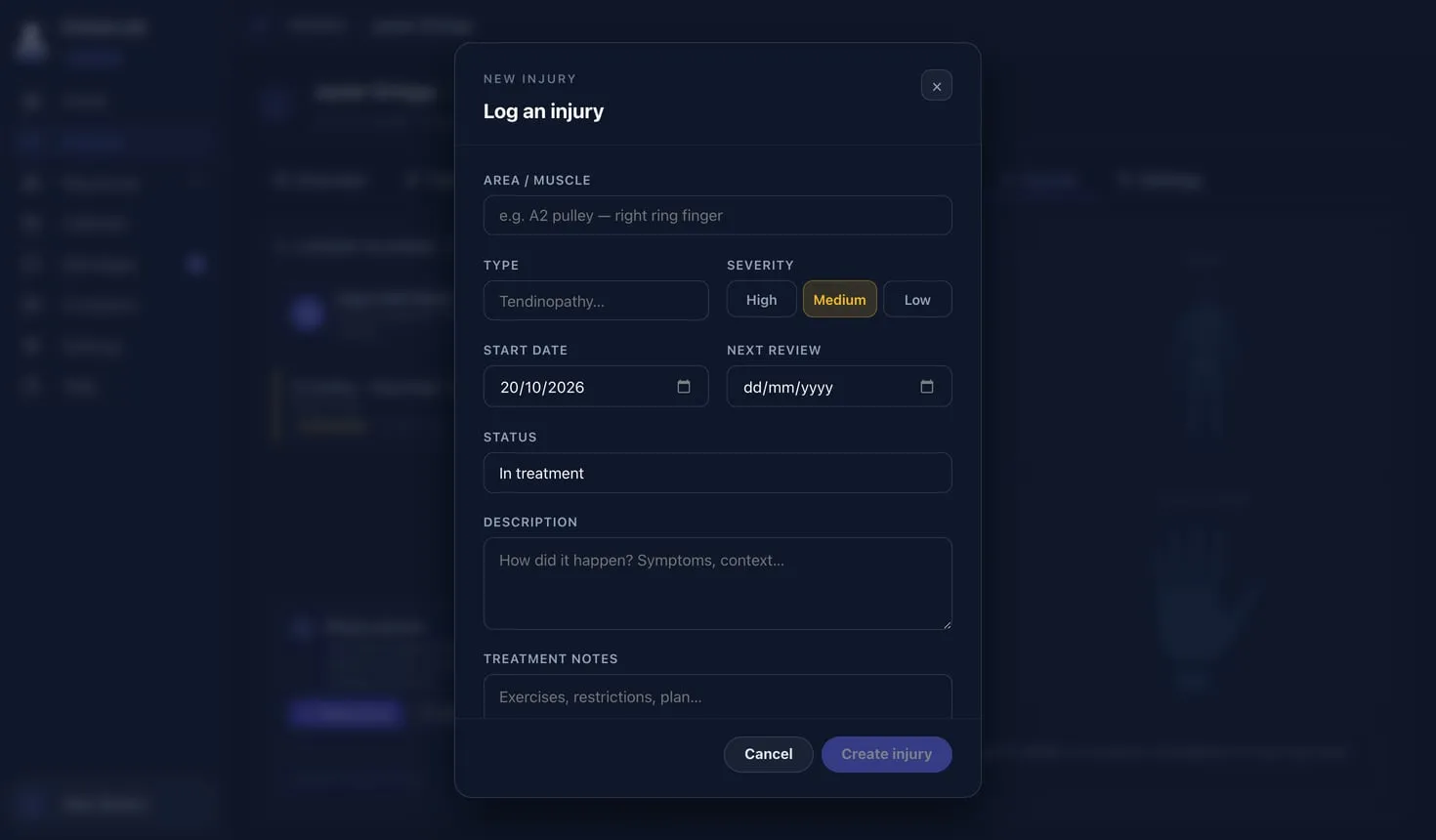
- The Log an injury window opens. If you came from the diagram, at the top you will see Selected area: with the area marked.
- Fill in the fields (what each one is for is explained below). Only Area / Muscle is required.
- Click Create injury.
Tip: always start from the diagram when you can. The area marked on the diagram is what the planner uses to warn you that an exercise clashes with the injury (more on this below). If you log it with the button and no area, that warning won’t fire.
If you click an area of the diagram where an injury is already logged, the app opens that injury instead of creating a new one.
The fields
| Field | What it is for |
|---|---|
| Area / Muscle | The name you will read everywhere. Example: “A2 pulley, right ring finger”. Required. |
| Type | Free text: tendinopathy, sprain, overload… |
| Severity | High, Medium (selected by default) or Low. It sets the injury’s colour throughout the app. |
| Start date | When it started. Today by default. |
| Next review | When it is due to be checked again (optional). |
| Status | What stage it is at (see the next table). |
| Description | How it happened, symptoms, context. |
| Treatment notes | Exercises, restrictions, return plan. |
The statuses
| Status | When to use it | Does it count as active? |
|---|---|---|
| In treatment | Just injured or in the physio’s hands. This is the starting status. | Yes |
| Recovering | Already training with adaptations and improving. | Yes |
| Monitoring | Practically fine, but you want to keep an eye on it. | Yes |
| Resolved | Healed. | No |
Only unresolved injuries count as active. That is what decides whether the athlete shows as injured on your dashboard.
Viewing the details
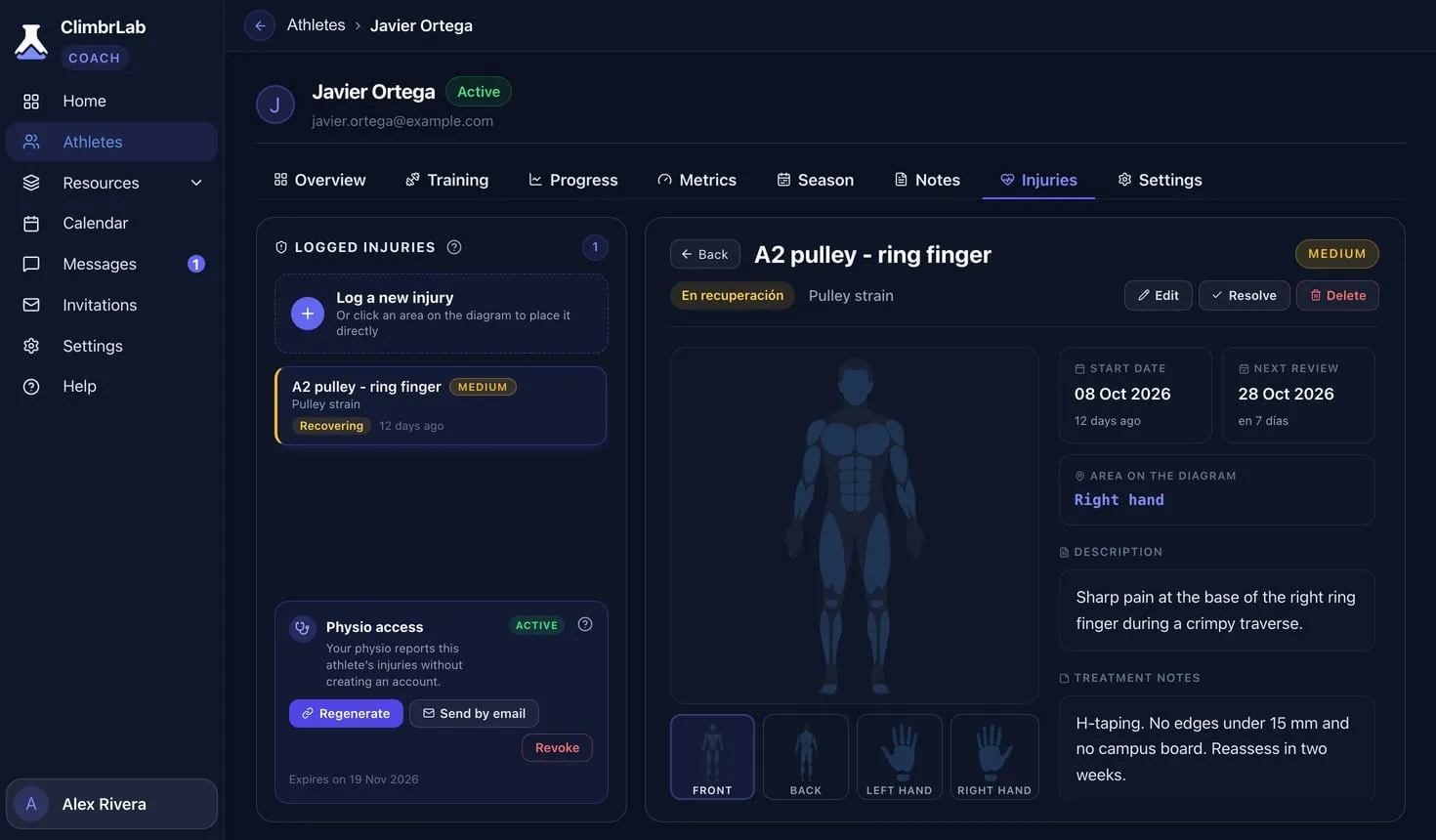
Click a card in the list. The right-hand panel shows:
- Title, severity, status and type (or “No type” if you left it empty).
- The large diagram with the area marked, with thumbnails to switch view.
- Start date, Next review and Area on the diagram.
- Who logged it: “Reported by physio: (name)” or “Logged by the coach: (name)”. The ones logged by the athlete have no label.
- Description, Treatment notes and the line “Logged on (date) · updated (date)”.
To go back to the diagrams, click Back.
Edit, resolve or delete
In the details you have three buttons:
- Edit: opens the same window with the current data. Change what you need (for example, the status from In treatment to Recovering) and click Save changes.
- Resolve: marks the injury as Resolved instantly, without asking for confirmation. The button disappears once it is resolved. If you make a mistake, go into Edit and set the status back to what it was.
- Delete: needs two clicks. The first changes the button to Sure?; if you don’t click again within 4 seconds, it resets itself. The second click deletes it for good.
Watch out: deleting is irreversible and nobody is alerted. Only use it for mistakes (a duplicate injury or one logged on the wrong athlete). A healed injury is resolved: that way it stays in the history and you can see how many times they have had the same injury.
Who gets alerted
The rule is simple: the alert always goes to the other side, never to whoever makes the change.
| What happens | Who gets the alert |
|---|---|
| You create, update or resolve an injury | The athlete (“Your trainer logged an injury”, “…updated…”, “…marked an injury as resolved”) |
| The athlete creates, updates or resolves an injury | You and whoever coaches that athlete on your team (“(name) logged an injury”, with the area and severity) |
| The physio sends a report | The coaches who look after the athlete (“Physio report for (name)”) |
| The athlete sends their daily pain report | The coaches who look after the athlete (“Report from (name)”, with the area and “pain (n)/10”) |
| Someone deletes an injury | Nobody |
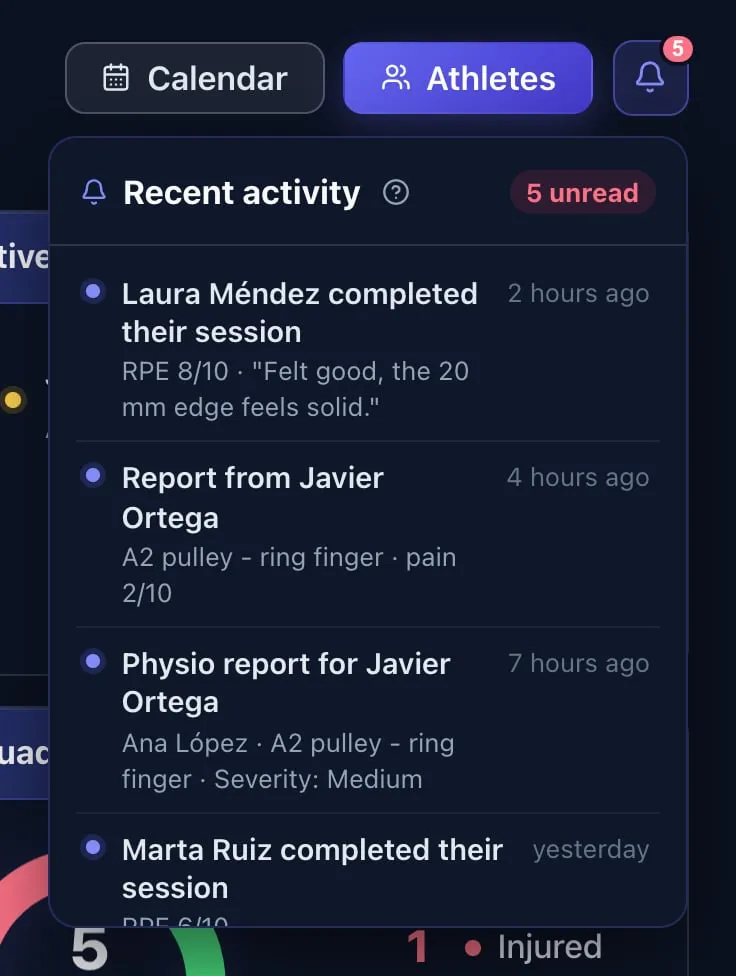
Daily pain reports can only come from the athlete, from their app: they show how their body responded that day, and if the coach filled them in the series would stop making sense. There is one per injury per day; if they send it again on the same day, it corrects the previous one. For now you find out about them through the alert: the Injuries tab doesn’t show the history of those reports yet.
More detail on how and where alerts arrive in notifications.
Where you see active injuries
You don’t need to open every profile to know who is carrying a knock:
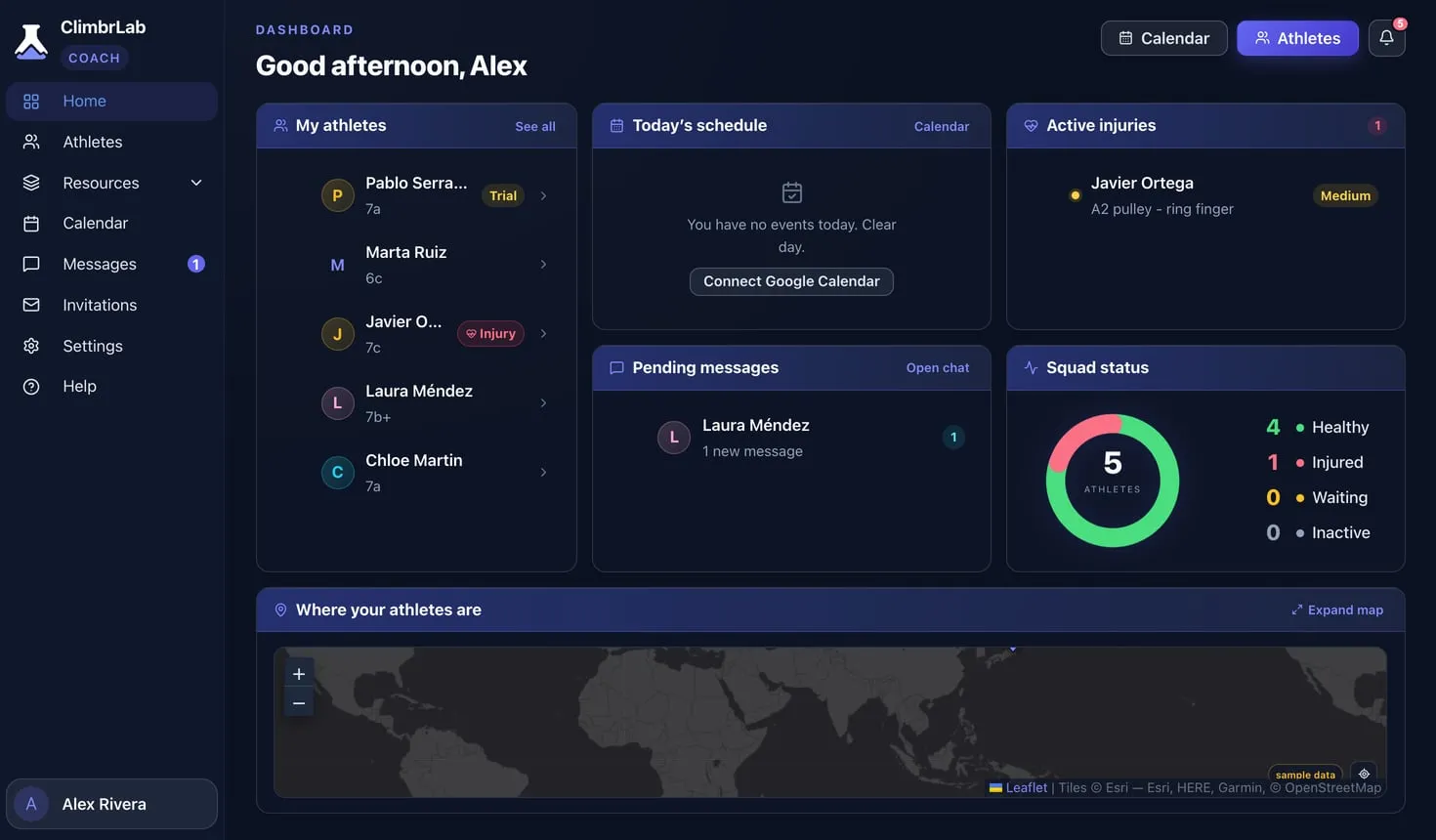
- Home: the Active injuries block lists all your athletes’ unresolved injuries, from newest to oldest. Click a row to go to their Injuries tab. If there are none: “No active injuries. Squad at 100%.”. In the Squad status chart, those athletes count as Injured.
- Athletes list: the Injury chip next to the athlete (see athletes list).
- Profile Overview: the Active injuries block with area and severity, and the “Active injury: (area)” chip on the season strip.
- Season: the INJURIES lane on the map. Click an injury to open it (see season).
The ⚠ warning in the planner
When you open the planner for an athlete with active injuries, the app checks every exercise against their injuries. If an exercise works an injured area, a small ⚠ triangle appears next to its name, both in the side library and on the plan cards. When you hover over it you will see:
⚠ Active injury in a worked area. This exercise (name) works areas with active injuries:
followed by the list of injuries with their severity.
For it to work, two things are needed:
- The exercise must have its Body parts worked marked (this is done when you create an exercise).
- The injury must be marked on the diagram, in the same area.
It is only a warning: it doesn’t stop you scheduling the exercise. You decide whether to remove it, adapt it or keep it because it is part of the rehab. As soon as you resolve the injury, the warning disappears.
If something goes wrong
| Message | What to do |
|---|---|
| “Injuries could not be loaded.” | Reload the page. If it keeps happening, check your connection. |
| “The injury could not be saved.” | Check that Area / Muscle isn’t empty and try again. |
| “The injury could not be marked as resolved.” | Click Resolve again after a few seconds. |
| “The injury could not be deleted.” | Reload and repeat the two clicks. |
Common questions
Does the athlete see the injuries I log?
Yes. They are their injuries, and they also get an alert every time you create, update or resolve one.
My athlete says they logged an injury and I can’t see it
Reload the Injuries tab. If it was logged while you had the profile open, it appears when you reload it. You should also have the “(name) logged an injury” alert in the Home bell.
Can I enter the daily pain report on the athlete’s behalf?
No. Only the athlete can submit that report. What you can do is note down what they tell you in Treatment notes or in their private notes.
Why don’t I get the ⚠ on an exercise that clearly loads the fingers?
Almost always it’s because the exercise is missing its Body parts worked, or because the injury was logged without marking the area on the diagram, or in a different area (for example, the injury on Right hand and the exercise only marked on the forearm in Front). Check both.
What happens to the injuries if I release the athlete?
Injuries belong to the athlete, not to you. What gets deleted when you release them is your notes, the chat and the physio link. See pause, archive or release an athlete.