Physio link: let the physio report injuries without an account
Generate a link so your athlete's physio can send you injury reports without signing up: how to create, send and revoke it, and what happens when it's used.
Physio access solves a specific problem: getting your athlete’s physio to tell you what is wrong and what they can do, in writing and on the profile, without having to create an account or send you a PDF over WhatsApp. You send them a link, they open it, mark the area on a diagram, write their instructions and it reaches you as a new injury.
Watch out: every time you generate a new link or send it by email, the previous one stops working immediately and without warning. If the physio already had one, you will need to send them the new one.
What it is, exactly
- It is a public page: anyone with the link can open it without logging in.
- There is one link per athlete. If you coach three athletes who see the same physio, you need three links.
- It expires 30 days after you generate it. After that, you have to generate another one.
- It is only for sending injury reports for that athlete. The physio doesn’t see the athlete’s history, plans or anything else in the app: only their first name, your name and the form.
Where it is
Athletes → (athlete) → Injuries, Physio access card (“Your physio reports this athlete’s injuries without creating an account.”). At the top right of the card you will see the status:
- Active: there is a valid link. Below it you see “Expires on (date)”.
- Inactive: there is no link, or the one there was has expired or you revoked it.
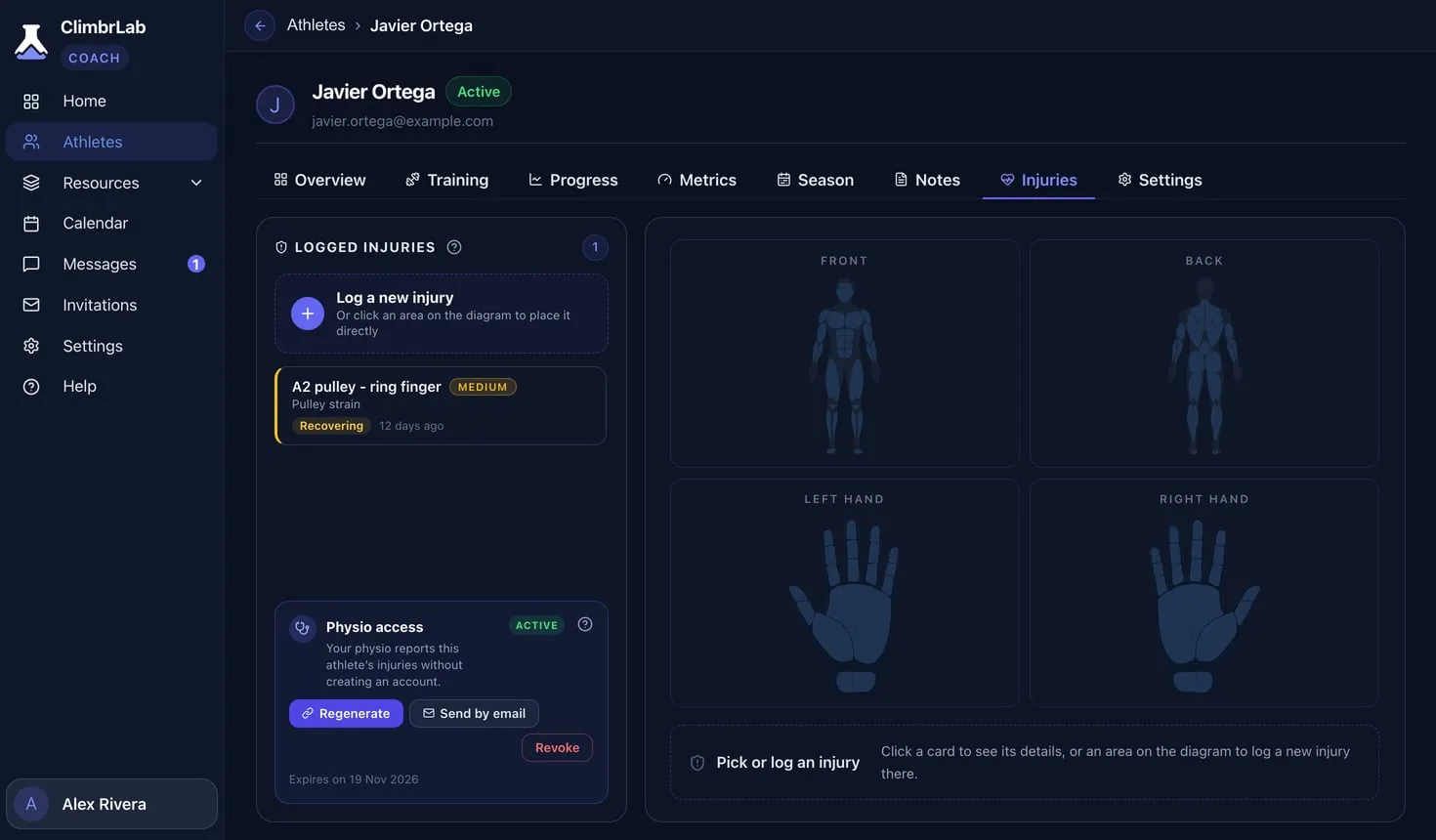
Generating and copying the link
- On the Physio access card, click Generate link (if there is already an active one, the button is called Regenerate).
- The full address appears in a read-only field.
- Click Copy. The button changes to Copied!.
- Paste it wherever you talk to the physio: email, WhatsApp, SMS…
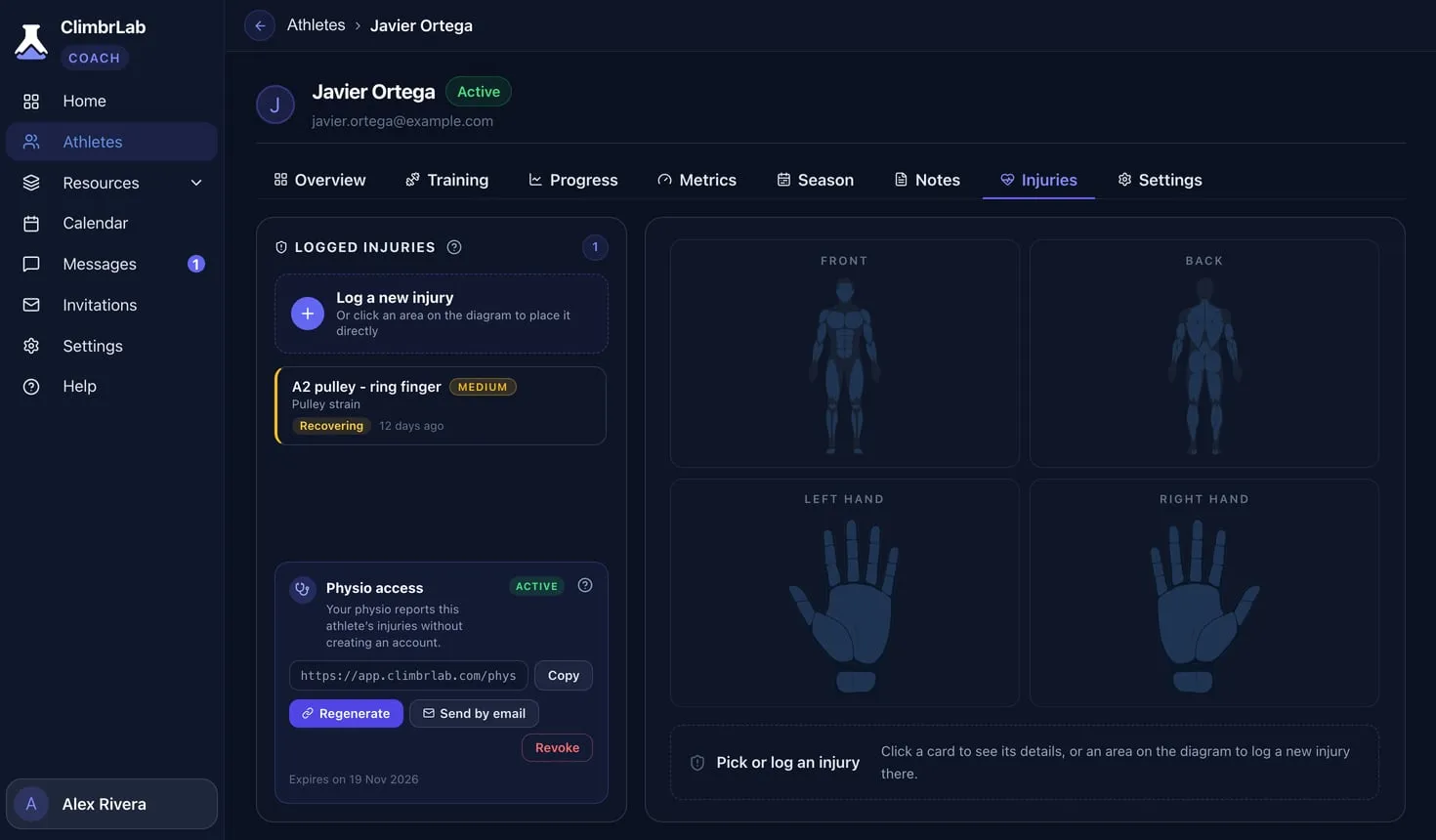
Watch out: the full link is only visible right after you generate it. If you reload the page or come back another day, the card will tell you it is Active and when it expires, but you won’t be able to copy it any more. This is deliberate: the app doesn’t store the link in plain text, so nobody can pull it out of there. If you have lost it, click Regenerate and send the new one (the old one will stop working).
Sending it by email from the app
If you would rather the app sent it:
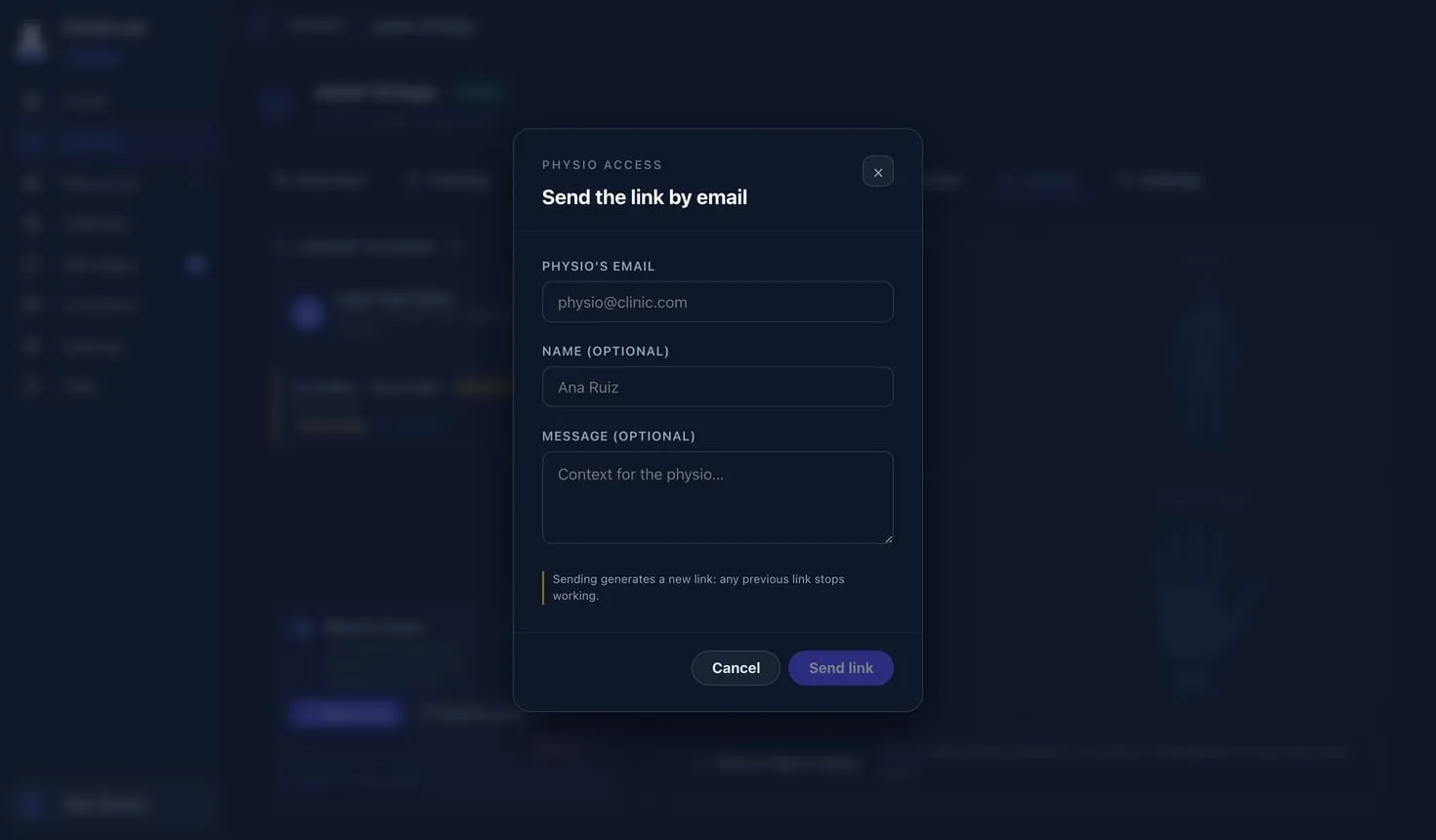
- Click Send by email. Send the link by email opens.
- Fill in:
- Physio’s email (required).
- Name (optional): so they are greeted by name.
- Message (optional): context for the physio, for example “Her A2 has been sore since Tuesday, can she hang?”.
- Read the notice: “Sending generates a new link: any previous link stops working.”
- Click Send link. If all goes well you will see “Link sent to (email)”.
The email includes the link, the expiry date, your message and only the athlete’s first name (not their surname or any other details), in case the address was mistyped.
After sending it, any link you had on screen disappears: it no longer works, because sending created a new one.
If you see “The email could not be sent. Check the address and try again.”, check the email address. There is a limit of 5 sends per minute, so if you have tried many times in a row, wait a moment.
Revoking the link
Click Revoke (it only appears if there is an active link). It takes effect instantly and without confirmation: the status changes to Inactive and the physio will see “Invalid link” if they try to use it.
Use it when the athlete changes physio, when treatment ends or if you suspect the link has reached someone it shouldn’t have. You can always generate another one afterwards.
What the physio does
When they open the link they see the Physio report page, with the title “(athlete’s name)’s injury” and the instruction “Mark the affected area and give the coach ((your name)) your instructions.”.
- They mark the area on the diagram. It has two tabs: Body (Front and Back, with the silhouette matching the athlete’s gender) and Hands (Left hand and Right hand). When they click, “Area marked ✓” appears.
- They fill in the form. Every field is required:
| Field | Limit |
|---|---|
| Your name (physiotherapist) | 120 characters |
| Area / muscle | 180 characters |
| Severity | Low, Medium (selected by default) or High |
| Instructions for the coach | 2000 characters. The page itself suggests: loads, exercises to avoid, timelines… |
- They click Send report. They will see “Sent!” and “The report has been sent to (your name). You can close this page or send another.”.
They can use the same link as many times as they like while it stays active: for example, an initial report and another two weeks later at the follow-up. Each submission creates a new injury.
The page appears in the language you had set in the app when you generated the link.
What you receive
Each report creates a new injury in the athlete’s Injuries tab, with:
- The area the physio marked on the diagram and the name they wrote.
- The severity they chose.
- Status In treatment and the date of submission as the start date.
- Their instructions as the Description.
- The label “Reported by physio: (their name)”, so you always know where each instruction came from.
On top of that, the coaches who look after the athlete get the “Physio report for (name)” alert, with the physio’s name, the area and the severity. If you click the pop-up alert, you go straight to the Injuries tab. The athlete isn’t alerted about this report.
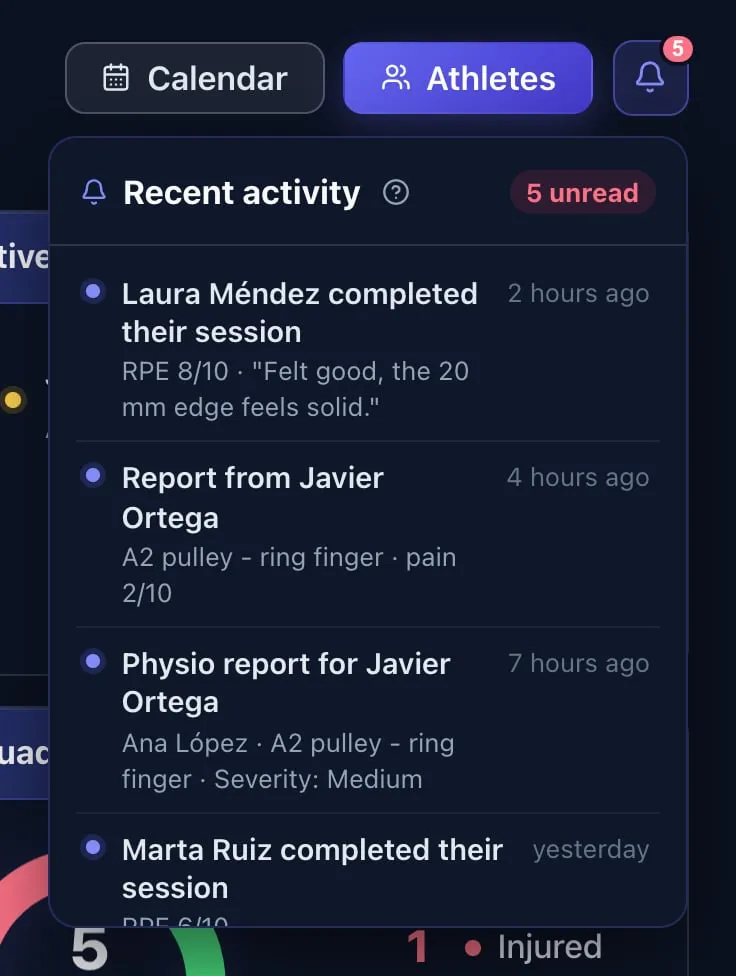
From then on it is an injury like any other: you can edit it, change its status or resolve it. See injuries.
Tip: since the area comes marked on the diagram, the planner will warn you with a ⚠ if you schedule an exercise that works that area.
In a team
Any coach on your team who looks after the athlete can generate, send or revoke their link. Bear in mind that the link is one per athlete and shared: if your colleague regenerates it, the one you sent stops working.
The physio page and the email show the name of the account owner, not necessarily the person who generated it.
If you release the athlete
When you release an athlete, their physio link is deleted: the physio from your time together can’t keep adding injuries once you no longer coach them. The injuries they already sent stay in the athlete’s history.
Troubleshooting
The physio sees “Invalid link”
The full message is “This link is invalid or has expired. Ask the coach to generate a new one.”. It happens in four cases:
- 30 days have passed since you generated it.
- You have revoked it.
- You generated or sent another one afterwards (you or a teammate), so this one was cancelled.
- The link arrived cut off: some messaging apps break up long addresses. Ask them to open it in full or send it by email.
In every case the fix is the same: Regenerate (or Send by email) and send them the new one.
The physio gets “Couldn’t send it. Check the link and try again.”
Most likely the link stopped being valid while they were filling in the form (for example, because you regenerated it). Send them a new one. If they try many times in a row, the page may block them for a moment: they should wait a minute.
I didn’t get the report alert
Check the athlete’s Injuries tab: if the injury with “Reported by physio” is there, the report arrived. In a team, the alert goes to whoever looks after the athlete; if nobody does, to the account owner.
Common questions
Can the physio see or change existing injuries?
No. They can only send new reports. They don’t see the history and can’t edit anything.
Can I have two active links for two different physios for the same athlete?
No, there is one per athlete. If the athlete sees two professionals, send the same link to both (each will sign with their own name) and don’t regenerate it while they need it.
Can I extend the 30 days?
No. When it expires, click Generate link and send the new one. It’s a security measure: a public link shouldn’t stay live indefinitely.
Does it work on mobile?
Yes, the physio page works in any browser, including on mobile.