Frequently asked questions for coaches
Straight answers to coaches’ questions about ClimbrLab: invitations, statuses, plans, the planner, sessions, metrics, messages, team and subscription.
The questions coaches ask most often, grouped by topic and answered straight. Each answer links to the article that explains it in full. If what you got is a specific error message, look it up in What this error message means. And if a word doesn’t ring a bell, it is in the glossary.
Invitations: how do I invite an athlete?
From Athletes → Invite athlete, or from Invitations → Send an email invitation. You type in their email and they get a message with a link to create their account. As soon as they sign in and finish their questionnaire, they appear in your list and you can start planning for them. If the email doesn’t work for them, you have a fallback route: your coach code, in Invitations → Your code, which the athlete types in when they start. Everything is in Invite athletes.
Invitations: how long does an invitation last and what do I do if it expires?
It lasts 7 days. After that it shows as Expired in Invitations → Invitations sent. Click Resend on that row: they get a new link and another 7 days. You can also resend a pending one if the athlete lost the email. See Invite athletes.
Invitations: my athlete already had a ClimbrLab account, can I still invite them?
Yes, in most cases. If they have an account but aren’t training with anyone (for example, because another coach released them), the invitation is attached to their account: it reaches their email and also appears as a notification inside the app, and you will see “{correo} already had an account: the invitation has reached their email and the app.”. When they accept, they bring their history with them. The cases where it isn’t possible (they already train with someone else, they are a coach with data…) are in What this error message means.
Invitations: why can’t I invite someone who trains with another coach?
Because an athlete can only have one coach, and the app doesn’t let anyone take them away without the current coach letting them go. Their coach has to release them first from their list. After that you can invite them, or they can link with you using your code. See Pause, archive or release an athlete.
Invitations: the athlete isn’t getting the email, what do I do?
Ask them to check spam and promotions. If it isn’t there, check in Invitations sent that the email address is spelt correctly and click Resend. If it still doesn’t arrive, or they open it in the wrong browser, give them your coach code: they type it in when they create their athlete profile and end up linked to you. See Invite athletes.
Invitations: does the app tell me when an athlete accepts?
No. Right now there is no notification or email when someone accepts your invitation or links with you using your code. You will notice because they appear in Athletes and the invitation changes to Accepted. See Notifications.
Invitations: does a pending invitation take up a seat on my subscription?
No. An invitation doesn’t reserve a seat: the limit is checked when you invite and again when the athlete accepts. If you have run out of seats in between, the athlete won’t be able to get in and will see a message asking them to let you know. See Subscription and pricing.
Athletes: why doesn’t an athlete I invited appear in my list?
The most common reason is that they haven’t finished their initial questionnaire yet: their profile isn’t created until then. Check the status in Invitations sent. If it says Accepted, check the list’s status tab (maybe you are on Active and they are Waiting), the search box and any tags you have filtered by. If you work in a team, the athlete is assigned to whoever invited them: if a colleague invited them, you will only see them if you are the owner or if they get assigned to you. See The athletes list.
Athletes: what is the difference between Active, Trial, Waiting and Paused?
They are labels to keep you organised and, apart from Archived, they don’t restrict anything: you can keep assigning plans to an athlete who is Waiting or Paused and keep messaging them. Active and Trial count as “training” in the list and as Healthy on the dashboard; Waiting and Paused show up in the Waiting group. They all count towards your subscription’s limit. See Pause, archive or release an athlete.
Athletes: if I archive an athlete, do I lose their data?
No. Archiving keeps everything: plans, sessions, metrics, injuries, notes and chat. While they are archived you can’t assign them plans or metrics or create events for them, and the chat becomes read-only. In return, they stop counting towards your limit. It is the right way to say goodbye to an athlete who might come back. See Pause, archive or release an athlete.
Athletes: how do I reactivate an archived athlete?
In Athletes, Archived tab, open their ⋮ menu → Change status and choose the new status. You can also go to their profile → Settings, click Reactivate and then Save (it doesn’t apply until you save). Once reactivated they count towards your limit again, so you need a free seat. See Pause, archive or release an athlete.
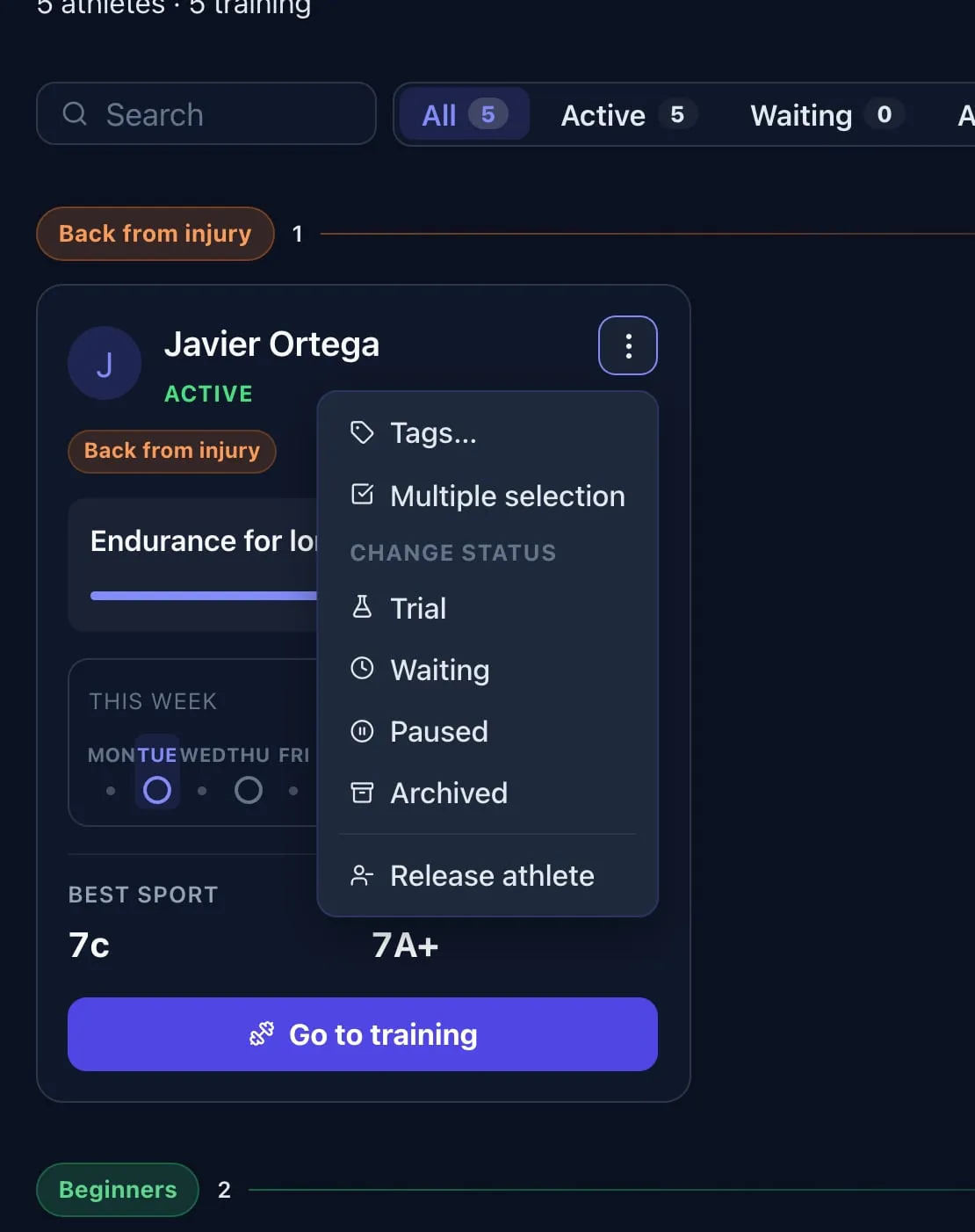
Athletes: what is the difference between archiving and releasing?
Archiving is a pause: the athlete is still yours, you keep everything and you can undo it whenever you like. Releasing is a final goodbye: the athlete leaves with all their history and can link with another coach, and you lose access, your private notes about them, your chat and their physio link. Releasing cannot be undone and only the account owner can do it. See Pause, archive or release an athlete.
Athletes: an athlete wants to move to another coach, what do I do?
Release them from Athletes → ⋮ → Release athlete. From that moment they can accept their new coach’s invitation or type in their code, and they take their history with them. If they are only taking a break, archive them instead of releasing them. See Pause, archive or release an athlete.
Athletes: does the athlete find out if I change their status or release them?
They don’t get any notification when you change their status or when you release them. If you archive them, they will see it in their app, which explains that they won’t receive new plans and that the chat is read-only. If it is an important change, tell them yourself first. See Pause, archive or release an athlete.
Subscription: how many athletes can I have?
It depends on your plan: up to 5, 10, 25, 40, 60 or 150 athletes; each plan is named after its athletes. Above 150 there is a custom price (email us at soporte@climbrlab.com). Every feature is included in every plan. During the free trial the limit is that of the 10-athlete plan. See Subscription and pricing.
Subscription: which athletes count towards the limit?
All those who are not archived: Active, Trial, Waiting and Paused. Archived athletes don’t count, and neither does your own profile if you train yourself. Pending invitations don’t count either. See Subscription and pricing.
Subscription: I have reached the limit, what are my options?
Two: archive an athlete who no longer trains with you (they stop counting and you keep their history) or move up a tier from Settings → Subscription. When you reach the limit you will see “You’ve reached your plan’s limit of {max} athletes.” and a You need more seats window with the See plans button. See Subscription and pricing.
Plans: why does a plan always start on a Monday?
Because plans are organised in weeks from Monday to Sunday. Whatever day you pick, the plan starts on the Monday of that week. By default, the app suggests next Monday. See Assign a plan.
Plans: can I assign a plan with a past date?
Yes. If you pick a week that has already gone by, the athlete doesn’t start at week 1: they come straight in at the week of the plan that falls on today. The app warns you before you assign it. It is handy for moving a plan you had already started on paper into the app. See Assign a plan.
Plans: why won’t it let me assign a plan to an athlete who already has one?
Because two plans for the same athlete can’t share a single day. If the new one overlaps the one they have, the server rejects it and the assign panel shows you why: ‘It would overlap with “{plan}” ({rango})…’. Choose a start date after the end of the current plan, or shorten or delete the current one. See Assign a plan.
Plans: how do I change the plan an athlete has?
Change plan (in the plan’s ⋮ menu, in Training) only shows you the panel to assign another one: it doesn’t delete or shorten the current plan. If you assign the new one on dates that clash with the current one, it will fail because of the overlap and you will see ‘It would overlap with…’. To actually change it: delete the current plan (⋮ → Delete plan) or shorten it in Season by dragging its edge, and then assign the new one. See Assign a plan and Season map.
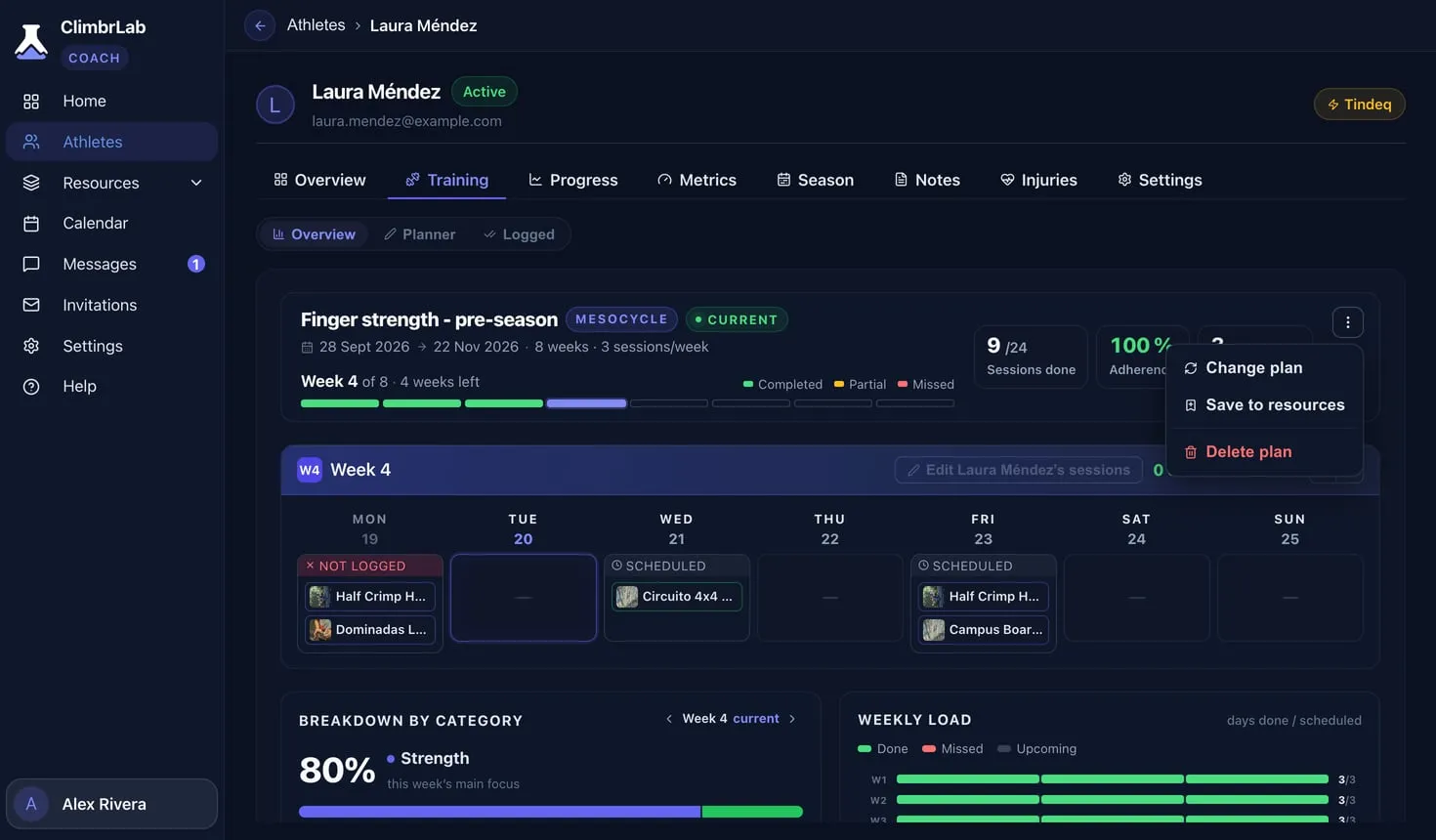
Plans: can I get the next plan ready before the current one ends?
Yes: assign it with a start date after the end of the current one, or draw it in the PLANS row of Season. If the athlete has no current plan, the future one shows as Upcoming. Bear in mind that the athlete doesn’t see a future plan in their app until the day it starts. See Assign a plan and Season map.
Plans: if I edit a template, does the plan change for the athletes I assigned it to?
No. When you assign it, each athlete gets a full copy, so you can tweak the template without worrying. The exception is linked sessions: if you edit a session in your library, the change reaches every plan that uses it. See Create and assign plans and Sessions.
Plans: what happens if I delete an athlete’s plan?
The plan disappears along with everything scheduled in it and the metrics that were tied to it. What the athlete had already logged (the sessions they did) is kept. It cannot be undone. If you want to reuse that plan with other athletes, save it to Resources first. See Assign a plan.
Plans: “Duplicate” on a plan in Resources gives me an empty plan, is that normal?
Right now, Duplicate in Resources → Plans creates a new plan with the same name (plus “(copy)”), type, weeks and sessions per week, but without the content: the weeks come out empty. For now, the way to copy a plan with everything inside it is from a plan already assigned to an athlete: Save to resources creates a complete new template. See Create and assign plans.
Plans: does the athlete get a notification when I assign them a plan?
There is no notification. They will see it when they open their app, as long as the plan has already started. If you want them to know, message them in the chat. See Notifications.
Plans: can I reuse the plan I built for an athlete?
Yes: in Training, ⋮ menu → Save to resources (or the button with the same name in the planner). A new template is created with its weeks, sessions (including customised ones), exercises with their prescription and metrics, without the athlete, without dates and without what has already been trained. The athlete’s plan doesn’t change. See Save a plan as a template.
Planner: how do I copy a day or an exercise to another day?
For a whole day: the day’s ⋯ menu → Copy day, and on the destination day → Paste here. For a card: right-click → Copy and then Paste below, or drag it while holding Shift. ⌘/Ctrl+C and ⌘/Ctrl+V work too. Whatever you paste is added below what was already there, it never replaces it. Metrics don’t travel with copies. See Copy, move and select.
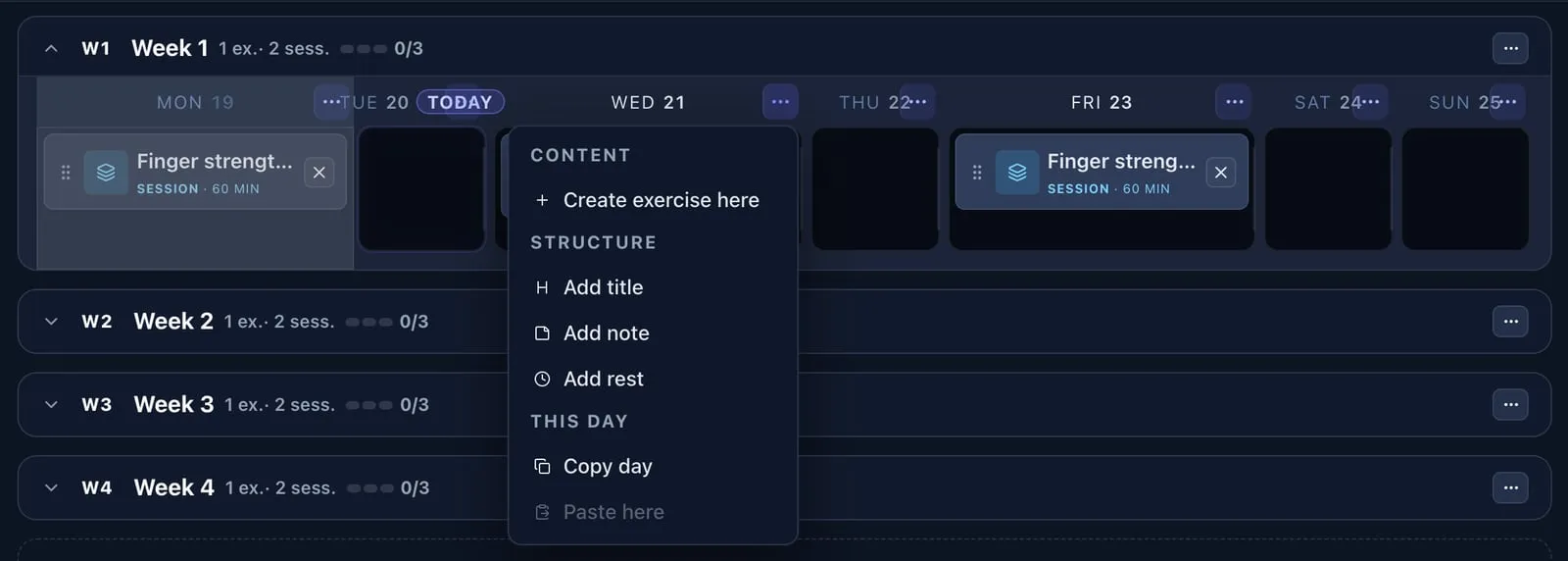
Planner: how do I duplicate a week?
The week’s ⋯ menu → Duplicate into next week or Duplicate into every week. Watch out: the destination week is emptied and replaced by the copy, without asking for confirmation. It copies exercises, sessions, titles, notes and rests, but not metrics. See Copy, move and select.
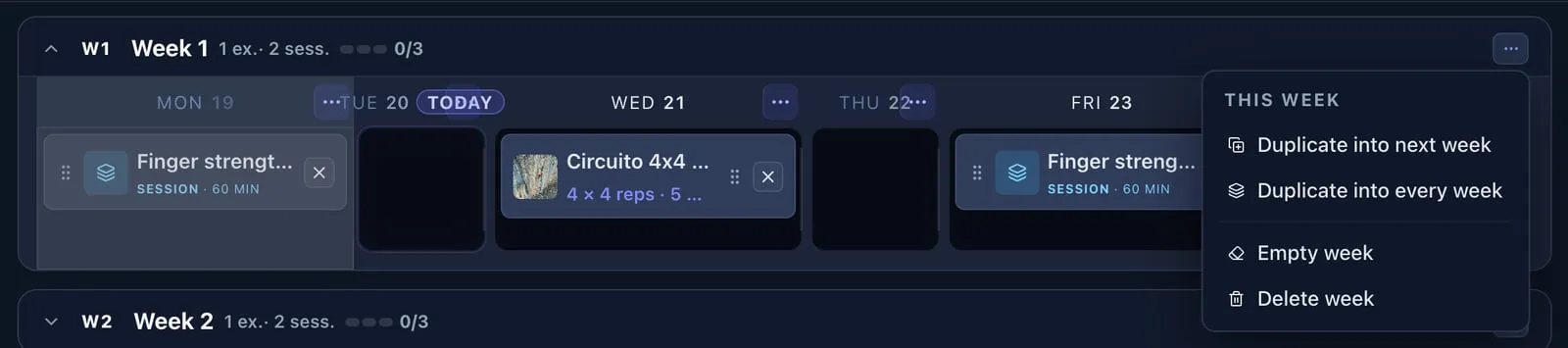
Planner: why can’t I change a day of the plan?
Because the athlete has already trained that day. A closed day is locked so that what they did isn’t rewritten: you can’t add, remove or edit anything. You can still copy from it. What closes it is that they logged a session, not the date: a past day on which they didn’t train is still editable. See The planner.
Planner: when I leave, it tells me some exercises will be deleted, why?
Because there are exercises without a prescription (marked in red). Without sets or a target the athlete can’t do them, so if you leave with Leave and delete they are removed from the plan instead of being left half-done. Click Keep editing and complete them if you want to keep them. See Prescribe exercises.
Planner: can I undo a change?
There is no undo button and no bin. That is why deleting several cards at once asks for confirmation, and why you should be careful with Duplicate and Empty week, which don’t. See The planner.
Planner: how do I remove a week from the middle of a plan?
The week’s ⋯ menu → Delete week. Everything scheduled in it is deleted and the following weeks move up one place, so the plan is one week shorter. What the athlete has already trained is kept with its real date. A plan can’t be left with no weeks: for that, delete the whole plan. See The planner.
Sessions: if I change a session in Resources, does it change in the plans?
Yes. A session placed in a plan is linked to the one in your library, so the change reaches every plan that uses it, including your athletes’ plans. If you want to change it for just one, customise it. See Sessions.
Sessions: how do I change a session for just one athlete?
In their planner, open the session and click Customize for this athlete only. A copy is created just for that plan (on every day where it appears or only on that day, as you choose), and the original doesn’t change. You can spot it by the ✨ icon. You can always Revert to the original. See Customise a session.
Sessions: what happens if I delete a session from Resources?
It disappears from every plan that used it, including your athletes’ plans. The confirmation reminds you: “If it is in any plan, it will also disappear from it, including your athletes’ plans.”. It cannot be undone. Before deleting a session you use in plans, replace it in them or customise it. See Sessions.
Sessions: can I put one session inside another?
Yes, as a block: for example, a warm-up you reuse. It is linked (if you change the warm-up, it changes everywhere) and up to 5 levels of sessions inside sessions are allowed. What you can’t do is have a session end up containing itself. See Sessions.
Exercises: can I edit the exercises that come with the app?
Not directly: the system ones are read-only for everyone. Click Duplicate to edit and work on your copy, which goes into Mine. See Exercise library.
Exercises: what happens if I delete an exercise?
It is deleted completely: from your favourites and lists, from every session, from every plan day (including your athletes’) and from what your athletes had already logged for that exercise. The confirmation warns you (‘Delete “(name)”? It will also disappear from every session and plan that uses it, including your athletes’ plans, and from the workouts they already logged with it. This can’t be undone.’), so read it before accepting. It cannot be undone. If you just want to stop using it, leave it where it is. See Create an exercise.
Exercises: what videos can I upload to an exercise?
A video of up to 2 GB in mp4, webm, ogg, mov or mkv, or an image (not both). From 50 MB you will see a warning that it may take a while: don’t close the window. You can also paste a YouTube link, which plays inside the exercise card. See Create an exercise and Image and video limits.
Exercises: can I create an exercise just for one plan, without filling up my library?
Yes. In the planner, the day’s ⋯ menu → Create exercise here, and at the end choose Only in this plan. The athlete sees it just the same, but it doesn’t appear in Resources. If it turns out to be useful later, open it from the plan and click Save to Resources. See Create an exercise.
Metrics: when does a metric reach the athlete?
It depends on how you send it. With Assign template in the athlete’s Metrics tab, it reaches them straight away. If you schedule it for today, also straight away. If you schedule it for another day (from Season, from a plan day or inside a session), the app turns it into a pending task every day at 05:00 (mainland Spain time): the athlete sees it that morning. See An athlete’s metrics.
Metrics: what are days of leeway?
The days the athlete has to do the metric before it counts as missed. The default is 2. For a metric inside a session you choose them (from 0 to 30); when you schedule it from Season the default 2 are used. See Metrics and templates.
Metrics: why can’t I assign a Tindeq metric to an athlete?
Because that metric needs the dynamometer and the athlete doesn’t have the option ticked. Turn it on in their profile → Settings → Has a Tindeq (or they can turn it on in their own profile). Heads-up: if you assign a plan with Tindeq metrics to an athlete without a Tindeq, those metrics are left out without any warning. See Tindeq for coaches.
Metrics: does the app tell me when an athlete logs a metric?
There is no notification for that. Check the Metrics tab on their profile: pending ones show as “Waiting for the athlete” and what has been logged appears under Tracking. See An athlete’s metrics.
Metrics: what happens if I delete a metric template?
Before deleting it, the app asks you to confirm and warns you what it involves: ‘Delete the template “(name)”? Pending requests and schedules of this metric are cancelled for all your athletes, and it disappears from the sessions and plans that include it. Results already recorded are kept. This can’t be undone.’. If you accept, it is deleted on the spot and there is no way to get it back. See Metrics and templates.
Injuries: who can log an injury?
You, from the Injuries tab on the profile (or by clicking a gap in the INJURIES row of Season); the athlete, from their app; and their physio, from their link. When the athlete logs or updates an injury you get a notification, and when you do it, they get one. Only the athlete can send the daily pain report. See Injuries.
Physio: does the physio need an account?
No. You send them a link from Injuries → Physio access and they fill in a report from their browser, without signing up. The link expires after 30 days, and every time you generate or send a new one, the previous one stops working (without asking for confirmation). See Physio link.
Messages: why can’t I message an athlete?
For one of three reasons: they are archived (the chat is read-only until you reactivate them), you no longer coach them (for example, because the owner has assigned them to another coach on the team) or your account is in read-only mode. In the first two cases the conversation itself explains it. See Messages.
Messages: can I delete a conversation?
Only the one with an athlete you no longer coach, with Delete conversation. It is deleted completely and for good, for you too. The thread is the same for both of you, so it also disappears from the athlete’s app, as the confirmation message itself reminds you. If you coach them again one day, the conversation will start from scratch. You can delete your own individual messages in any conversation. See Messages.
Messages: what can I send in the chat?
Text (up to 4000 characters per message), images of up to 10 MB, videos of up to 100 MB and exercises from your library, which the athlete opens as a card. See Messages and Image and video limits.
Calendar: do my athletes see the events in my calendar?
No. The events you create in Calendar are only for you, even if you link them to an athlete. The exception: if you have Google Calendar connected and you also save the event in Google with an athlete, Google sends them an email invitation. See Calendar and Google Calendar.
Calendar: do my athletes’ workouts show up in the calendar?
No. The calendar is for your events (meetings, assessments, tasks…). What each athlete trains you see in their plan and in the athletes list. See Calendar and Google Calendar.
Calendar: how do I disconnect Google Calendar?
Right now there is no button to disconnect it from ClimbrLab. If you need to, email us at soporte@climbrlab.com. See Calendar and Google Calendar.
Notifications: what does the app notify me about?
About what your athletes do: when they complete a workout, log, update or resolve an injury, send a pain report, beat their top grade or message you while you don’t have the app open; about physio reports; and about changes in your team. It doesn’t notify you when an athlete accepts an invitation, when they log a metric or when they skip a workout. See Notifications.
Notifications: do I get them by email or on my phone?
By email you only get account notices (verification, password, team invitations, end of trial, plan full…), never activity. Push notifications on your phone only arrive if you use the downloaded app and give it permission. And right now there are no settings to choose which notifications you get. See Notifications.
Brand: what do my athletes see if I add my logo?
Your logo and your company name instead of ClimbrLab: in the top bar of their app, in their menu and on the sign-in screen when they come in from your invitation. You still appear with your name and photo in the chat. Without a logo, they see your profile photo; without either, the ClimbrLab logo. Only the account owner can change the brand. See Your brand.
Team: can I work with other coaches on the same account?
Yes, with the Teams add-on to the subscription. The owner adds each colleague from Invitations → Your team and assigns them the athletes they will coach. Without Teams, the account only allows one coach. See Coaching team.
Team: what does a coach on my team see?
All the account’s plans, sessions and exercises (except those someone has marked as private), but only the athletes the owner assigns to them. They have their own chat with those athletes, under their own name. They can’t change the brand or the subscription, invite or remove coaches, or delete tags. See Coaching team.
Subscription: how does the free trial work?
When you create your account you get 14 days free with the 10-athlete plan limit and without Teams. If you subscribe during the trial, you aren’t charged anything until it ends. If it ends without you subscribing, your account switches to read-only mode: nothing is deleted. See Subscription and pricing.
Subscription: what is read-only mode?
It is what happens when your account is left without an active plan (trial over, subscription cancelled or a payment more than 7 days overdue): you can see all your data, but not make changes. Your athletes don’t notice: they keep training and logging as usual. As soon as you subscribe, everything comes back. See Subscription and pricing.
Subscription: what happens if a payment fails?
Your subscription switches to Payment due and you will see “We couldn’t charge your subscription.” with a Check payment button. You have 7 days to update your payment method; if it still can’t be charged, the account switches to read-only mode. See Subscription and pricing.
Subscription: do prices include VAT?
Prices are shown without VAT. It is applied based on your billing details: 21 % in Spain (0 % in the Canary Islands, Ceuta and Melilla), 0 % with reverse charge if you have a valid EU VAT number, and 0 % outside the EU. You have to fill in your billing details before choosing a plan. See Subscription and pricing.
Subscription: why can’t I pay from the mobile app?
Because the app downloaded from the store doesn’t show prices or purchases. There you only see your account status. Subscribe and manage your plan from the web, in Settings → Subscription. See Subscription and pricing.
Subscription: how do I change tier or card, or cancel?
All from Settings → Subscription (owner only). The tier, the billing period and Teams are changed on the page itself, and the difference is prorated on the next invoice. For the card, invoices or cancelling, click Payment method and invoices. You can’t drop to a tier with fewer seats than you are using: archive the extra athletes first. See Subscription and pricing.
Account: can I change my account’s email?
Not right now: an account’s email can’t be changed from the app. If you need to, email us at soporte@climbrlab.com and we will look at your case. See Coach settings.
Account: how do I change my password?
Settings → Security → Change password takes you to the Reset your password screen: you type in your email and get a link that expires after 15 minutes. If you always sign in with Google, your account doesn’t use a password. See Coach settings.
Account: if I delete my account, what happens to my athletes?
Your athletes keep their account and their history, but are left without a coach. Your account is deactivated immediately and your data is deleted 30 days later; during that time you can recover it. If you have colleagues on your team, the app warns you first. See Delete or recover your account.
Account: can I use the app to train myself?
Yes, with Settings → Train myself. You assign yourself plans just like any athlete and do them from the athlete side. Your profile doesn’t count towards your subscription’s limit. See Train yourself.
Help: where do I find help inside the app?
On the screens where questions come up most often (Athletes, Invitations, Resources → Plans, Sessions, Exercises, the planner, the assign plan panel, Season, prescription…) there is a ? button next to the title. When you hover over it you will see “Help: …” with the topic, and when you click it, the article that explains that screen opens in a new tab. You also have Help in the sidebar (on mobile, More → Help), the Help card in Settings and, in the planner, the How it works guided tour. If you can’t find the answer, email us at soporte@climbrlab.com. See How the coach app is organised.