Notifications: the alerts you get as a coach
Which alerts reach you as a coach and when, where you see them (bell, screen and phone), who gets them in a team and what never triggers an alert.
ClimbrLab tells you what is happening with your athletes so you don’t have to check profile after profile: who has trained and how it went, who has got injured, who has written to you. Here is the full list of alerts, where you see them and, just as important, what it doesn’t alert you about.
Which alerts you get
| Alert | When it arrives | What it says |
|---|---|---|
| Session completed | The athlete logs a training session | “(name) completed their session”, with “⚠️ Niggles” if they flagged pain, “RPE 7/10” if they gave one and their comment in quotation marks. If they added nothing, the date. |
| Athlete injury | The athlete logs, updates or resolves an injury | “(name) logged an injury” (or “updated”, “resolved”), with the area and “Severity: (level)”. On screen it shows in red. |
| Physio report | A physiotherapist sends a report with your physio link | “Physio report for (name)”, with the physio’s name, the area and the severity |
| Daily pain report | The athlete sends their pain report for an injury | “Report from (name)”, with the area and “pain (n)/10” |
| New best grade | The athlete sends a route above their all-time best | The athlete’s name and, for example, “New best in boulder: 7A”. A card also appears in the chat. |
| New message | The athlete writes to you and you don’t have ClimbrLab open | The athlete’s name and “Sent you a message” (or an image, a video, “Shared an exercise with you”) |
| Team invitation | Another coach invites you to their team | “(name) invited you to their team”. A window also opens so you can reply. |
| Someone joins your team | A colleague accepts your invitation (account owner only) | “(name) joined your team”. “They don’t coach anyone yet. Assign them their athletes from Invitations.” |
| Someone leaves your team | A colleague decides to leave (account owner only) | “(name) left your team”. “They no longer have access to your athletes or your plans.” |
A rare case: if you created a coach account by mistake and it is empty, you may receive “(name) wants to be your trainer” when someone invites you as an athlete.
In a team, you may also see these on-screen messages (they aren’t kept in the bell): “Your athletes have changed” when the account owner changes the athletes you coach, and “You are no longer part of that team” if you are removed from the team. More in coaching team.
What happens with injuries and reports is explained in full in injuries, and messages in messages.
What DOESN’T trigger an alert
So you aren’t waiting for something that won’t come:
- An athlete links up with you using your code or accepts your email invitation. They appear in your list, but you aren’t alerted: check the athletes list or the status in Invitations (see invite athletes).
- An athlete logs a metric you asked for. You see it in their metrics.
- An athlete misses a session they had scheduled. That’s what plan tracking is for.
- An athlete logs a route that doesn’t beat their best, or adds an event to their season.
- Someone deletes an injury.
- A colleague turns down your invitation to the team, or you are removed from a team (in this last case you do see the on-screen message straight away, but it isn’t kept).
And one general rule: you never get alerts about what you do yourself. If you log an injury, the alert goes to the athlete, not to you.
Where you see them
The Home bell
On Home, at the top, the bell opens Recent activity with your 6 most recent alerts. If there are none: “No recent activity.”.
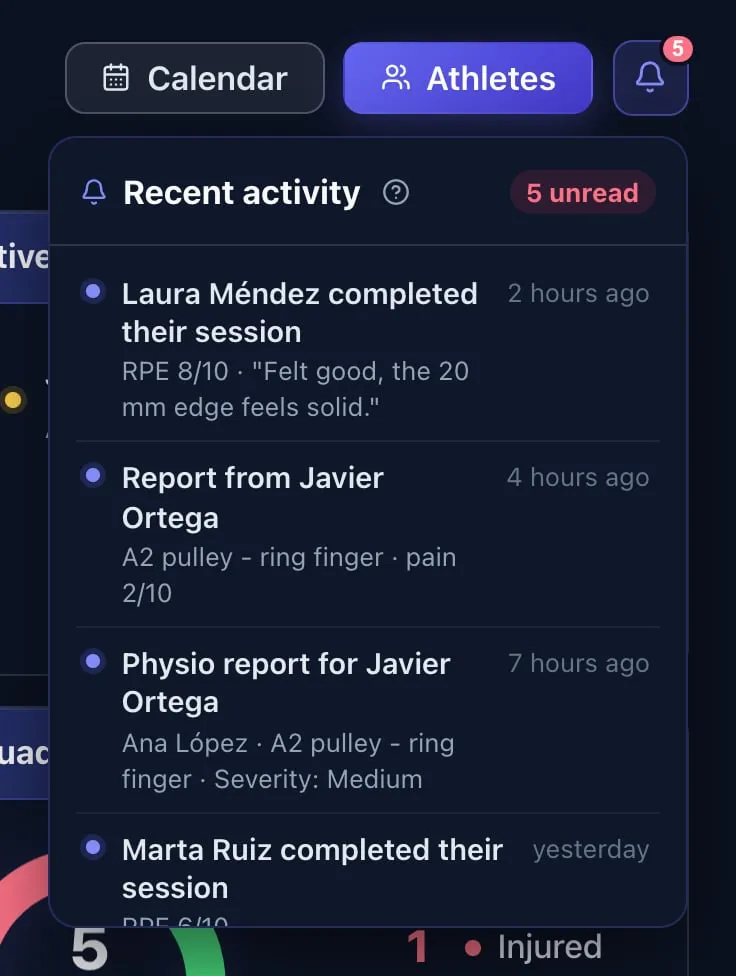
- Athlete injury alerts take you to their Injuries tab when you click them. The rest are for information only.
- The texts are shown in the language you have set now, even if the alert arrived while you were using another one.
- At the top you see the “(n) unread” counter. While the bell is open you can see which alerts are new; when you close it, they are marked as read and the counter goes down. There’s no need to mark them one by one.
On-screen alerts
While you have ClimbrLab open, each new alert appears as a pop-up message on the screen. Some of them can be clicked:
- Athlete injury or physio report: they take you to the athlete’s Injuries tab.
- Team invitation: takes you to the invitation.
- New messages: a “New messages” summary (“You have 3 unread messages”) at most every 30 seconds, which takes you to Messages. It doesn’t appear for the conversation you have open.
Push notifications on your phone
You only get them in the ClimbrLab app for iOS or Android, after signing in and accepting the notification permission it asks for. If you said no, turn them on from your phone’s notification settings.
- There are no push notifications in the browser, either on a computer or on mobile.
- Chat messages only reach you as push notifications when you don’t have ClimbrLab open.
Emails
You don’t get activity emails (sessions, injuries, messages…). The only emails ClimbrLab sends you are about your account: verification, password changes, team invitations, notices about your subscription and the like.
Other indicators
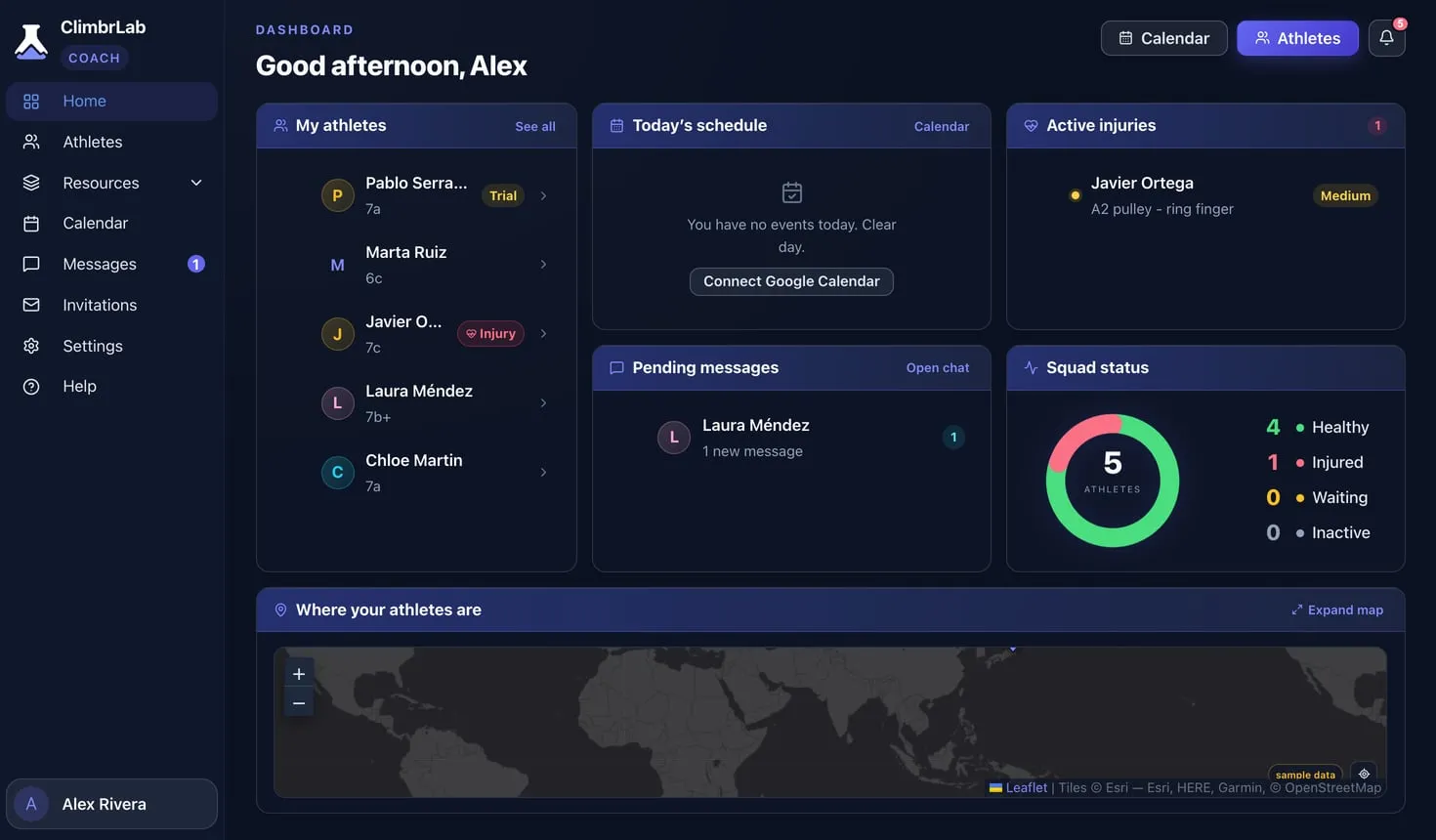
As well as the alerts, on Home you have the Active injuries and Pending messages blocks, and in the menu, the Messages counter. Those do update on their own: the injury list reflects the ones still active and the message counter goes down as you open each conversation.
In a team, who gets them?
| Alert | Goes to |
|---|---|
| Session completed, athlete injury, physio report, pain report | The coaches who look after that athlete. If nobody does, the account owner. |
| New best grade | The account owner |
| New message | The coach in that conversation (each one has their own) |
| Someone joins or leaves the team | The account owner |
Each coach gets their own copy of the alert.
Can they be configured?
Not yet. There are no options to choose which alerts you get or to mute them inside the app. The only thing you can control is the mobile app’s notification permission from your phone’s settings.
If you train yourself
If you turn on Train myself in Settings, the app avoids alerting you about your own sessions, injuries and grades, which wouldn’t make sense.
Watch out: for now that rule also affects alerts from your athletes. If you have, or have had, Train myself turned on, you may not get session completed, athlete injury and new best grade alerts from your athletes. Physio reports, pain reports and messages do still reach you. In the meantime, check Active injuries on Home and each athlete’s plan tracking.
Common questions
An athlete has trained and I haven’t received anything
Check that they logged the session from their app (if they don’t log it, there is no alert). If you work in a team, the alert goes to whoever looks after the athlete, which may not be you. And if you use Train myself, read the section above.
I’m not getting notifications on my phone
They only exist in the iOS or Android app, not in the browser. In the app, check that you accepted the permission and that ClimbrLab notifications are turned on in your phone’s settings.
Can I see older alerts?
The bell shows the 6 most recent. For the history, go straight to the athlete’s profile: Injuries, plan tracking or progress and routes.
Can I get alerts by email?
No. There are no activity alerts by email for now.
Am I alerted when a new athlete joins?
No. Check your athletes list or the status of the invitation in Invitations.