ClimbrLab glossary
What each ClimbrLab term means for coaches: template, upcoming plan, closed day, traffic lights, days of leeway, archive or release, read-only mode and more.
All the words the app uses that are worth understanding properly, in alphabetical order. Each entry has a short definition and a link to the article that explains it in depth. If you are looking for where a screen is rather than what a word means, see How the coach app is organised.
There are three pairs that confuse almost everyone at first, so they come first:
| Don’t confuse… | …with… | The difference |
|---|---|---|
| Template (in Resources → Plans) | Assigned plan (in the athlete’s profile) | When you assign a template, the athlete gets a copy. Changing one does not change the other |
| Linked session | Customised session | The linked one is the one in your library: if you change it, it changes in every plan. The customised one is a copy just for that plan |
| Archive | Release | Archiving can be undone and keeps everything. Releasing is final: the athlete leaves and your notes and the chat are deleted |
A
Account owner
Whoever created the account. They see all the athletes, manage the subscription, the brand and the team, and are the only one who can release athletes and delete tags. See Coaching team.
Active injury
Any injury that is not marked as Resolved. These are the ones that show up on the dashboard, in the “Injury” flag and in the Injured group of the squad status. See Injuries.
Adherence
The percentage of the plan’s sessions the athlete has done, counting only the weeks that have already passed. It shows in green from 80 %, in amber from 50 % and in red below that. See Tracking a plan.
Archived (status)
The status of an athlete who has stopped training with you. You keep all their history, but you can’t assign them plans or metrics, or create events for them, and the chat becomes read-only. It does not count towards your subscription’s athlete limit. You undo it with Reactivate. See Pause, archive or release an athlete.
Assigned plan
The plan an athlete has, with real dates. It is an independent copy of the template it came from. See Assign a plan.
Assigning a plan
Giving an athlete a plan with a start date. It can come from a saved template, from repeating the plan they have just finished or from a blank individual plan. The athlete always gets their own copy. See Assign a plan.
Athlete statuses
Where your relationship with each athlete stands: Active (training as usual), Trial (trial period), Waiting (signed up, not started), Paused (temporary break) and Archived (stopped training). All except Archived count towards your limit. See Pause, archive or release an athlete.
Athlete tags (and plan tags)
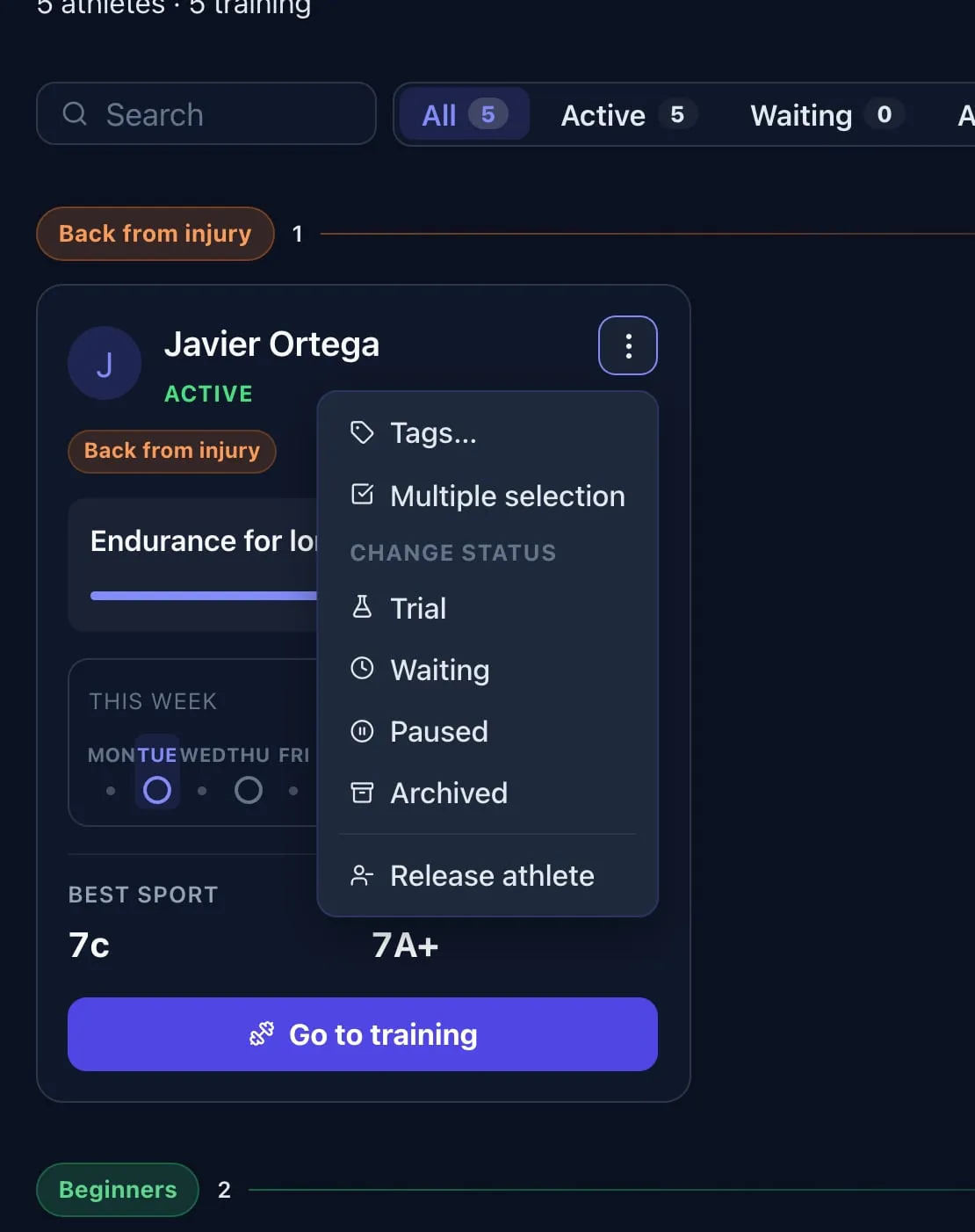
Your own tags for grouping athletes (competition, coming back from injury…). The same tags are used to mark your plans and find them when assigning. They are shared across your whole account, the athlete never sees them and the maximum is 30 per account. See The athletes list.
B
Brand (brand identity)
Your logo and your company name, which replace ClimbrLab in your athletes’ app. Only the account owner can change it. See Your brand.
C
Category
The family an exercise or a metric belongs to (Strength, Power, Endurance, Technique, Mobility…). For exercises, the system ones are seven and cannot be changed; for metrics they are fixed. They are used for filtering and colour. See Exercise library.
Closed day (already trained)
A day of the plan on which the athlete has already logged a session. It is locked: you can’t add, remove, move or edit anything, so you don’t change what the athlete did. What decides it is that they trained, not the date: a past day on which they didn’t train is still editable. See The planner.
Coach code
A code in the form Name-XXXXX that identifies your account. It is the fallback route for an athlete to link with you when the email invitation doesn’t work for them. It is in Invitations → Your code. See Invite athletes.
Current plan and upcoming plan
The current plan is the one whose dates include today. If the athlete has no current plan but does have one with a future date, that one shows as Upcoming. The athlete doesn’t see an upcoming plan in their app until the day it starts. See Assign a plan.
Customised session
A copy of a session made just for one plan, so you can change it without touching the original or the other plans. You can spot it by the ✨ icon in the planner. It is created with Customize for this athlete only (or Customize in this template only). See Customise a session.
D
Days of leeway
The days the athlete has to do a scheduled metric before it counts as missed. The default is 2. See Metrics and templates.
E
Execution mode
How an exercise is performed, and therefore what data you ask the athlete for: Sets and reps, Timed sets, Repeaters, Attempts, Sets by distance, Circuit laps, Continuous work or Not applicable. It is defined in the exercise and can be changed in each prescription. See Prescribe exercises.
Exercise lists
Groups of exercises you put together yourself (warm-up, fingers, bouldering…), like playlists. An exercise can be in several and doesn’t leave All by being in one. They belong to the account and the athlete doesn’t see them. See Exercise library.
Exercise tags
Another set of tags, separate from the athlete ones: they classify exercises. There are seven system tags (the categories) and you can create up to 60 of your own. Each exercise has between 1 and 10. See Exercise library.
F
Favourites
The exercises you mark with the star to keep them handy. They belong to the account, so your whole team sees the same stars. See Exercise library.
I
Individual metric
A metric you keep by hand for a specific athlete, without asking them for anything: you enter the values yourself. See An athlete’s metrics.
Individual plan
A plan you create from scratch directly for an athlete, without going through Resources. If it later works for others, save it as a template. See Assign a plan.
Invitation (statuses)
An email invitation can be Pending, Accepted, Declined or Expired (after 7 days). Pending and expired ones can be resent. See Invite athletes.
L
Library
The catalogue of exercises (and, in the planner and the session editor, of sessions and metrics too) that you take pieces from. In the planner it is the panel on the left. See Exercise library.
Link
The relationship between you and an athlete. Its status is changed in Athletes → (athlete) → Settings → Link or from the ⋮ menu in the list. See Pause, archive or release an athlete.
Linked session
A session from your library placed in a plan. It is linked to the original: if you edit the original, it changes in every plan that uses it, including your athletes’ plans. See Sessions.
Load (AU, sRPE)
A measure of how hard a session was for the athlete: the effort they marked when they finished, from 0 to 10, multiplied by the minutes it lasted. This is what is called sRPE, and it is expressed in AU (arbitrary units). It lets you compare different sessions: an easy, long session can load as much as a short, intense one. You see it in Training → Logged. See Tracking a plan.
Logged
The Training view that shows what the athlete has logged: each session with its sets, their answers, whether they had any discomfort and the load. See Tracking a plan.
M
Macrocycle, mesocycle and microcycle
The cycle type of a plan. It is a label to keep you organised (you can filter by it in Resources → Plans); it does not change how the plan works. See Create and assign plans.
Metric
A test or a measurement you want to track over time: a max hang, body weight, pull-ups… See Metrics and templates.
Metric template
The reusable definition of a test (name, value type, unit, instructions, whether it needs a Tindeq…) that you keep in Resources → Metrics so you can ask any athlete for it. See Metrics and templates.
N
Nested session (block)
A session placed inside another, for example a warm-up you reuse in several. It is a reference, not a copy, and you can nest up to 5 levels. See Sessions.
Note
A structure element: a written instruction for the athlete at an exact point in the day or the session (“if you feel your elbow, stop here”). They read it while training. See The planner.
O
“Only in this plan” exercise
An exercise you create from the planner and decide not to save in your library. The athlete sees it and does it just the same, but it doesn’t appear in Resources. You can move it into the library later with Save to Resources. See Create an exercise.
P
Paused (status)
An athlete on a temporary break who will be back. They still count towards your limit; if you want to free up the seat, archive them. See Pause, archive or release an athlete.
Physio link
A private link, one per athlete, that you give to their physiotherapist so they can send you injury reports without creating an account. It expires after 30 days, and every time you generate a new one the previous one stops working. See Physio link.
Physio report
The report the physiotherapist sends you from their link. It creates a new injury on the athlete’s profile, marked as “Reported by physio”, and you get a notification. See Physio link.
Plan history
The list of every plan an athlete has had, with its adherence. Right now it only opens from the assign plan panel, when the athlete has no current plan. See Assign a plan.
Plan template
A plan saved in Resources → Plans, with no athlete and no dates, ready to assign as many times as you like. See Create and assign plans.
Prescription
What you ask of the athlete in a specific exercise: sets, reps, times, rest, load, RPE and notes, depending on the execution mode. An exercise without a prescription can’t be done, which is why the app won’t let you leave it like that. See Prescribe exercises.
Private notes
What you write down about an athlete in the Notes tab of their profile. Your team sees them, the athlete never does. They are deleted if you release the athlete. See Private notes.
Private or shared
In an account with a team, whatever you create is seen by the whole team. A private session or plan is seen only by you. Only whoever created it can change it. See Coaching team.
Protocol (Tindeq)
The guided way of capturing a metric with the dynamometer: Max strength, RFD (explosive), Endurance / time, Critical Force, Reps to failure or Freeform. See Tindeq for coaches.
R
Read-only mode
What happens when your account is left without an active paid plan (trial over, cancellation or a payment more than 7 days overdue): you can look at everything, but not make changes. Nothing is deleted and your athletes carry on training as usual. See Subscription and pricing.
Release
Breaking the link with an athlete so they can go to another coach. They take all their history with them; you and your team stop seeing them, and your private notes, your chat and their physio link are deleted. It cannot be undone and only the account owner can do it. See Pause, archive or release an athlete.
Resources
Your library of reusable building blocks: Exercises, Sessions, Plans and Metrics. You create it once and use it with all your athletes. See Getting started as a coach.
Rest
One of the three structure elements (along with the title and the note). It is a pause with a duration, 2 minutes by default, that you place between exercises or blocks. See The planner and Sessions.
RPE
Perceived exertion, on a scale from 1 to 10. You can set it as a target in a prescription (Intensity (RPE)), and the athlete marks theirs at the end of the session, which is what is used for the load. See Prescribe exercises.
S
Save to resources
Turning an athlete’s plan into a new template in Resources → Plans, without the athlete, without dates and without what has already been trained. The athlete’s plan does not change. See Save a plan as a template.
Scheduled metric
A metric that comes from a template and reaches the athlete in their app for them to log it themselves, on a date (or several, if it repeats). See An athlete’s metrics.
Season
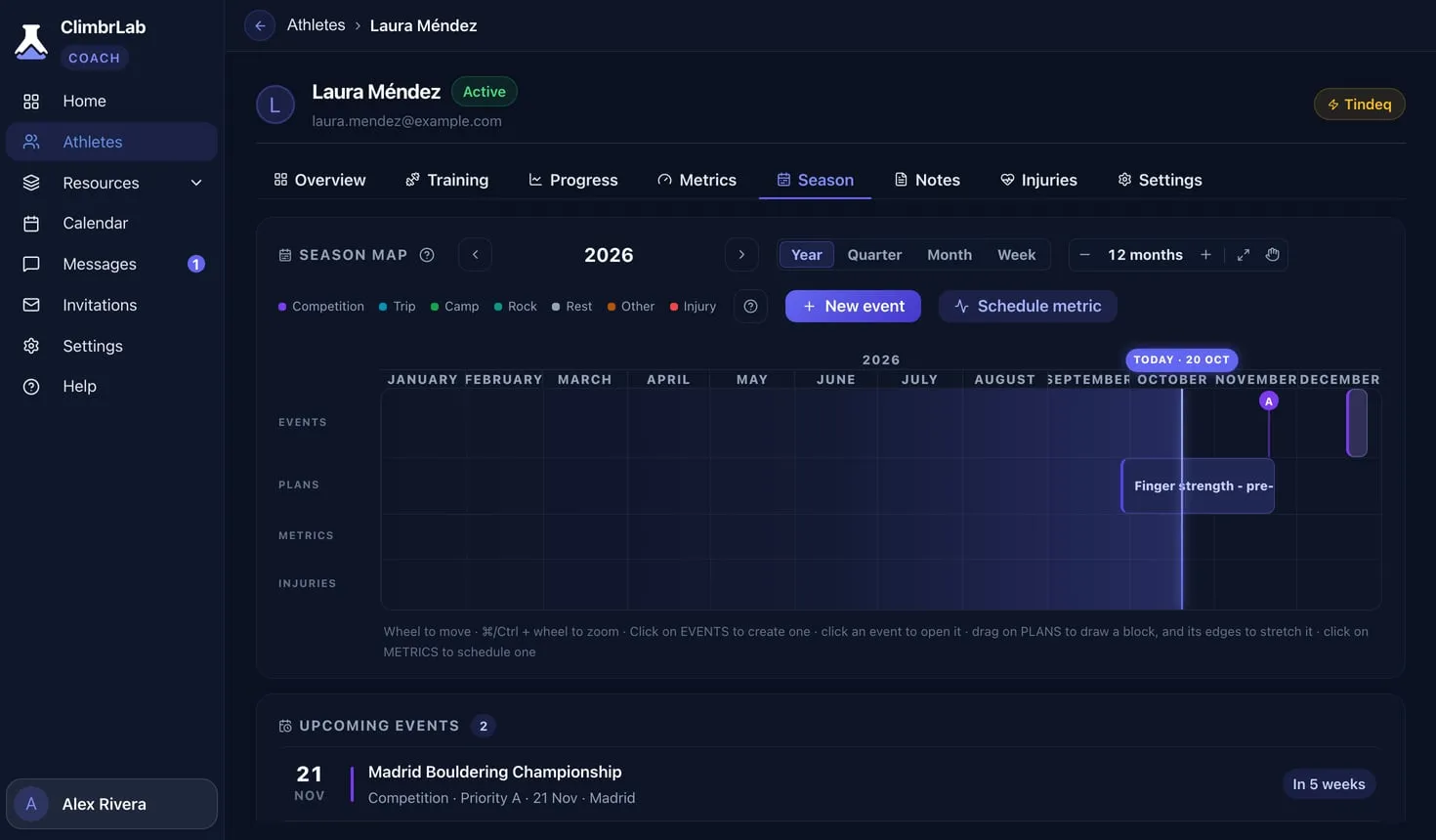
The profile tab with the athlete’s map of the year, in four rows: EVENTS (competitions, trips…), PLANS, METRICS and INJURIES. From there you can draw plans, move them and schedule tests. See Season map.
Self-training (“Train myself”)
An option in Settings to use the app as an athlete too, with your own plans. Your profile appears in your list with the “You” marker and does not count towards your subscription’s limit. See Train yourself.
Session
A reusable workout: an ordered list of prescribed exercises, titles, notes, rests, metrics and even other sessions. You drop it onto a day of the plan in one go. See Sessions.
System exercise
The exercises that come with ClimbrLab. You can use them, but not edit them: to change one, click Duplicate to edit and work on your copy. See Exercise library.
T
Team member
A coach who works inside someone else’s account. They see all the account’s plans, sessions and exercises, but only the athletes the owner assigns to them. They can’t change the brand or the subscription, or invite or remove coaches. See Coaching team.
Teams
The subscription add-on that lets you have more than one coach on the same account. See Coaching team and Subscription and pricing.
Tier
Each price level of the subscription, depending on how many athletes you coach: up to 5, 10, 25, 40, 60 or 150 athletes (each plan is named after its athletes) and, above that, a custom price. See Subscription and pricing.
Tindeq
The Tindeq Progressor, a dynamometer for measuring finger strength. Some exercises and metrics need it, and they can only be assigned to athletes who have the Has a Tindeq box ticked. See Tindeq for coaches.
Title
A structure element: a heading (“Warm-up”, “Strength”…) that splits the day or the session into named blocks, so the athlete knows what goes together. See The planner.
Traffic lights
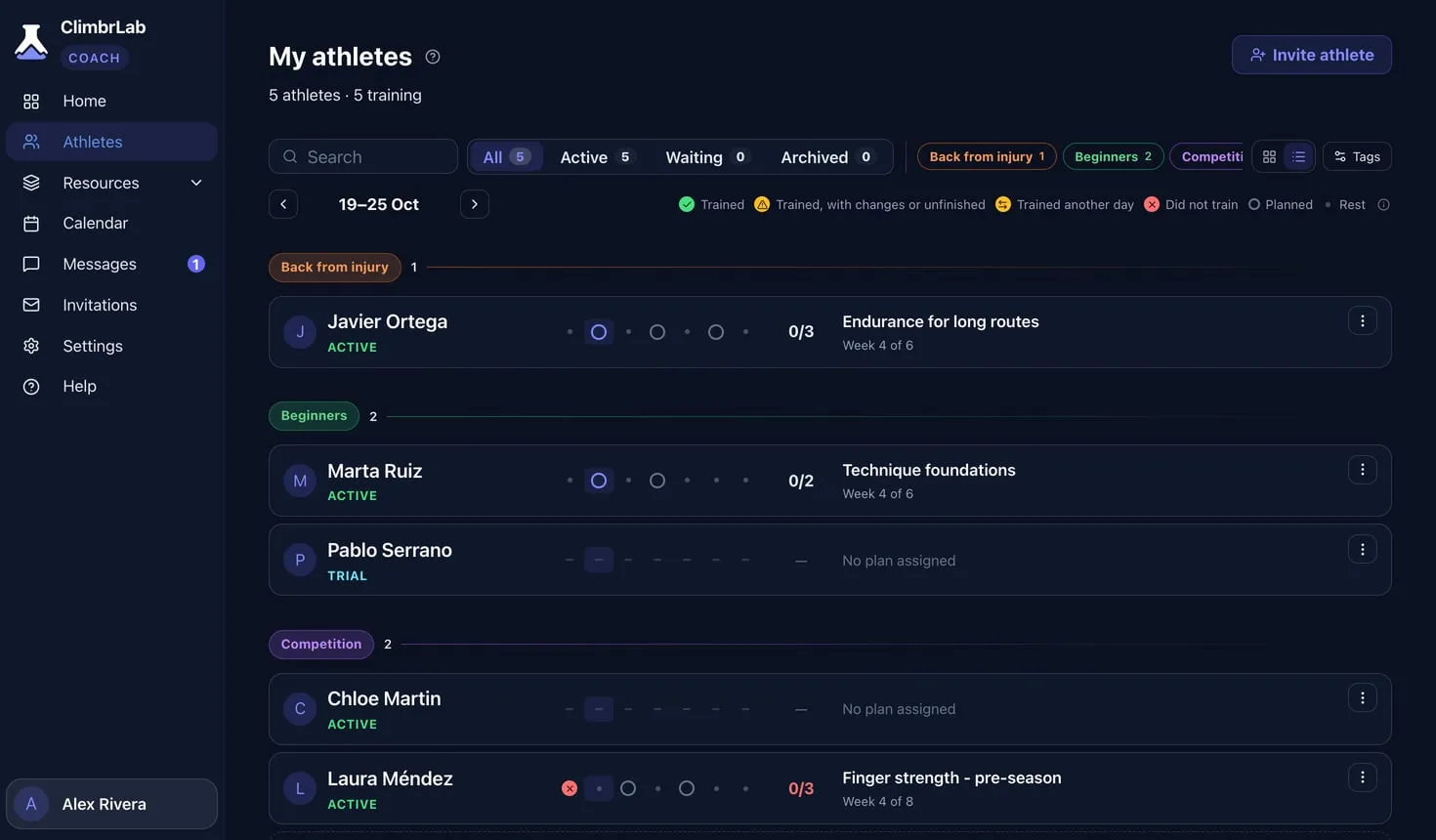
The colours that show what happened on each day of the plan: green, trained; amber with a warning, trained with changes or unfinished; amber with arrows, trained another day; red, had training and didn’t do it. In the athletes list, on top of that, a ring is planned training that hasn’t arrived yet (purple if it is today) and a small dot is rest. See Tracking a plan and The athletes list.
Trial (athlete status)
An athlete on a trial period with you. As far as the app is concerned they train just like an Active one and count towards your limit. See Pause, archive or release an athlete.
Trial period (of your subscription)
The first 14 days of your account, free, with the 10-athlete plan limit and without Teams. Not to be confused with an athlete’s Trial status. See Subscription and pricing.
W
Waiting (status)
The status of an athlete who is signed up but hasn’t started yet (for example, because payment is pending). They count towards your subscription’s limit. See Pause, archive or release an athlete.