The athletes list: statuses, traffic lights, tags and filters
How to read and organise My athletes: tabs by status, search, card or list view, the weekly traffic lights, tags and multiple selection.
Athletes is the screen you run your group from: who is training, who has stopped, which plan each one is on and how their week is going, all without opening a single profile. Here we explain each part, what each colour means and how to organise yourself with tags.
The header
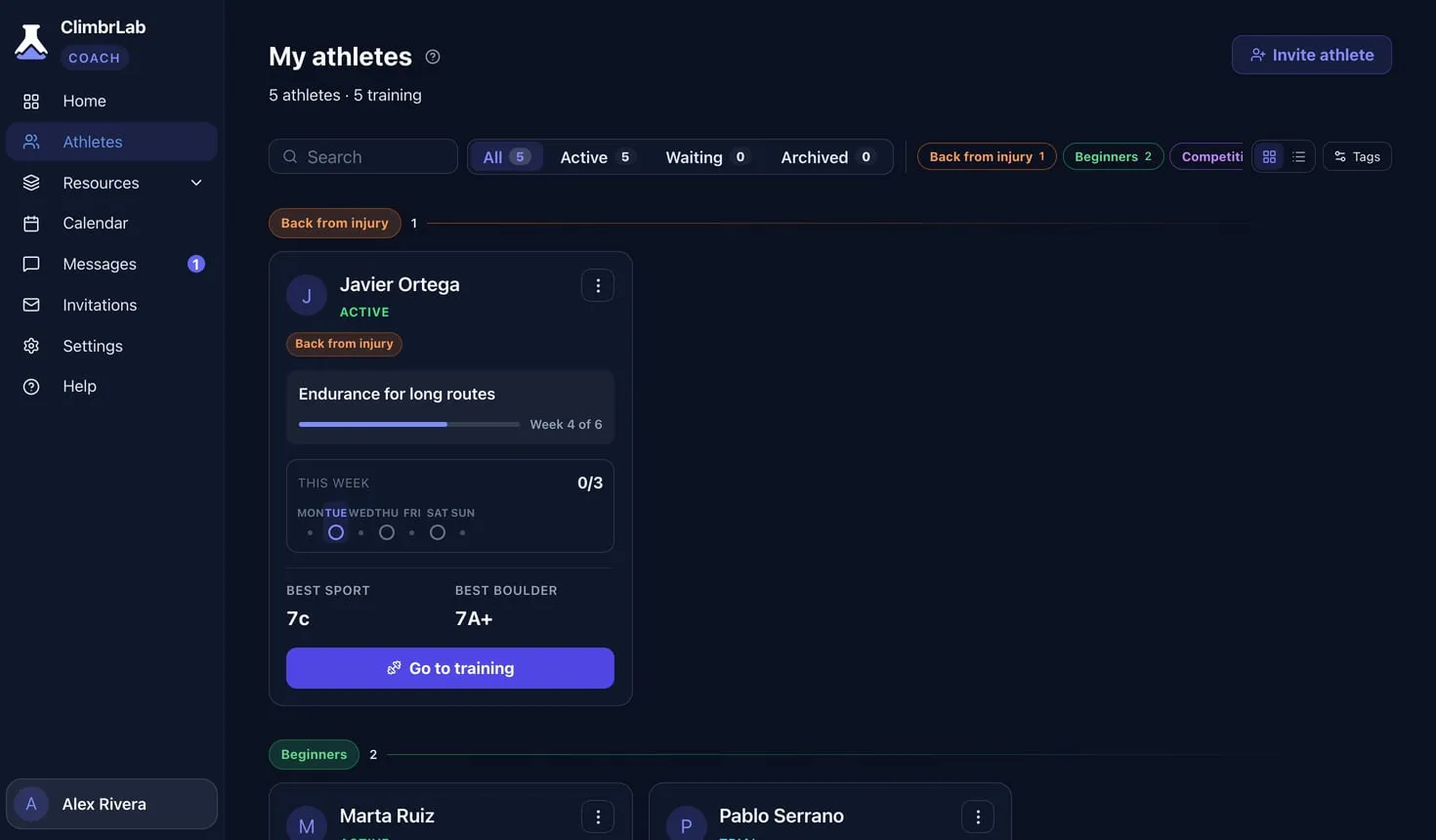
At the top you see My athletes and a summary such as “12 athletes · 9 training”. Training only counts those in Active or Trial; the first number counts everyone on the list. If you don’t have anyone yet, it says “You have no athletes yet”.
On the right is Invite athlete, which opens the window to invite by email without leaving the page. It’s explained in invite athletes.
Statuses and tabs
Each athlete has a status for their link with you. You see it in the coloured label under their name:
| Status | What it’s for |
|---|---|
| Active | Training as usual |
| Trial | Trial period |
| Waiting | Signed up but not started (for example, payment pending) |
| Paused | Temporary break, will be back |
| Archived | Stopped training. All their data is kept |
The tabs in the bar group those statuses, each with its own counter:
- All: the full list, archived athletes included. It’s the one that opens by default.
- Active: Active and Trial.
- Waiting: Waiting and Paused (both in the same tab).
- Archived: archived athletes only.
The list is sorted by status (active first, archived last) and alphabetically within each status. When to use each status and what changes when you archive is covered in pause, archive or release an athlete.
Tip: “Injured” and “Inactive” aren’t list statuses. They appear on your Home dashboard: injured means someone with an unresolved injury, and inactive means someone whose account is deactivated (for example, pending deletion).
Search
The Search box finds athletes by name or email, regardless of capitals. The email isn’t shown on the card, but it’s searched all the same: handy when you can’t remember how they spell their surname. The list filters a moment after you stop typing; the ✕ (Clear search) shows everyone again.
The tab counters take into account your search and any tags you have selected. If nothing matches, you will see “No athlete matches what you filtered.” with a Clear filters button.
Cards or list
On the right of the bar you choose the view: Cards or List. The app remembers the one you used last time in that browser.
What each card shows
- Photo, name (it takes you to their Overview) and status.
- Their tags, if they have any.
- The plan: name, progress bar and “Week n of N”. If they don’t have a plan in progress, “No plan assigned”.
- Warnings (only for athletes in Active or Trial), so you can get ahead before the athlete opens the app and finds nothing:
- “The plan ends this week”: their current plan has no following week. Time to assign the next one.
- “No sessions for week n”: next week is empty.
- This week: the Monday to Sunday traffic lights and a “done/planned” count.
- Best sport and Best boulder: their top grade in each discipline.
- Go to training: opens their planner directly.
The last card, Invite an athlete, is another shortcut for inviting.
Heads-up: the “The plan ends this week” warning only looks at the plan in progress. If you have already set up their next plan, the warning may still show. And a plan that hasn’t started yet doesn’t appear on the card: until its start date you will see “No plan assigned”.
The list view
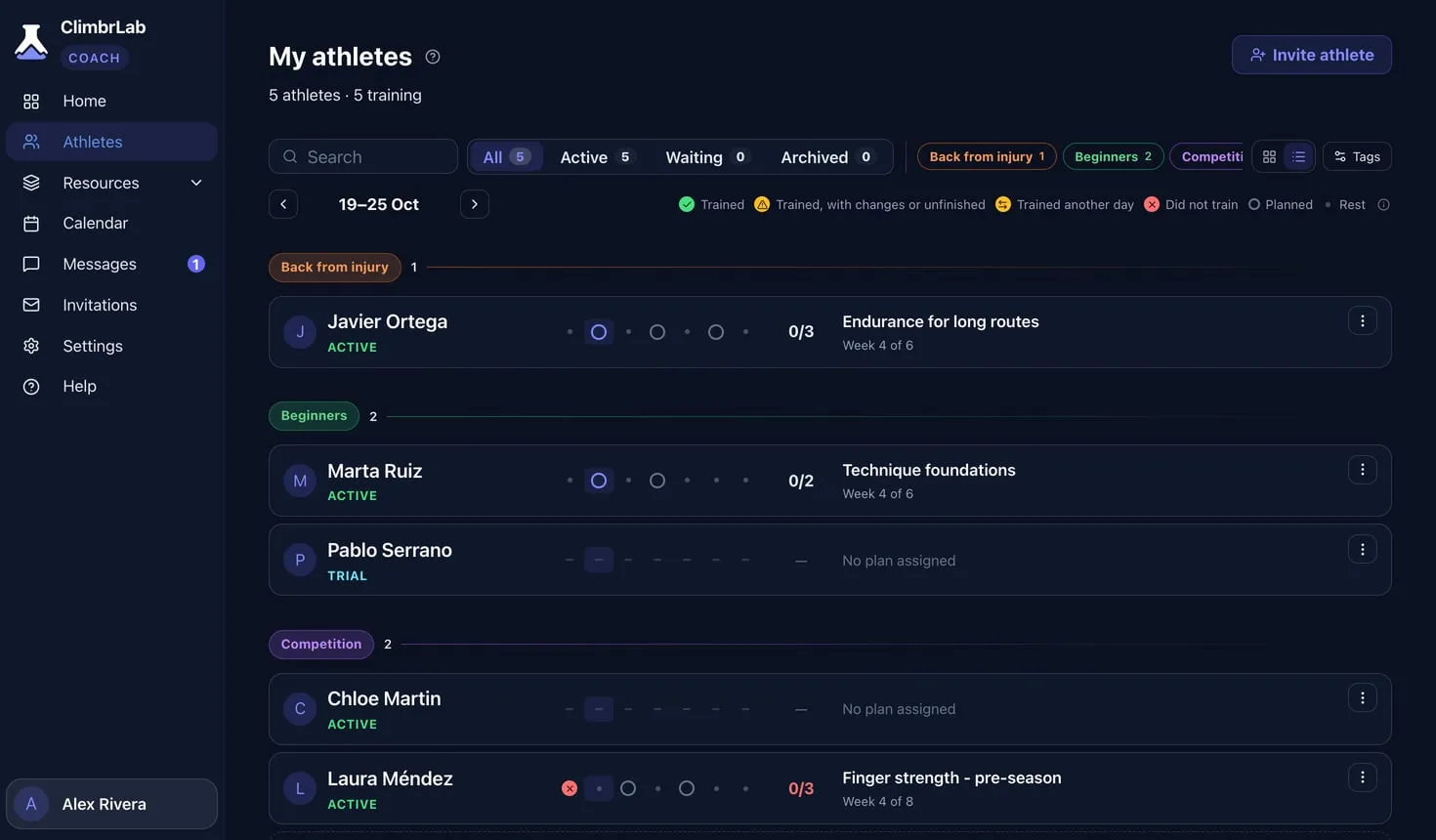
One row per athlete with their name and status, the seven days of the week, the “x/y” count, the plan with “Week n of N” and the warning icon when needed. It’s the view for checking the whole group at a glance.
Only here can you change week: Previous week, Next week and This week to come back. It’s useful for reviewing how everyone’s last week went or seeing what they have planned for the next one. The information icon, How to read the week, reminds you what each mark means.
The weekly traffic lights
They are the same lights as in the planner, so you only learn them once:
| Mark | What it means |
|---|---|
| Green | Trained |
| Amber with a warning | Trained, with changes or unfinished |
| Amber with arrows | Trained on another day (not the scheduled one) |
| Red | Had training and didn’t do it |
| Empty ring | Planned training that hasn’t come yet |
| Purple ring | Training is due today |
| Small dot | Rest |
If you hover over a day you will see the detail: “Due today”, “Planned”, “Rest”, “Trained on their own” (they trained on a day with nothing scheduled) or “No plan”.
The “x/y” number turns green when they have done everything planned, red if they have skipped a day, and stays neutral while they are on track.
To see exactly what they did in each session, open their profile: tracking a plan.
Tags
Tags let you group your athletes however you work: “Competition”, “Back from injury”, “Tuesday group”… They are private: the athlete never sees them anywhere.
Create, rename and delete
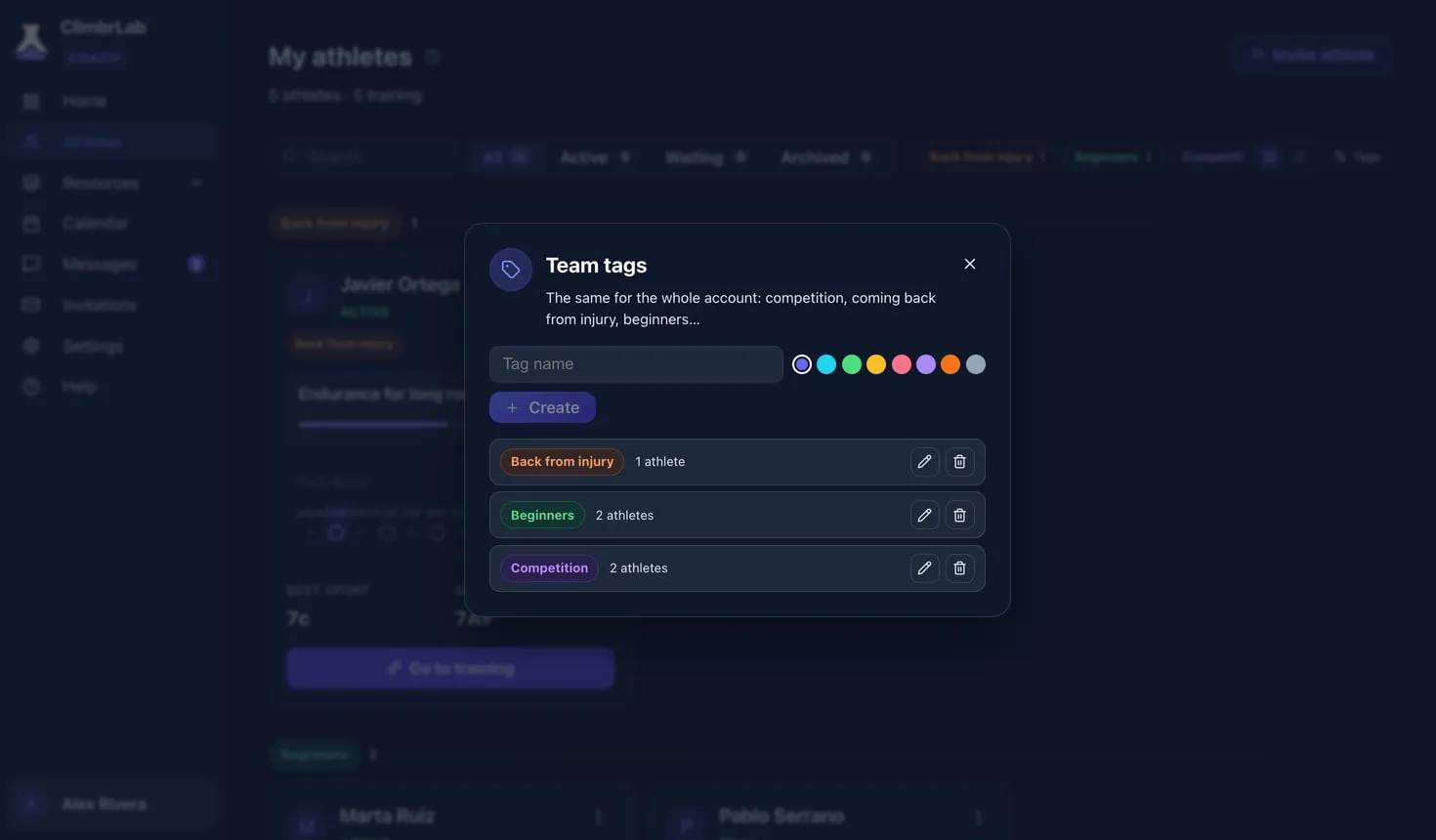
Press Tags (the button at the far right of the bar). Team tags opens:
- Type a name (1 to 40 characters) and press Create. Each tag has its own colour.
- With Rename or change colour you change its name or colour.
- With Delete tag you remove it. The app warns you: “It is removed from {de} and disappears for the whole team. The athletes are untouched.” Confirm with Yes, delete.
Rules worth knowing:
- Tags belong to the whole account: if you have a team, everyone sees and uses the same ones.
- A maximum of 30 tags per account. When you reach it you will see “You have reached 30 tags. Delete one to create another.”
- There can’t be two with the same name: “You already have a tag with that name.”
- Only the account owner can delete tags. Creating and renaming them is open to the whole team.
Tag an athlete
In the ⋮ menu on their card, choose Tags…. Tick the ones you want and press Save. You will see “Tags saved”.
Filter by tags
In the bar, next to the tabs (on a phone, just below), the tags appear with how many athletes each has. Press one to filter; press several to see those who have any of them (the app shows this with “with any of the n”). Clear filter shows everyone again.
When you use tags, the list is split into blocks, one per tag in its colour, with a No tag block at the end.
Heads-up: an athlete with two tags appears twice, once in each block. It isn’t a duplicate: it’s the same athlete.
The ⋮ menu for each athlete
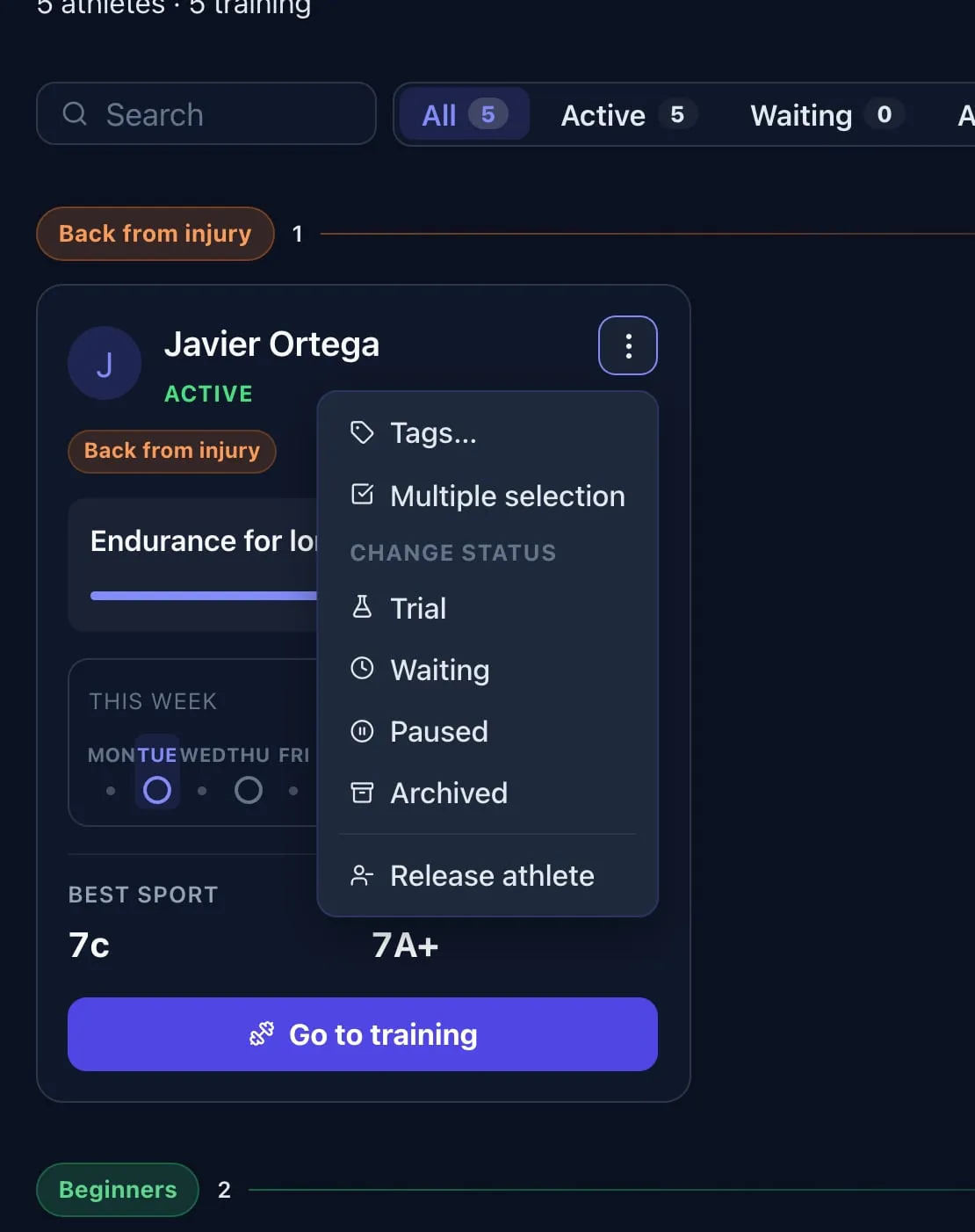
Each card (and each row in list view) has a ⋮ with:
- Tags…: their tags.
- Multiple selection: enters selection mode with this athlete ticked.
- Change status: every status except the current one. The change is immediate, with no confirmation, except Archive, which asks you to confirm. You will see “{nombre}: {estado}”.
- Release athlete (at the end, separate from the rest; it turns red when you hover over it): only the account owner sees it. It can’t be undone; read pause, archive or release an athlete first.
Multiple selection
To add or remove a tag for many athletes at once. Ways to get in:
- Multiple selection in the ⋮ menu.
- Ctrl + click (or ⌘ + click on a Mac) on a card.
- Shift + click: selects the whole range from the last card you touched, adding it to what you already had.
- On a phone, press and hold a card for half a second.
A bar appears with “n athletes selected” and these actions:
- Select the n visible / Deselect all.
- Add tag: nothing happens to anyone who already has it, it isn’t duplicated.
- Remove tag: it only removes that tag, nothing else is deleted.
- Leave the selection.
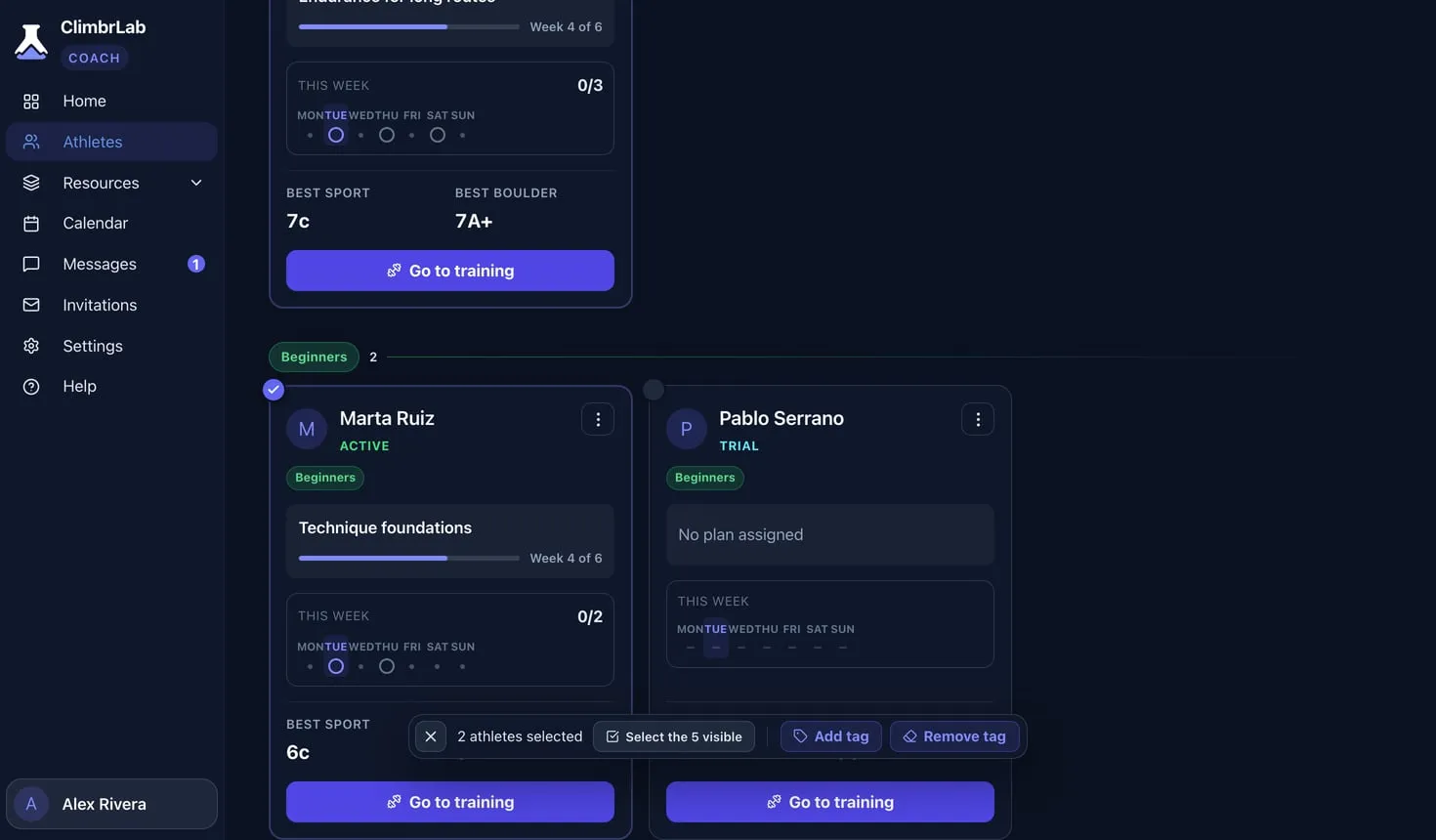
For now there are only tag actions in bulk: you can’t change the status of several athletes at once. If you change a filter or the search, the selection is cleared. Without a connection you will see “No connection. Actions on several athletes need the network.”
Your own profile: “You”
If you train yourself, your profile appears in the list with the You badge and the Go to my athlete view button, which opens your athlete side. Your profile doesn’t count towards your subscription’s athlete limit, doesn’t appear on the Home dashboard and can’t be released. More in train yourself.
Heads-up: your card (like those of archived athletes) always shows “No plan assigned”, even if you have a plan running. Your plan is fine: open it from your profile or from your athlete view.
Common questions
I invited an athlete and they don’t appear
They appear when they finish their onboarding questionnaire, and you don’t get a notification. Reload the page and check the status in Invitations → Invitations sent. If it’s still Pending, they haven’t finished yet. More in invite athletes.
I can’t find an athlete who used to be there
Check the All tab (or Archived), clear the search and remove the tag filter. If you released them, they are no longer on your account. If you are a team member, you only see the athletes the owner has assigned to you.
Does the athlete see their tags or their status?
No. Neither the tags nor the status (except archiving, which they do notice because their chat and new plans are cut off).
Can I change the status of several athletes at once?
No. Multiple selection only adds and removes tags. Status is changed one at a time from the ⋮ or from their profile.
Why does the card say “No plan assigned” when I’ve assigned one?
Most likely the plan starts later: until its start date it isn’t the plan in progress. If it’s an archived athlete or your own profile, the card doesn’t load the plan.