Sessions: create, edit, nest and delete
How to build reusable sessions in Resources → Sessions: exercises, titles, notes, rests, sessions inside sessions, metrics, privacy and deleting.
A session is a complete, ordered workout (exercises with their prescription, titles, notes, rests, other sessions and metrics) that you build once and drop into the days of as many plans as you like. Here you’ll see how to create it, edit it and organise it, and what happens when you change or delete it.
Watch out: deleting a session is permanent and removes it from every plan that uses it, including your athletes’ plans, even though the confirmation only mentions the sessions that contain it. Read deleting a session before you do it.
The sessions list
Go to Resources → Sessions (on a phone, inside More). You’ll see how many sessions you have (“12 reusable sessions”, for example), the “Search sessions…” box and the New session button.
Each card shows:
- a colour strip for the category that weighs most in the session,
- the description and up to 3 categories,
- Private if only you can see it,
- the minutes, the number of exercises, of blocks (sessions inside this one) and of metrics.
Click a card to open it in the editor. Each card’s More options menu has Rename, Duplicate session, privacy and Delete session.
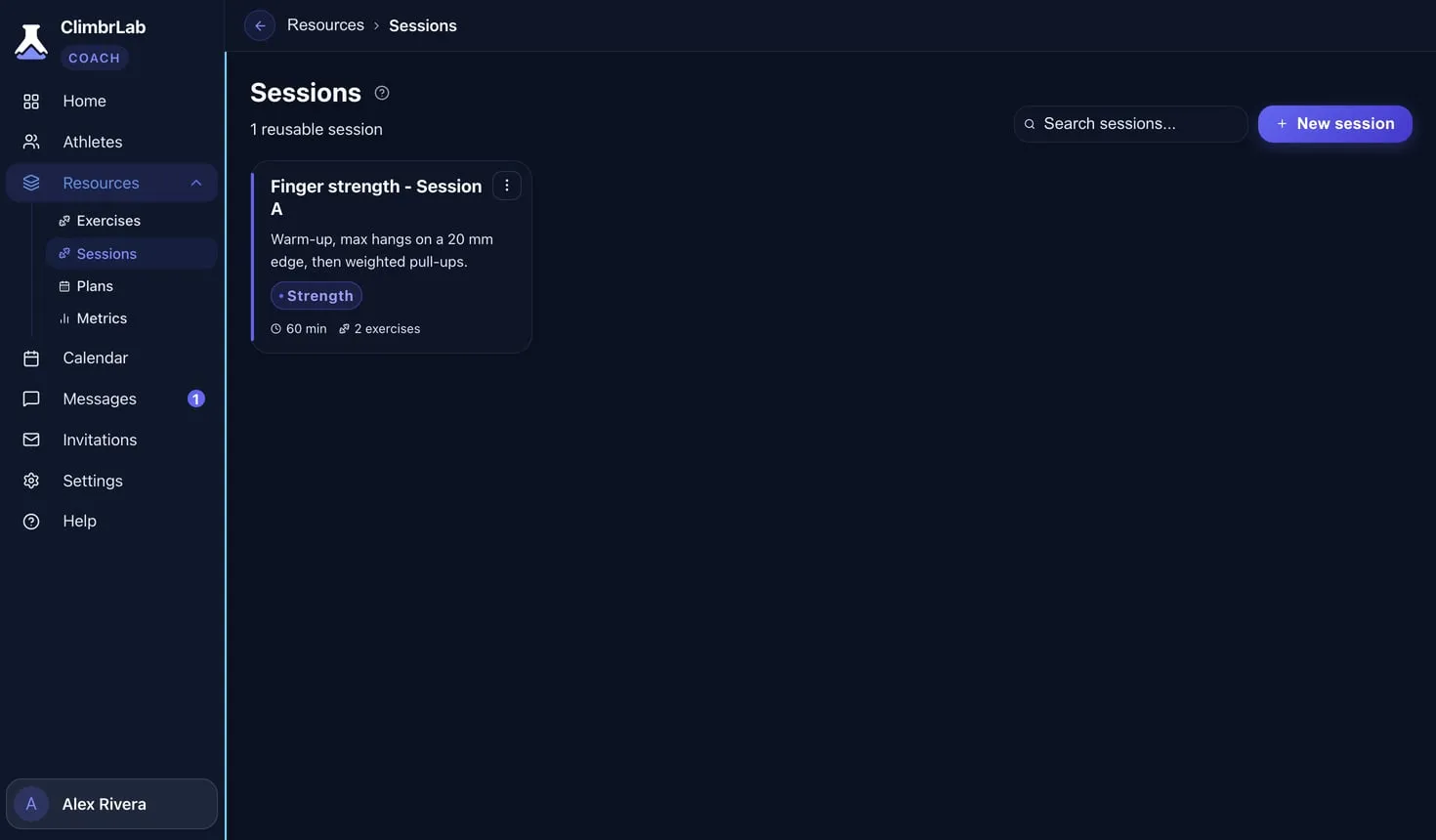
Customised copies for a specific plan don’t appear in this list: they live inside their plan (we explain it in customise a session).
Creating a session
- Press New session.
- Fill in the form:
| Field | What it is |
|---|---|
| Name | Required, at least 2 characters |
| Goal | What it’s for, for example “Max strength on an edge” |
| Description | The structure of the session, in a sentence or two |
| Duration | In minutes, in steps of 5 up to 240, with shortcuts for 30, 45, 60, 90 and 120 |
| Visibility | Whole team or Only me. It only appears if your account has a team |
- Press Create session. It opens straight in the editor.
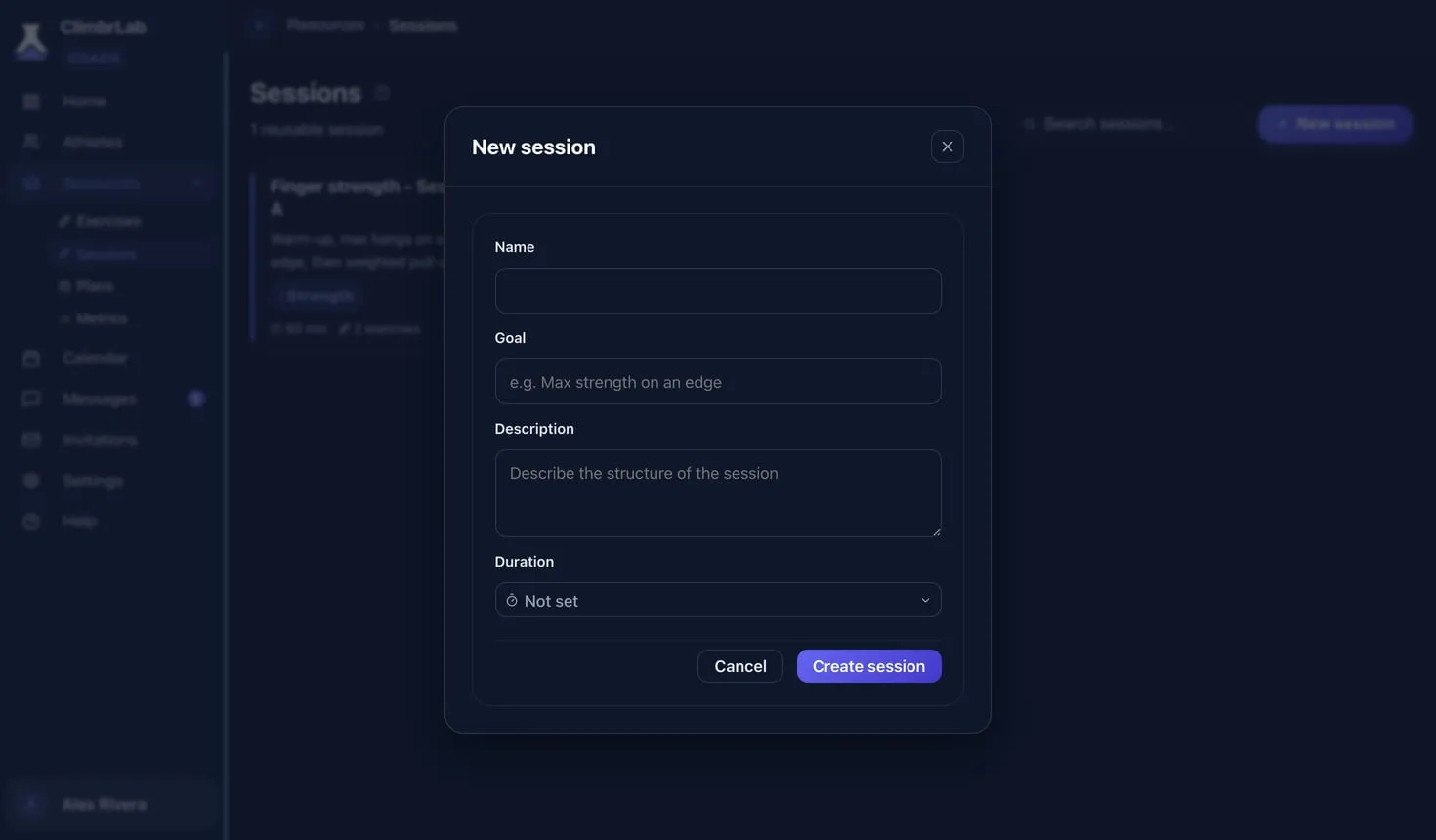
Watch out: the Goal and the Duration can only be set here. The editor lets you change the name and the description, but not the goal or the duration. Think them through before creating the session.
How the duration you see is worked out
The minutes on the card and in the editor are the duration you set when you created it plus the rests you add as standalone items in the session. They don’t add up how long the exercises take or their rests between sets. If you want to know how long a particular exercise lasts, look at its estimate in the prescription (prescribe exercises).
The session editor
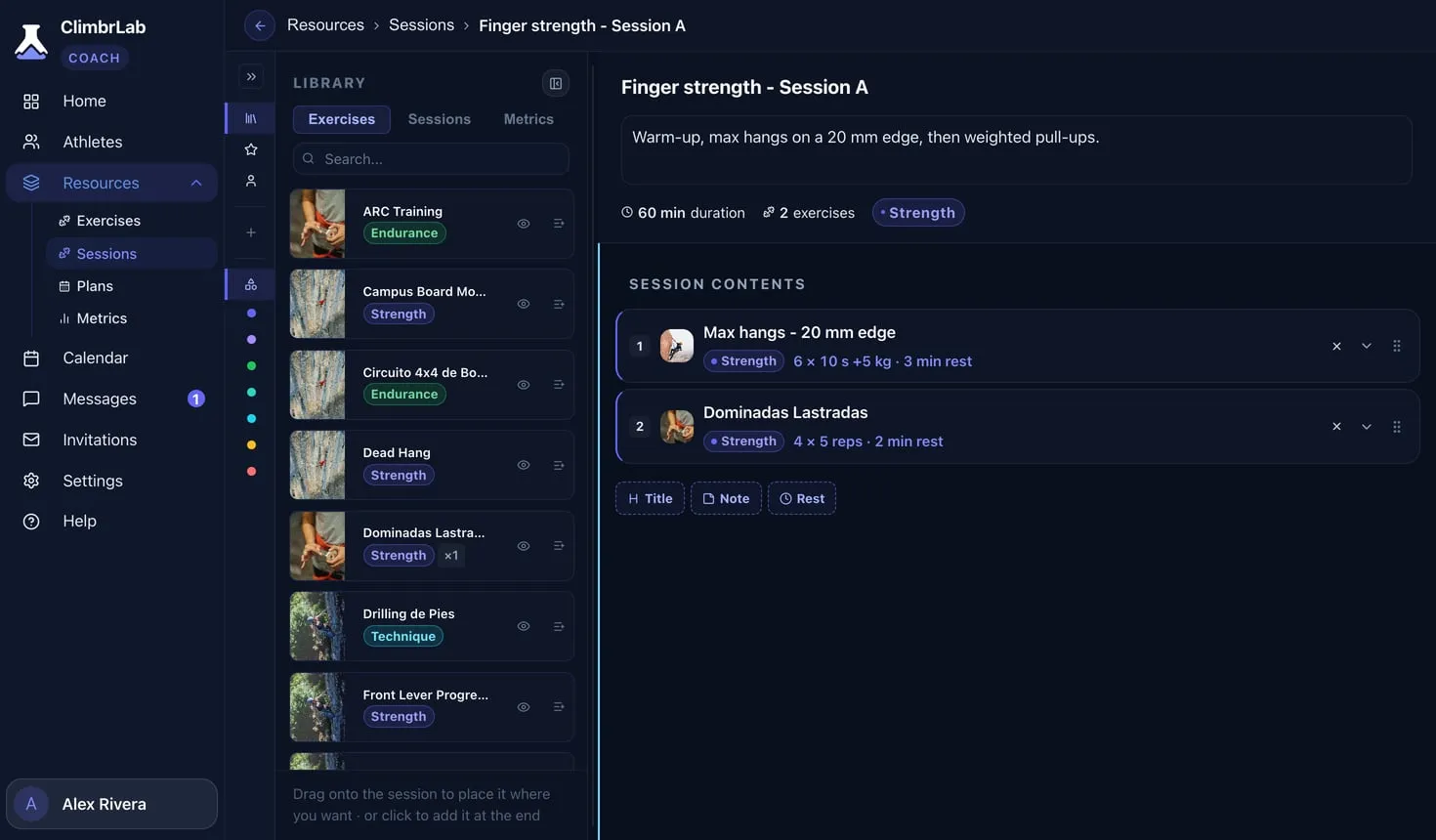
At the top you see the name (double-click to rename), the description (“Session description…”) and the status: Saving… / Saved. Everything saves on its own; there’s no save button.
The side library
On the left is the LIBRARY, with Exercises, Sessions and Metrics tabs and a search box. On the exercises tab you have the same filters as in the library (All, Favourites, Mine, your lists and categories). Each row has an eye icon to see the card without leaving.
- Click an item to add it at the end.
- Drag it to place it wherever you want.
You can hide it with Hide the library and adjust its width by dragging the edge; the app remembers the width.
The session contents
Session contents is a single ordered list. Drag any item to move it. As well as exercises, sessions and metrics, the buttons at the bottom add structure:
| Item | What it’s for | Details |
|---|---|---|
| Title | A heading that splits the session into blocks: Warm-up, Strength, Cool-down… | Typed in place. Up to 500 characters |
| Note | A written cue for the athlete at that point | Typed in place. Up to 500 characters |
| Rest | A timed pause between exercises or blocks | 2 min by default, up to 60 min, with Note (optional) |
Titles and notes save when you leave the field. A title or note you leave empty deletes itself when you leave: if one appears and then vanishes, that’s why.
Exercises and their prescription
Click an exercise to open its prescription right there (Edit prescription / Close prescription), with a Notes field (“How to do the exercise, tempo, grip, intent…”). The row shows Not prescribed or the summary, and the Has notes badge if there are any. To remove it, Remove exercise.
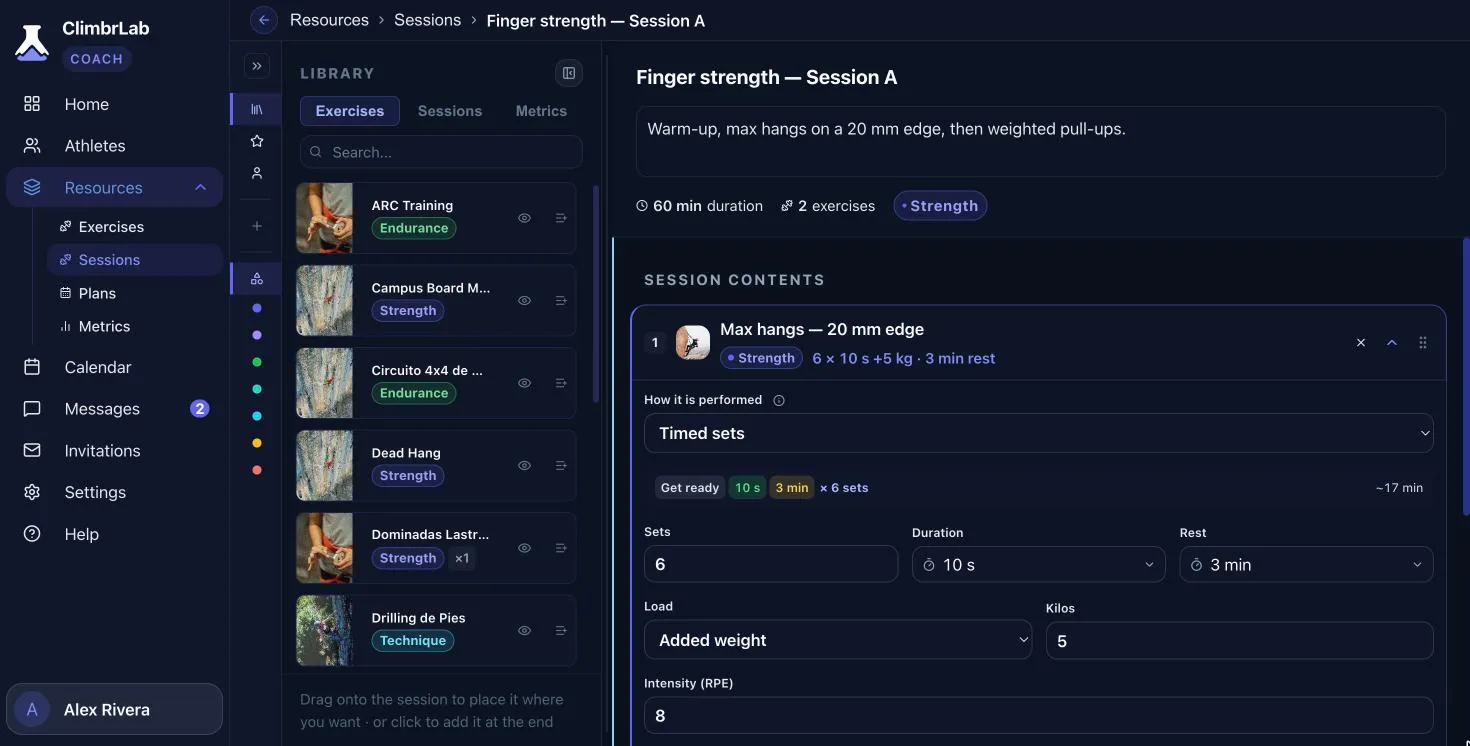
The same exercise can appear several times in the same session, each time with its own prescription (the library shows you how many times it’s there, as ×2). Everything about modes and fields is in prescribe exercises.
You can’t leave with unprescribed exercises
While any exercise is unprescribed, the editor won’t let you leave: not to another section, another session or the list. Pending exercises flash red and you see “2 exercises without a prescription. Complete them to leave the page.”. If you close the tab, the browser asks you to confirm.
It’s on purpose: an exercise with no prescription is no use to the athlete, because their player doesn’t know what to do with it. If you don’t want to prescribe it now, remove it and add it again later.
Sessions inside sessions
From the library’s Sessions tab you can put one session inside another, for example your “Finger warm-up” at the start of several strength sessions. It appears as a block.
The key point: it’s a reference, not a copy. The editor reminds you: “What’s inside is edited in the session itself, and the change shows up in every session using it.”. If you improve the warm-up, it improves in every session that includes it.
On the block’s row you have:
- Open this session, to edit its contents.
- Remove from this session (it stays in the library).
- Notes for this block (“Why it goes here, what to adjust…”), specific to this use.
Rules:
- Up to 5 levels of sessions inside sessions. If you go over: “Too much nesting: the maximum is 5 levels of sessions within sessions”.
- No loops. A session can’t contain itself, or contain another one that already contains it. In the library those sessions appear locked with “It already contains this session: nesting it would close a loop”.
Metrics inside a session
From the Metrics tab you can add a test to the session, for example a max hang at the start. When you assign a plan that includes this session, the athlete will get the request for that metric on the days the session falls.
- Each metric can only be in a session once (“Already in this session”).
- Days of leeway: from 0 to 30, 2 by default. “How many days the athlete has to take it before it counts as missed.”
- Note: conditions for the measurement (“Conditions of the measurement, which grip, rested…”).
- If the metric requires a Tindeq, you’ll see: “Needs a Tindeq: when the plan is assigned, athletes without one won’t get this measurement.”.
To create metrics and understand them fully, go to metrics and templates.
Duplicating, renaming and privacy
Rename: from the card menu or by double-clicking the name in the editor. At least 2 characters.
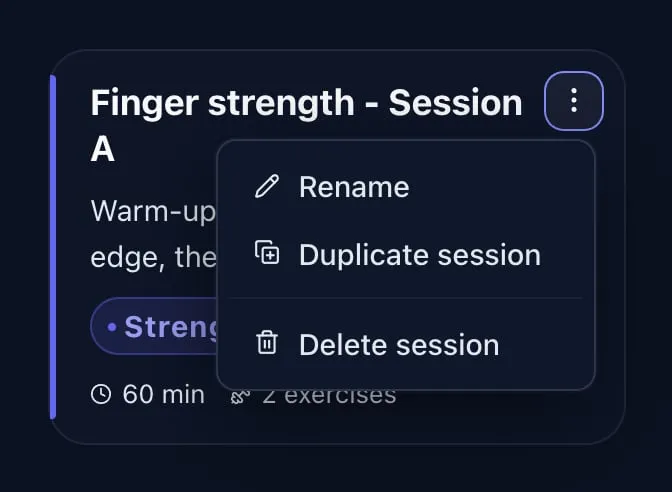
Duplicate session: the suggested name is “name - copy” and the help text makes it clear: “A new session is created with the same content. The original stays as it is.”. The copy opens in the editor and:
- the sessions it had inside are still references (they aren’t duplicated),
- it inherits the original’s privacy,
- it’s yours, even if a teammate created the original.
Private or shared: in an account with a team, what you create is visible to the whole team and they can use it in their plans. With Make private only you can see it: your teammates can’t see, use or edit it. Share with the team opens it up again. It applies instantly, with no confirmation (“Now only you can see it.” / “Now your whole team can see it.”). Only whoever created the session can change this; if someone else tries, they’ll see “Only whoever created this session can change whether it is private.”. More in coaching team.
Bear in mind that any coach on the team can edit or delete a shared session, not just whoever created it.
Deleting a session
From the card menu, Delete session. The confirmation (Delete session?) says “You are about to delete “name” for good.”; if the session sits inside others, it adds that it will also disappear from them, and it ends with “If it is in any plan, it will also disappear from it, including your athletes’ plans.”.
Watch out: read it carefully before accepting. When you delete a session it disappears from every day of every plan that uses it: your templates and the plans assigned to your athletes. It can’t be undone and there’s no recycle bin.
Before deleting, ask yourself whether nobody really uses it. Safer alternatives:
- If you no longer want it in your team’s library, make it private (if you created it).
- If you want to change it, edit it, or duplicate it and work on the copy.
- If you want to take it out of a particular plan, remove it from that day in the planner (the planner).
Customised copies of that session that already exist in a plan aren’t deleted: they stay in their plan and show that “The original no longer exists”. And a customised copy can’t be deleted from here: “This session is customized for a plan. Remove it from the plan or revert to the original.”.
How sessions are used in plans
In the planner, the library’s Sessions tab lets you drag a session onto a day, or select the day and click it. On the day it shows as “Session · 60 min”.
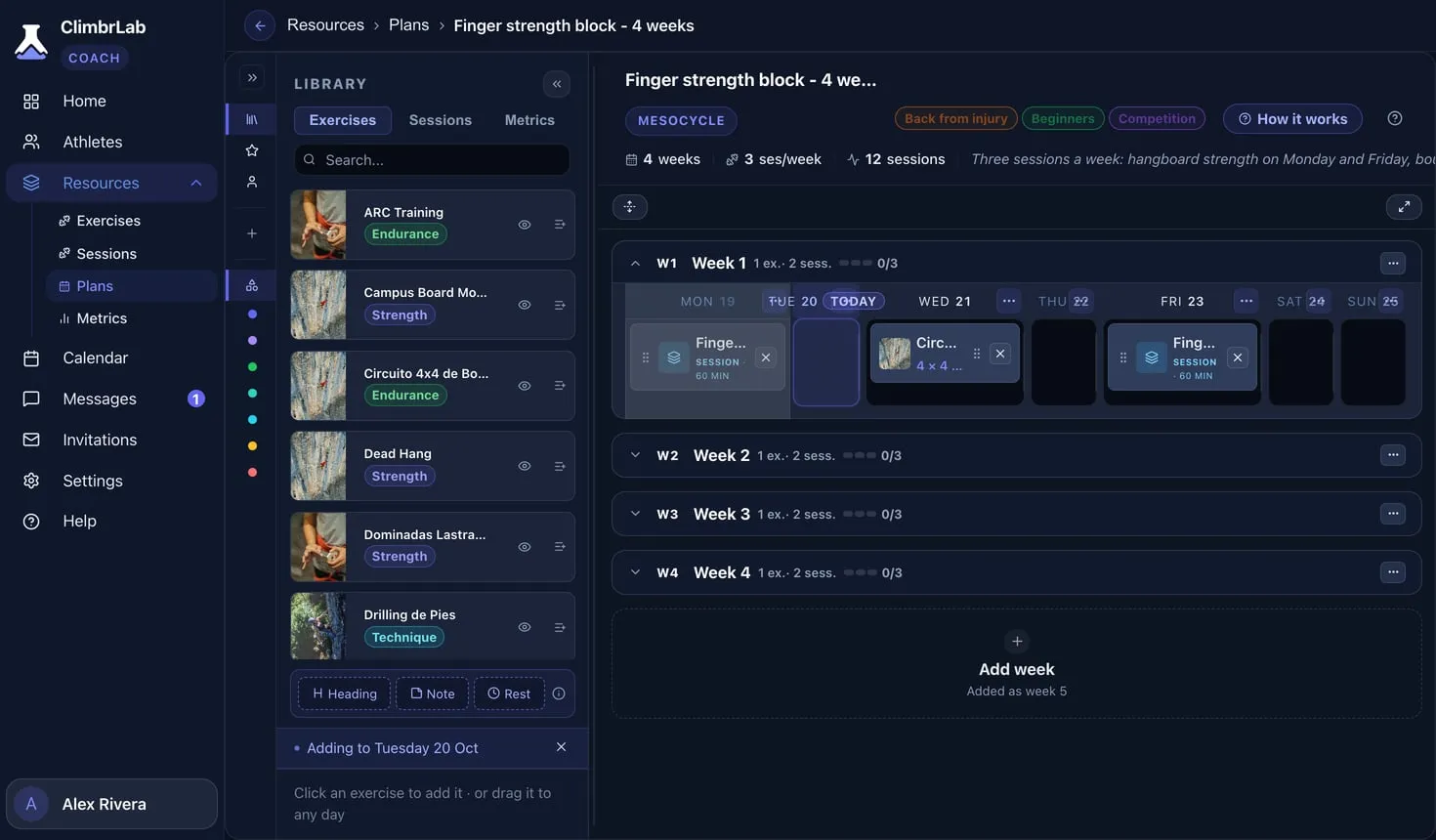
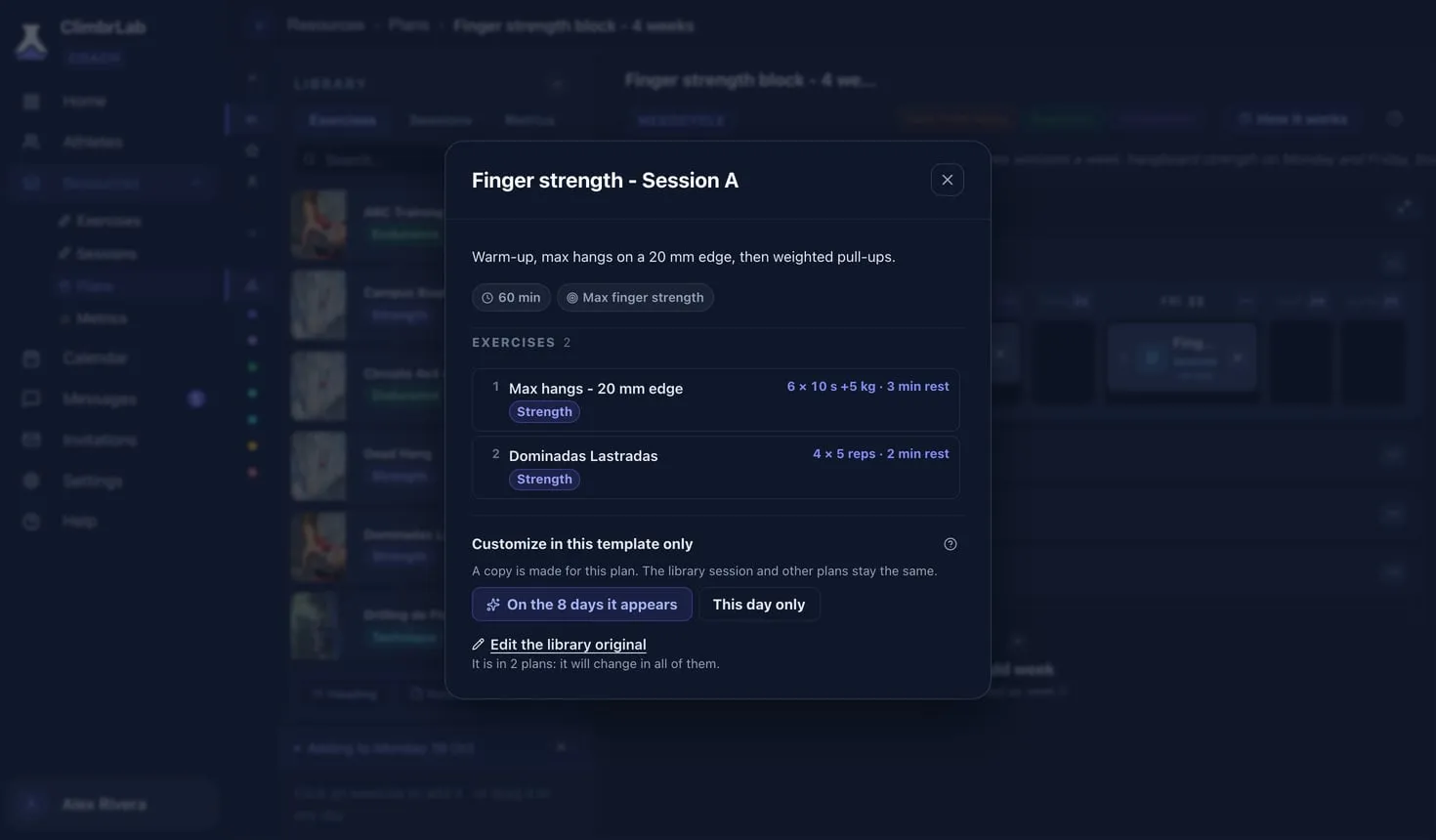
The session stays linked, not copied: if you edit the original in Resources, the change reaches every plan that uses it. That’s why its exercises aren’t prescribed from the plan (“The prescription is defined in the session”). If you need to change it for just one athlete, you customise it: a copy is made just for that plan and the original doesn’t change. It’s step by step in customise a session, and how to build the plan in create and assign plans.
Common questions
It won’t let me leave the session editor
You have an exercise that isn’t prescribed. Find the ones marked in red and prescribe them, or remove them.
I got the duration or the goal wrong
For now they can’t be changed from the editor. The alternative is to create a new session with the right details and build the contents in it.
I typed a title, left, and it’s gone
It was empty when you left the field: empty titles and notes delete themselves.
If I change a session, does it change in my athletes’ plans?
Yes, in all the ones that use the original. If you only want to change it for one, customise it from their plan.
Why can’t I see a session my teammate created?
They’ve probably set it as private. Only they can share it with the team.
Where are customised sessions?
Inside the plan they were customised for, not in this list. You open them from the session in the planner.