Train yourself: use the app as an athlete with your own plans
How to turn on “Train myself” to assign yourself plans and train like any athlete, switch between coach and athlete mode, and turn it off without losing anything.
If, as well as coaching others, you train yourself, you do not need a second account. With Train myself your coach account also gets an athlete side: you assign yourself plans just as you would any athlete and do them with the same player they use, with your loads, your logs and your history.
“You assign yourself plans like any other athlete and play them the same way. Only you can see it.”
Turning it on
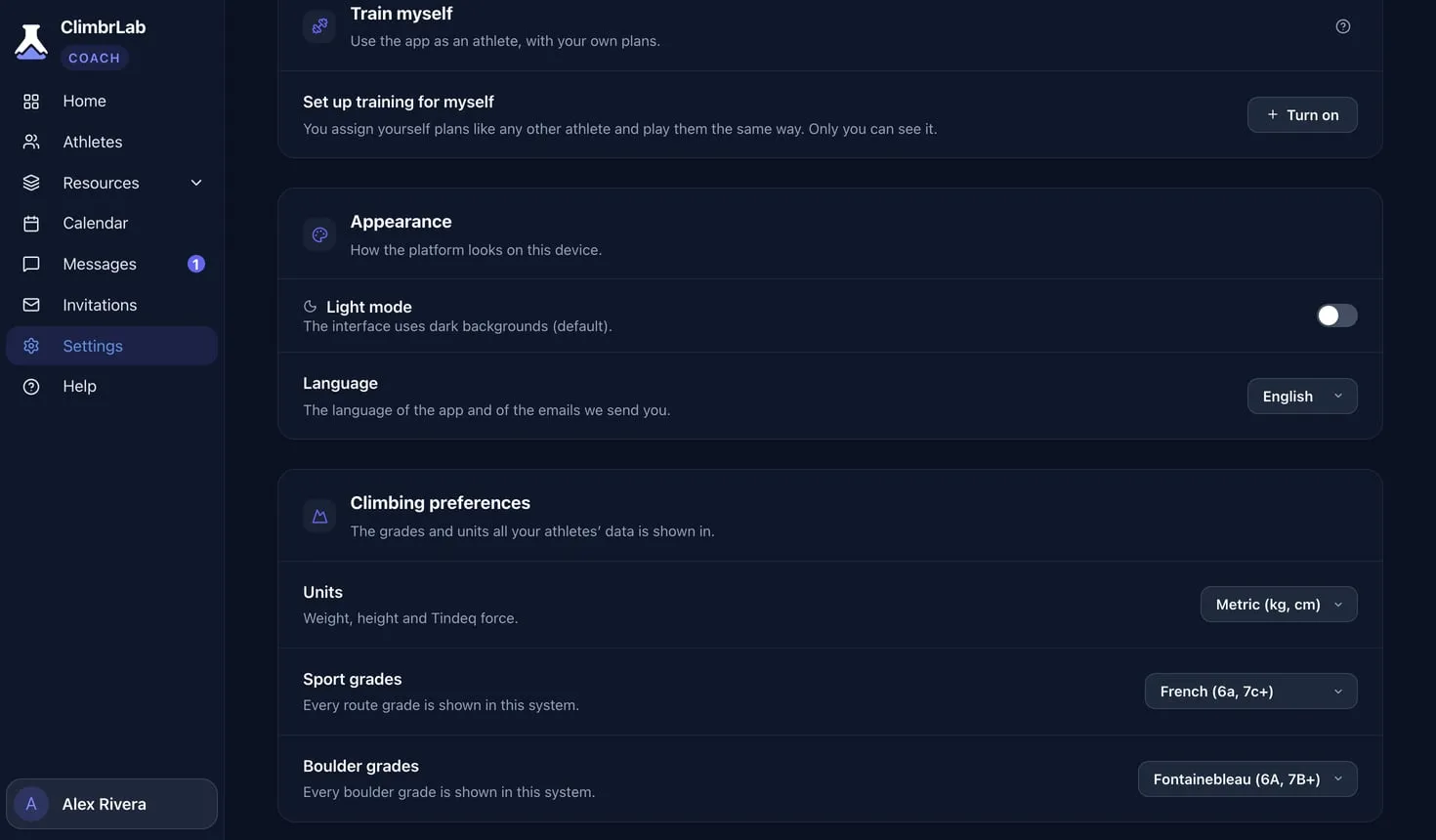
- Go to Settings → Train myself.
- Under Set up training for myself, click Turn on.
- Your climber data opens. Fill it in and save.
Why does it ask for this? “Weight, height and grades are not on your coach profile, and the player needs them to work out the loads.” For example, a load set as “% of body weight” is calculated from your weight.
| Detail | Required? |
|---|---|
| Age, gender, weight and height | Yes |
| Whether you have a Tindeq | Yes |
| Best and onsight grades (sport and boulder) | No |
| Where you climb and whether you compete | No |
These are the same questions an athlete answers when signing up, without the part about choosing a coach or the city. If anything is missing, you will see “Your climber details are missing, so the card can’t be created”.
When you finish, the card will show “You are in coach mode” and a Coach / Athlete switch.
Switching between coach mode and athlete mode
There are two ways:
- In Settings → Train myself, the Coach / Athlete switch.
- In your Athletes list, on your own card, the Go to my athlete view button.
How it behaves depends on the device:
- On a computer (wide browser): athlete mode opens in a new tab. “Athlete mode opens in a new tab; this one stays in coach mode.” That way you can have your coach dashboard in one tab and your training in another. In the athlete tab you will see “This tab is the athlete one: it closes when you go back to coach mode.”.
- On a phone and in the app: it switches on the same screen, and it is remembered on that device. “It is remembered on this device: your phone can stay in athlete mode and your desktop in coach mode.” This is the handy set-up: your phone in athlete mode for the climbing wall and your computer in coach mode for planning.
To come back from the athlete side, use Back to coach mode in the menu (on a phone, inside More) or the switch on the Train myself card, which also appears in your athlete settings.
Assigning yourself plans
In your athletes list you appear as one more, marked You. Your profile works just like any athlete’s:
- Go to Athletes and open your profile (the one that says You).
- Assign yourself a plan, a metric or whatever you need, as you would with anyone. See Assign a plan.
- Switch to athlete mode and train. Whatever you log shows up on your profile just like your athletes’ logs.
What the athlete side looks like and how to use it is explained in Complete a training session.
Worth knowing
- It does not count towards your plan’s athlete limit. Your profile trains, but it is not a client: it does not take up a seat. See Subscription and pricing.
- It is not included in your dashboard totals. The Home dashboard (counters, team donut, injuries, map) only counts your athletes, so your numbers do not get mixed up with theirs. You do appear in the athletes list, marked You.
- You do not get notifications about what you do yourself. If you complete a session or log an injury, you will not get “your athlete completed their session”.
- Your profile cannot be released. If you try, you will see “Your own profile can’t be released: turn off self-training in your settings.”.
- Your athletes cannot see you. Your athlete profile is yours alone; it does not appear in anyone else’s app.
If you are a member of a team
Your profile is created inside the team account, so colleagues who can see it will find you in their athletes list and can plan for you. Also, at the moment the “does not count towards the limit” rule only applies to the account owner’s profile: a member’s profile does take up a seat on the plan. More about teams in Coaching team.
Turning it off
In Settings → Train myself, click Turn off under Turn off my training.
- It does not ask for confirmation: it turns off as soon as you click. You will see “Turned off. Your history is kept.”.
- Nothing is deleted. “Your history is kept. Turn it back on and you get all of it back.”
- If you turn it off while in athlete mode, the app takes you back to the coach side.
If it fails: “It could not be turned off. Try again.”.
Common questions
Do I need another account or to pay anything extra?
No. It is the same account and it does not take up a seat on your plan (except for team members, as explained above).
Can I train with a teammate as my coach?
Not as their athlete within the same account. If you try to invite them you will see “That person is in your team. If you want to coach them, they can turn on self-training in their settings.”. Once they turn it on, their profile sits on the account and you can plan for them.
Can I use the Tindeq in athlete mode?
Yes, just like an athlete, if you said you have a Tindeq when you turned it on. See Tindeq.
If my account goes read-only, can I keep training?
No: read-only mode affects your whole account, including your own logs. It does not affect your athletes. See Subscription and pricing.
I have turned it on but Settings still shows “Turn on”
Reload the Settings page: when it opens it reads your session again and the Coach / Athlete switch should appear. If not, log out and log back in.