Coach settings: your profile, your brand and your preferences
What each Settings card holds: profile, professional profile, brand, subscription, language, units and grades, export, password, session and account deletion.
Settings holds everything to do with your account, how you see the app and how your athletes see you. This article goes through the cards one by one, in the order they appear, and at the end explains the onboarding questionnaire you answered when you signed up and where to change each answer.
How to get there
- On a computer: Settings in the side menu. You can also click your name and picture at the bottom of the menu.
- On a phone: the More → Settings tab.
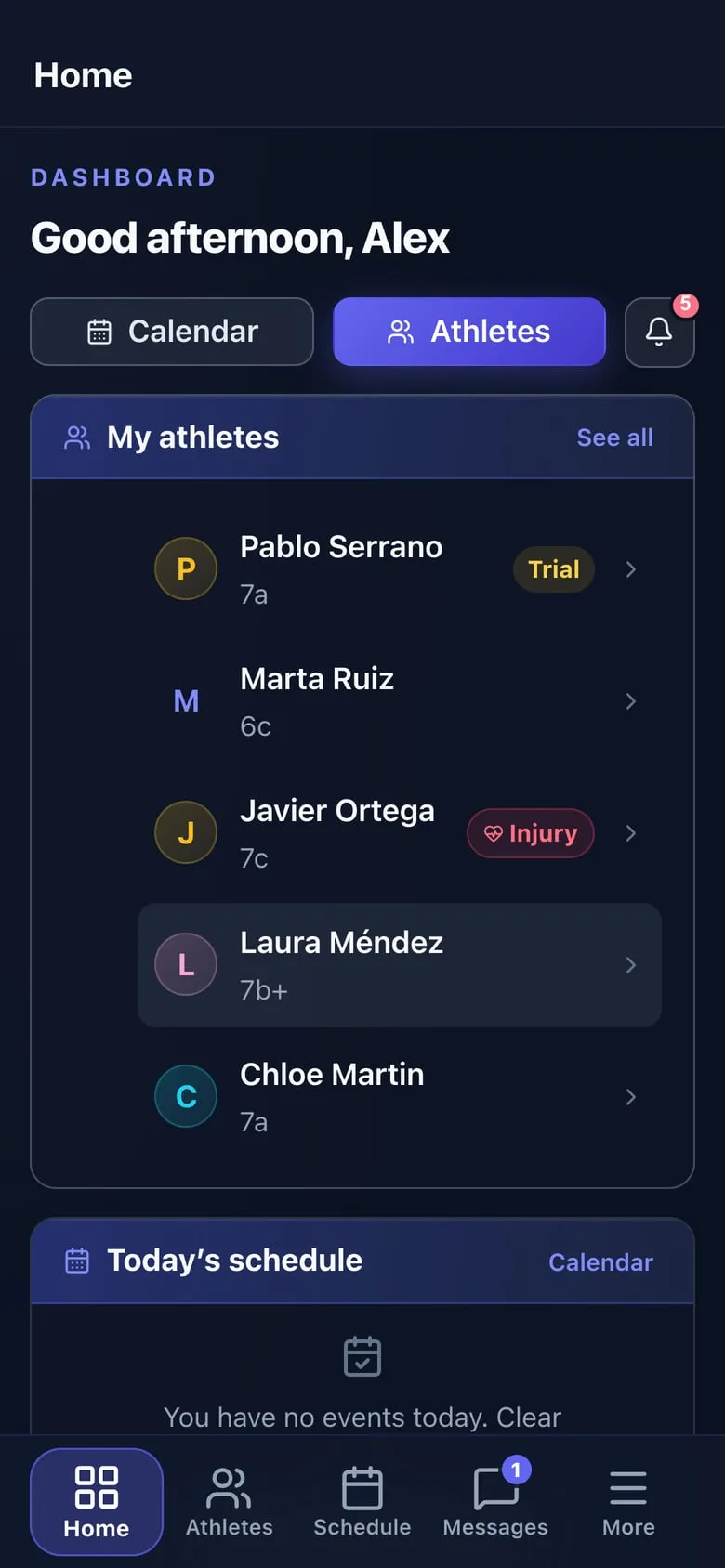
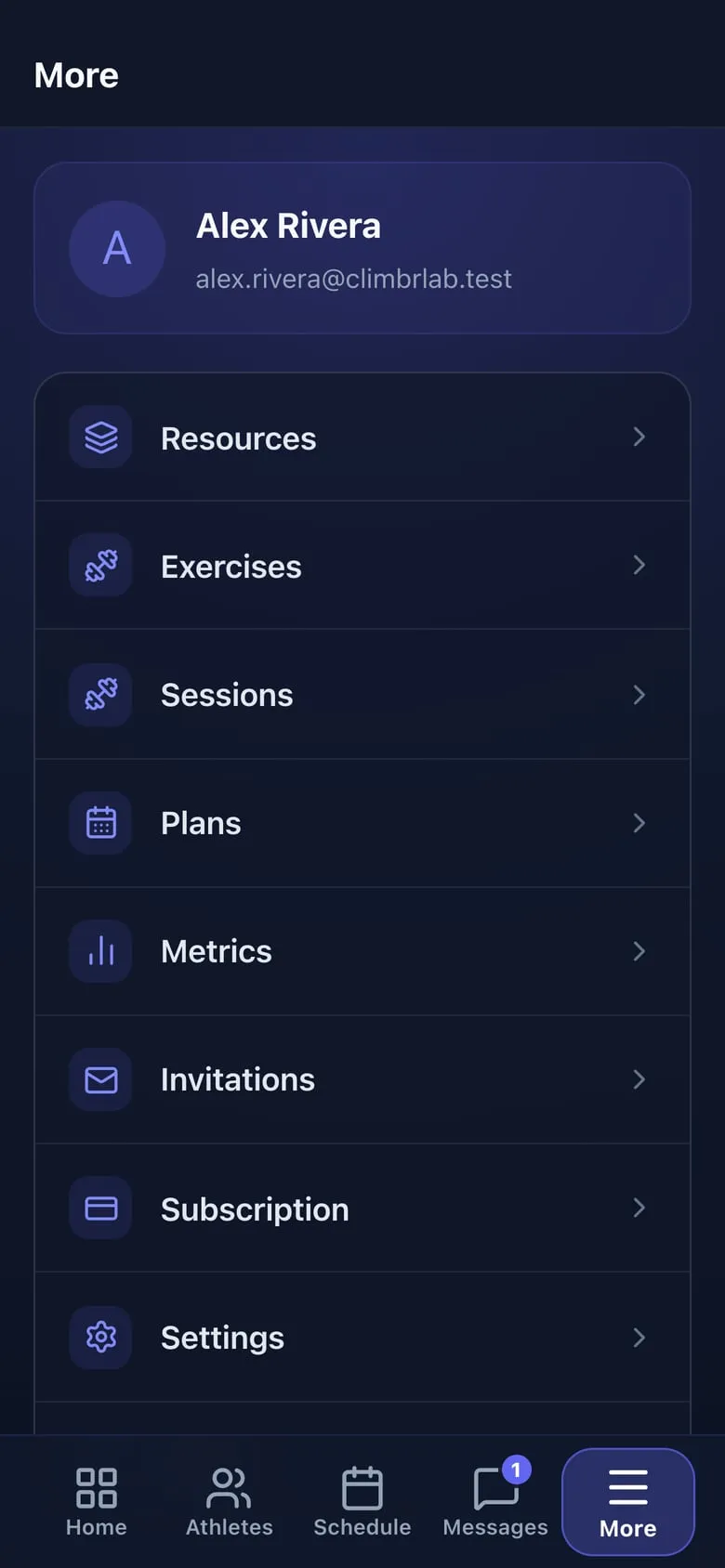
The header reads “Your account, how the app looks and the systems your athletes’ data is shown in.”.
Account
It shows your picture, your name, your email and the Active label. Click the picture to see it full size.
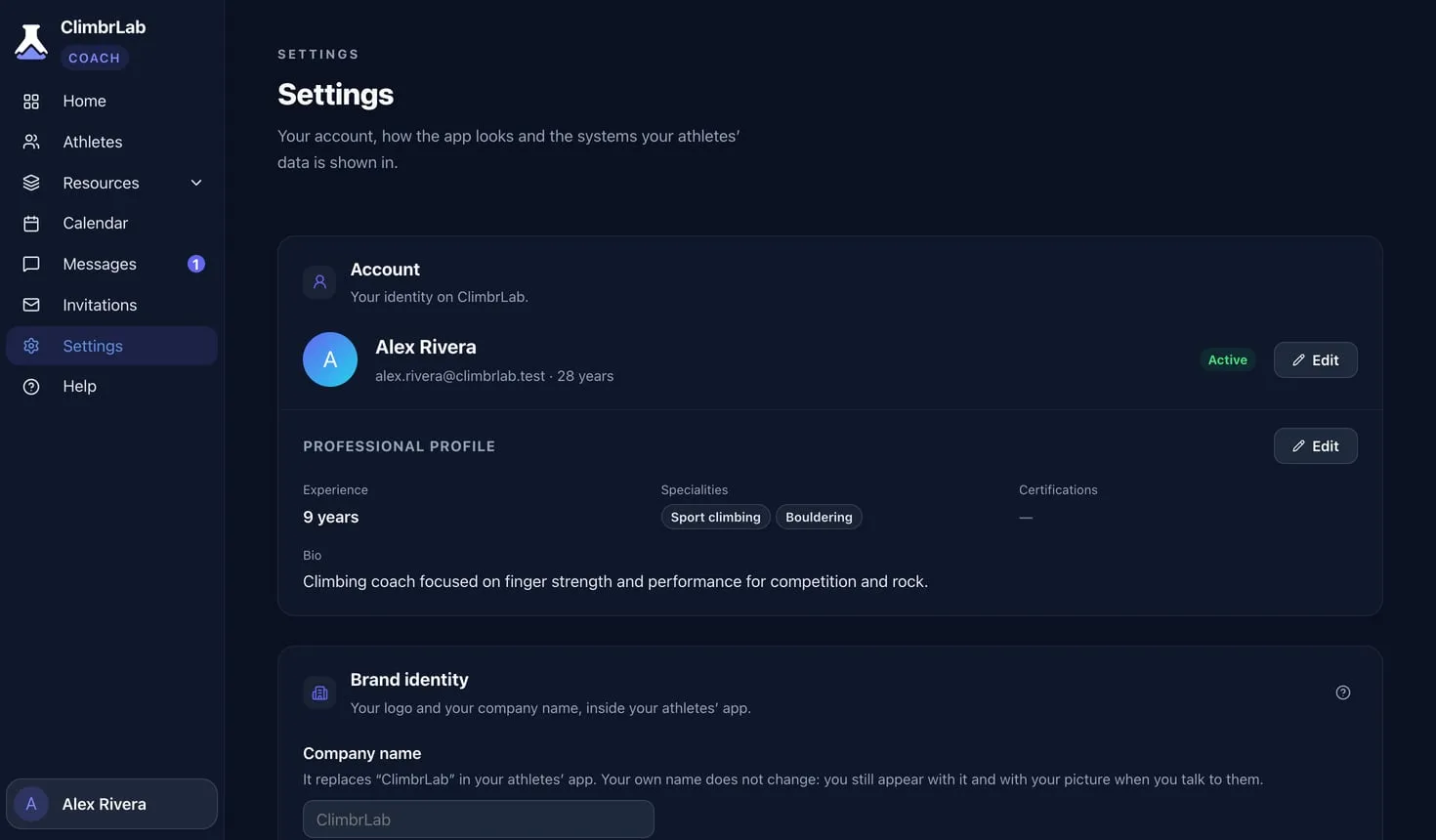
Edit opens Edit profile, where you change:
- Name: the one your athletes see in the chat and in “My coach”.
- Picture: “Click the image to change your picture.”. Your athletes see it and, if you have not uploaded a logo, it is also your brand image. Size and format limits in Image and video limits.
- Age.
When you save you will see “Profile updated.”. If you get “Profile updated locally. It could not be synced with the server.”, the change has not reached your account: check your connection and save again.
Two things worth knowing:
- Your email cannot be changed, neither here nor anywhere else in the app. If you need to use a different one, write to us at soporte@climbrlab.com.
- Your age is only saved in this browser. It is not sent to your account: on another device or browser you will see a different figure (28 by default). Your athletes do not see it.
Professional profile
Inside the Account card, the Professional profile block shows what you told us in the onboarding questionnaire. Click Edit to change it:
| Field | Limit |
|---|---|
| Experience (years) | 0 to 70 |
| Specialities | Up to 12, 60 characters each |
| Certifications | Up to 20, 80 characters each |
| Bio | Up to 2000 characters |
When you save: “Professional profile updated.”. Your athletes see this in their My coach section, next to your picture and your company name. Write the bio with them in mind: your style, your approach, who you work best with.
Brand identity
Your logo and your company name, inside your athletes’ app. They replace “ClimbrLab” in their top bar, on the sign-in screen and in their menu. It saves by itself, with no button.
All the details (formats, where it shows, what happens if you do not upload a logo) in Your brand. If you are a member of a team, here you only see the brand: the owner changes it.
Subscription
“Your plan, included athletes and billing.” It takes you to the page with your plan, your billing details and the payment portal. We explain it in Subscription and pricing.
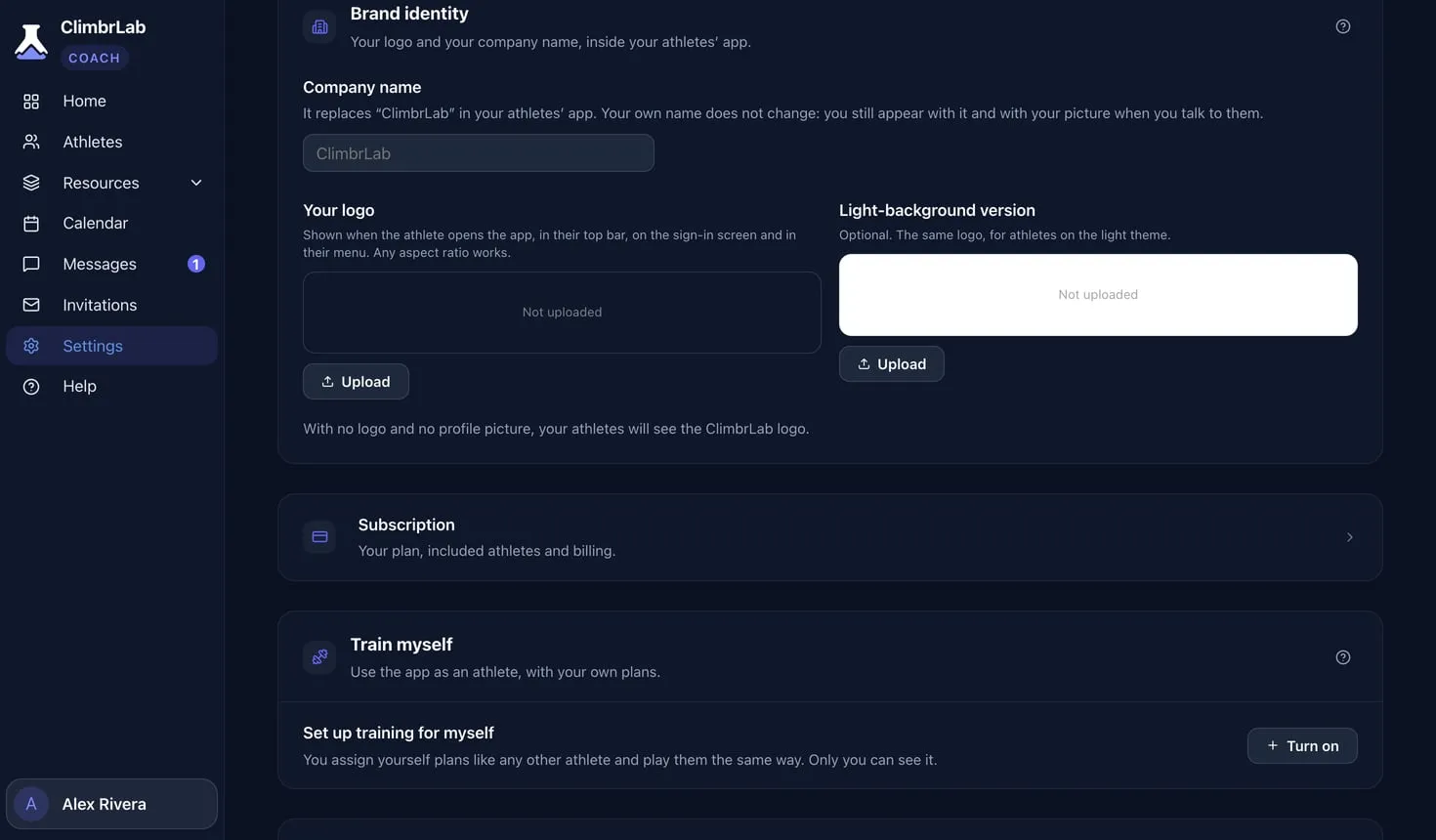
This card does not appear in the iOS or Android app: you cannot buy there. Go in from a browser.
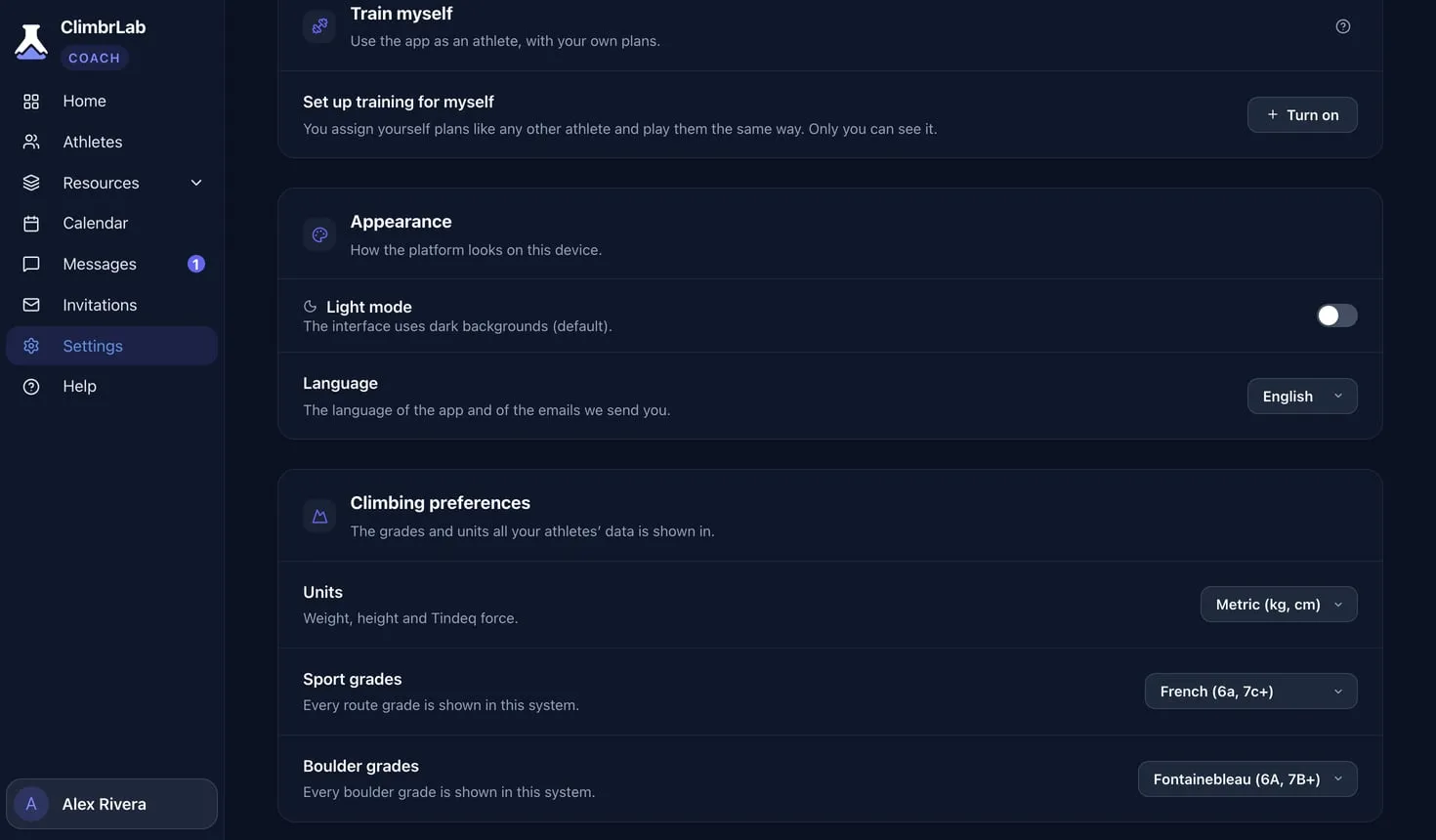
Train myself
“Use the app as an athlete, with your own plans.” If you train as well, you can assign yourself plans and play them like any of your athletes. How to turn it on and switch modes in Train yourself.
Appearance
- Light mode: turns on light backgrounds; by default the app uses dark backgrounds. It is saved on each device: you can have your phone in light and your computer in dark.
- Language: Español, English or Français. It is saved to your account, and it also changes the language of the emails we send you (“The language of the app and of the emails we send you.”).
Your athletes choose their own language: yours does not affect them.
Climbing preferences
“The grades and units all your athletes’ data is shown in.”
| Setting | Options |
|---|---|
| Units (weight, height and Tindeq force) | Metric (kg, cm) or Imperial (lb, in) |
| Sport grades | French (6a, 7c+) or Yosemite (5.10a, 5.12d) |
| Boulder grades | Fontainebleau (6A, 7B+) or Hueco (V4, V10) |
It is only how you see it. Each athlete has their own preferences: if you work in French grades and they climb in Yosemite, each of you sees the same grades in your own system. When you save: “Preferences saved.”.
Data
Export athlete data (Excel): click Export and a single .xlsx file downloads with “Profiles, injuries, notes, workouts, metrics, plans and routes for every athlete”. On a team, each coach only exports the athletes they coach. More in Export athlete data.
If it fails: “The Excel file could not be generated. Try again.”.
Help
Links to the Getting started guide, the Help centre and the Frequently asked questions. They open in a new tab (or in the system browser, if you are using the app).
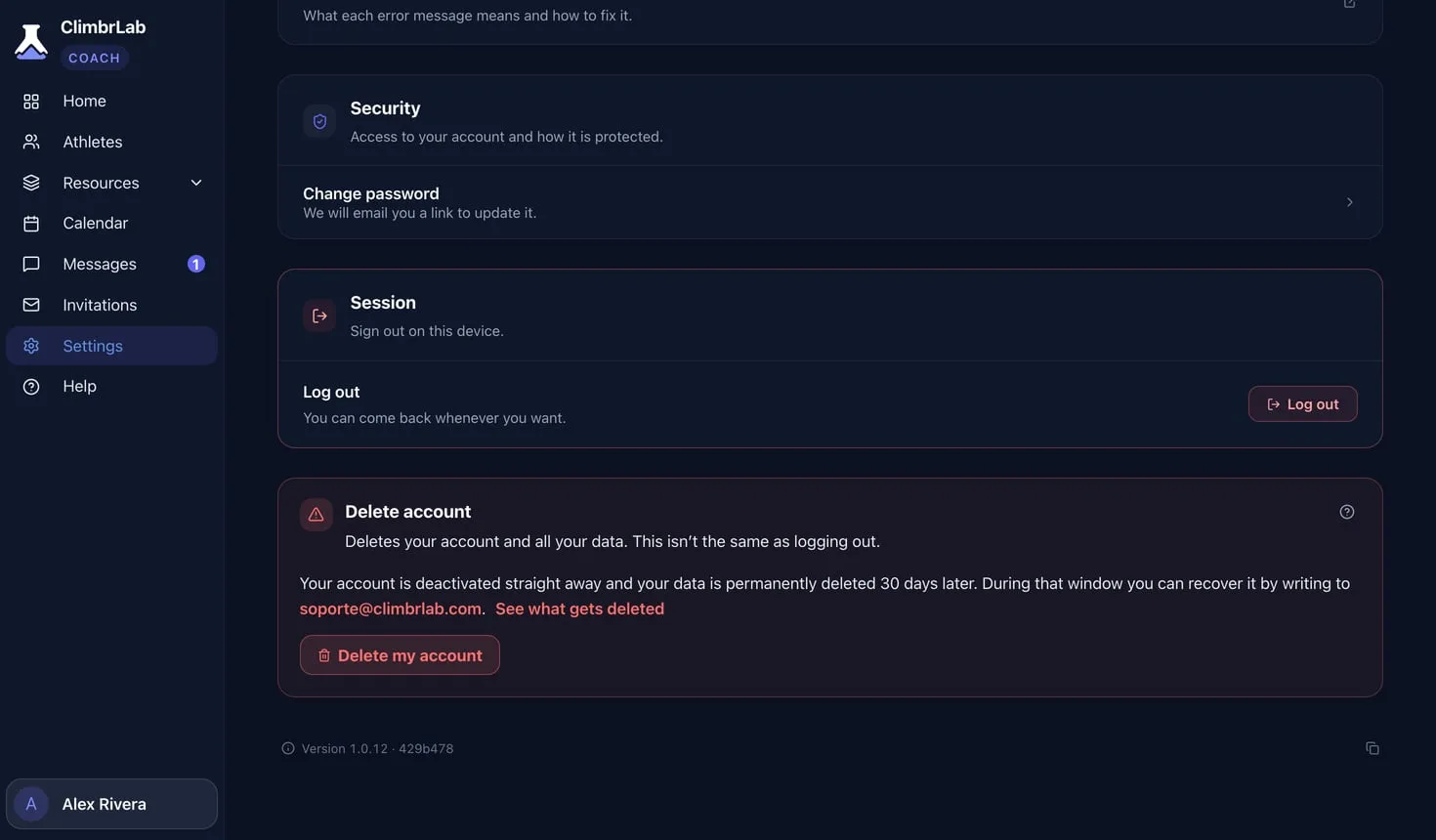
Security
It has just one option: Change password (“We will email you a link to update it.”).
- Click Change password. The Reset your password page opens.
- Type your email and send. The reply is always the same, whether or not the account exists: “If that email is in our records, we’ve sent a message to reset the password.”.
- Open the email “Reset your password · ClimbrLab” and click Change password. The link expires after 15 minutes.
- Type the new password (6 to 50 characters, with an uppercase letter, a lowercase letter and a number or symbol).
You can request the link up to 3 times a minute. If it does not arrive, check your spam or promotions folder.
There is currently no two-step verification.
Session
“Sign out on this device.” Click Log out (“You can come back whenever you want.”).
It only logs you out on the device you are using. There is no list of connected devices and no button to log out everywhere at once. If you think someone has got into your account, change your password and write to us at soporte@climbrlab.com.
Delete account
“Deletes your account and all your data. This isn’t the same as logging out.” You have 30 days to change your mind. Before you do it, read Delete or recover your account: it explains what is deleted, what your athletes keep and what happens to your team and your subscription.
At the bottom of Settings you will also see the app version. If you write to us about a problem, tell us what it is.
The coach onboarding questionnaire
When you created your coach account you answered a 5-step questionnaire (“Complete your coach profile”). Nothing you answered is final:
| Step | What it asks | Where to change it later |
|---|---|---|
| 1. Your specialism | Specialities (at least one required: sport, boulder, trad, indoor or other) and Years of experience (required) | Settings → Account → Professional profile |
| 2. Your certifications | Optional, up to 10 | Professional profile |
| 3. Measurement preferences | Units and grading systems for sport and boulder | Settings → Climbing preferences |
| 4. Your public profile | Profile picture and description (bio), optional | Picture in Account → Edit; bio in Professional profile |
| 5. Your business | Company name and logo, optional | Settings → Brand identity |
If the picture or logo fails to upload during the questionnaire, you still land on your dashboard with no warning: check in Settings that they are in place.
Heads-up: in step 1 the years field accepts 0, but when you finish the questionnaire with 0 years you may get “The questionnaire couldn’t be saved. Try again.”. If that happens, put 1 and correct it afterwards in Professional profile, which does accept 0.
If you picked the wrong role, the first step has I made a mistake: I’m a climber. More in Choose your role.
Common questions
Can I change my account email?
Not from the app. Write to us at soporte@climbrlab.com.
I changed the language and my athletes still see the app in Spanish
That is normal: the language is set per person. Each athlete changes it in their own settings.
I signed up with Google, do I have a password?
You do not need one to log in: you get in with Continue with Google. That is why, if you delete your account, you will only be asked to type the confirmation word.
I changed my picture but my athletes still see the old one
If the picture did not upload you will see “The picture could not be uploaded to the server.”. Check the format and size in Image and video limits. If it uploaded fine, your athletes will see it when they next open the app.