Copy, move and select in the planner
Move and copy cards, days and weeks in the planner, select several at once, and the keyboard shortcuts for Mac and Windows.
In the planner you hardly ever have to build anything twice: you can move cards by dragging, copy a whole day, repeat a week, copy single cards with right-click or with Shift, and work with several at once, just as you would with the files on your computer.
Before anything else, two rules worth keeping in mind: there is no undo (what you delete is gone) and metrics never travel with copies. If you don’t know the screen yet, start with the planner.
Moving by dragging
Dragging a card (an exercise, a session, a title, a note or a rest) moves it:
- Within the same day, to change the order the athlete will do it in.
- To another day, in the same week or a different one.
If the target day is in a collapsed week, hold the card over that week’s header for a moment (0.8 seconds) and it will open on its own. While you drag, the days that can’t be changed are greyed out.
The new order saves itself: you’ll see Saving the order… for a moment in the bottom bar.
Copying a whole day
This is the easiest way to repeat a session: if Monday and Thursday are the same, you build it once and paste it.
- On the source day, open the day’s ⋯ menu and click Copy day. The option changes to Copied and the day’s button stays highlighted.
- Go to the target day, open its ⋯ menu and click Paste (n) items.
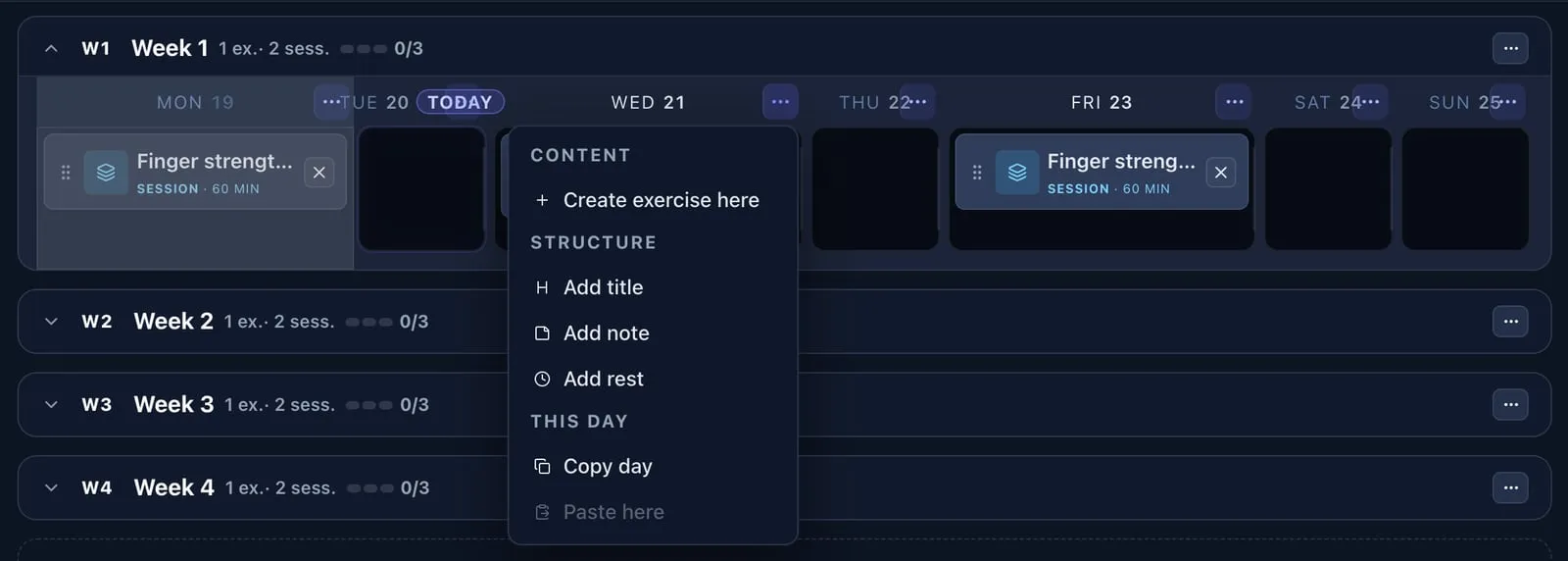
How pasting works:
- It is added below whatever is already there. It never replaces it.
- If the target day already has things in it, you are warned first: “That day already has (n) items. The copy is added below, it doesn’t replace it.” Accept to carry on or cancel.
- The clipboard is kept: you can paste the same day in three places in a row without copying again.
- You can copy from a day that has already been trained. If a day went well, repeat it wherever you like. What you can’t do is paste into a trained day.
If Paste is disabled, the tooltip tells you why:
| Message | What’s going on |
|---|---|
| “Copy a day first, or an item with right-click” | You have nothing copied |
| “That day is already trained: what the athlete did can’t be changed” | The target day is locked |
| “That’s the day you copied” | You can’t paste a day onto itself |
Copy day is disabled on an empty day (“This day has nothing to copy”).
You can also copy and paste days by right-clicking the empty space of a day (see below).
Duplicating a week
To repeat a whole week, use the week’s ⋯ menu: Duplicate into next week or Duplicate into every week.
Watch out: unlike pasting a day, duplicating a week overwrites. It empties the target week (or all the others) and copies over it, without asking. Whatever was there is lost. And it doesn’t copy metrics.
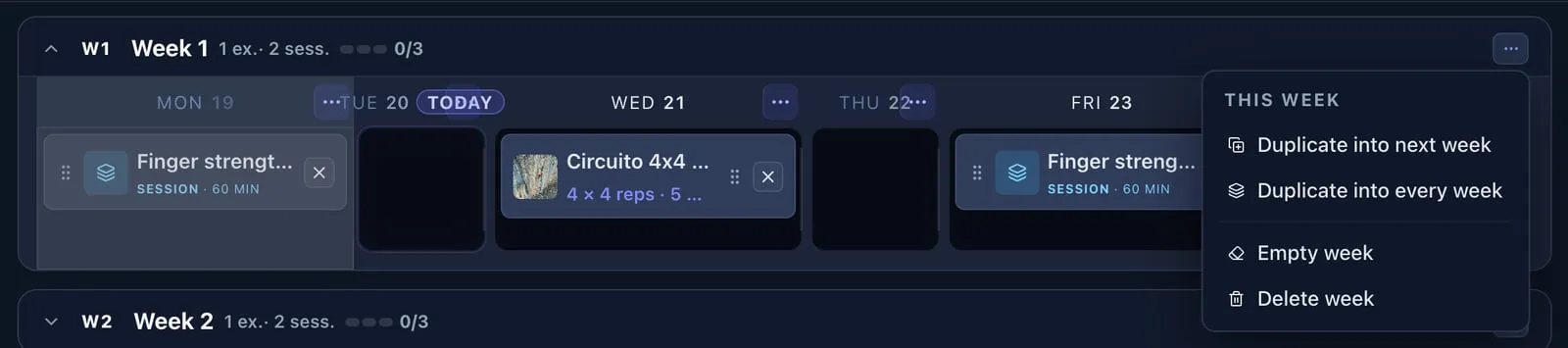
The details of the week menu are in the planner.
Copying a single card: right-click
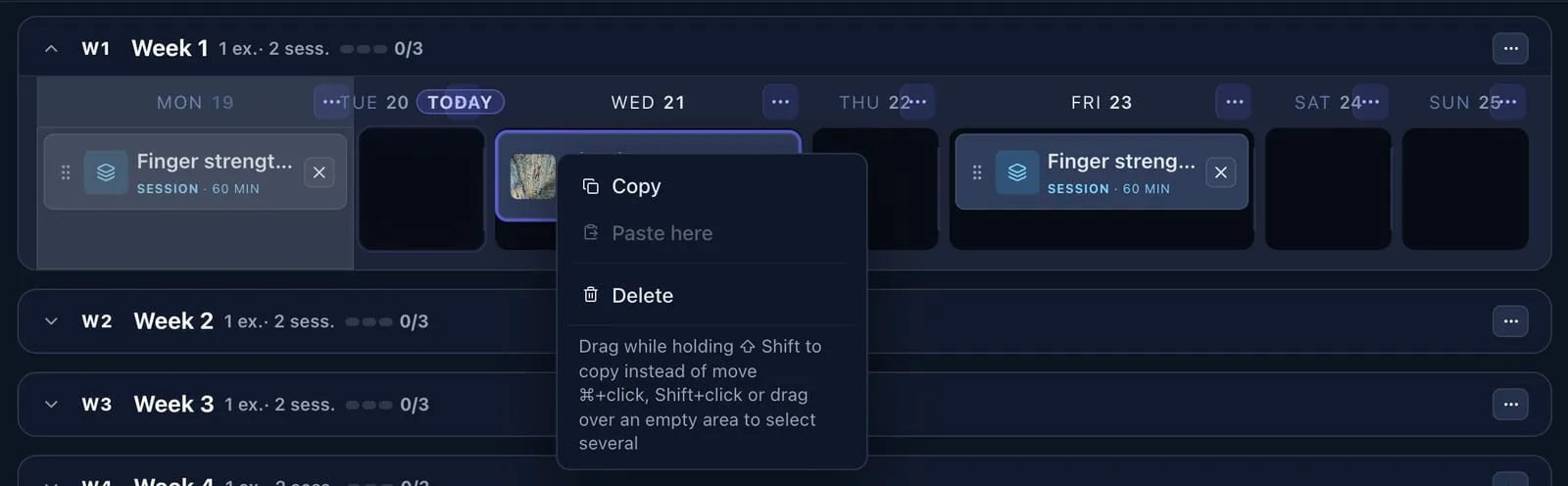
To repeat just one exercise or session, without copying the whole day, right-click the card. The card is highlighted with a small animation and a menu opens with:
- Copy: puts it on the clipboard. From then on, the copied card shows a dashed border, and the option changes to Copied.
- Paste below: pastes whatever you have copied right below this card. While you have nothing copied it is disabled and reads Paste here.
- Delete: removes it from the plan. Disabled on days already trained.
At the bottom of the menu there are two reminders: “Drag while holding ⇧ Shift to copy instead of move” and how to select several.
Right-clicking the empty space of a day opens a different menu:
- Paste (n) items (or Paste here): pastes what you copied at the end of that day.
- Copy day: copies the whole day, just like from its ⋯ menu.
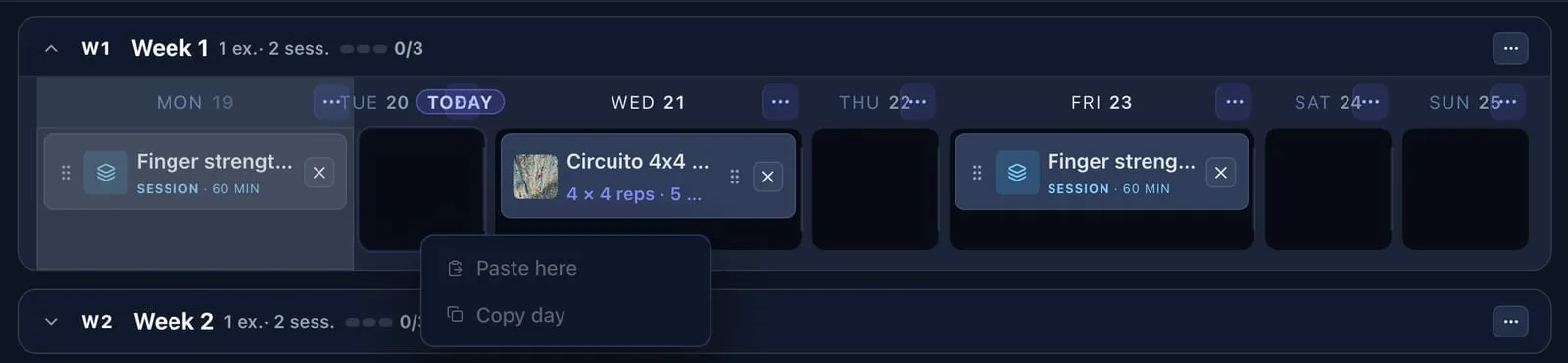
Pasting single cards doesn’t ask for confirmation even if the day already has things in it: they are added and you see them straight away. Esc closes the menu.
Tip: the clipboard holds one thing only, the last thing you copied: either a day or some cards. If you copy cards after copying a day, the day is no longer on the clipboard.
Copying by dragging with ⇧ Shift
Dragging moves. If you hold ⇧ Shift, it copies:
- Start dragging the card.
- Press ⇧ Shift. The original goes back to its place and the card under your mouse turns green with + Copy.
- Drop the copy wherever you want it.

What counts is whether Shift is held at the moment you drop: if you let go of it halfway, it’s a move again. It also works within the same day, to have the same card twice in a row.
Selecting several cards
It works like the files on your computer:
- ⌘+click (Mac) or Ctrl+click (Windows) adds a card to the selection or removes it.
- Shift+click selects every card between the last one you clicked and this one, even across different days or weeks. It counts in calendar order: week, day and position within the day.
- Drag over an empty area to draw a box: everything it touches is selected. It has to start in an empty area, not on a card (that would drag the card).
- With ⌘/Ctrl or Shift held, the box adds to what you had already selected instead of starting from scratch.
- Esc or a click on an empty area clears the selection.


A normal click on a card doesn’t select it: it opens it, as usual, and clears any selection you had.
Working with several at once
Whatever you do to one card in the selection applies to all of them:
- Right-click any of them: Copy (n) items, Paste (n) items or Delete (n) items. If you right-click a card that wasn’t selected, the selection becomes just that card.
- Keyboard: ⌘/Ctrl+C copies the selection, ⌘/Ctrl+V pastes below the last selected card and Delete or Backspace deletes them.
- Drag one of them and they all move together, as a block and in their order, to the space where you drop them. The card in flight shows a counter with how many are going.
- Drag with ⇧ Shift and they are all copied instead of moved.
If the selection includes cards from days already trained, those stay where they are: they are neither moved nor deleted. Copying them is fine.
Deleting several: confirmation and no undo
Deleting one card (with its × or with Delete) doesn’t ask for confirmation. Deleting more than one does:
(n) items will be deleted. This can’t be undone.
Take it seriously: there is no bin, and a selection can include more cards than you can see. For example, a Shift+click between week 1 and week 4 also takes everything in weeks 2 and 3, even if they are collapsed.
The rules worth knowing
- Metrics never travel with copies, whether you copy a day, copy cards or duplicate weeks. Schedule them on each day where you want them.
- Copies keep their prescription: a copied exercise arrives with its sets, goal and notes.
- A copied session stays linked to the same session as the original. If it was customised in this plan, the copy shares that same customised version.
- Only within the same plan. You can’t copy from one plan to another.
- Limit of 200 cards per copy. A copy goes in one go and it’s all or nothing: if it fails, nothing is copied.
- If you delete what you had copied, it can no longer be pasted. If you try, you’ll see “What you copied is no longer in the plan. Copy it again.”
- Copies are placed at the end of the day, except with Paste below or ⌘/Ctrl+V, which put them below the reference card.
When shortcuts don’t work
Keyboard shortcuts are ignored on purpose:
- while you are typing in a title, a note or another field;
- with a window open on top (a card, the prescription) or during the How it works tour;
- if you have text selected: then ⌘/Ctrl+C copies that text, as usual;
- when the planner isn’t on screen;
- in a read-only plan.
Days already trained
On a locked day you can’t paste, drop, move or delete anything, and Delete is disabled. You can copy from it, both the whole day and single cards. Why days get locked is explained in the planner.
On your phone
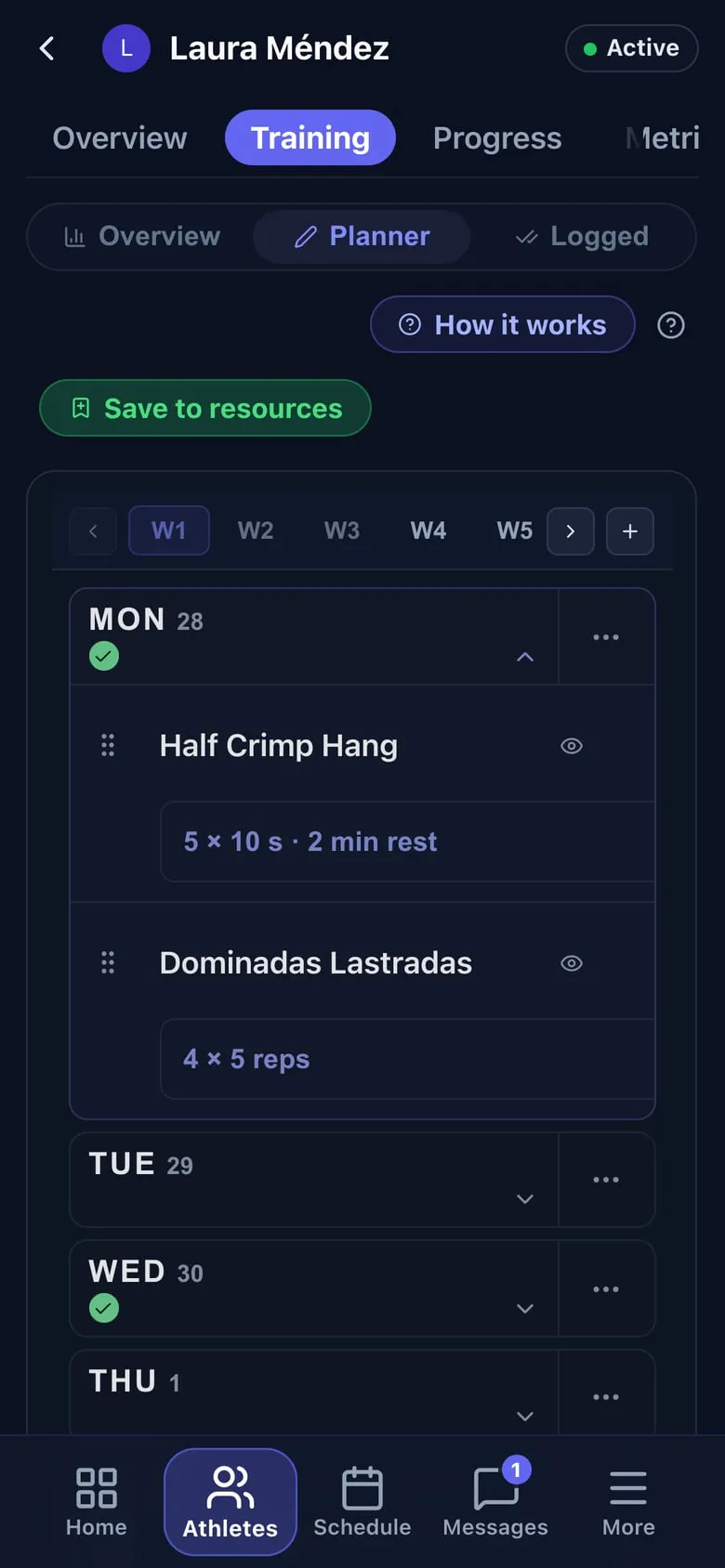
On a touch screen there is no right-click, no keys and no selection box. What you do have is each day’s ⋯ menu with Copy day and Paste, which works just as it does on a computer. To duplicate weeks or make selective copies, use a computer.
Shortcut table
| What you want to do | Mac | Windows |
|---|---|---|
| Add a card to the selection or remove it | ⌘ + click | Ctrl + click |
| Select a range | Shift + click | Shift + click |
| Select with a box | Drag over an empty area | Drag over an empty area |
| Add to the selection with the box | ⌘ or Shift + drag | Ctrl or Shift + drag |
| Copy the selection | ⌘ + C | Ctrl + C |
| Paste below the last selected card (or at the end of the selected day) | ⌘ + V | Ctrl + V |
| Delete the selection | Delete or ⌫ Backspace | Delete or Backspace |
| Copy instead of move when dragging | ⇧ Shift when dropping | ⇧ Shift when dropping |
| Open the menu of a card or an empty area | Right-click | Right-click |
| Clear the selection or close the menu | Esc | Esc |
| Exit full screen | Esc | Esc |
If nothing is selected, ⌘/Ctrl+V pastes at the end of the day you have selected for adding (the one you marked by clicking its header).
Common questions
I pasted a day and now everything is duplicated
Pasting a day adds below, it never replaces. If the target day already had the same session, it now has it twice. Select the extra cards (with a box or with Shift+click) and delete them in one go.
How do I copy one week into another without losing what’s already there?
You can’t with Duplicate, because it overwrites. Copy the days one by one with Copy day and Paste, which always add below.
I copied a day but the metrics don’t show up
That’s expected: metrics don’t travel with any copy. Schedule them on the new day by selecting it and clicking the metric.
Can I undo a delete or a paste?
There is no undo. A paste is fixed by deleting what’s extra; a delete can’t be reversed.
Shift+click selected cards from other days
That’s what it does: it takes everything between the last card you clicked and this one, in calendar order. If you only want a few individual cards, use ⌘/Ctrl+click.