Customise a session for one athlete or one template
Change a session in one plan only without touching the one in your library: customise, split off a day, revert to the original and when to edit it.
When you place a session on a day of the plan, it isn’t copied: it stays linked to the session in your library. That’s why, if you edit the original, the change shows up in every plan that uses it, including other athletes’ plans. Customising does exactly the opposite: it changes a session in one plan only, without touching the original or the other plans.
This article explains both options, when each one makes sense and what happens to the days the athlete has already trained.
Why sessions are linked
Being linked is what saves you work: if you improve your “Finger strength A” session in Resources → Sessions, every athlete who has it gets the improved version without you touching their plans one by one.
The drawback appears when a particular athlete needs something different (an injury, less volume, another edge). If you edited the original for them, you’d change it for everyone. That’s what the customised version is for: a copy of the session that belongs to that plan only.
Opening a session’s details in the planner
In the planner, click a session card. Its details open: the description, the minutes, the goal, whether it’s private (“Only you see it”) and the list of Exercises with their rests.
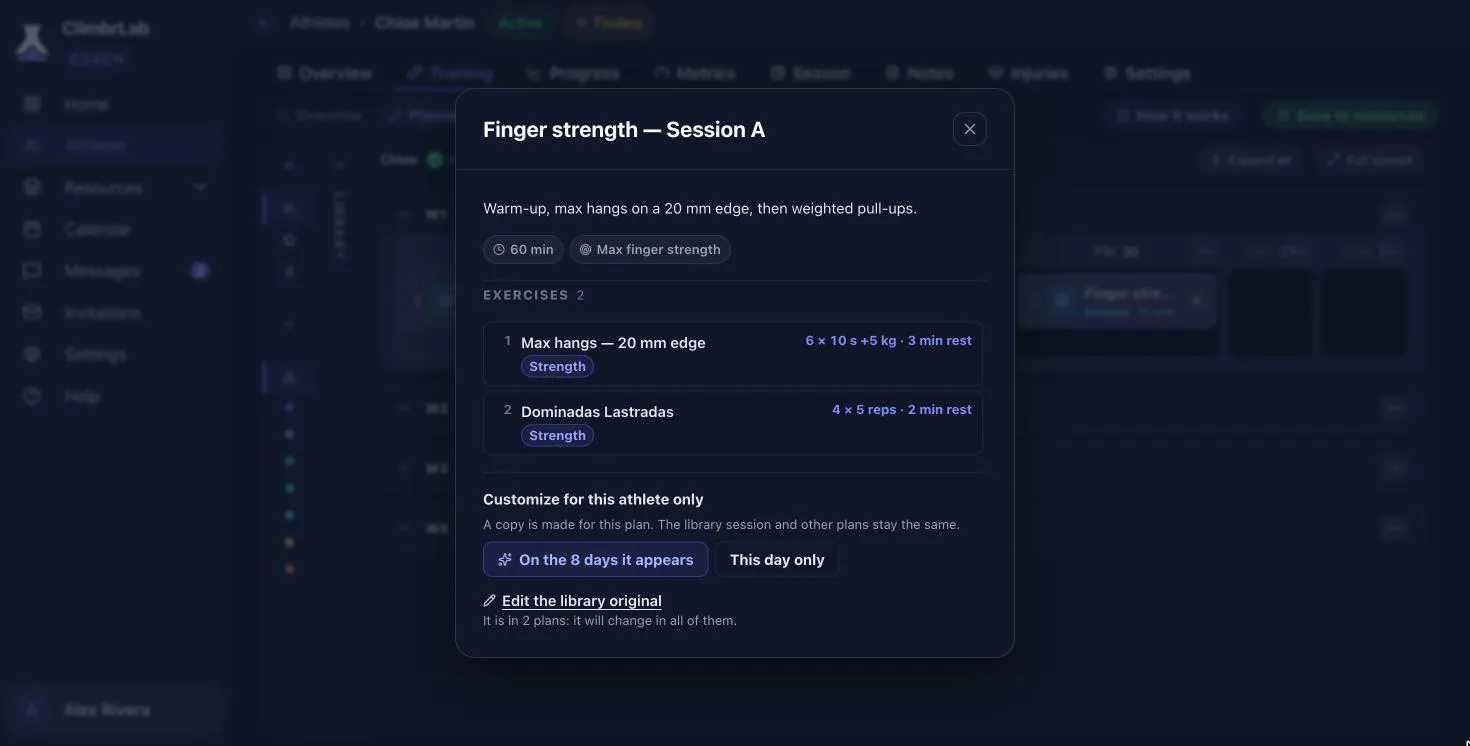
The editing options appear at the bottom of the details. Which ones you see depends on the state the session is in.
If it’s the session from your library
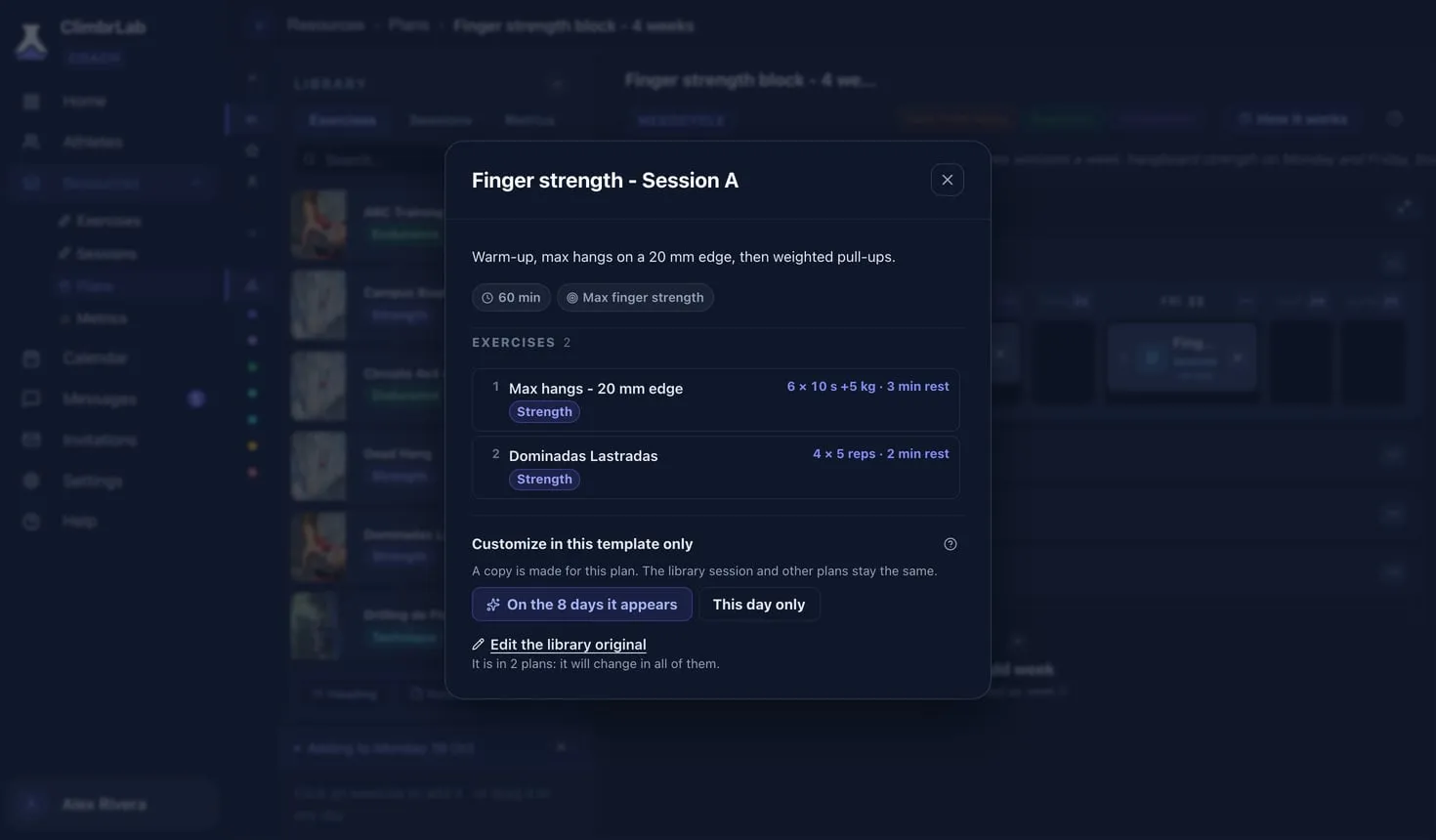
You’ll see a block headed Customize for this athlete only (in an athlete’s plan) or Customize in this template only (in a template), with the explanation: “A copy is made for this plan. The library session and other plans stay the same.”
The buttons depend on how many pending days of the plan the session appears on:
| Button | When it appears | What it does |
|---|---|---|
| On the (n) days it appears | The session is on more than one day not yet trained | Makes a copy and uses it on all those days. Whatever you change will show on all of them |
| This day only | Same as above | Makes a copy just for the day you opened. The other days keep the original |
| Customize and edit | The session is only on this day | Makes the copy for this day |
Below, set apart, is the Edit the library original link, with a note on what it means: “Changes it in every plan that uses it.” or, if more than one plan uses it, “It is in (n) plans: it will change in all of them.” Read that number before clicking: it’s how many plans you are about to change in one go.
If the session is already customised
The details tell you so: “Copy of “(name)” for this plan only. Changes don’t touch the original.” The options are:
- Edit (or Edit (changes it on the (n) days) if the copy is on several days): opens the customised version so you can keep changing it.
- Split off this day: appears when the copy is on several days. Makes a new copy just for the day you opened, so that day can be different from the others.
- Revert to the original: undoes the customisation (see below).
If the day has already been trained
You’ll only see the note “This day is already trained: the session stays as the athlete did it.” You can’t customise or edit from that day, so that what the athlete did isn’t changed.
The editor in customised version mode
When you choose any customise option, the app makes the copy and takes you to the session editor. You’ll recognise it because a banner with the ✨ icon appears at the top:
- Customized version, followed by the athlete’s name or the word “template”.
- Plan: the plan the copy belongs to. Original: the session in your library it comes from.
- The ? button (What is a customized version?) explains again what you are editing.
- The button to go back: Back to (athlete’s name), Back to the template or Back to the plan.
The first time you open it, a window sums it up: you are editing a copy made just for this plan, the original session in your library doesn’t change and neither do other athletes’ plans, and if you change your mind you can revert to the original from the planner. If you tick Don’t show again, it stops appearing in that browser.
The editor is the usual one: you add, remove and reorder exercises, change prescriptions, titles, notes and rests. Everything saves itself. As with any session, you can’t leave while an exercise has no prescription. If you need a refresher on the editor, see sessions.
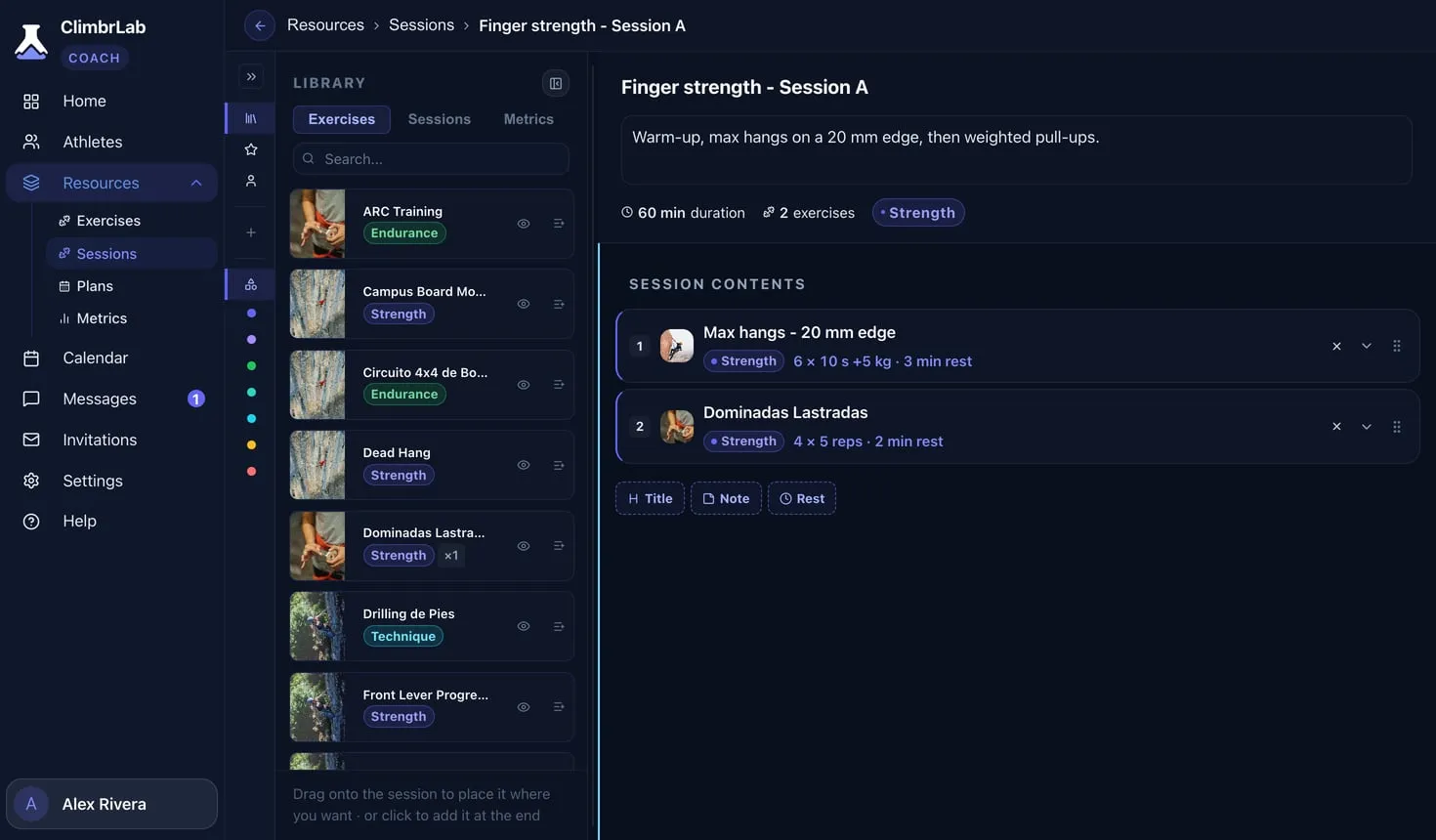
Watch out: if the session has other sessions inside it (for example, a nested warm-up), those stay linked to their own session in the library. Customising copies the outer session, not the ones inside. If you open and change a nested session, it changes everywhere.
When you go back to the planner, customised cards carry a ✨ icon with the tooltip “Customized in this plan”. For the athlete nothing visible changes: they see the session with the same name, now with your changes.
Reverting to the original
If the customisation no longer makes sense (for example, the athlete has recovered), open the details of the customised session and click Revert to the original. It asks you to confirm in the details themselves:
Changes made in this plan will be discarded. Days already trained keep what was done.
Click Yes, revert to the original to confirm. What happens exactly:
- All the pending days that used that customised version go back to the library session, not just the day you had open. The customisation is a single one, even if it covers four weeks.
- Days already trained keep the customised version, because that’s what the athlete did.
- If no day uses the copy any more, it deletes itself.
- The changes you made to the copy are lost. There is no way to get them back afterwards.
If the original session no longer exists (because you deleted it from Resources → Sessions), the details say “Copy for this plan only. The original no longer exists.” and Revert to the original doesn’t appear: there is nothing to go back to. The copy keeps working normally in the plan.
What happens to days already trained
The rule is always the same: what the athlete has already done is never rewritten.
- When you customise, trained days don’t change session. The copy only applies to pending days.
- If you edit a customised version that is also on a day already trained, the app quietly makes a new copy for the pending days, so your change doesn’t touch the trained day.
- When you revert to the original, trained days keep the version the athlete did.
When assigning a template and when saving to Resources
- When you assign a template with customised sessions, each athlete gets their own copy of those versions. If you later customise or edit one athlete’s, neither the template nor the other athletes change. If the same version was on several days in the template, those days keep sharing it in the athlete’s plan. See assign a plan.
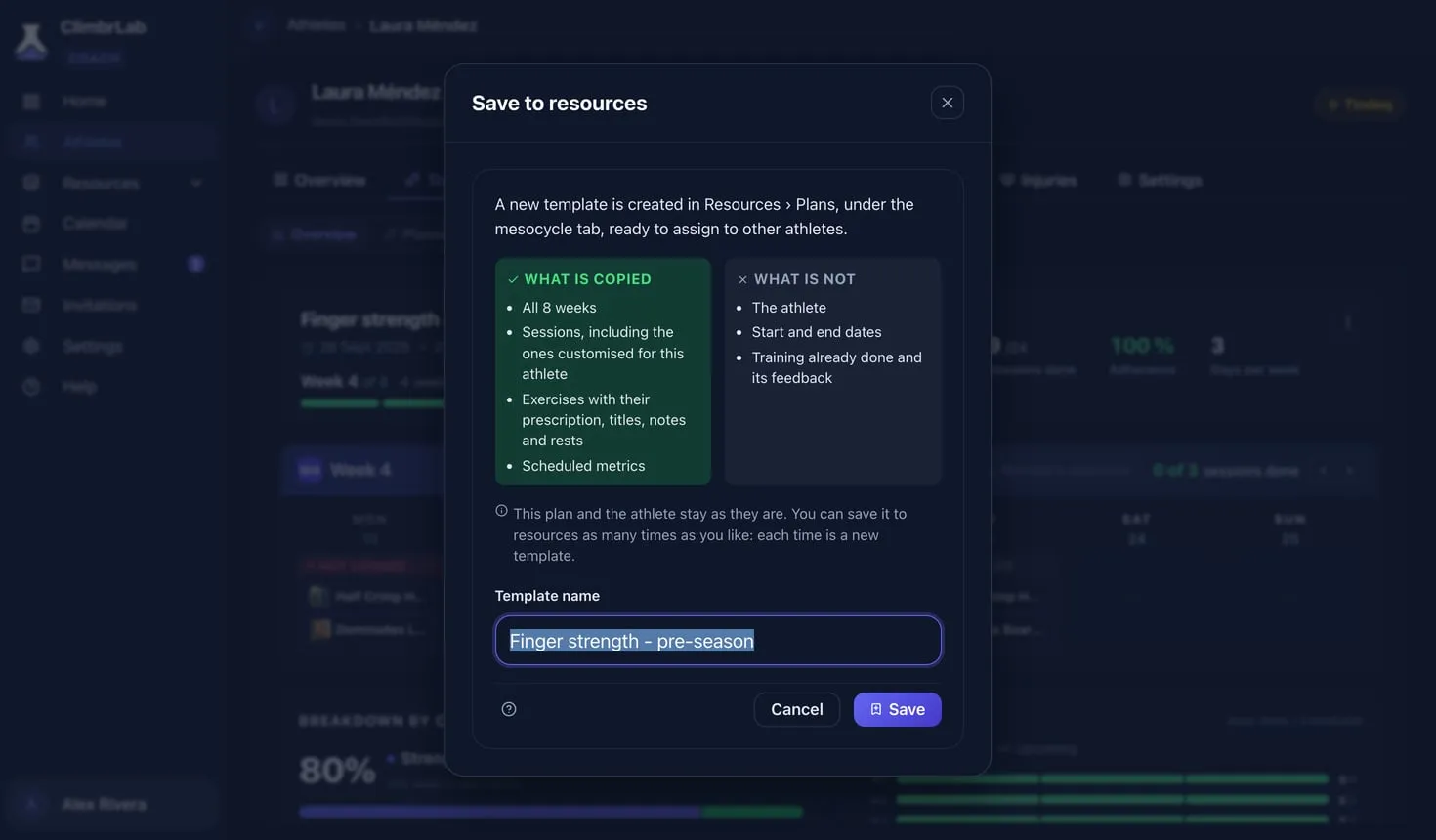
- When you save an athlete’s plan to Resources (Save to Resources, in their Training tab), the new template takes “Sessions, including the ones customised for this athlete”, as the template’s own copies. The athlete’s plan doesn’t change. See save a plan as a template.
Why you don’t see them in Resources → Sessions
Customised versions belong to a plan, not to your library. That’s why they don’t appear in Resources → Sessions or in the planner library, and you can’t place them in other plans.
You can’t delete them from there either. If you try by some route, you’ll see: “This session is customized for a plan. Remove it from the plan or revert to the original.” To get rid of one:
- remove it from the days where it appears (with the card’s ×), or
- use Revert to the original.
As soon as no day uses it, it deletes itself. And if you delete the whole plan, its customised versions go with it.
Watch out: deleting a session from Resources → Sessions removes it from every plan that uses it, without telling you how many there are. Only the days where it was customised are spared, as they keep working with their copy.
When to customise and when to edit the original
| Situation | What to do |
|---|---|
| You’ve improved the session and want everyone to get it | Edit the library original |
| You’ve found a mistake in the session (a wrong prescription) | Edit the library original |
| One athlete needs an adaptation (injury, level, equipment) | Customize for this athlete only |
| A particular template needs a variant of a session you use in others | Customize in this template only |
| One week of the plan has to be different (deload, test) | Customise and then Split off this day, or go straight to This day only |
| The variant will be useful for many athletes from now on | Better to create a new session in Resources → Sessions (you can use Duplicate session on the original) and place it in the plans |
Step-by-step example
Chloe has the “Finger strength A” session in her plan on the Mondays of weeks 1 to 4. Her pulley is sore and you want to lower the load of the hangs for the whole block, and also make week 4 a deload week. Five other athletes use the session, and you don’t want to change anything for them.
- Go to Athletes → Chloe → Training → Planner.
- Click the “Finger strength A” card on Monday of week 1.
- In the details, under Customize for this athlete only, click On the 4 days it appears.
- The editor opens with the banner Customized version · Chloe. Change the load of the hangs. It saves itself.
- Click Back to Chloe. The four Monday cards now carry the ✨ icon.
- Click the card on Monday of week 4. As it’s already customised, you’ll see Edit (changes it on the 4 days) and Split off this day. Click Split off this day.
- In the editor, cut the sets for the deload and go back to the plan.
Result: weeks 1 to 3 share one version, week 4 has its own, and the original session and the other five athletes haven’t changed. When Chloe recovers, open any of the customised cards and click Revert to the original: the days she hasn’t trained yet go back to the session in your library.
Common questions
I changed a session and it changed in all my athletes’ plans
You edited the original. Sessions are linked, so the change reaches every plan that uses it. If you only wanted to change it for one athlete, customise it from their planner. For the rest, you’ll have to undo the changes to the original by hand.
Does the athlete notice that their session is customised?
No. They see the session with the same name and with your changes. Only you see the ✨ icon in the planner.
I customised just one day and now I want the change on all of them
Open the session’s details on one of the days that still have the original and customise them with On the (n) days it appears. It’s a different copy from the one you already made, so you’ll have to repeat the change in it.
Can I turn a customised version into a session in my library?
Not directly from the planner. If you want to reuse the variant, create a new session in Resources → Sessions with that content.
It won’t let me customise a session
Check whether the day has already been trained: if so, the details show “This day is already trained: the session stays as the athlete did it.” and offer no editing. If the error is “Could not customize the session.”, reload the page and try again.